Setting Up Fee Types
A Fee Type can be a charge such as a delivery or shipping fee. It can also be used for items that are not inventoried, such as candy or inexpensive knick knacks sold at the sales counter.
To Create Fee Types
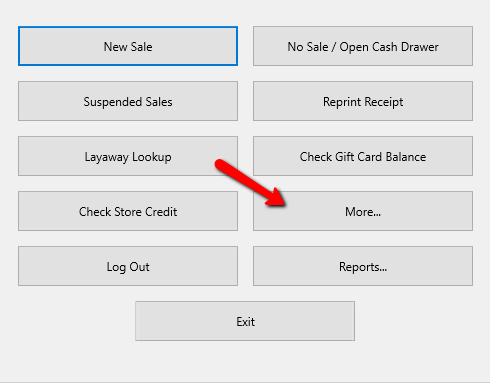
- From the main menu screen of the Point Of Sale select the More button.
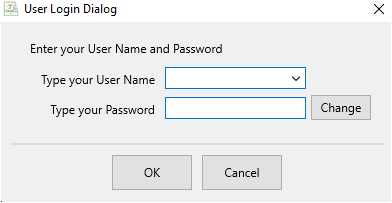
- Login if Prompted.
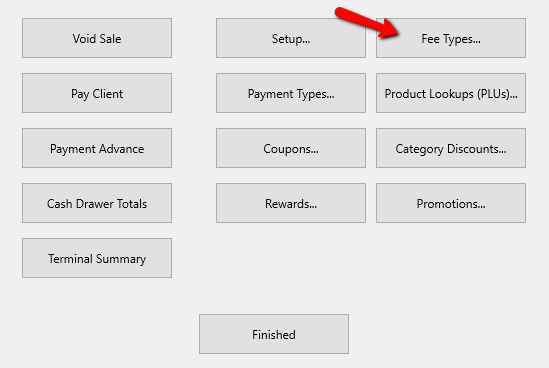
- Select the Fee Types button.
The Maintain Fee Types dialog box will open.
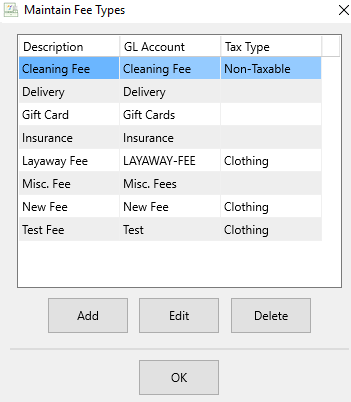
- Selecting the Add button or the Edit button will open the details of the Fee Type. Selecting the Delete button will delete the Fee Type.
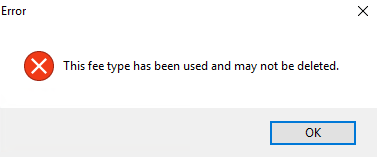
Note: Once a Fee Type has been used, it cannot be deleted. You will get the following error.
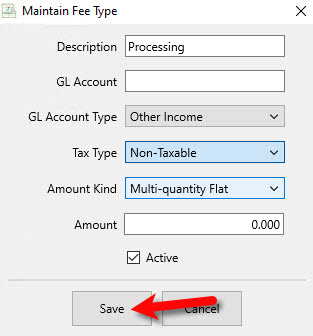
The Details Screen of the Fee Type will open.
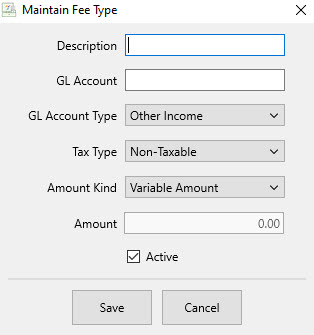
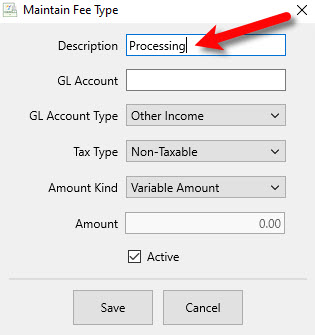
- Description : Enter in the Description of the Fee.
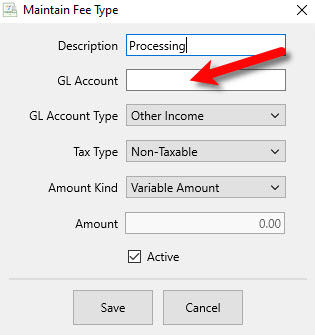
- GL Account : Used for the Quickbooks Link. Enter in the name of the GL Account so the Quickbooks Link knows where to export this information to.
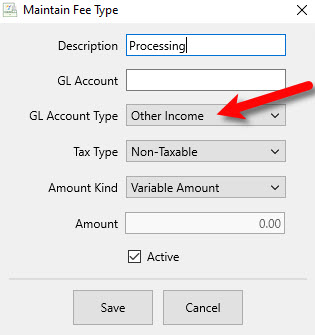
- GL Account Type : Used for the Quickbooks Link. Select the account type the GL Account will be.
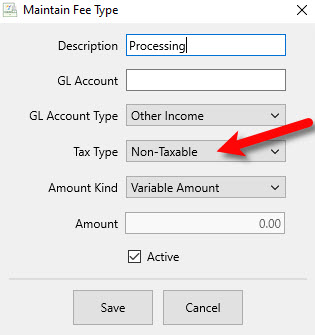
- Tax Type : Select the Tax Type, If any for the Fee.
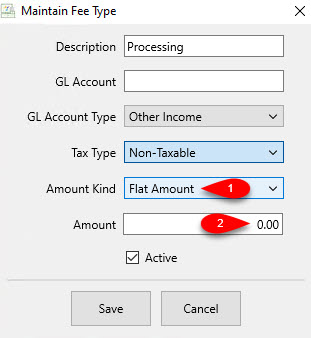
- Amount Kind: This specifies the kind of fee you want to use along with the amount you want to charge.
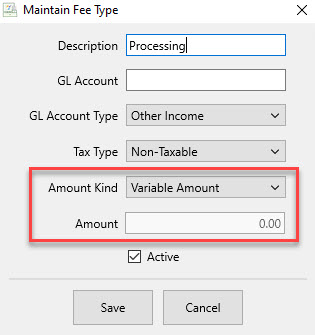
- Variable Amount: When used in the POS, you will be prompted how much you would like to charge the customer.
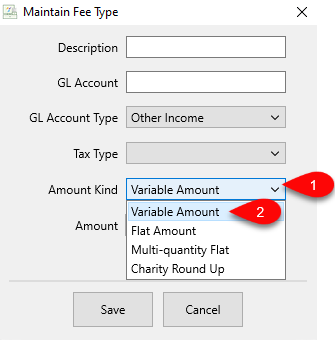
- Flat Rate Amount: When used in the POS, you will not be prompted to type in a fee.
The fee entered in the amount box is what will automatically be charged to the customer.
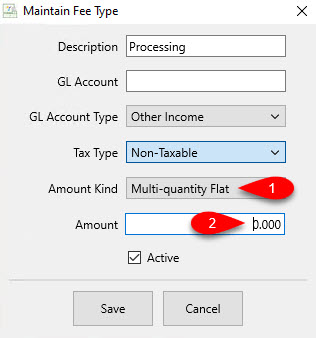
- Multi-Quantity Flat: When used in the POS, you will be prompted for a quantity that will then be multiplied by the currency number typed into the Amount box. This number can be a longer decimal.
This is very useful if you have for example, a roll of fabric and you want to charge based on inches or yards cut from the fabric.
Example: A customer comes up to the register with 2.5 yards of christmas ribbon. You charge $3.00 a yard. When you select this created fee in the POS, you would type 2.5 as your quantity. The customer would then be charged $7.50.
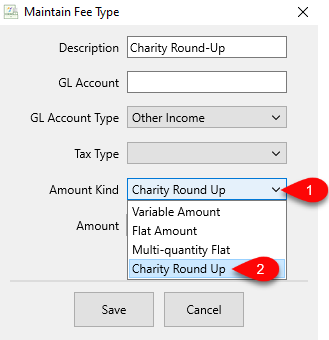
- Charity Round Up : When used in the POS, this type of fee will round the sale total (post-sales tax, of any) to the nearest whole dollar amount.
This is very useful if, for example, you have a running charity event going and want to provide incentive for customers to donate by rounding up their purchase amount.
Example: A customer has a total sale amount of $23.30, and you have a running event going for a local charity. You ask the customer if they want to round up the amount to donate to said charity, and they agree. You then select this created fee in the POS. The customer would then be charged $24.00.
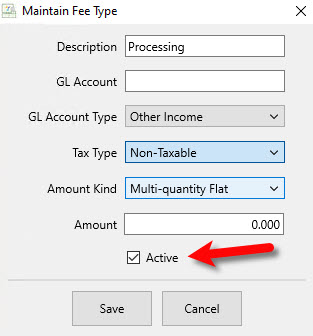
- Active (Check Box) : Use the Active Check Box if you want the fee to be usable in the Point Of Sale.
- Select the Save button when done.
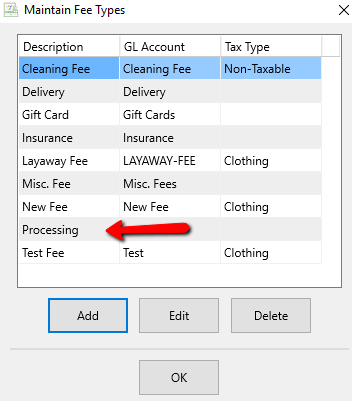
You should see your newly created Fee Type in the Maintain Fees dialog box.
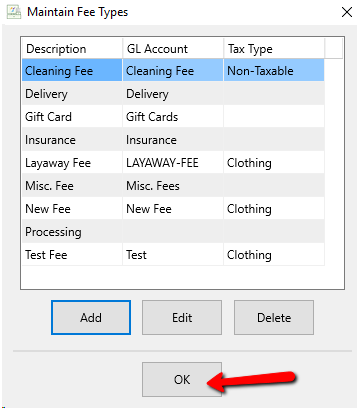
- Select the OK button when done.


Next Article In Section
Click the following link to move to the next article in this section:
Setting Up Promotions
Related Topics
Setting Up Fee Types Add a Fee to a Sale Automatic Credit Card Fee To Consignor's Account Setting Up Payment Types Setting Up Promotions Add, Change and Delete Attribute Types Add, Edit and Delete Attribute Values Assign Attributes Types to Categories Make an Attribute Inactive Change Order of Attributes on Item Entry Screen Overview of Attributes