Set Up Product Look Ups (PLU)
When using Point of Sale, Product Lookup Codes (PLUs) are used as a shortcut to quickly enter sales. PLUs eliminate the need to print a price tag for an item. They also eliminate the need to scan a barcode or enter the item number. Instead just a one or two digit PLU number is entered.
PLUs are especially useful when selling:
- Small miscellaneous items. For instance, those displayed on or near the sales counter, such as trinkets, bubble gum, candy, mints, etc.;
- Items with no price tag printed.
To Add Product Lookups
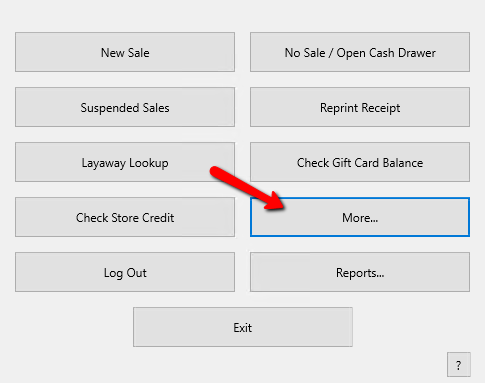
- From the POS Hub, select the More button.
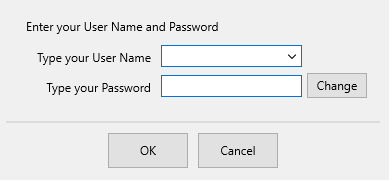
Sign in if prompted.
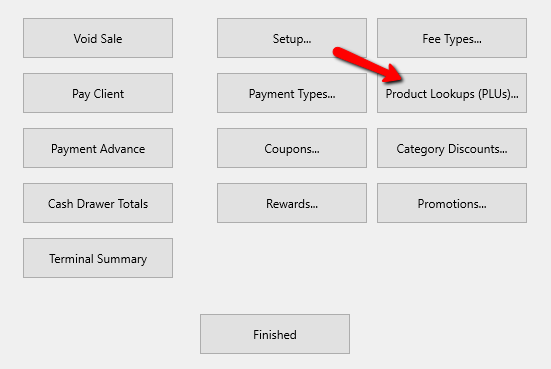
- Select the Product Lookups (PLUs) button.
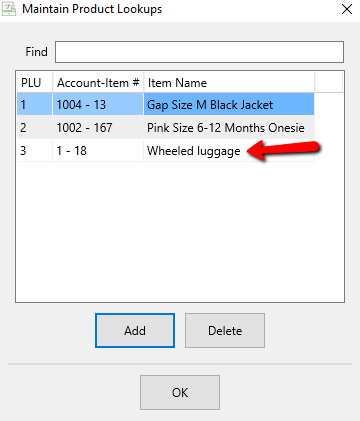
The Maintain Product Lookups dialog box will open.
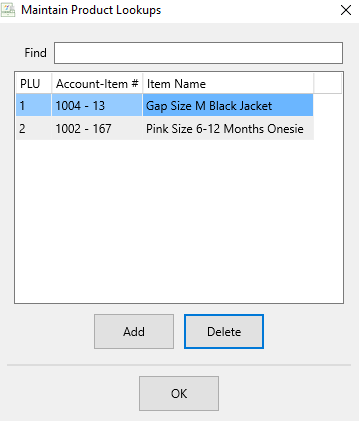
- Select the Add button to add a new product.
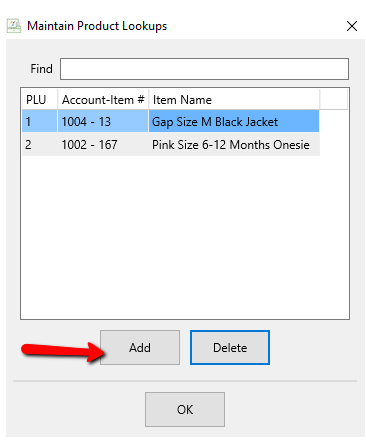
The Add Product Line Lookup dialog box will open.
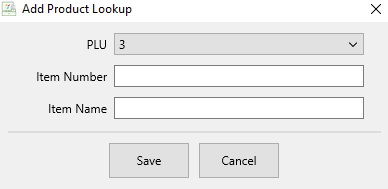
- PLU : This is the number of the PLU. When at the Point Of Sale you will be able to simply type this number to access the item you are wanting to sell. By default the next available number will be chosen.
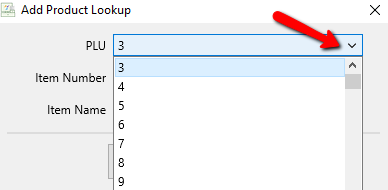
- Item Number : Enter in the Account - Item number of the item you want to create a PLU for.
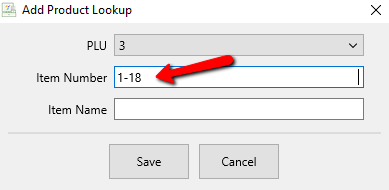
- Item Name : After entering in the Account - Item number, the Item name will auto populate. You can change the name if you want.
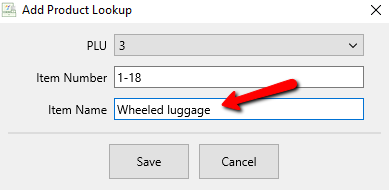
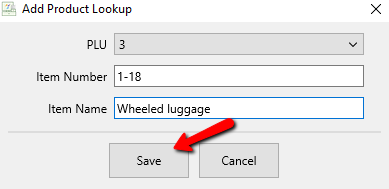
- Select the Save button when done.
The newly added PLU will be listed in the Maintain Product Lookups dialog box.
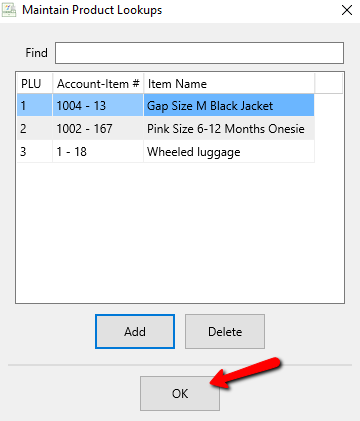
- Select the OK button when done.


Next Section Navigation Link
Click the following link to see a list of articles for the next section:
Seasonal Sales