Using The Import Feature To Import Photos from iCloud, Dropbox or Google Drive iOS
- Open the Liberty Photo App on your iDevice and then Sign In.
If you are not familiar with this procedure please visit the following page:
Opening The Liberty Photo App - Search for the item by using either Account-Item Number or by scanning a tag using the Scan Tag button.
Then open the item.
You can use the following articles for more information if needed:
How Use The Camera To Add Images To Items By Using Account - Item Number iOS
How To Add Images To An Item Using A Barcode On The Tag iOS - Tap the Import button.
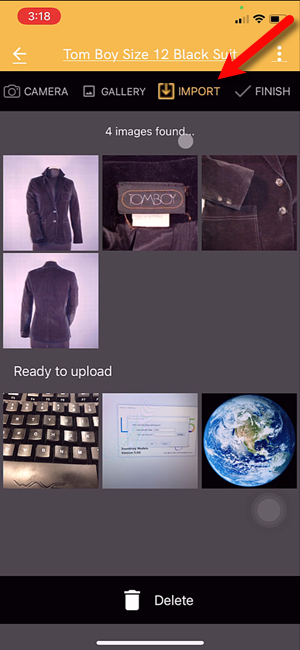
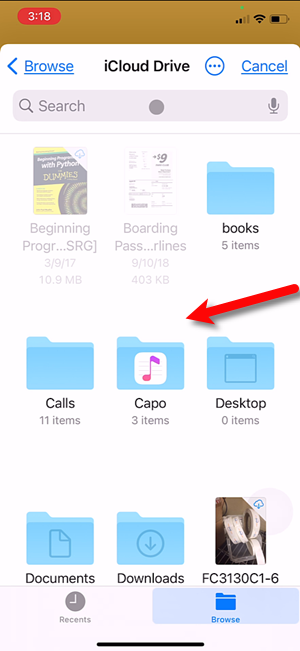
- If you want to search for images on your iCloud drive you can do that by default. Simply find the images on the drive and select them.
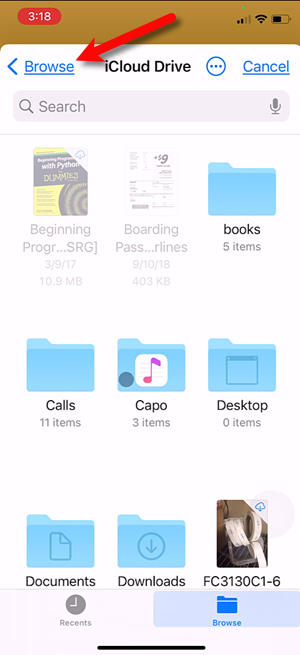
- You can also tap the Browse button to go back to the main Import menu.
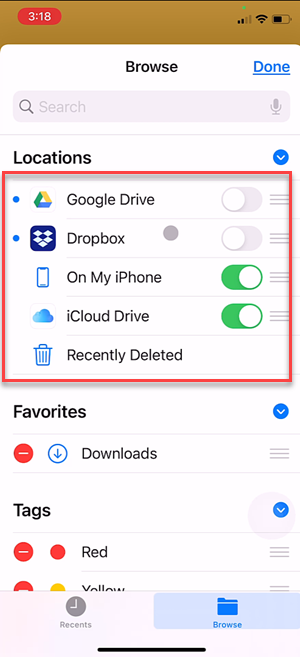
- Tap the More Locations button.
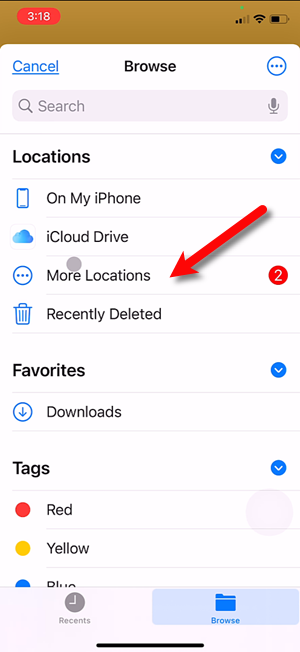
- From here you can Turn On the different sources you would like to grab images from.


Next Article In Section
Click the following link to move to the next article in this section:
How To Delete Images From The Liberty Photo App iOS
Related Topics
Using The Import Feature To Import Photos from iCloud, Dropbox or Google Drive iOS How To Download and Setup The Liberty Photo App for iOS How To Use The Liberty Photo App for iOS Overview Opening The Liberty Photo App iOS How Use The Camera To Add Images To Items By Using Account - Item Number iOS How To Add Images To An Item Using A Barcode On The Tag iOS How To Add Images Using the Gallery Feature (From Your iDevice’s Library) iOS How to Edit A Photo That Is Attached To An Item iOS Editing The Settings Within Liberty Photo App iOS Placing a Watermark Image On Your Pictures iOS Changing Which Server You Want To Connect To iOS