Mailing Labels (Avery 5160 / 8160) Report
Prints mailing labels for accounts formatted for the Avery 5160 / 8160 style label.

When to Use
Use this report to print labels out for any account onto the popular Avery 5160 / 8160 format.
How To Get To This Report
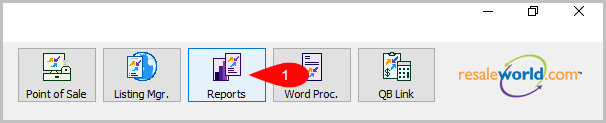
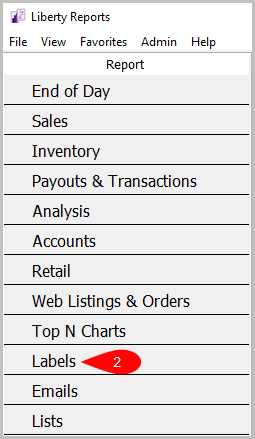
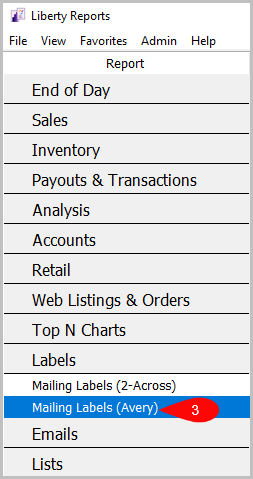
Reports > Labels > Mailing Labels (Avery)
- Click on Reports.
- Click on Labels.
- Click on Mailing Labels (Avery).

How To Add Criteria
1. Click on the Add More Criteria button.

2. Select the criteria you want then press OK.

Criteria Choices
- Account Number
- Account Type
- Active Account?
- Birthmonth
- City
- Client Rating
- Date Added
- Date Sold/Posted
- Display Which Accounts?
- Filter Code
- Has Email Address
- Last Item Added
- Last Payout Date
- Member ID
- Points Available
- State
- Total Purchases
- User Field 1
- User Field 2
- User Field 3
- User Field 4
- User Field 5
- User Field 6
- User Field 7
- User Field 8
- User Field 9
- User Field 10
- User Field 11
- User Field 12
- User Field 13
- User Field 14
- User Field 15
- Zip Code
Next Section Navigation Link
Click the following link to see a list of articles for the next section:
Retail Reports
Related Topics
Mailing Labels (Avery 5160 / 8160) Report Selecting the Right Report Mailing Labels (2-Across) Report Account Comments Report Account Export by Purchases Report Account Export by Sales report Account List Report Account List by Filter Code Report Account List - Full Detail Report Tax Exempt Account List Report User Fields Report