Fulfillment From The Order Tab Overview
Fulfillment allows you to keep track of where the items are in terms of shipping, delivery and whether they have reached the customer. Keep in mind that this is strictly for tracking with Liberty and does not communicate with Shopify in terms of where the items are in this process.
Generally, it is a good idea to handle fulfillment of an order after the items have been picked using the PickList tab. Items can also be picked from within the Fulfillment sub-tab of a selected Order.
Note: Fulfillment of orders is not required in order to complete the orders. It is a system that is designed to help make shipping and deliveries easier to track within the Liberty Listing Manager.
Getting To The Fulfillment Sub-Tab From An Order
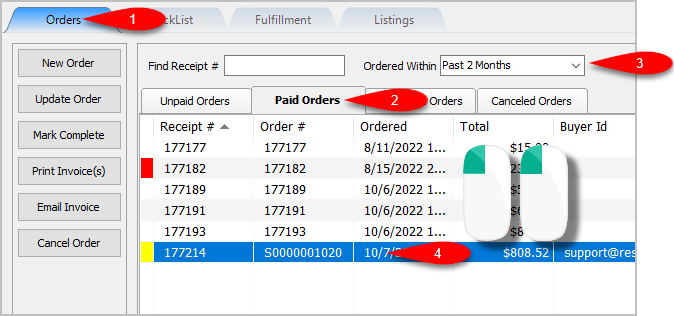
- Open the Listing Manager and navigate to the Orders tab. Most of the orders you will be working with will be under the Paid Orders sub tab but you can access fulfillment from any sub tab. Change the date range under the Ordered Within drop down to select the period of time you wish to work with. Then Double-Click on the order you want to Fulfill.
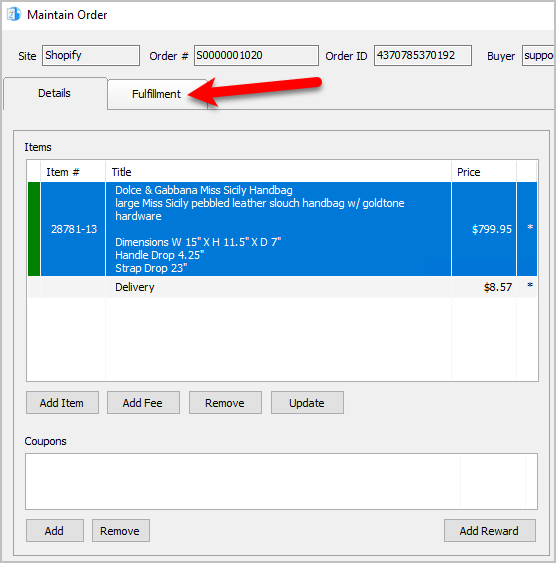
- Click on the Fulfillment tab.
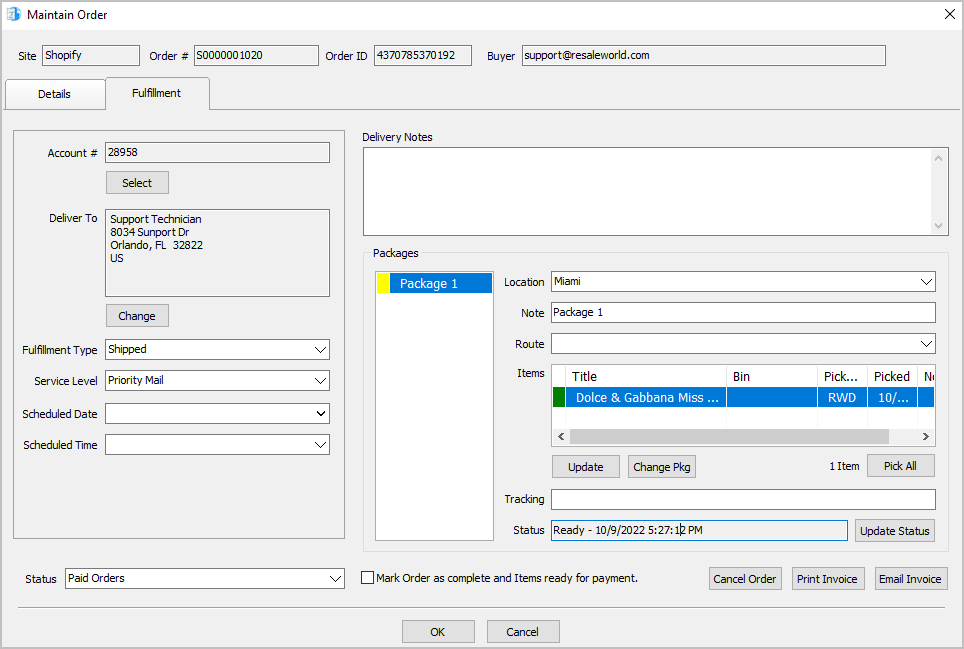
- You will now have access to the Fulfillment sub-tab of an order.


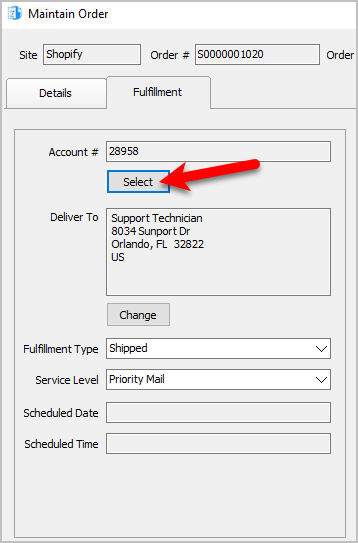
Changing The Account Used For the Fulfillment Of An Item
- Click the Select button underneath the Account field.
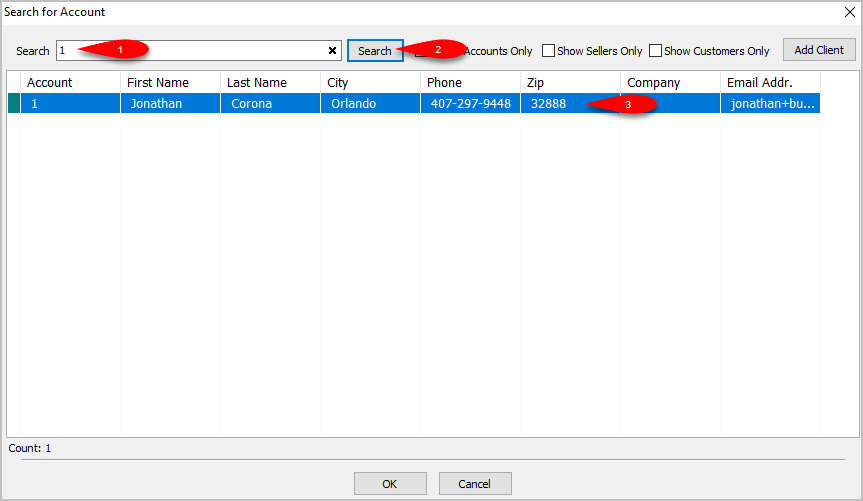
- You can then use the simple search field to find the account you want to use the fulfillment details from. Click the Search button and then double click on the account you want to use.
You can also use the Add Client button if you would like to add a client from this screen.
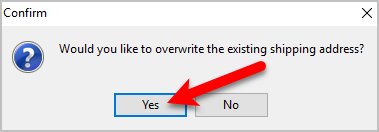
- You will be asked if you would like to overwrite the existing shipping address? Click the Yes button if you would like to do so.
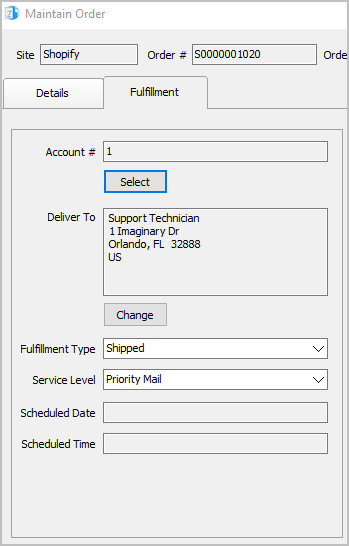
- The Account # and Deliver To address will reflect the changes you made.


Changing the Shipping Address Of An Order To Be Fulfilled
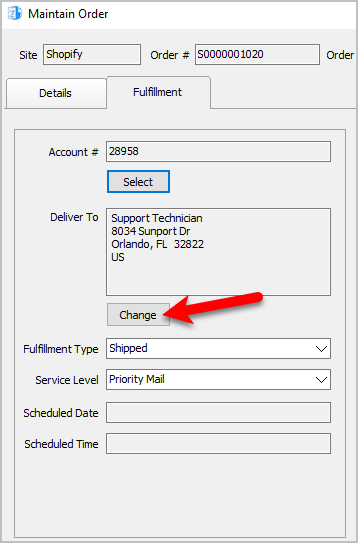
In some cases, it is necessary to change the Deliver To/Shipping Address without changing the Account #.
- Click the Change button underneath the Deliver To.
- You will get the following dialog box. Keep in mind, changing the order in this manner can prevent future changes to the order on Shopify from refreshing the order in Liberty. An example of this would be if you Refunded the order on Shopify.

You can click the Yes button if you are good with this.

Changing the Fulfillment Status Of An Order
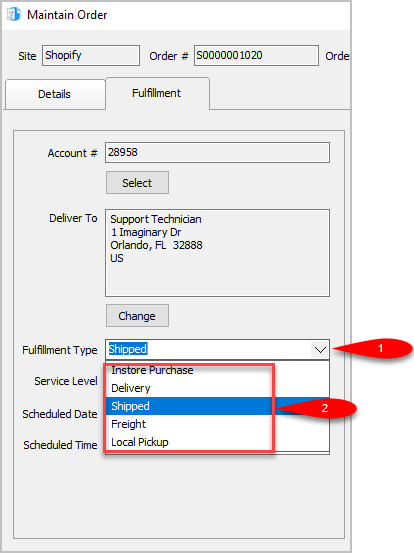
- Set the Fulfillment Type to the status that matches how the item is going to be Fulfilled. For this example, we will select Shipped.
Note: You can use the types that are already built into Liberty Listing Manager or you can make your own by going to Settings > Maintain Fulfillment Status List.
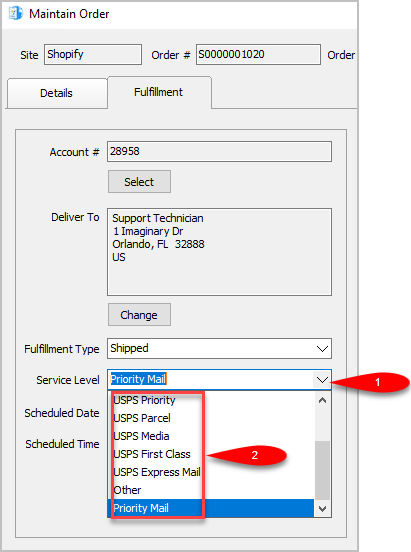
- We can now change the Service Level as to what shipping service will be used for the order. The service level is not available if the Fulfillment Type is set to anything other than Shipped.
For this example, since we are setting the status to shipped we will select USPS Priority
Note: You can add your own Service Levels by going to Settings > Maintain Shipping Services
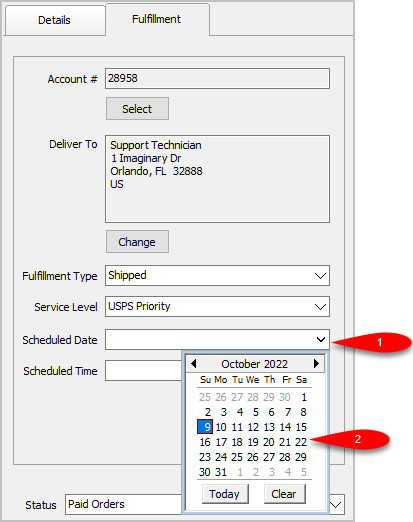
- Scheduled Date can be used to set the date something will be Delivered, Purchased In Store or Shipped.
Simply click the drop-down and select the date.
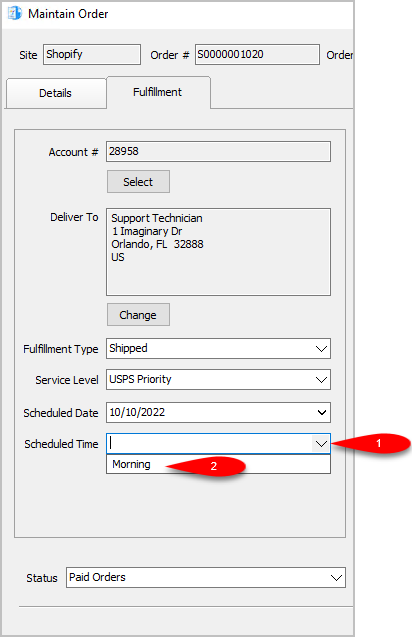
- You can set the Scheduled Time. This drop-down will be empty until you create some entries by going to Settings > Maintain Delivery Times.
- For the Delivery Notes, you can type any information you think would be relevant to the Delivery of the order.

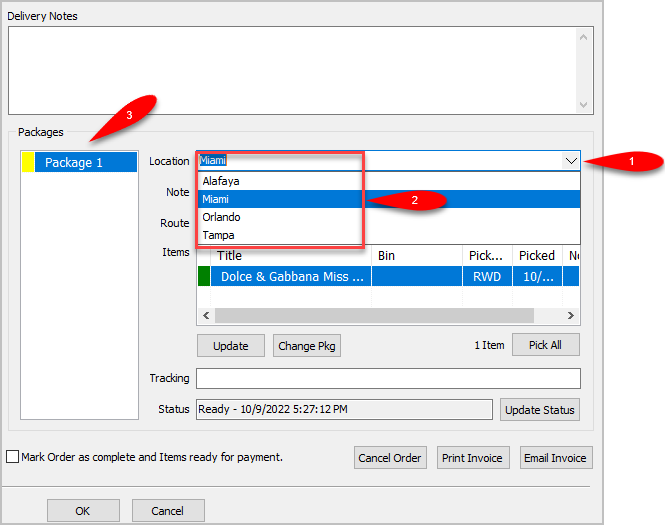
- You can change the Location of where the order is shipping from.
If you have multiple store locations, the system will automatically split the items into appropriate separate Packages based on where the items are located.
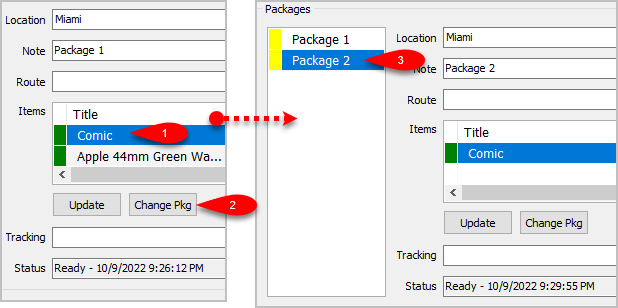
- You can add another package if you have multiple items that need to ship with separate packages by clicking the Change Pkg button after clicking on an item you want in a separate package.
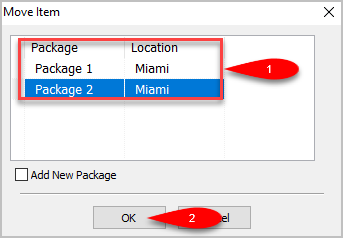
- You can change which package an item is associated with by clicking the item first and then clicking the Change Pkg button again.
This time you will get to a separate dialog screen.
Here you can select which Package you want the item to ship with or Add a New Package if there is more than one item shipping in more than 2 packages.
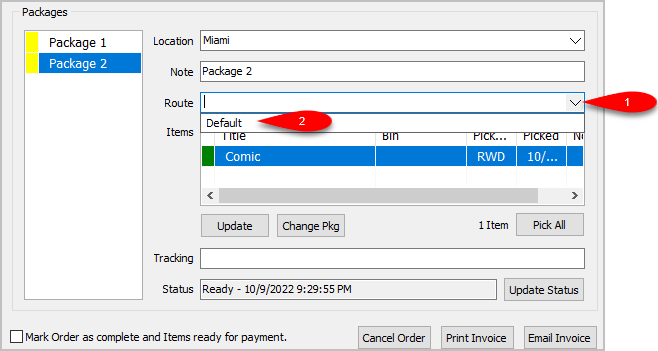
- You can change the Delivery Route by dropping down the Route field.
This field may be empty and you will need to add Routes by going to Settings > Maintain Delivery Routes
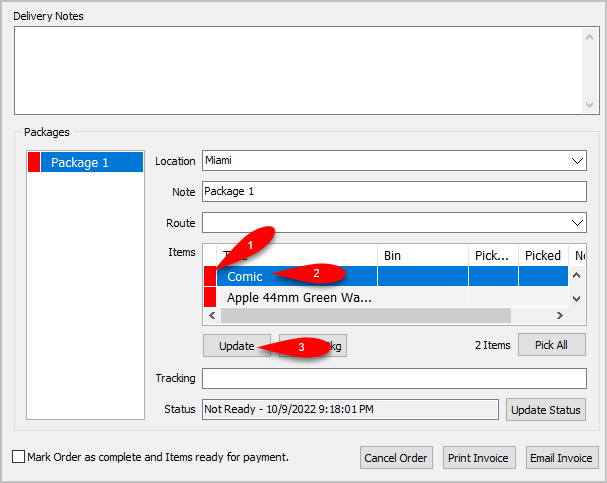
- If the items have not been picked yet (indicated by a Red box), you can Update the item by first selecting the item you want to pick in this list and then clicking the Update button.
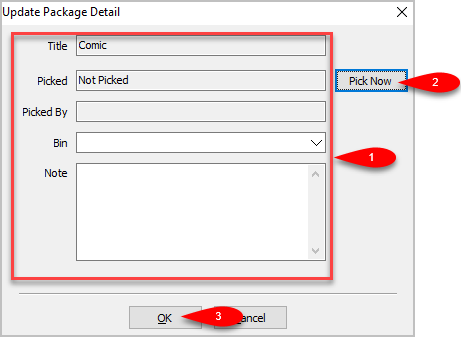
- You will see an Update Package Detail box. You can update which Bin you want the item assigned to, as well as add a Note to the item before clicking the Pick Now button. Then click the OK button.
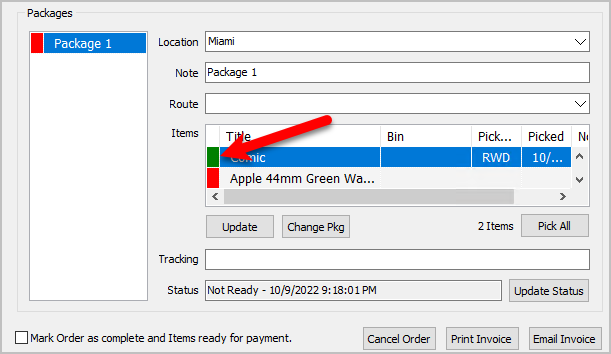
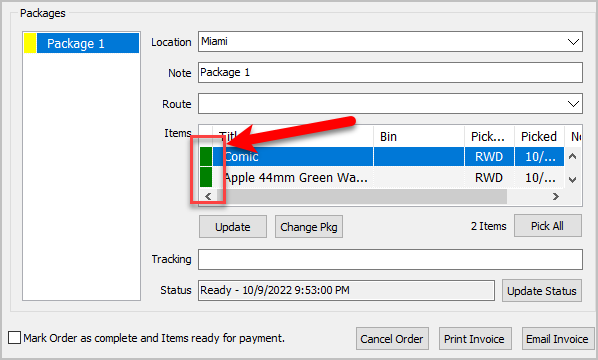
- The single item will have a Green indicator to show that it has been successfully Picked.
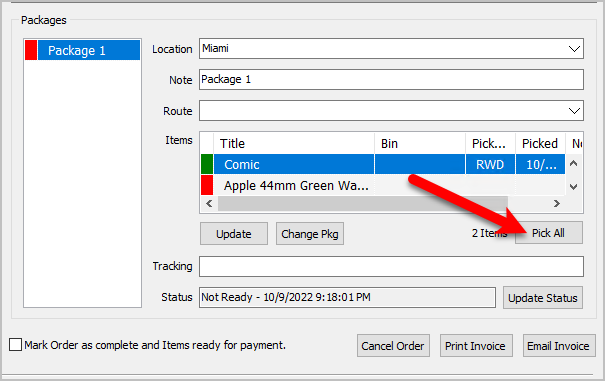
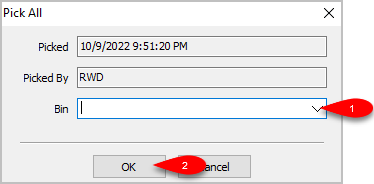
- Alternatively, if there is more than one item that has not been Picked, you can click the Pick All button if you have found and sorted all the items that were part of the Web Order.
- You will see a Pick All dialog box come up. You can select which Bin you want to sort the Picked items to and then click the OK button.
- All items that originally had a Red indicator and were Not Picked, will now have a Green indicator and will show as Picked.
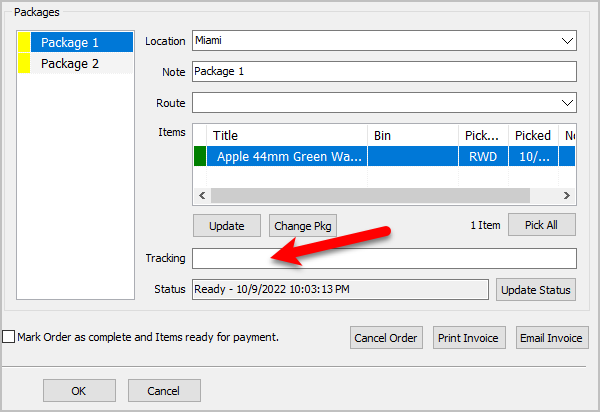
- You can enter the tracking number if you have one in the Tracking field.
The tracking number is saved per package, all you have to do is select the package first and then type in the Tracking number.
- Finally, click the OK button.
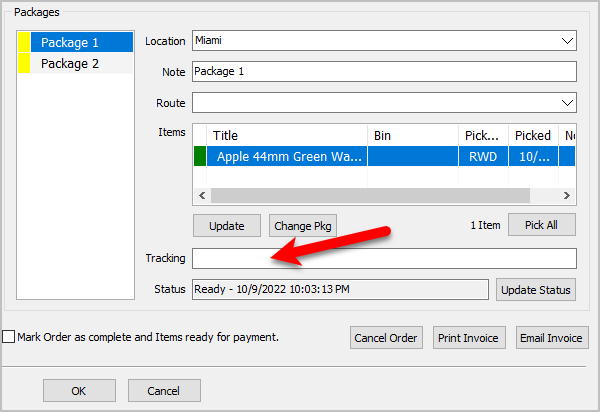
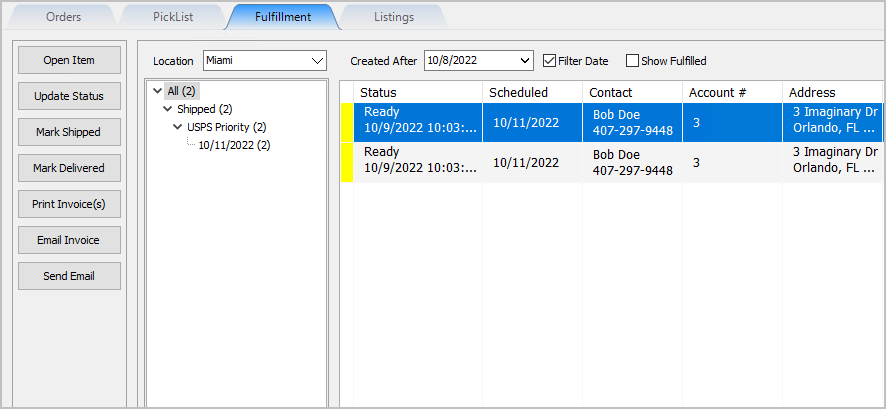
- In this example, the order will show as Shipped for Two Packages in the Fulfillment tab


Next Article In Section
Click the following link to move to the next article in this section:
Getting To The Fulfillment Sub-Tab From An Order
Related Topics
Fulfillment From The Order Tab Overview Getting To The Fulfillment Sub-Tab From An Order Changing The Account Used For the Fulfillment Of An Item Changing the Shipping Address Of An Order To Be Fulfilled Changing the Fulfillment Type and Schedule Details Of An Order Adding Delivery Notes To An Order Changing The Fulfillment Location Of An Order Dealing With More Than One Package For The Fulfillment Of An Order Changing The Delivery Route Of An Order Changing The Picked Status Of An Item Within Fulfillment Sub-Tab Adding The Tracking Number to Packages Within The Fulfillment Sub-Tab