Find Deleted Items in the Support Log
When an item is deleted, the Support Log can identify the Liberty user, account number, item number, and internal item identifier. Use this process when the User Activity Log confirms a void but does not display the exact item number.
Locate the Correct Support Log
- Open File Explorer and browse to C:\RWD\Log.
- Choose the Support Log that covers when the deletion occurred.
SupportLog.log is the current and most recent Support Log. It does not include a date in the filename. Older Support Log files include a date in the filename. Choose the dated file that covers the time when the item was deleted.
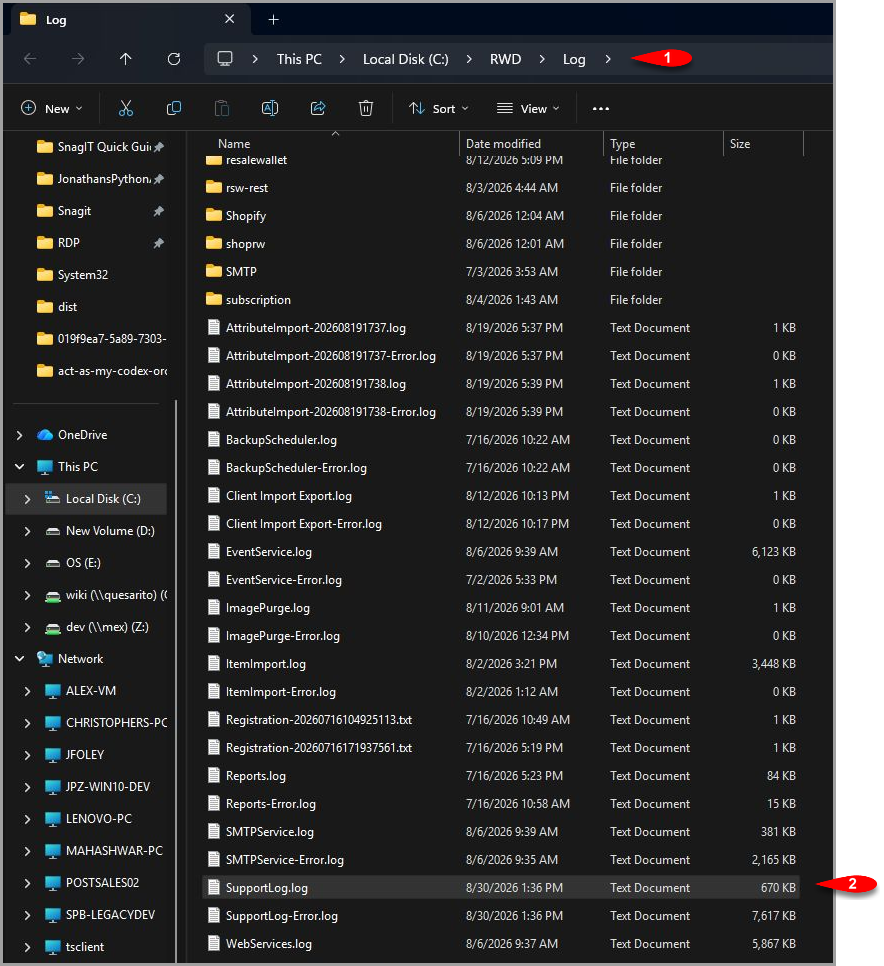
- Open the selected log in Notepad.

Search for the Deleted Item
- Press Ctrl + F to open the search field.
- Search for the known account number and item number when they are available. You can also search for voided and review the entries near the suspected date and time.
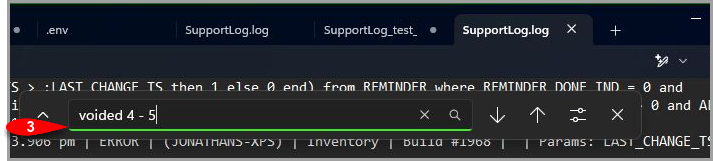
- Review the matching entry. The entry can provide the date and time, computer name, Liberty module, Liberty build, user, account number, item number, and internal item identifier.
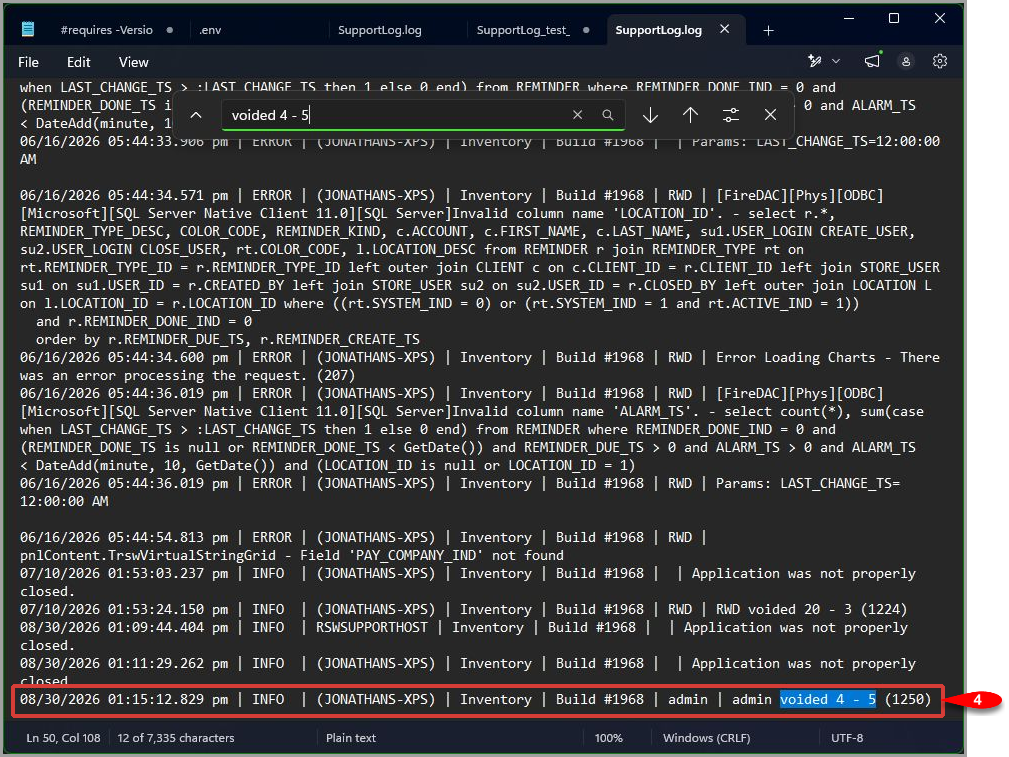


Read the Log Entry
In the illustrated example, the entry shows the following information:
- User: admin
- Account number: 4
- Item number: 5
- Internal item identifier: 1250
The Support Log does not include the item title and does not restore the deleted item. It provides the identifying information needed to research the deletion. If the event is not present in SupportLog.log, search the dated Support Log files for the period when the deletion occurred.
Next Section Navigation Link
Click the following link to see a list of articles for the next section:
Handling Items That Don’t Sell