Editing Reminders on an Account
Reminders are a great way to remind employees of important tasks or events.
To Access Reminders From Within An Account
- Select Task > Reminders within an account.
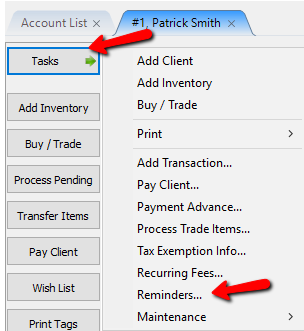
The Reminders tab will open.


- Select the Add button or the Edit button to bring up the details of a Reminder.
 * Type : Click in the field for the drop down list. Click on the reminder to add it.

If you do not see the reminder you want, press the F2 button will access the details to create a new Reminder. You can select the color of the reminder as well. Press the OK button when done.
 Location : This is the Location the Reminder is associated with.
 * Account : This is the account the Reminder is associated with.
 * You can click Open to open up the appropriate account.

- Description : Enter in the Description of the Reminder.

- Priority : Click the drop down and choose Low, Medium, or High.

- Due Date : Enter the date the Reminder is due.

- Due Date : Enter the time the Reminder is due.

- Notification : You can set when a notification for this Reminder with this dropdown.

- Done (Checkbox) : If the reminder has been completed, checking off the Done checkbox will remove it from the reminders.
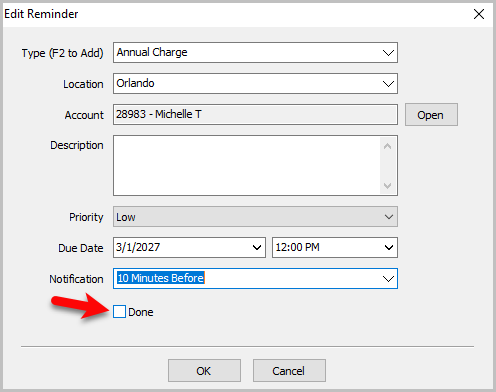


- Select the OK button when done.

You will see your new Reminder in the Reminders tab.
 When the notification pops up, it will look like this, you can also Open Account from here.

When the Reminder is no longer needed, you can highlight the Reminder and press the Mark Done button. This will remove the Reminder from the list.


You can also Refresh the reminders list by clicking the Refresh button shown in the picture below.

Next Article In Section
Click the following link to move to the next article in this section:
View a History of Account purchases
Related Topics
Editing Reminders on an Account Widgets Overview Add Notes to an Account Add Multiple Addresses and Phone numbers Apply Group Deductions Bulk Change Default Price Code Using the Client Import and Export Utility Creating New and Maintaining Existing Accounts Customize the Account Detail Window Deactivating an Account Delete a Client's Data From Consignor Login