Adding A Banner To The Liberty Kiosk App
Here is a video on the following information:
Adding A Banner To The Liberty Kiosk App
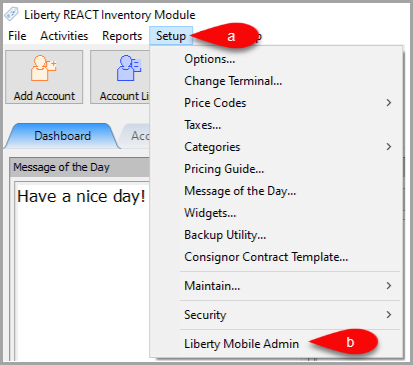
- Open Liberty and then click Setup and then Liberty Mobile Admin.
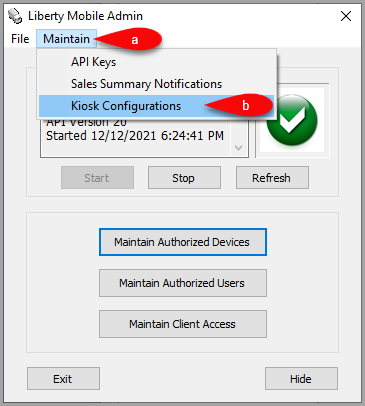
- Click on Maintain then Kiosk Configurations.
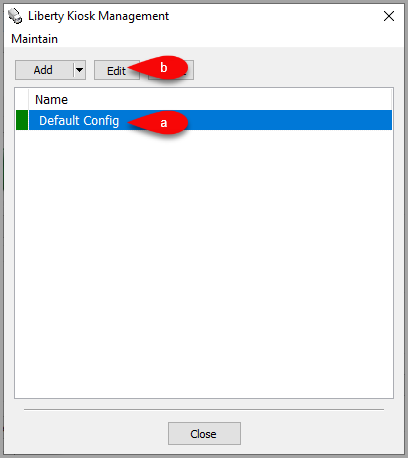
- Click on your Config then click the Edit button.
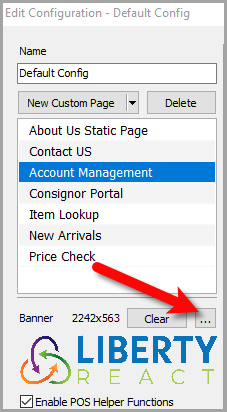
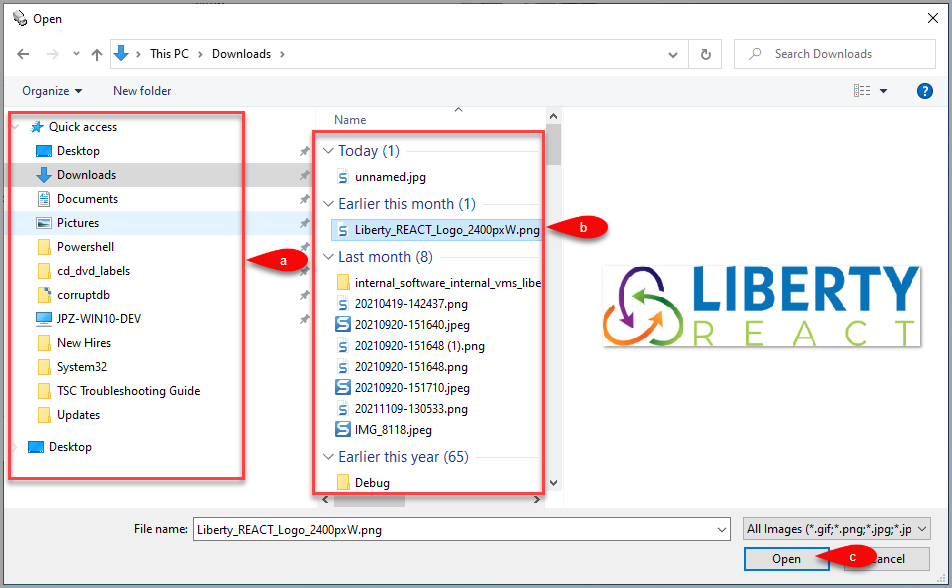
- Click the Browse icon next to the Banner text.
- Locate the folder where the image is contained, then select it and click the Open button.
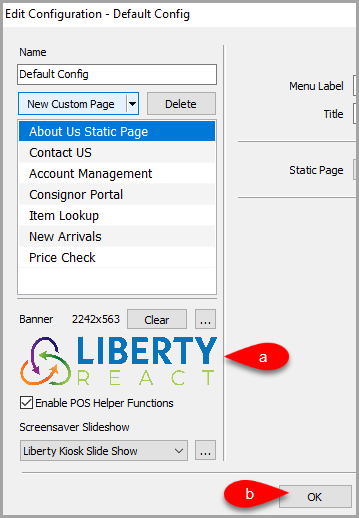
- Verify that the Banner image appears on the Banner area and then click the OK.
- Here is an example of what the Banner will look like in the Liberty Kiosk app.



Next Article:
You can now setup your first Slideshow in the Liberty Kiosk app.
Please visit the following article to continue:
Next Article In Section
Click the following link to move to the next article in this section:
Setting Up The Slideshow Feature In The Liberty Kiosk App
Related Topics
Adding A Banner To The Liberty Kiosk App Setting Up The Slideshow Feature In The Liberty Kiosk App
Linking the iPad Kiosk App To Liberty Adding A New Liberty Kiosk App Configuration Editing A Liberty Kiosk App Configuration Setting Up The Slideshow Feature In The Liberty Kiosk App Liberty Kiosk Customer Facing Display Features Signature Capture