Setting a ShopRW / Shopify Item to Ready To List
Setting a Web Listing to Ready to List allows the Liberty Event Service to automatically sync the listing to it’s appropriate web marketplace.
There are prerequisite options that can be enabled to prevent an item from being listed if the item does not have at least one image, or if the item does not have a shipping weight.
These options are accessed from the Listing Manager by going to Settings > Options > Storefront Settings.

You can then Enable or Disable the options for Require at least one Image and Require Shipping Weight.

There are three ways to set a Recommerce / Shopify item as Ready To List.
- When you are first creating the listing using Add Listing or Add Retail Listing, you can checkmark Ready to List! and then click OK.
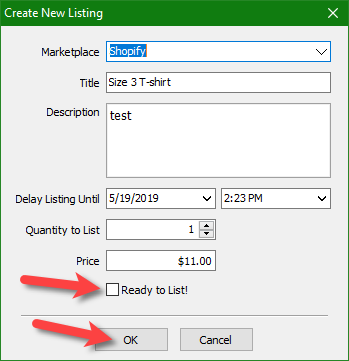
- If you are editing a listing that was not ready to list, you can checkmark Ready to List! at the top and click Save.

- Under the Listings tab, you can go to the Not Ready tab, select the listing and then click the Ready to List button.
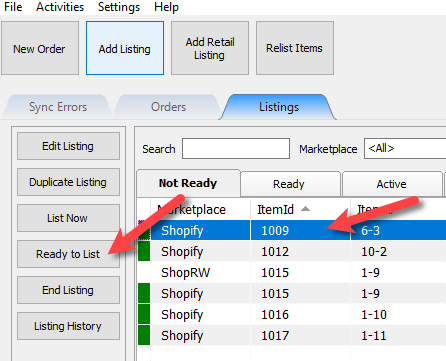


Note: Items that are set as Ready to List will sync automatically to their appropriate web marketplace after a few minutes and require no further action.
Next Article In Section
Click the following link to move to the next article in this section:
Saving a ShopRW / Shopify Listing
Related Topics
Setting a ShopRW / Shopify Item to Ready To List Creating a ShopRW / Shopify Listing Overview Adding ShopRW / Shopify Package Information Adding A Web Description Editing A Web Description in HTML Previewing a ShopRW / Shopify Web Description Adding Images to Web Listings Deleting Images From A Web Listing Saving a ShopRW / Shopify Listing How to Use Auto Create Listings Definitions of Web Description Processor Buttons
