eBay Business Policies Overview
Before you start listing items on to the eBay marketplace through Liberty, you must opt into eBay business polcies.
This allows you to have a default Payment, Return and Shipping policy that Liberty will use for your eBay listings.
If you have more than one eBay business policy created, Liberty will pull in those as well and you can select them, if the default is not the one you wish to use.
How To Opt-In to eBay Business Policies
- eBay can change the specific address link in the future as to how to get to he opt-in feature for business policy. This makes it necessary to search for the page so that if it is changed, you will always have the latest information.
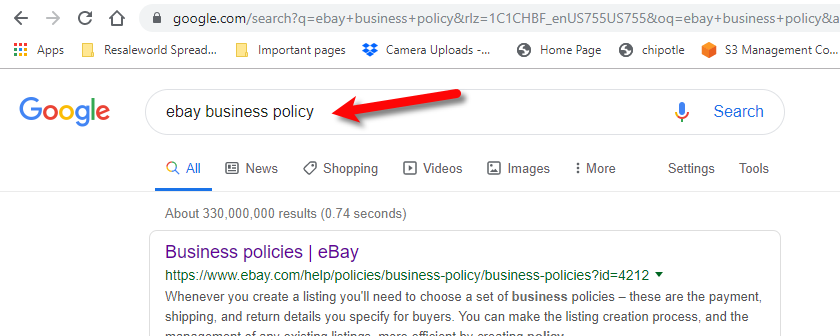
Open a browser page to your favorite search engine type in eBay business policy and then hit the enter button on your keyboard or click the search button.
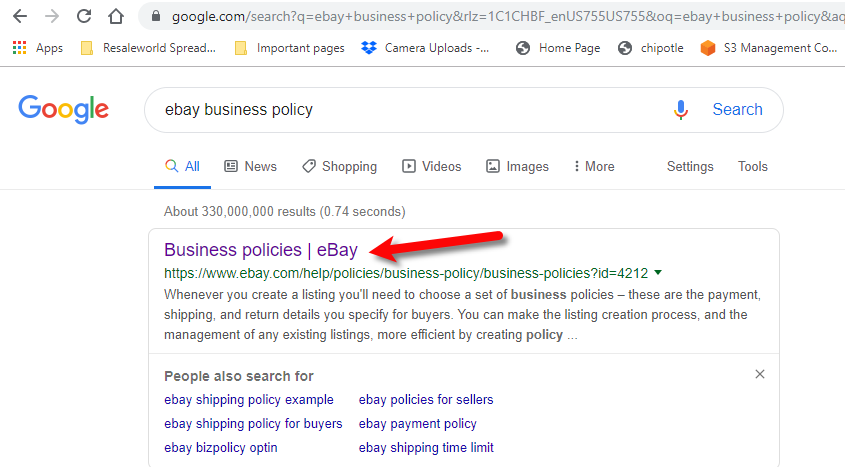
- Click on the first entry that says Business Policies. If the first entry does not match your search term, you may have to scroll down the search results to find the specific eBay page.
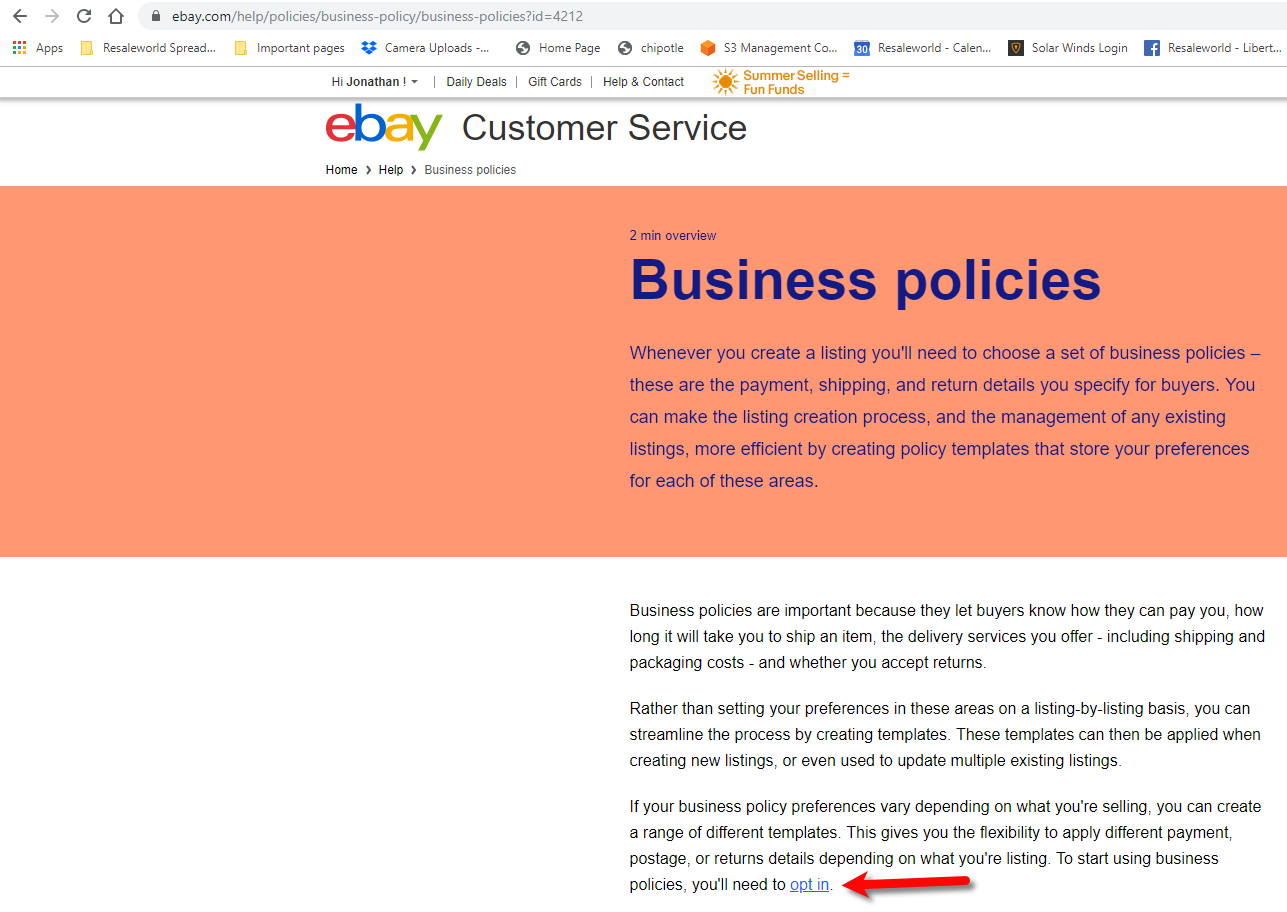
- Find the opt-in link and click it from within the information eBay provides on the web page.
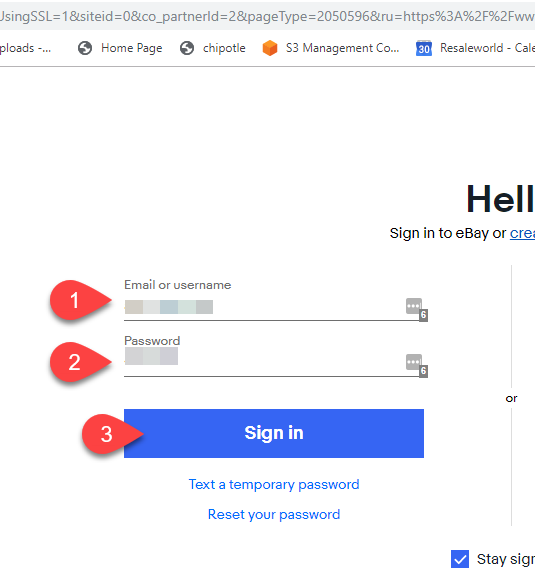
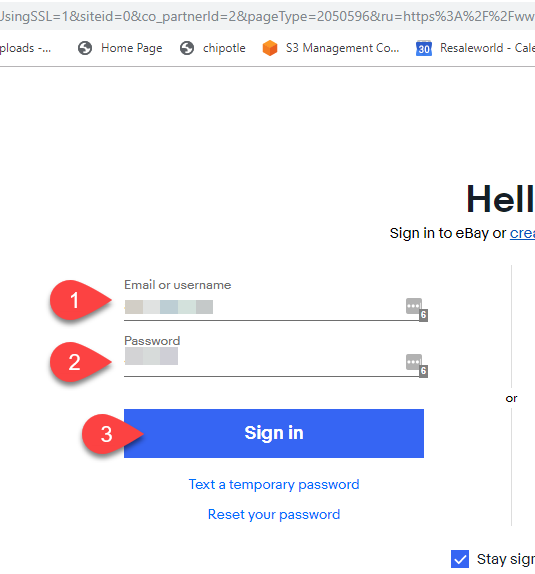
- Type in your eBay Username/Email and Password, then click the Sign In button.
- Click the Get Started button.
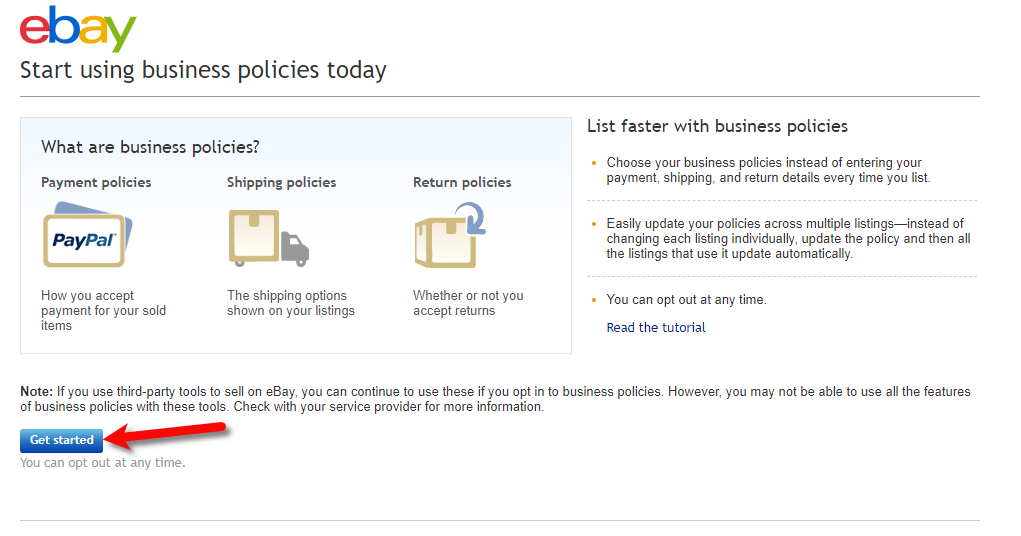
- You can now start creating your eBay policies
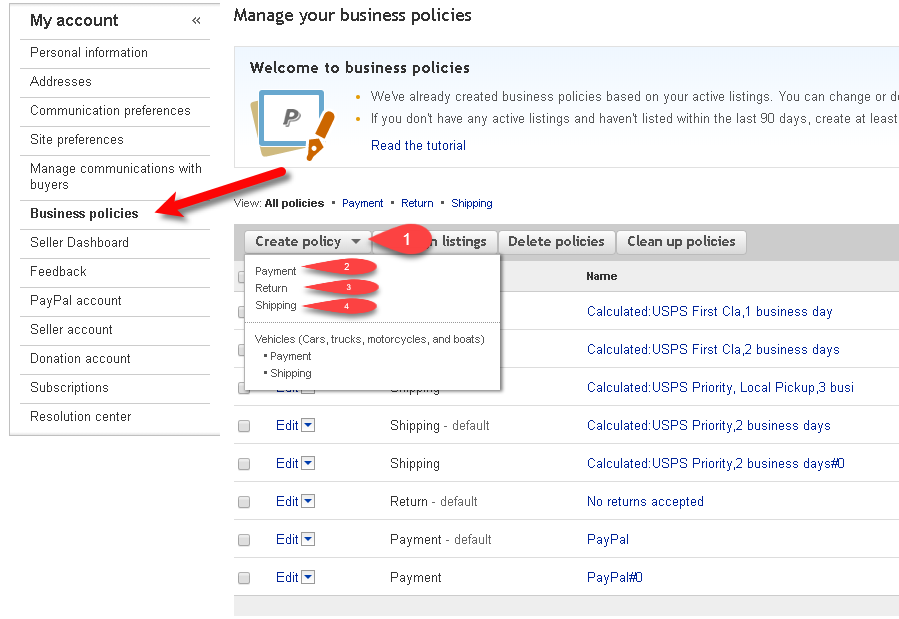


Getting To The eBay Business Policies Page
- Type in your eBay Username/Email and Password, then click the Sign In button.
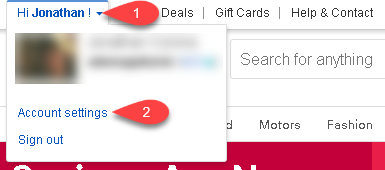
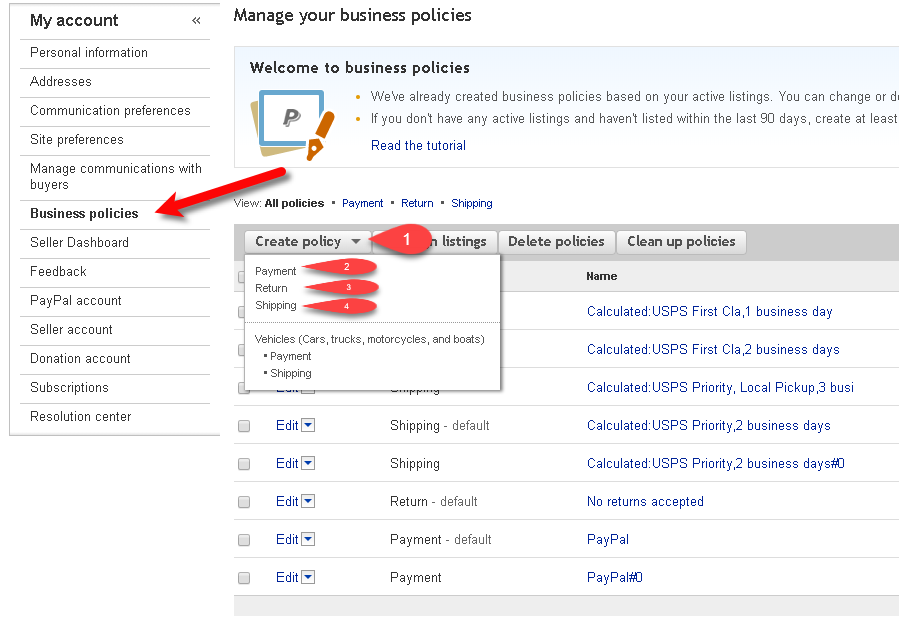
- Top left corner of the eBay page, click the down arrow next to your username and then click Account Settings.
- You can now start creating your eBay policies


Creating A Default eBay Payment Business Policy
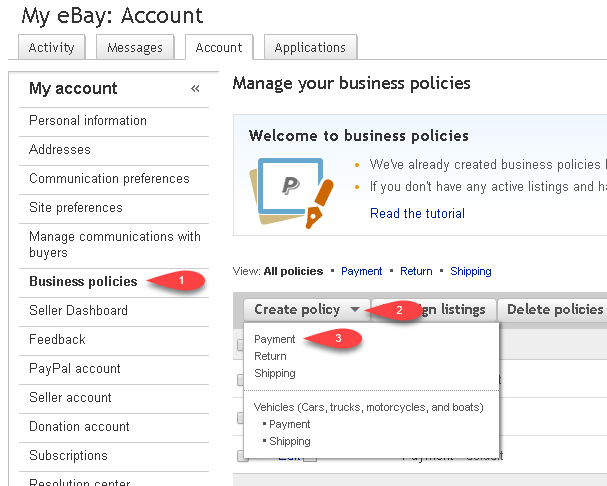
- Navigate to the eBay business policies page, click Create policy and then click on Payment.
- Enter in your payment information.
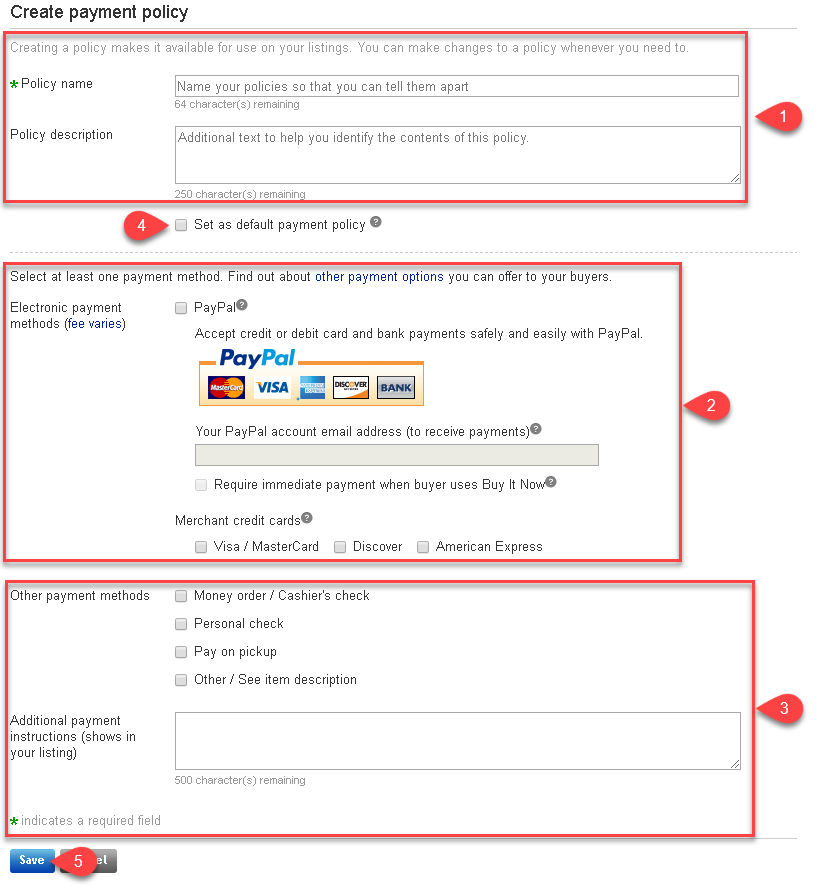
- Fill in your Policy Name and Policy Description
- Select whether you wish to use PayPal accept credit card payments and then your PayPal account email address where payments will be sent. Select which credit cards
Under Merchant credit cards, select which credit cards you will be accepting only if you have a pre-existing separate merchant credit card account. For this option, the buyer must contact you in order to process their credit card. - Select other payment types you wish to make available on your listings attached to this payment policy.
- Click the checkmark box next to Set as default payment policy so that when Liberty pulls in your payment policies, it will use this one as the default. This will be denoted by an asterisk (*) from within Liberty.
- Click the Save button.


Liberty will now use this Payment policy by default when you create new eBay web listings in the Listing Manager.
Creating A Default eBay Return Business Policy
- Navigate to the eBay business policies page, click Create policy and then click on Return.
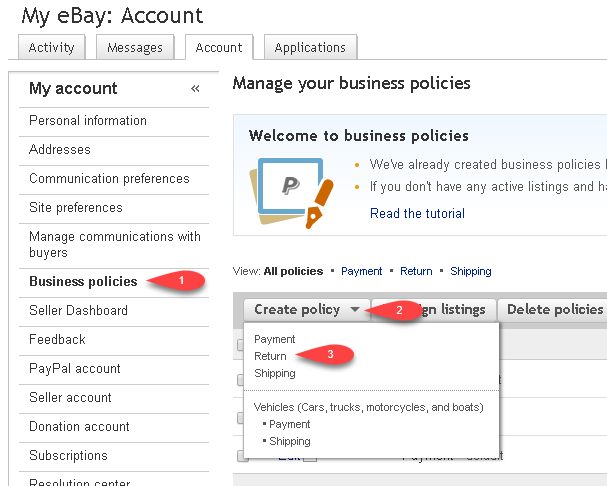
- Enter in your payment information.
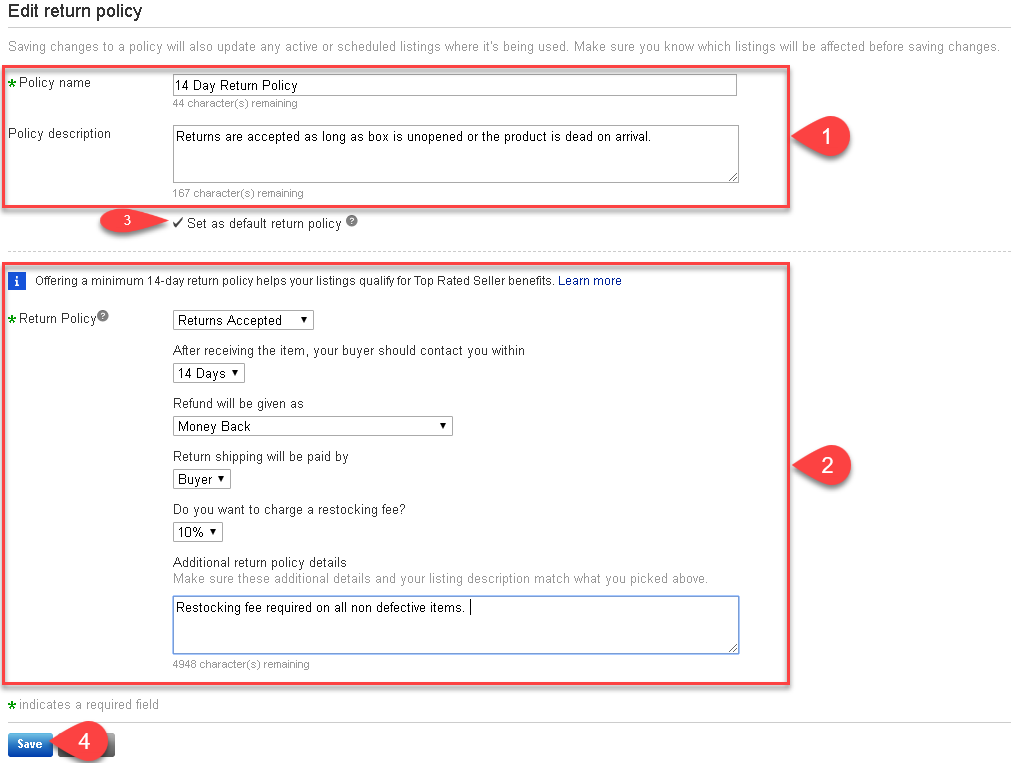
- Enter in your Policy Name and your Policy Description
- Select whether you want to have Returns Accepted, the number of days allowed for the customer to contact you about returning your item, how your refund will be given as, who the return shipping is paid by, whether you wish to charge a restocking fee and any additional policy details.
- Click the checkmark box next to Set as default return policy.
- Click the Save button.


Liberty will now use this Return policy by default when you create new eBay web listings in the Listing Manager.
Creating A Default eBay Shipping Business Policy
- Navigate to the eBay business policies page, click Create policy and then click on Shipping.
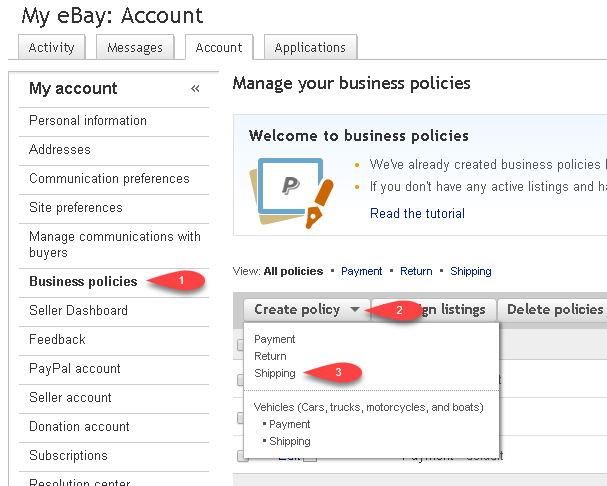
- Enter in your shipping information.
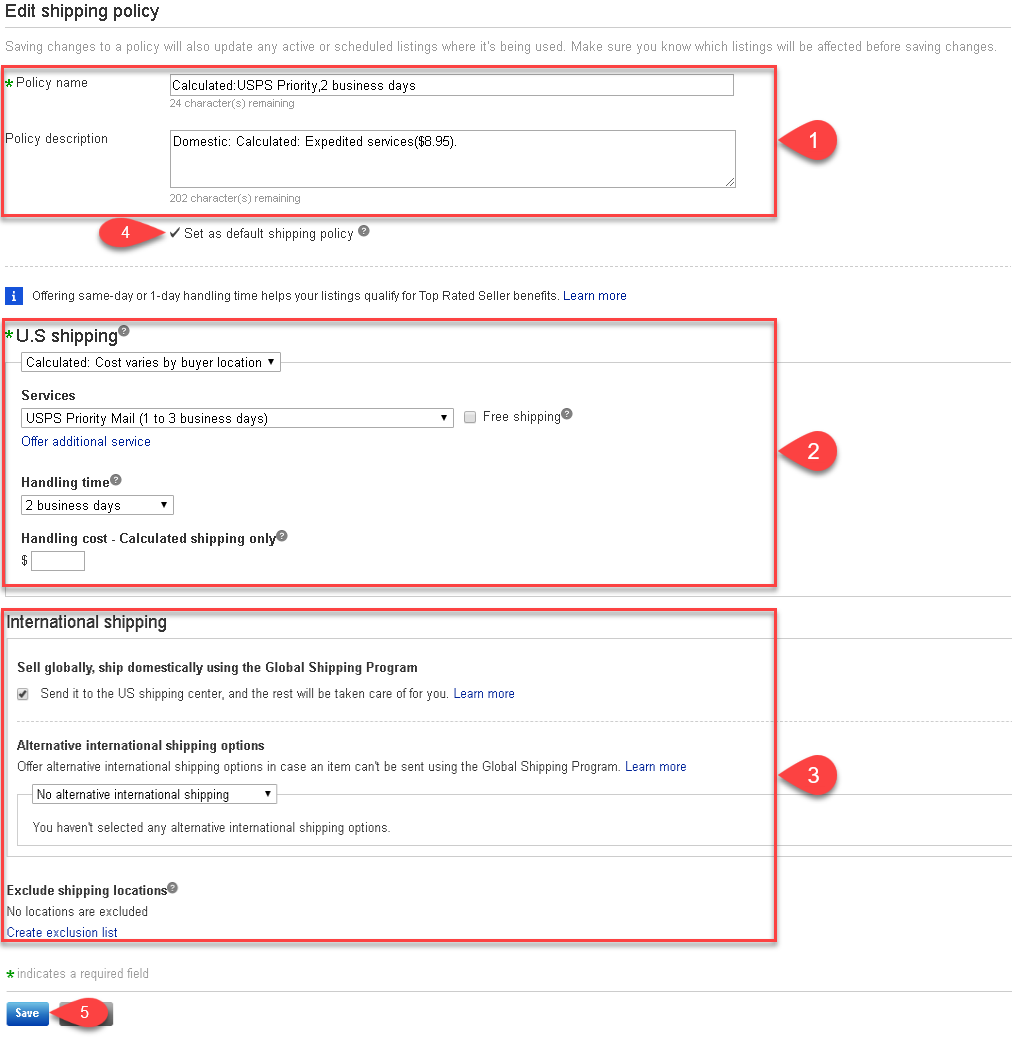
- Enter in your Policy Name and your Policy Description
- Select whether you want to use Calculated Shipping, Flat Rate, Freight or No shipping, select which shipping services you wish to offer, whether you wish you offer Free shipping, the Handling Time and the Handling cost.
- Select whether you wish to sell globally (internationally) and use the Global Ship Program, select if you have an Alternative International Shipping option and create an Exclusion List for places that you do not plan to ship to.
- Click the checkmark box next to Set as default shipping policy.
- Click the Save button.


Liberty will now use this Return policy by default when you create new eBay web listings in the Listing Manager.
Refreshing Listing Manager To Use eBay Business Policies That Have Been Changed
In order for the Listing Manager to use new or edited eBay Business Policies, you must click the Refresh button under eBay Accounts.
- Click on the Settings menu option, then click on Options.

- Click on eBay Accounts to the left and then click the Refresh button.

- You will see that eBay Business Policies are now pulled into the Listing Manager and you can now click the OK button.


Next Article In Section
Click the following link to move to the next article in this section:
Opting Into eBay Business Policies
Related Topics
eBay Business Policies Overview Opting Into eBay Business Policies Getting To The eBay Business Policies Page Creating A Default eBay Payment Business Policy Creating A Default eBay Return Business Policy Creating A Default eBay Shipping Business Policy Adding A Regular Listing Adding A Retail Listing Creating an eBay Listing Overview Refreshing Listing Manager To Use eBay Business Policies That Have Been Changed Adding An eBay Item Specific Attribute