Add a Bank Account
After the profile is accepted, add the store bank account that will fund ResaleWallet ACH payouts.
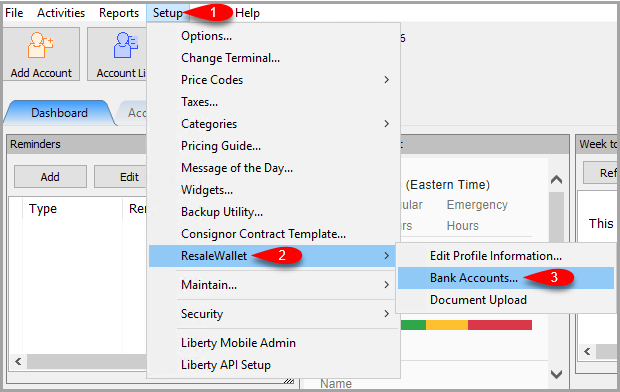
- Click on Setup > ResaleWallet > Bank Accounts
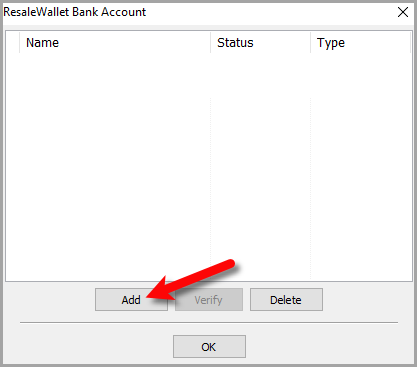
- Click the Add button.
- Enter an Account Name that staff will recognize.
- Enter the routing number and account number.
- Select the account type and the payment account.
- Click OK.
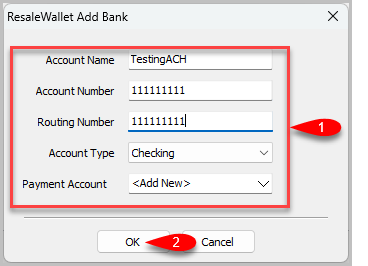 The Add Bank screen. Fill in the account name, account number, routing number, and account type, then click OK.


Verify the Bank Account
To confirm the account, the payment service makes small test deposits, called micro deposits. This process can take about one to two business days.

- Return to Bank Accounts after the micro deposits post.
- Select the account and click Verify.
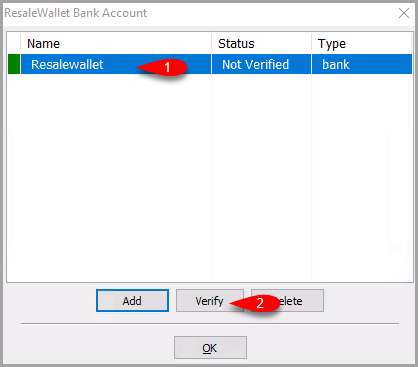
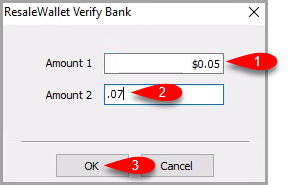
- Enter the verification amounts and click OK.
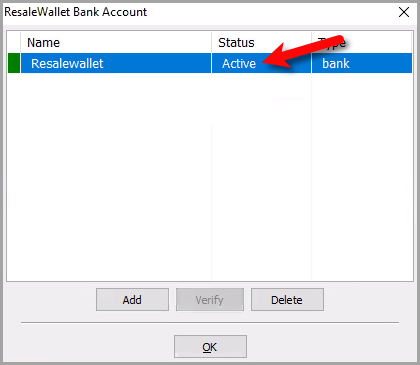
- Confirm the account status changes to active or verified.
- You can double click on the bank entry at any time.
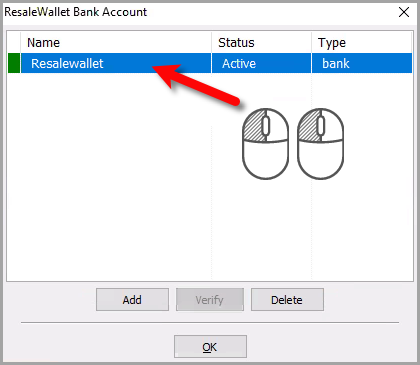
- This will show you that the bank account is linked.
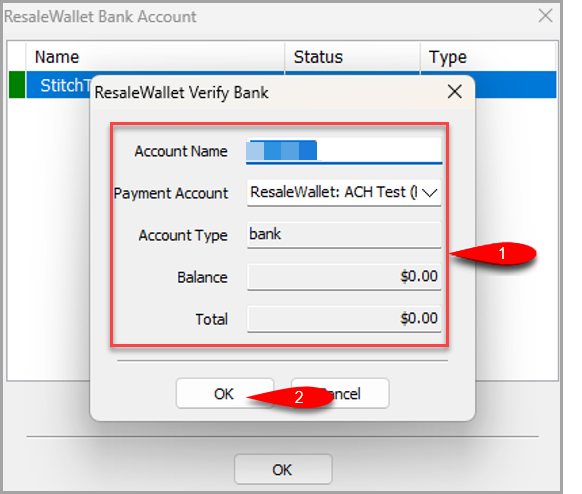
Note: The payment account name automatically gets ResaleWallet: added to the front. This field has a 35 character limit, so for a long name use a short prefix such as RW: instead of ResaleWallet:. This can be adjusted by going to SetupMaintain > Payment Accounts and editing the entry.


Next Article In Section
Click the following link to move to the next article in this section:
Required Consignor Fields
Related Topics
ResaleWallet Store Guide Overview How To Set Up And Pay Consignors With ResaleWallet Set Up Your Business Entity Add a Bank Account Required Consignor Fields Paying Out A Single Client With ResaleWallet Mass Payouts With ResaleWallet Checking The Status of an ACH Payout What Consignors Receive ResaleWallet Dashboard Store Troubleshooting Payment Limits