How To Use The Liberty Photo App for iOS Overview
To view the companion video for the following article, please visit the following page:
How Use The Camera To Add Images To Items By Using Account - Item Number
- Open the Liberty Photo App on your Home Screen.
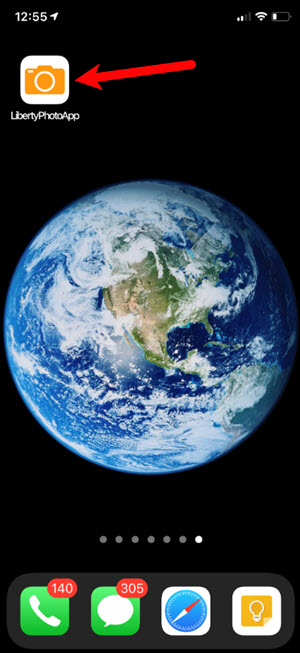
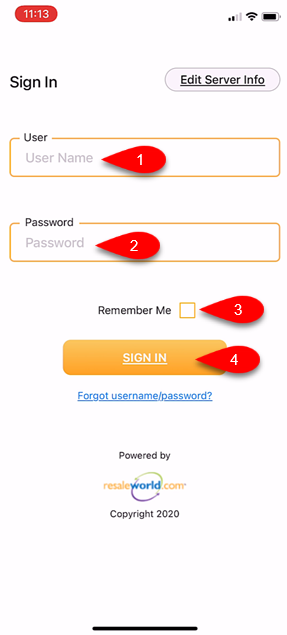
- Sign in with your Username and Password, then tap the Remember Me checkmark box if you want the application to remember your login details. Finally, click the Sign In button.
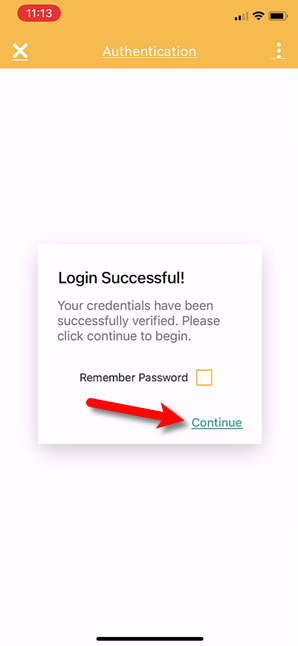
- Tap the Continue button.
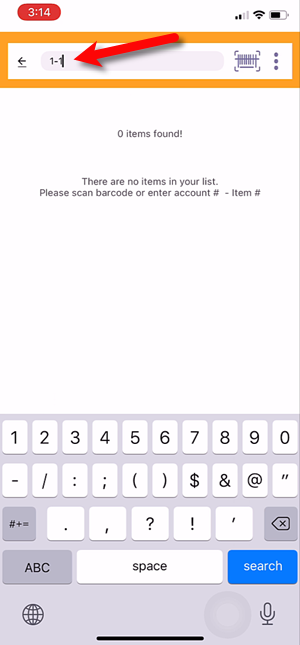
- You can type in the Account - Item Number of an item in the search field to search for that item.
Tap the Search button when finished.
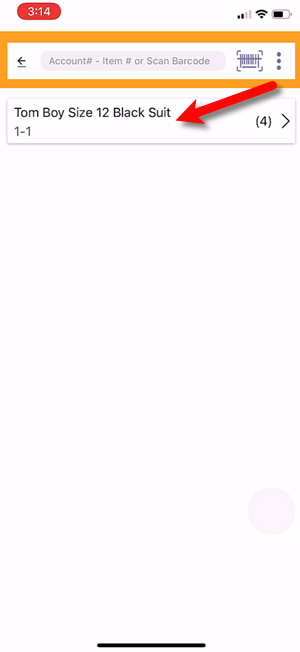
- The item will then appear in the list, you can then tap on that item.
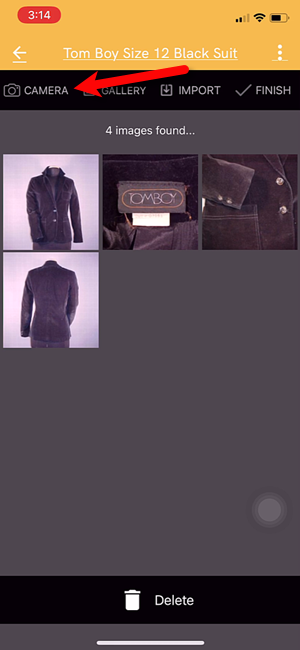
- From here, you can tap the Camera icon to bring up your device’s camera.
- You will have some options you can edit before taking a picture of your item.
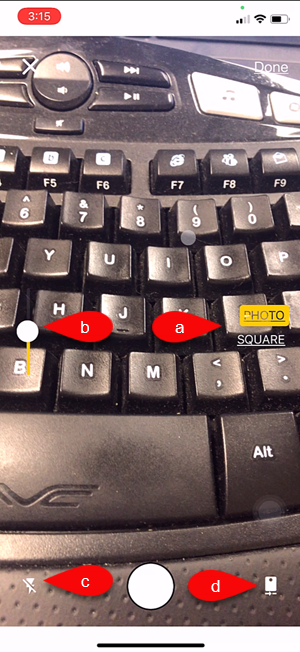
- Image Type Selector: Here you can set whether you want to keep the standard dimensions you camera uses or if you want to use Square dimensions.
Note: If you are using the Shopify Integration, please note that Shopify Recommends using the Square photo dimension option. - Exposure Control: This sets the exposure level of the image. Raising the radio bar higher makes the image brighter, while lowering the bar makes the image darker.
- Camera Flash: Sets whether you want to enable your device’s flash feature so that your camera flashes.
- Flip to Front or Back Camera: Selects which camera you would like to take your picture with, the front or the back one.
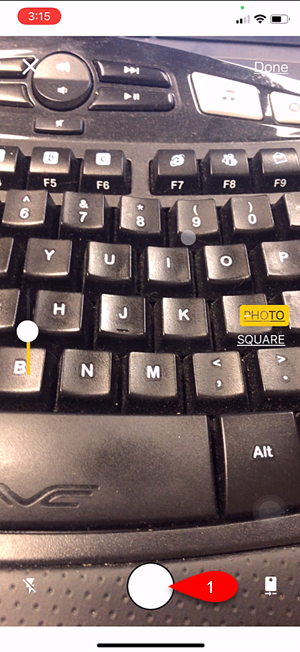
- Tap the Take Picture button when you are ready
- Review the picture you have just taken and then either tap Done if you are happy with the image or Retry if you would like to retake the picture.
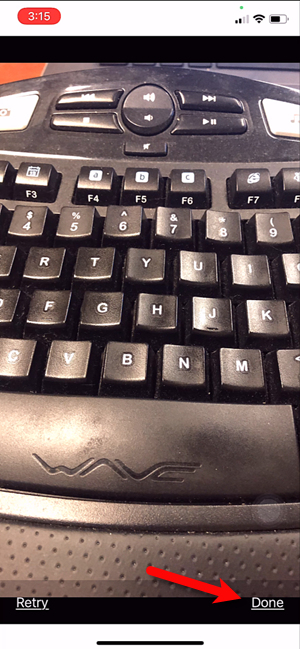
- From here you have one of two options.
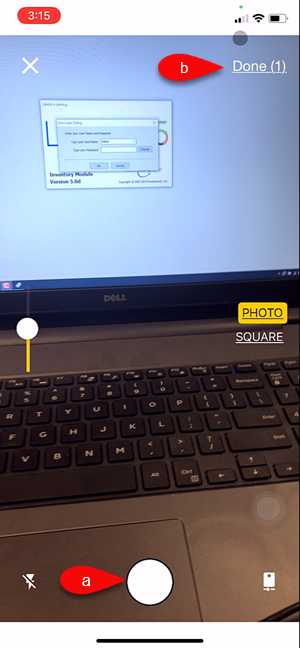
- You can continue to take more pictures.
- You can tap the Done button to move on to the next step.
- You will see the pictures you have taken underneath the Ready to upload section.
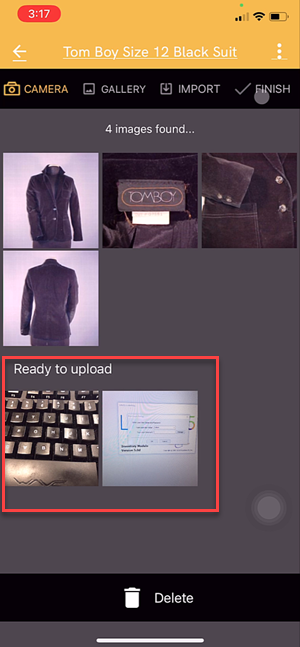
- Tap the Finish button and your pictures will then be uploaded.
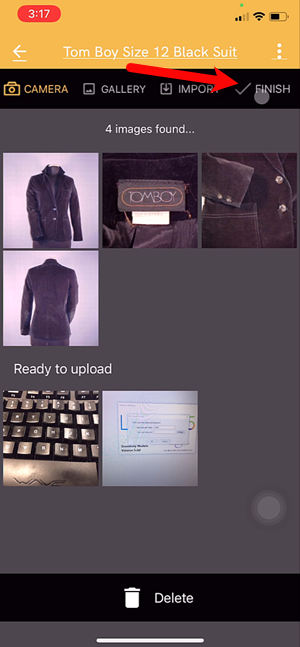
- You can now select whether you want to mark the item as a Web Item.


This coincides with the Automatic Create New Listing feature in Listing Manager which allows these items to be sent automatically to either Shopify or ShopRW depending on if you have it enabled.
Note: It is possible to create a listing for eBay using this feature but you will be required to edit that listing in Listing Manager before it can be pushed to eBay. This is because there are some options that need to be edited before the item can be sent to eBay.

How To Add Images To An Item Using A Barcode On The Tag
- Tap the Barcode icon.
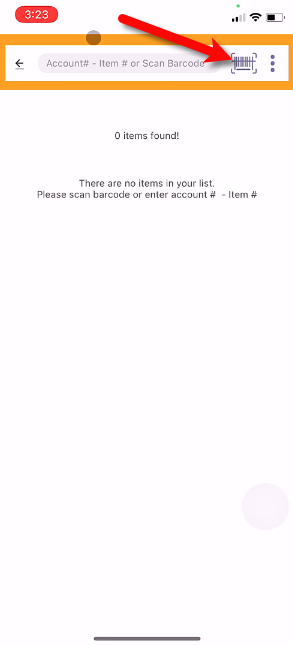
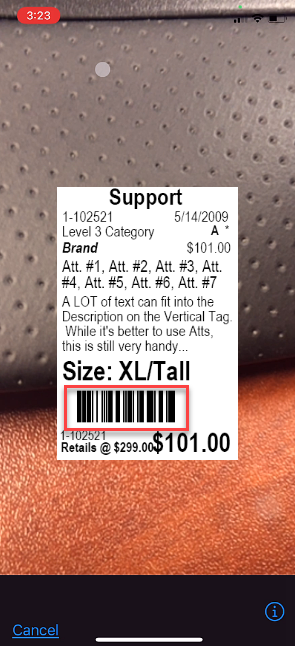
- Place the tag of the item you want to pull up in front of the device’s camera.
The camera will read the barcode of the item and bring you back to the main screen automatically.
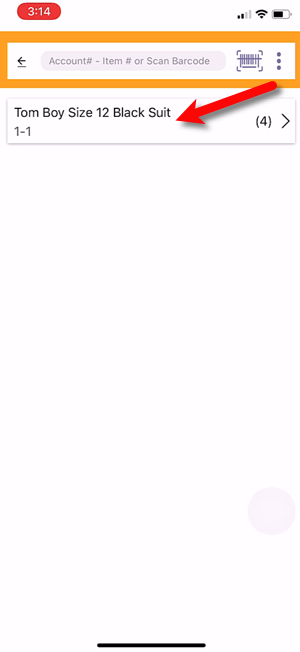
- Tap the item that the barcode brought up.
- You can now take or add a picture, edit existing pictures on the item or delete pictures.
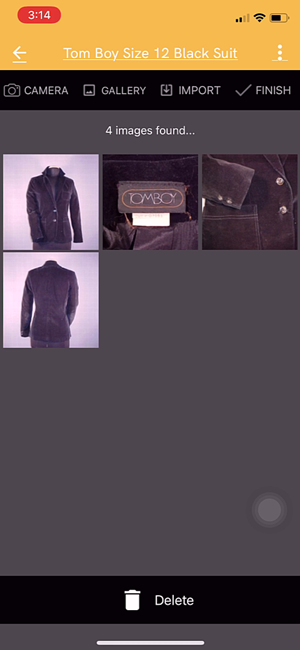
- To take a picture, tap the Camera icon.
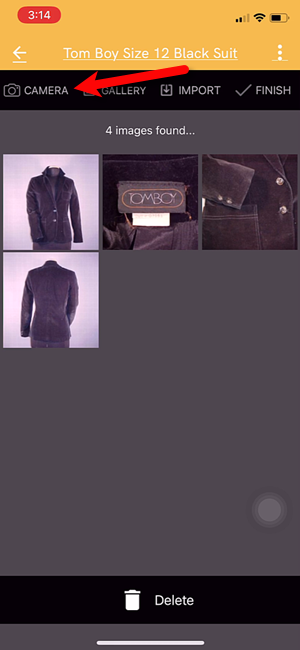
- There are a few controls you can touch before you take your picture.
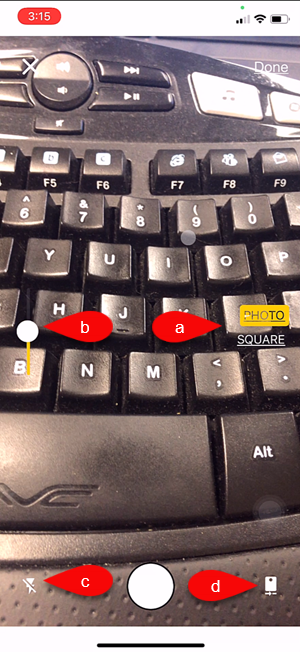
- Image Type Selector: Here you can set whether you want to keep the standard dimensions you camera uses or if you want to use Square dimensions.
Note: If you are using the Shopify Integration, please note that Shopify Recommends using the Square photo dimension option. - Exposure Control: This sets the exposure level of the image. Raising the radio bar higher makes the image brighter, while lowering the bar makes the image darker.
- Camera Flash: Sets whether you want to enable your device’s flash feature so that your camera flashes.
- Flip to Front or Back Camera: Selects which camera you would like to take your picture with, the front or the back one.
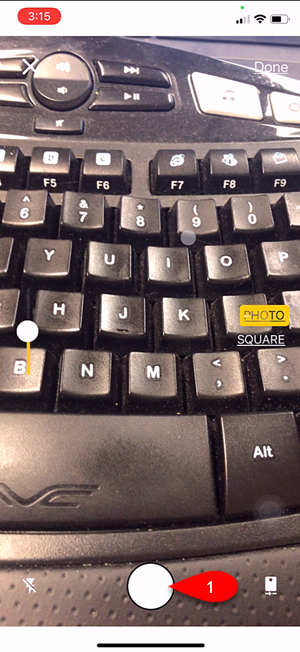
- Tap the Take Picture button when you are ready
- Review the picture you have just taken and then either tap Done if you are happy with the image or Retry if you would like to retake the picture.
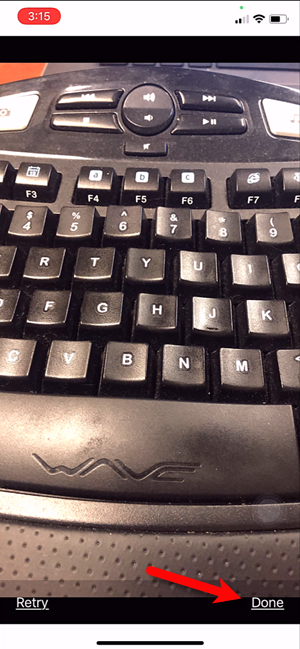
- From here you have one of two options.
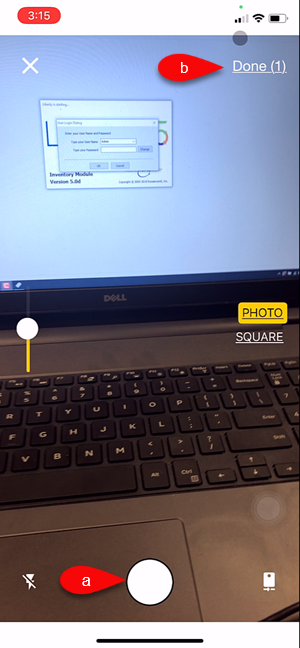
- You can continue to take more pictures.
- You can tap the Done button to move on to the next step.
- You will see the pictures you have taken underneath the Ready to upload section.
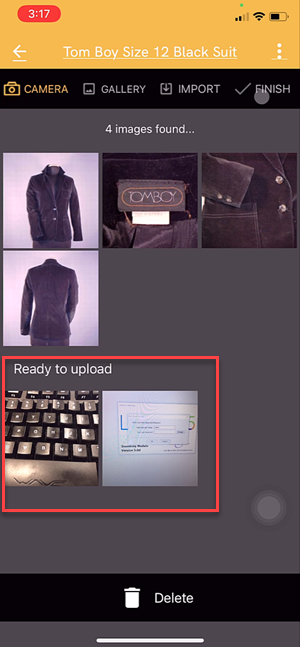
- Tap the Finish button and your pictures will then be uploaded.
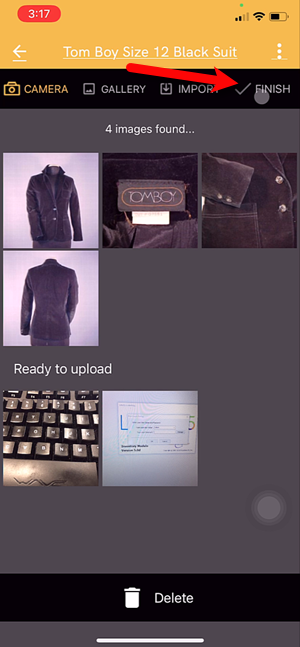
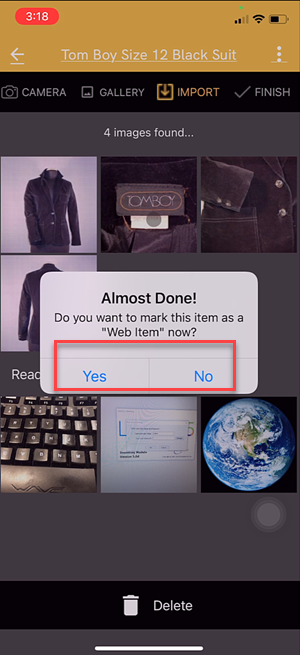
- You can now select whether you want to mark the item as a Web Item.
If the item is already marked as Web Item you will not see a prompt to mark the item as Web Item.
Your listing will simply be updated with the new images.
This coincides with the Automatic Create New Listing feature in Listing Manager which allows these items to be sent automatically to either Shopify or ShopRW depending on if you have it enabled.
Note: It is possible to create a listing for eBay using this feature but you will be required to edit that listing in Listing Manager before it can be pushed to eBay. This is because there are some options that need to be edited before the item can be sent to eBay.
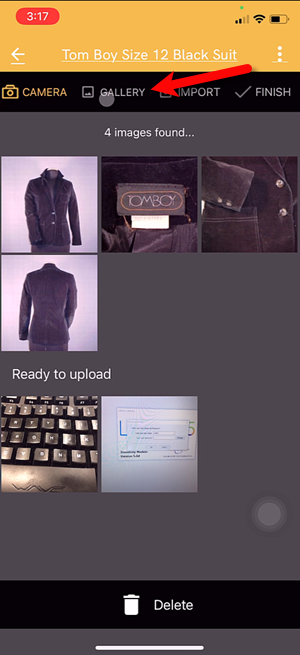
How To Add Images Using the Gallery Feature (From Your iDevice’s Library) - Tap the Gallery button.
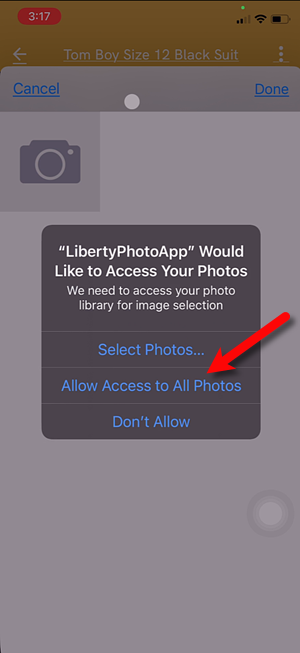
- Tap the Allow Access to All Photos button.
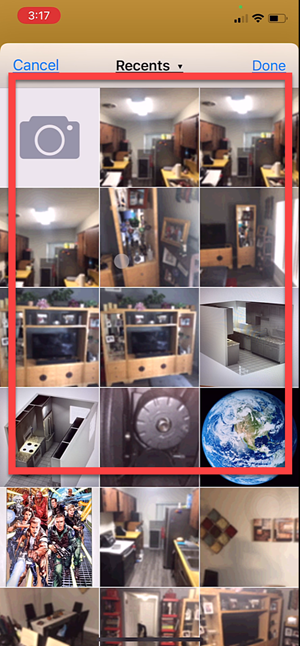
- Scroll until you find the images of the item you wish to add and then tap on them. You can select more than one image to attach to the item.
- Tap the Select button when you are done selecting your images.
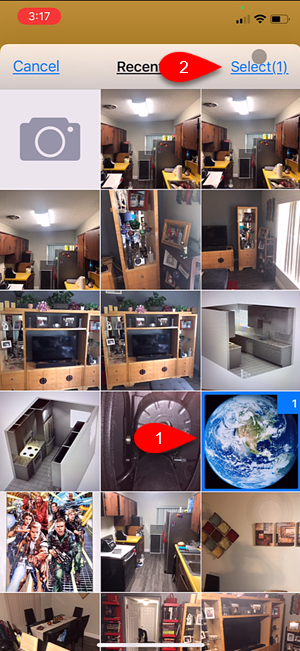
- Note that the Image(s) you selected are under the Ready to upload section. You can now tap the Finish button.
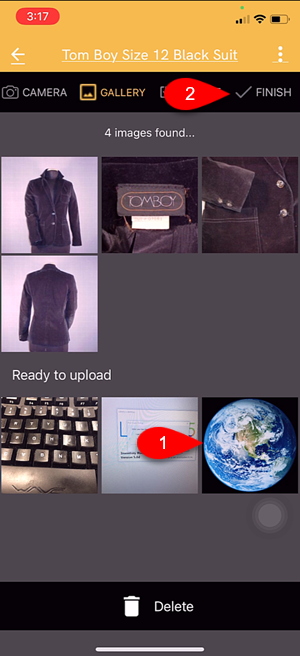
- You can now select whether you want to mark the item as a Web Item.


This coincides with the Automatic Create New Listing feature in Listing Manager which allows these items to be sent automatically to either Shopify or ShopRW depending on if you have it enabled.
Note: It is possible to create a listing for eBay using this feature but you will be required to edit that listing in Listing Manager before it can be pushed to eBay. This is because there are some options that need to be edited before the item can be sent to eBay.

Using The Import Feature To Import Photos from iCloud, Dropbox or Google Drive
- Tap the Import button.
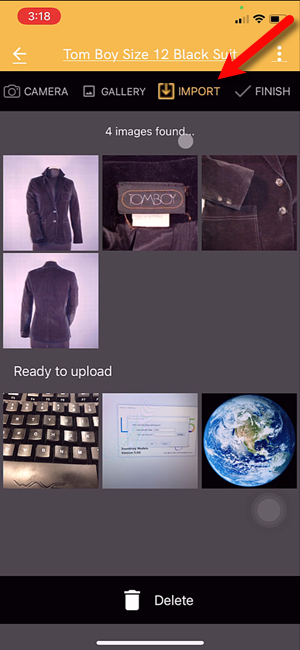
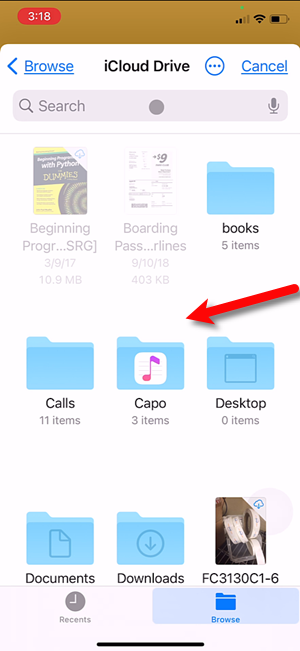
- If you want to search for images on your iCloud drive you can do that by default. Simply find the images on the drive and select them.
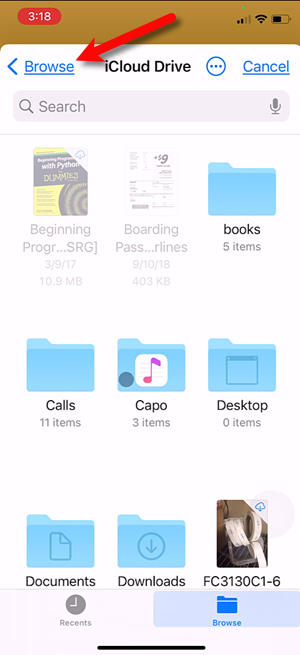
- You can also tap the Browse button to go back to the main Import menu.
- Tap the More Locations button.
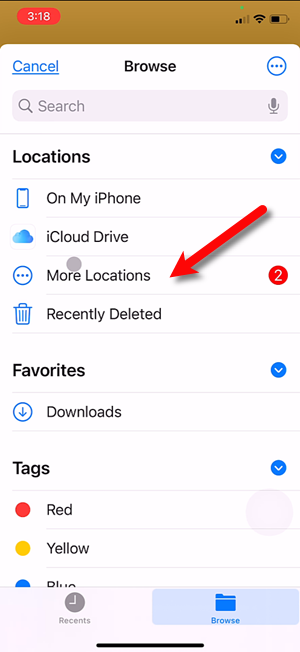
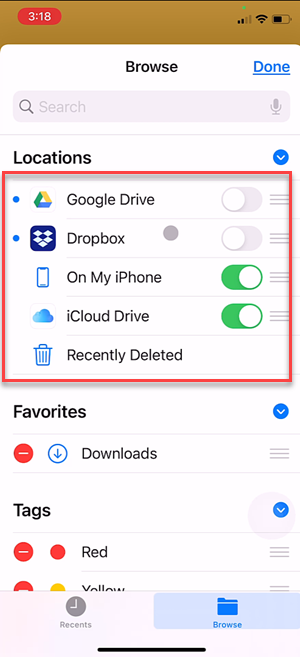
- From here you can Turn On the different sources you would like to grab images from.


How to Edit A Photo That Is Attached To An Item
- Once you have opened the item you want to edit, tap one of the pictures attached to the item.
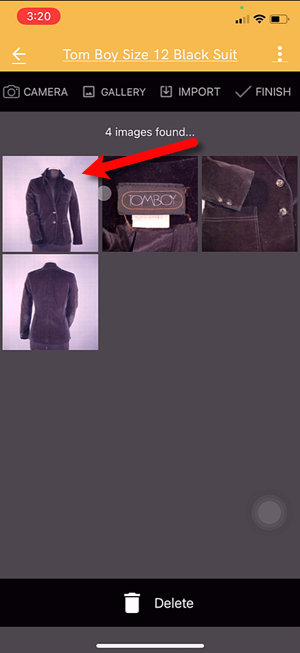
- From here, you can edit the Exposure, Brightness and Contrast. You can also Crop the image so that you get rid of anything in the image you do not want to show. It is also possible to Rotate the image if it is in the wrong orientation.

Finally tap the Save button.

Editing The Settings Within Liberty Photo App
- Tap the Three Dots menu button at the top right of the screen and then tap the Settings button.
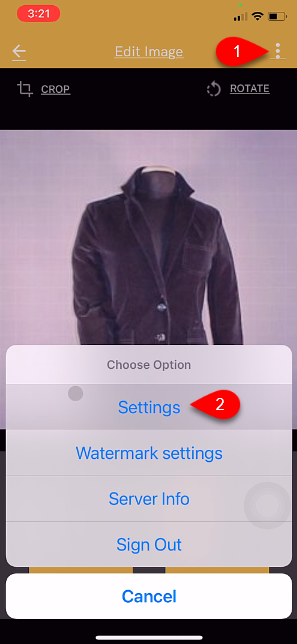
- You have three options that you can edit:
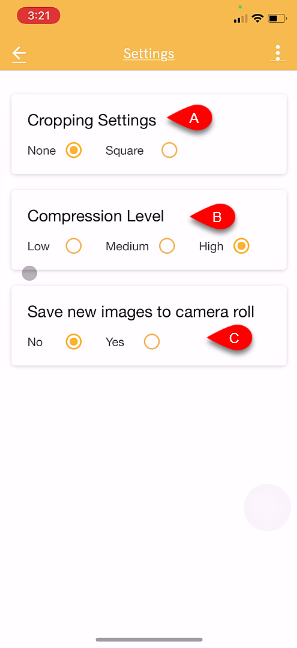
- Cropping Settings: This basically sets whether you want to use the standard dimensions that your phone would normally use or if you would like to use the Square dimension to format your image.
Note: Shopify recommends that you use the Square dimension when formatting your images. - Compression Level: Setting this to Low allows the highest resolution image while setting this option to High allows the image to take up less space on your phone at the slight expense of resolution.
- Save new images to camera roll: Turning this feature on allows you to save the pictures that you take with your camera while in the app to the camera roll. Turning this feature off, stops your device from saving the image to your camera roll library.


Placing a Watermark Image On Your Pictures
- Tap the Three Dots menu button at the top right of the screen and then tap the Watermark settings button.
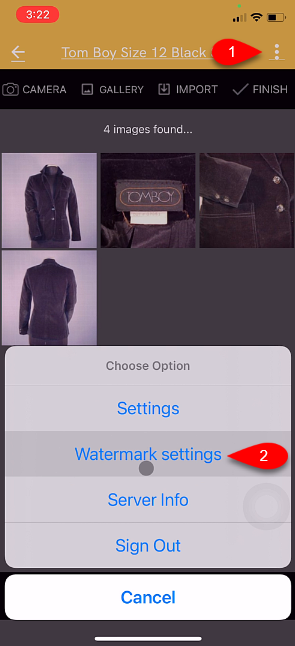
- A watermark makes an image uniquely your stores.
You have some options that you can edit for your Watermark.
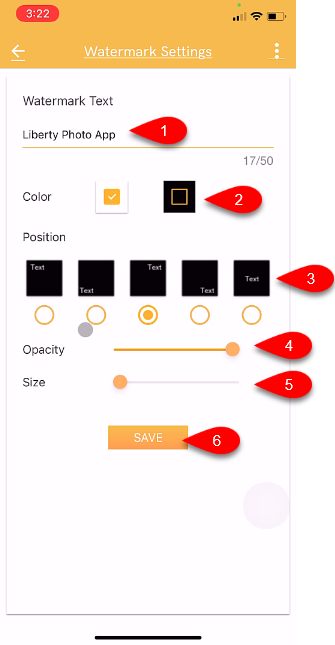
- Watermark Text: This text that you type in will appear on all of the pictures you take.
- Color: Sets if you want a border around the Watermark text.
- Position: Allows you to select what position you want the Watermark to appear at on your image.
- Opacity: Sets if you want to make the text slightly see through or solid.
- Size: Sets the size of the Watermark from Small to Large.
- Tap the Save button when you are done.


Changing Your Which Server You Want To Connect To
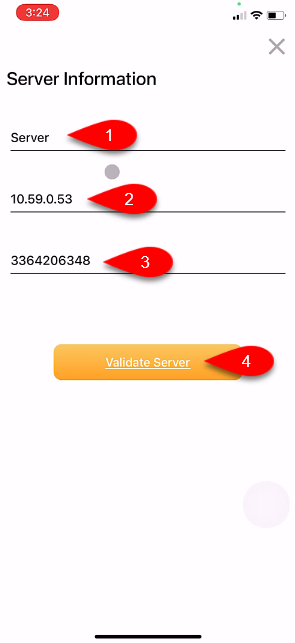
- Tap the Three Dots menu button at the top right of the screen and then tap the Server Info button.
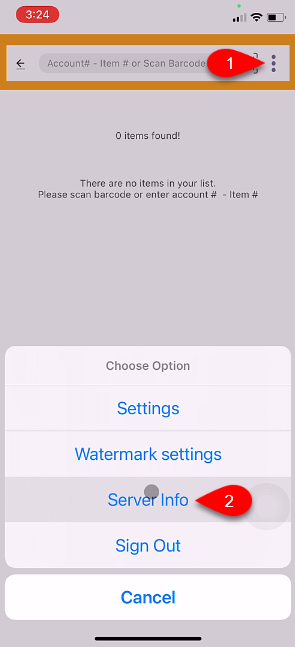
- Fill in the Description, the name Server is usually fine. Then fill in the Server Address and the Device Key from what you recorded from your Server computer. Then, tap the Validate Server button.


Signing Out Of The Liberty Photo App
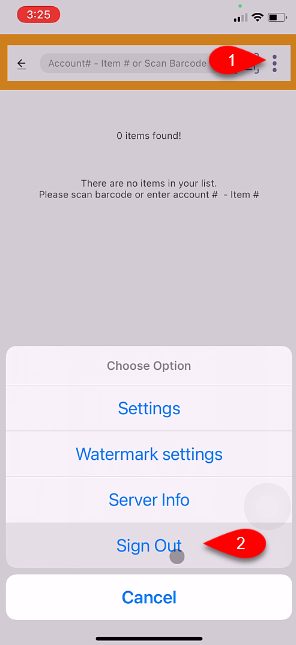
- Tap the Three Dots menu button at the top right of the screen and then tap the Sign Out button.
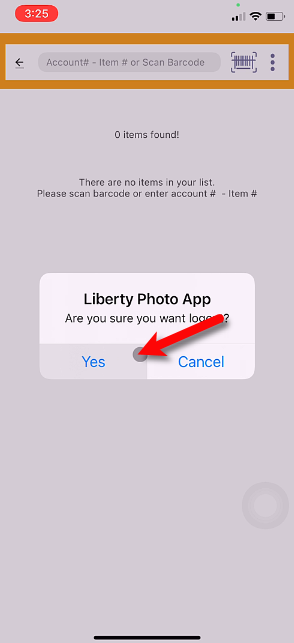
- Tap the Yes button.
- Type in the new Username and Password. Then tap the Remember Me checkmark box.


Finally, tap the Sign In button.

Next Article In Section
Click the following link to move to the next article in this section:
Opening The Liberty Photo App iOS
Related Topics
How To Use The Liberty Photo App for iOS Overview How To Download and Setup The Liberty Photo App for iOS Opening The Liberty Photo App iOS How Use The Camera To Add Images To Items By Using Account - Item Number iOS How To Add Images To An Item Using A Barcode On The Tag iOS How To Add Images Using the Gallery Feature (From Your iDevice’s Library) iOS Using The Import Feature To Import Photos from iCloud, Dropbox or Google Drive iOS How to Edit A Photo That Is Attached To An Item iOS Editing The Settings Within Liberty Photo App iOS Placing a Watermark Image On Your Pictures iOS Changing Which Server You Want To Connect To iOS