Changing the Shipping Address Of An Order To Be Fulfilled
In some cases, it is necessary to change the Deliver To/Shipping Address without changing the Account #.
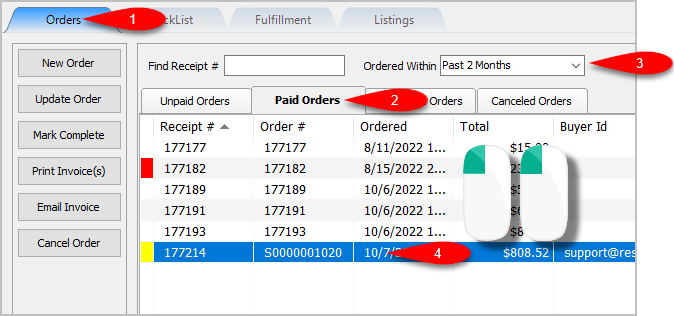
- Open the Listing Manager and navigate to the Orders tab. Most of the orders you will be working with will be under the Paid Orders sub tab but you can access fulfillment from any sub tab. Change the date range under the Ordered Within drop down to select the period of time you wish to work with. Then Double-Click on the order you want to Fulfill.
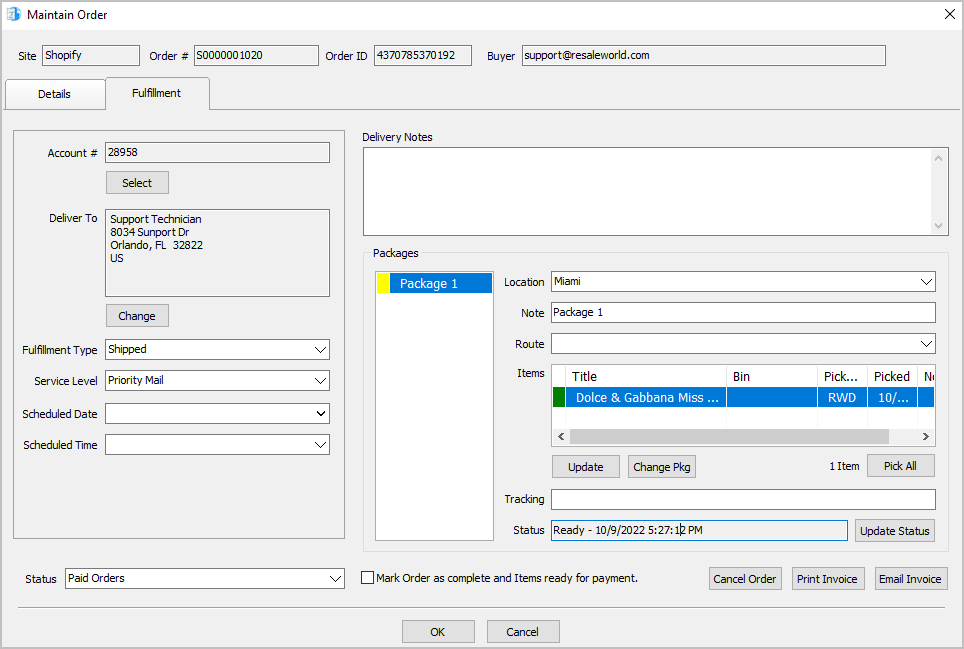
- You will now have access to the Fulfillment sub-tab of an order.
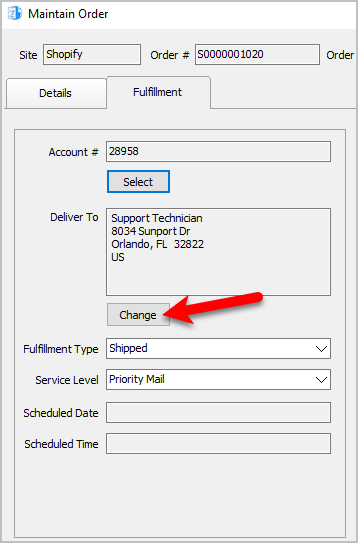
- Click the Change button underneath the Deliver To.
- You will get the following dialog box. Keep in mind, changing the order in this manner can prevent future changes to the order on Shopify from refreshing the order in Liberty. An example of this would be if you Refunded the order on Shopify.


You can click the Yes button if you are good with this.

Next Article In Section
Click the following link to move to the next article in this section:
Changing the Fulfillment Type and Schedule Details Of An Order
Related Topics
Changing the Shipping Address Of An Order To Be Fulfilled Fulfillment From The Order Tab Overview Getting To The Fulfillment Sub-Tab From An Order Changing The Account Used For the Fulfillment Of An Item Changing the Fulfillment Type and Schedule Details Of An Order Adding Delivery Notes To An Order Changing The Fulfillment Location Of An Order Dealing With More Than One Package For The Fulfillment Of An Order Changing The Delivery Route Of An Order Changing The Picked Status Of An Item Within Fulfillment Sub-Tab Adding The Tracking Number to Packages Within The Fulfillment Sub-Tab