Cash, Check and Store Credit Signature Capture Setup In The Point Of Sale
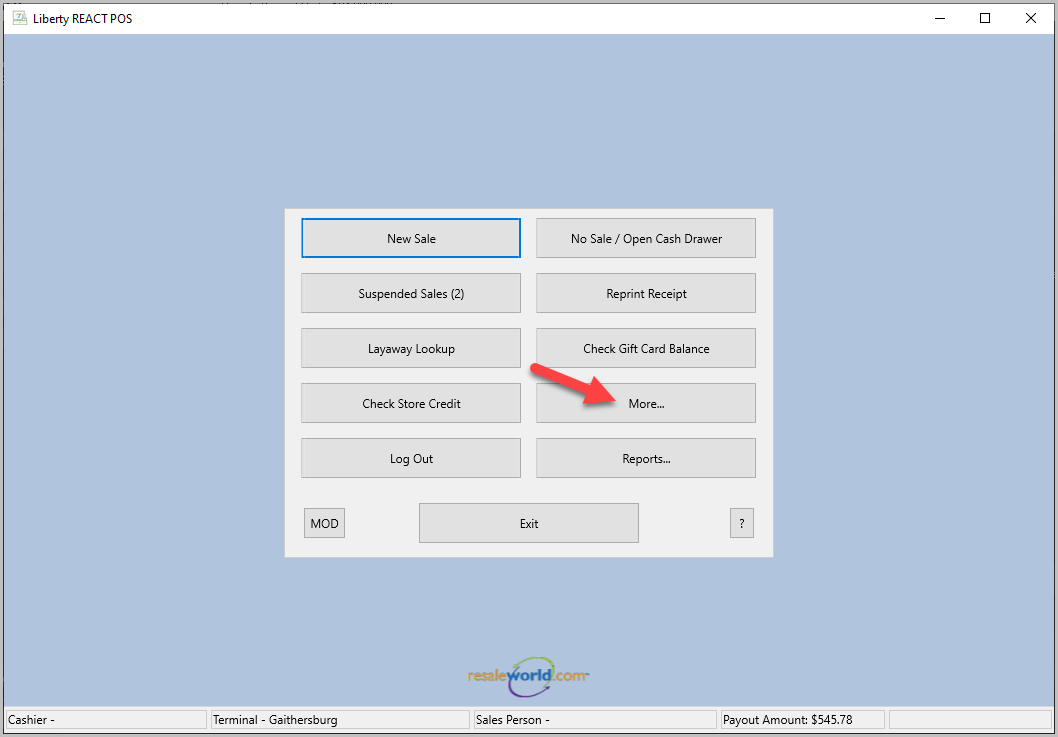
- Open the Liberty Point Of Sale and click the More button.
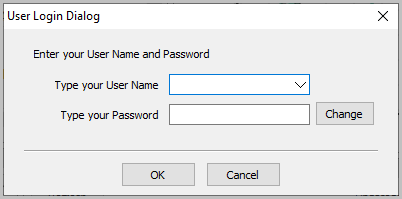
- Login with your username and password.
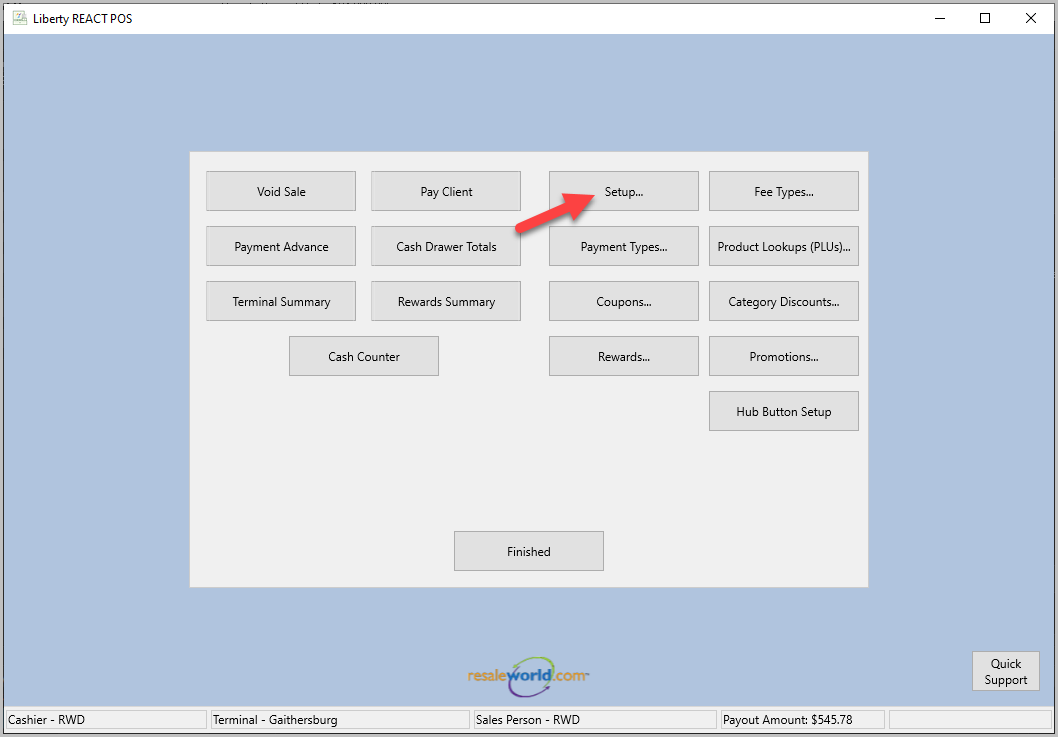
- Click Setup.
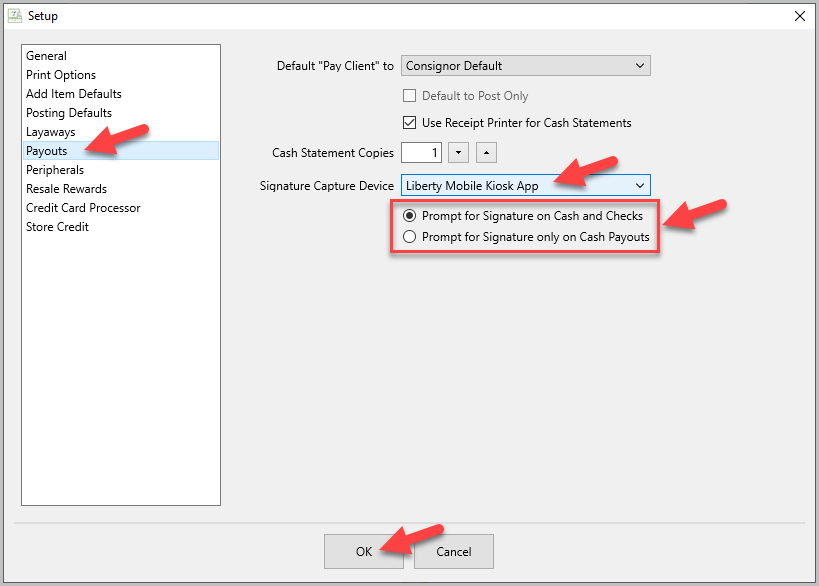
- Click Payouts, then select Liberty Mobile Kiosk App in the Signature Capture Device dropdown menu. Choose whether you want to prompt for signature on Cash and Checks or just Cash Payouts. Then click OK.
- Click Store Credit, then select Liberty Mobile Kiosk App for the Signature Capture Device. Then click OK.
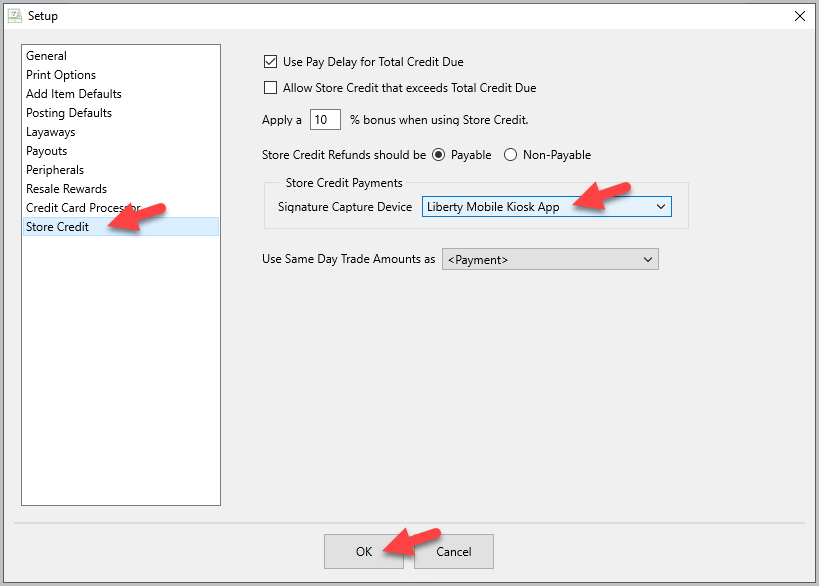
- Now, anytime a client uses store credit towards a purchase in the Point Of Sale, the Liberty Kiosk App will prompt for a signature.


Next Article In Section
Click the following link to move to the next article in this section:
Capturing a Payout Signature in POS
Related Topics
Cash, Check and Store Credit Signature Capture Setup In The Point Of Sale Kiosk Signature Capture Overview Setting Up Contract Signature Capture In Liberty Signing A Contract In The Liberty Kiosk App Capturing a Payout Signature in POS Pay a Client In The POS Consignor Contract Creation Setting Up The Customer Facing Display Mode Using the Customer Facing Display Account Management Feature Consignor Portal Feature