ResaleWallet Store Guide Overview
How To Set Up And Pay Consignors With ResaleWallet
ResaleWallet is Liberty's electronic payout system. It sends consignor payouts straight to a bank account by ACH, so you no longer have to print and hand out checks. In Liberty, staff work with ResaleWallet ACH as a payment account. ResaleWallet handles bank verification and money movement.
This guide covers everything you do inside Liberty: setting ResaleWallet up, entering your store's business details, adding and verifying your bank, and preparing, posting, reviewing, and troubleshooting payouts. For what your consignors see, see the ResaleWallet Consignor Guide.
Note: ResaleWallet functionality was included with Liberty 6.4a (Cloud Version); however, ResaleWallet is not currently available for use with Liberty 6.4a. ResaleWallet is currently available to eligible Liberty Cloud customers running Liberty 6.4B as part of the controlled rollout.
What the Store Needs Before Payouts
- ResaleWallet enabled for the store and set up by Resaleworld support.
- A verified store email address for the ResaleWallet merchant account.
- Store profile information completed and accepted by ResaleWallet.
- At least one active bank account connected for store payouts.
- Consignor records with a Digital Payout ID for anyone who should receive a ResaleWallet payment.
- The payment account set to ResaleWallet when preparing ResaleWallet payouts.
Setting Up ResaleWallet
Contact Resaleworld at 1-800-785-4800 to get you signed up and set up with ResaleWallet.
Set Up Your Business Entity
The store profile is the merchant identity record that ResaleWallet reviews. Liberty collects the information, but the final verification decision is made by ResaleWallet. Choose Edit Profile Information from the ResaleWallet area to open it. The Business Type you choose controls which panels are required.
From the ResaleWallet area you can edit the store profile, manage bank accounts, and upload documents when ResaleWallet asks for them.
- Click on Setup > ResaleWallet and then Edit Profile Information…
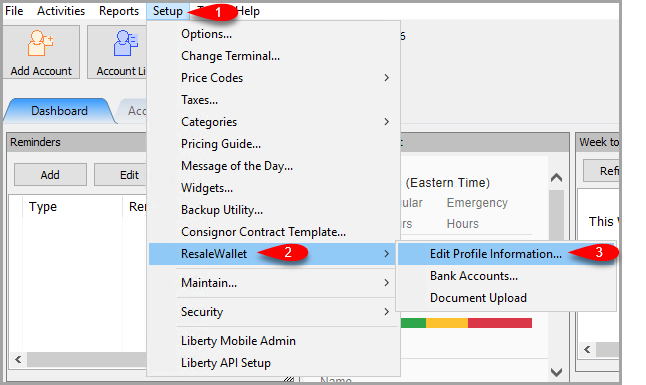 The ResaleWallet options: Edit Profile Information, Bank Accounts, and Document Upload.
 - Then, you can enter your profile information.
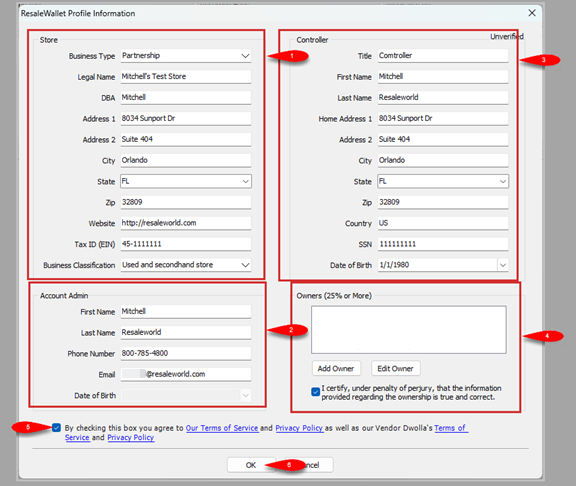 The ResaleWallet Profile Information screen. Business Type controls the required fields. Owners who hold 25 percent or more are added in the Owners panel.
 - Choose your Business Type. This controls which of the panels below are required.
- Fill in the Account Admin contact details.
- Fill in the Controller details. The controller is not required for a sole proprietorship.
- In the Owners (25% or More) panel, add any individual who owns 25 percent or more of the business. This panel will always be visible but may not be accessible if the business type you select does not require this field. If there isn't an owner with a 25% share, you can leave this blank. Check the box to certify that the information is correct
- Checkmark the box to Agree To The Terms and Conditions. You can click on any of the highlighted text to view the information.
- Click OK button when finished.
Business type notes:
- Sole proprietorships are usually simpler and may not require a separate controller section.
- LLCs, corporations, partnerships, and similar structures can require controller and beneficial owner information.
- Non-profits, such as charity shops, can require a controller even though ownership is handled differently.
- Some business types require a document upload after ResaleWallet reviews the profile.
Note: The Full Social Security Number is required for the Beneficial Owner. In other cases, just the last 4 digits of the social security will be required. Resaleworld does not store this information.
Note: Liberty does not validate this information beyond checking that the required fields are filled. Your store certifies that it is correct. After the details are accepted, the account status moves from Unverified to Verified. Payouts cannot be sent until the account is verified.
Add a Bank Account
After the profile is accepted, add the store bank account that will fund ResaleWallet ACH payouts.
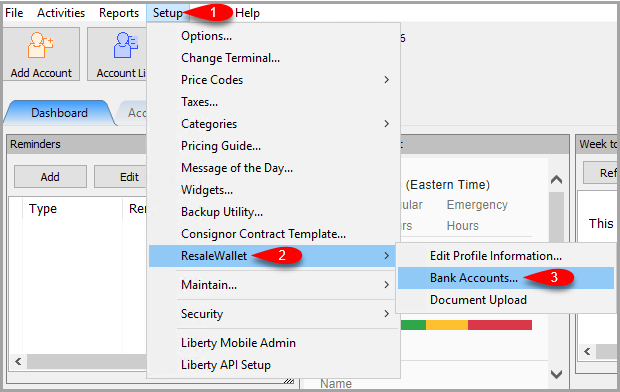
- Click on Setup > ResaleWallet > Bank Accounts
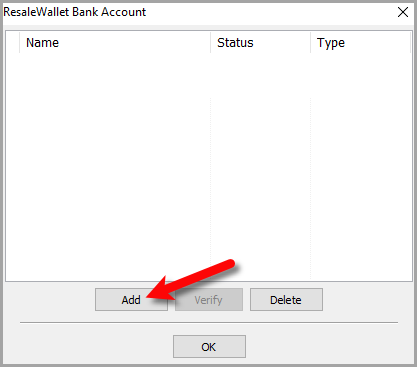
- Click the Add button.
- Enter an Account Name that staff will recognize.
- Enter the routing number and account number.
- Select the account type and the payment account.
- Click OK.
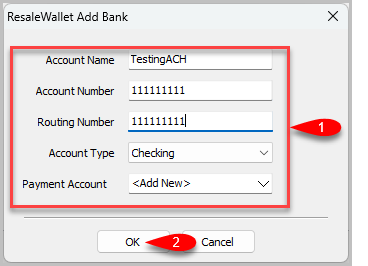 The Add Bank screen. Fill in the account name, account number, routing number, and account type, then click OK.


Verify the Bank Account
To confirm the account, the payment service makes small test deposits, called micro deposits. This process can take about one to two business days.

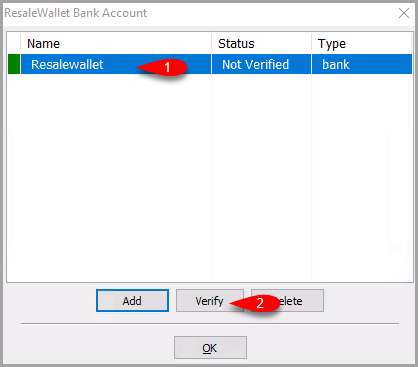
- Return to Bank Accounts after the micro deposits post.
- Select the account and click Verify.
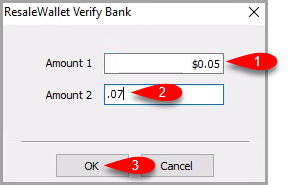
- Enter the verification amounts and click OK.
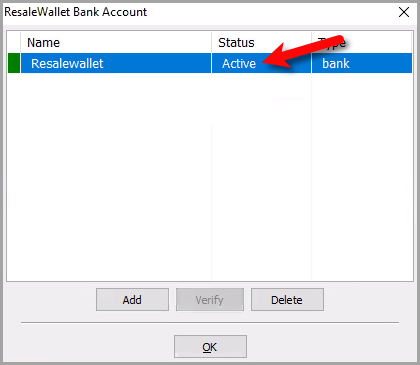
- Confirm the account status changes to active or verified.
- You can double click on the bank entry at any time.
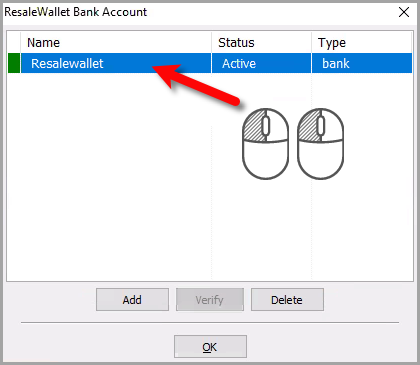
- This will show you that the bank account is linked.
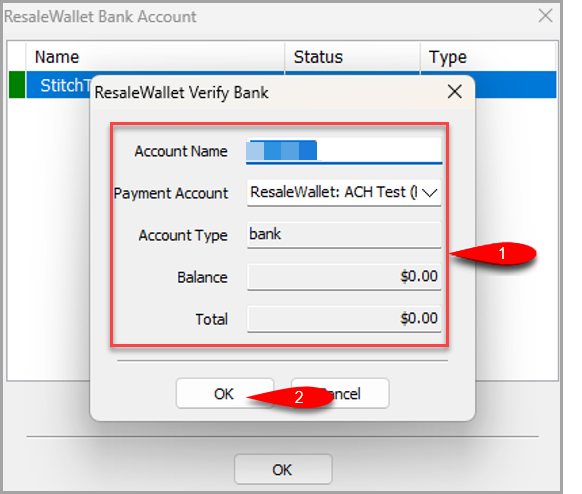
Note: The payment account name automatically gets ResaleWallet: added to the front. This field has a 35 character limit, so for a long name use a short prefix such as RW: instead of ResaleWallet:. This can be adjusted by going to SetupMaintain > Payment Accounts and editing the entry.


Required Consignor Fields
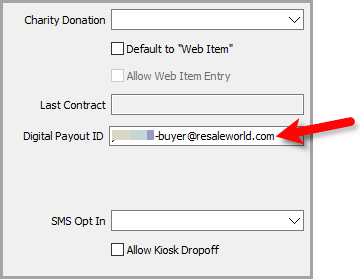
Each consignor who should receive a wallet payout needs a Digital Payout ID on their account. If the field is blank, the payout cannot be sent through ResaleWallet.
- Open any account you wish to set up for future payouts using ResaleWallet.
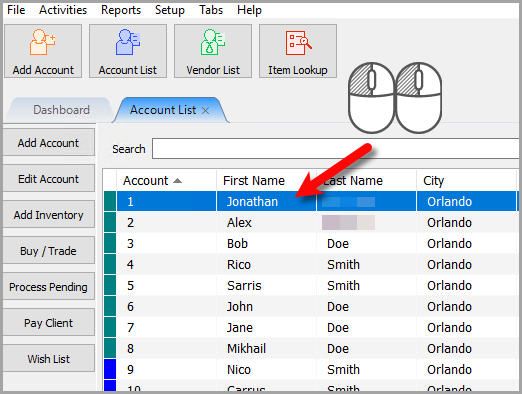
- For bulk payouts and future payouts, you can scroll down and set the consignor's payment account to ResaleWallet so the account gets picked up when you do a mass payout or auto selects ResaleWallet when you do a single payout:
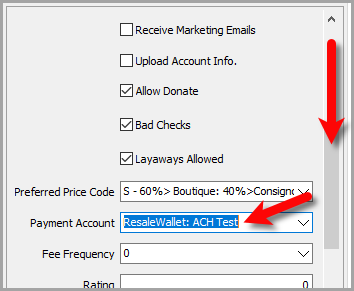
- We also need to make sure that the Digital Payout ID is set to the email that the consignor wishes to receive ACH payouts with.
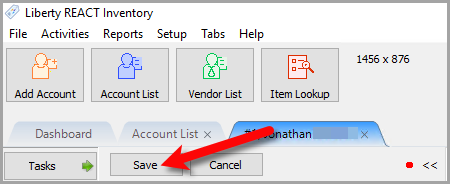
- Click the Save button.
Note: Alternatively, if you are paying out one client at a time, you can set the payment account at the time of the payout.


Paying Out A Single Client With ResaleWallet
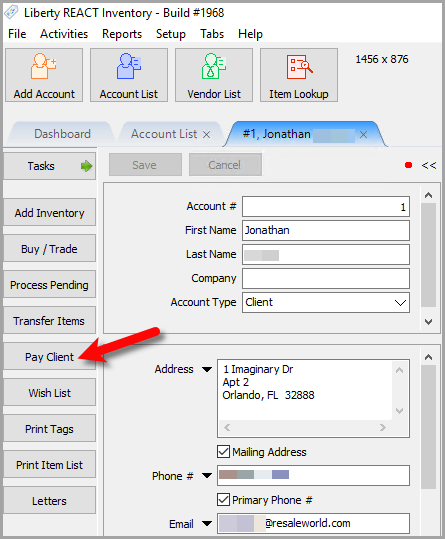
- Open any account you wish to payout with ResaleWallet
- Click the Pay Client button
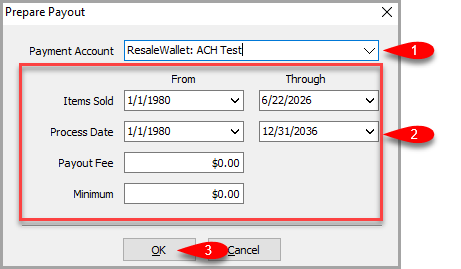
- Make sure that the Payment Account is set to your ResaleWallet payment account.
Fill in the Items Sold date range, whether you want to add an additional Payout Fee
Fill in the Minimum payout amount you wish to payout and then click the OK button.
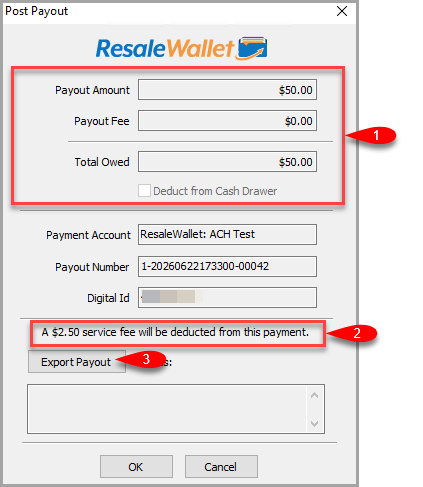
Note: All payouts will automatically have a $2.50 platform fee applied to them when the client receives their ACH Payout. - Confirm the amounts for Payout Amount, Payout Fee and Total Owed are correct.
Note the disclaimer indicating that A $2.50 service fee will be deducted from this payment.
Click the Export Payout button.
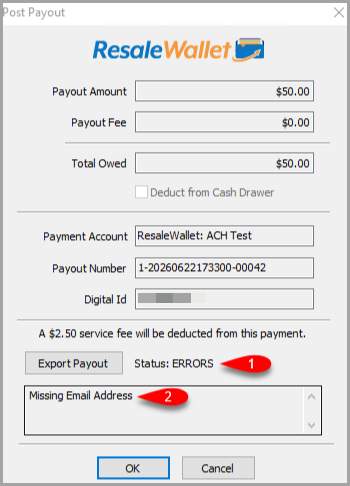
- If there are any issues you will see an Error for status along with what the issue is. In this example, we see that we are missing the Digital Payout ID / Email Address. You can cancel out of the payout, add the Digital Payout Email Address and then retry the payout.
- When the payout is sent successfully, you will get a dialog box asking if you would like to send them a separate email of the items the client is receiving an ACH digital payout for.
You can click OK to send it or Cancel if you do not want to send them an itemized payout detail email.
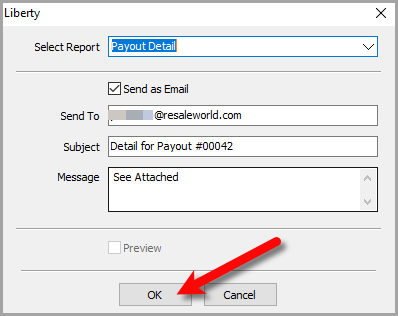
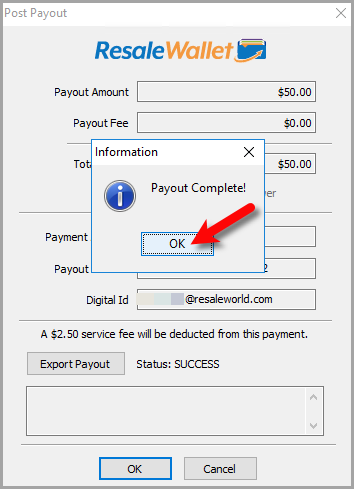
Note: You must have Liberty Inventory Module setup to email out. - Once finished, you will see a Payout Complete message.
You can click OK when done.


ResaleWallet Processing Time
ResaleWallet processes payments at 5:00 PM Eastern, which is 4:00 PM Central. Payments entered on Saturday or Sunday are processed at 5:00 PM Eastern on Monday. West Coast stores should submit payments in the morning so they are entered before the daily processing time.
Mass Payouts With ResaleWallet
ResaleWallet payouts use the ResaleWallet ACH payment account. The payment account you choose controls which payouts are part of the mass payout range.
ResaleWallet Processing Time
ResaleWallet processes payments at 5:00 PM Eastern, which is 4:00 PM Central. Payments entered on Saturday or Sunday are processed at 5:00 PM Eastern on Monday. West Coast stores should submit payments in the morning so they are entered before the daily processing time.
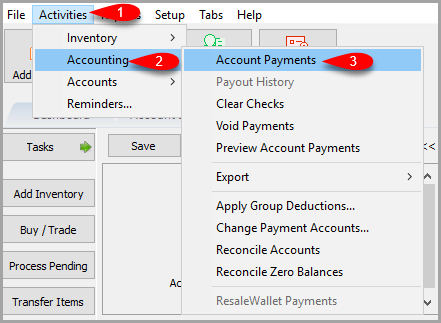
- To payout in mass, go to Activities > Accounting > Account Payments.
- You will now be able to set your filters on accounts and dates you want to do the mass ACH payout on.
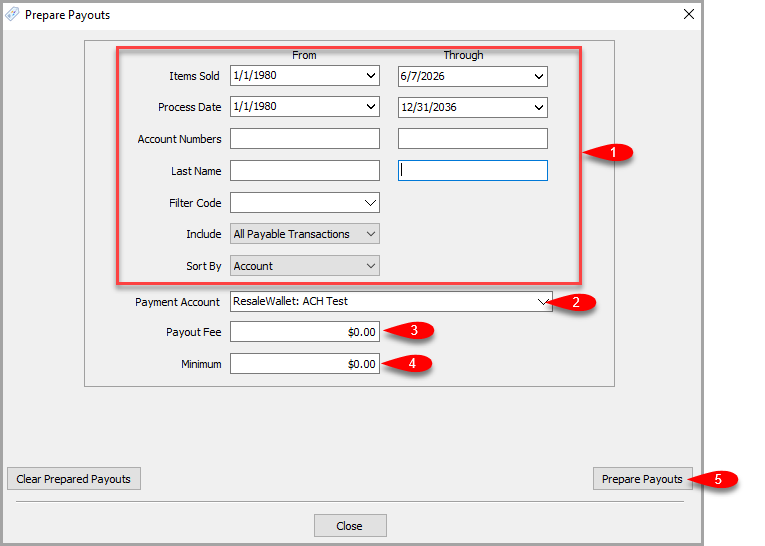
- Set the filters for Items Sold and any other criteria you need to filter your payouts with.
- Make sure that for Payment Account, the ResaleWallet: option is selected.
- If you wish to add a Payout Fee you can, but keep in mind that for ResaleWallet a $2.50 fee will be taken out of the consignor's payout when they Receive it. For your accounting purposes, your software will reflect that you paid out the full amount.
Example: If you pay out $100.00 to a consignor, when they receive their payout it will be $97.50, however your system will reflect that you paid out $100.00. - Type in the Minimum Payout amount you are willing to payout as part of this Mass Payout.
- Click the Prepare Payouts button.


Processing The Mass Payout
Liberty shows the Post Payout dialog with the payout amount, the fee, the payment account, the payout number, the Digital ID, and the service fee warning.

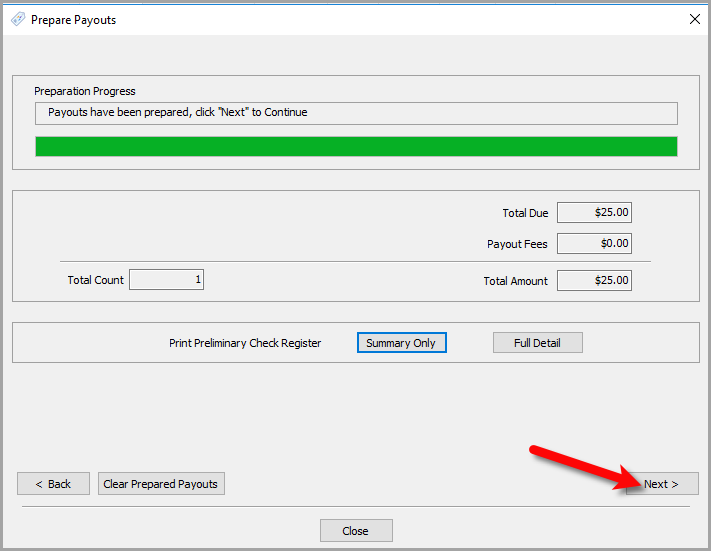
- Review the payout amount, payout fee, total count of checks and Total Amount.
- Click which type of Preliminary Check Register you wish to view / print.
- You will see the Preliminary summary report where you can review further details before continuing.
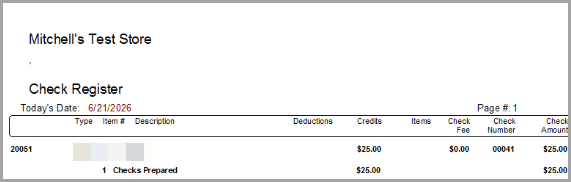
- You can Print, Save The Report, or Save as PDF for your records if you wish.
Close the report when finished

- Click the Next button when you are ready to continue.
- The prepared payout screen lists the payout ID, date, account number, client, Digital ID, amount, batch number, payout number, wallet flag, total, and status. Use it to confirm the expected payouts were prepared before you send.
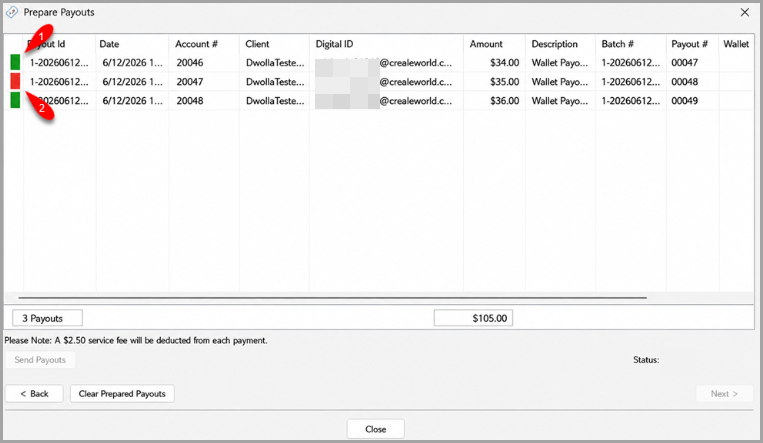 The Prepare Payouts screen. A red indicator marks a payout with a problem. Remove it, then send the rest.
 - A green indicator means the payout has been sent.
- An orange indicator means that there is a missing Digital Payout ID (email) on the account.
- A red indicator means that the payout failed to send.
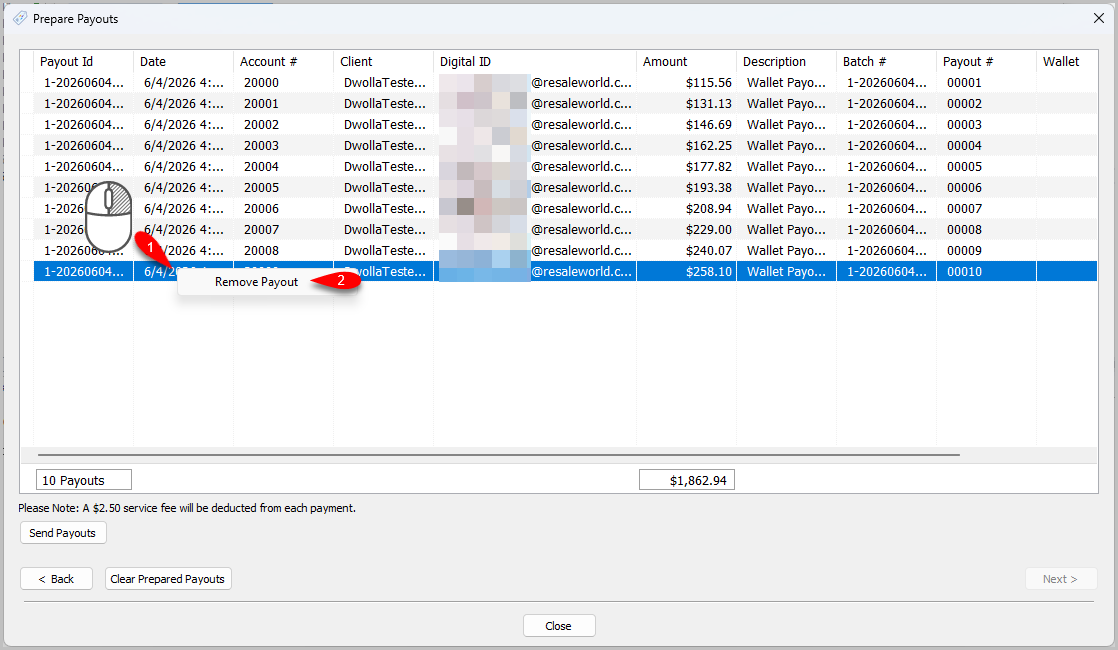
- You can also remove payouts by right clicking on a payout and clicking Remove Payout.
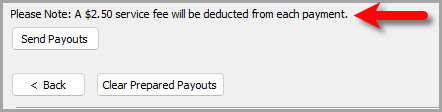
- Note the Please Note: A $2.50 service fee will be deducted from each payout message as mentioned before.
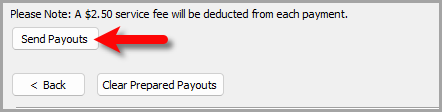
- Click the send payouts button when you are ready to proceed.
- You will receive a Processing Completed! dialog box.
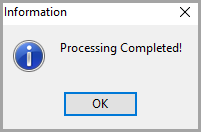
Note: If one payout fails, the rest will still process.


Viewing the Check Summary Report
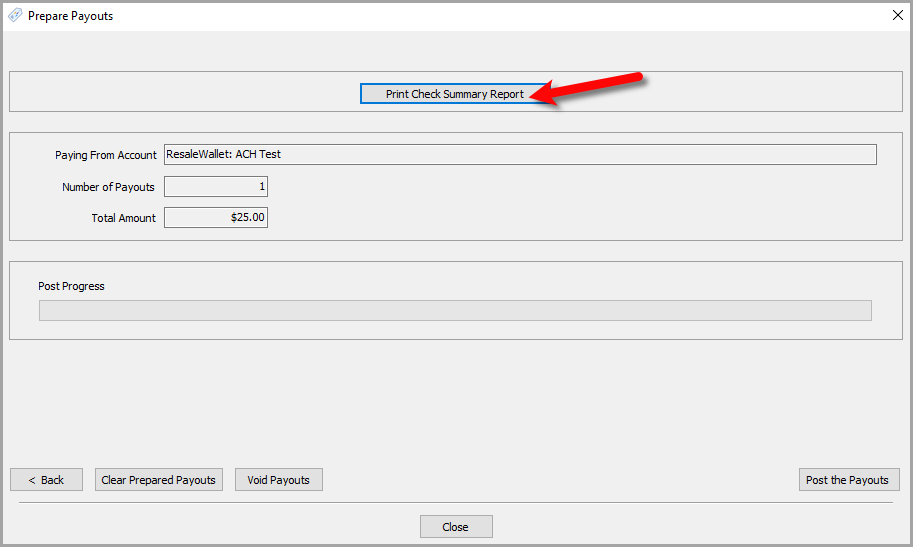
- You can now view the Check Summary Report by clicking Print Check Summary Report.
- The main view for the Check Register will appear for you to review. You can Print, save or create a PDF of the report from the top left corner.
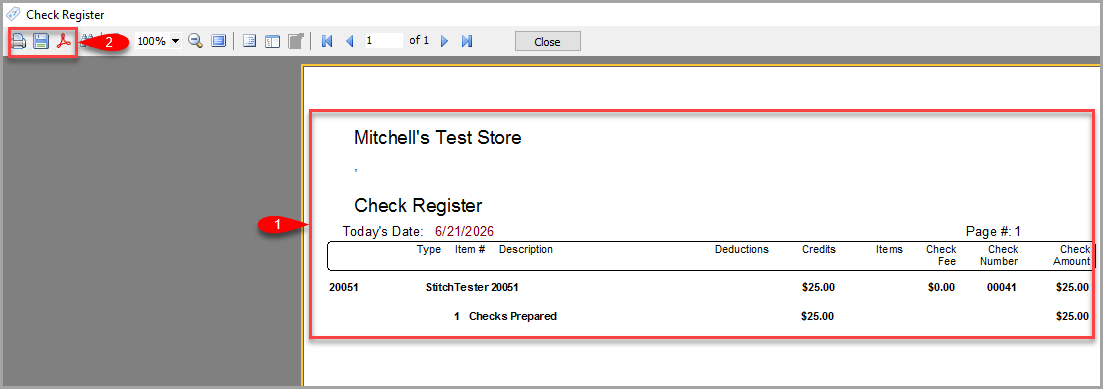
- Click the Close button when finished



Posting The Mass Payout
Now we are ready to post the payouts to the client accounts so that the balances show as paid.
- Click the Post the Payouts button.
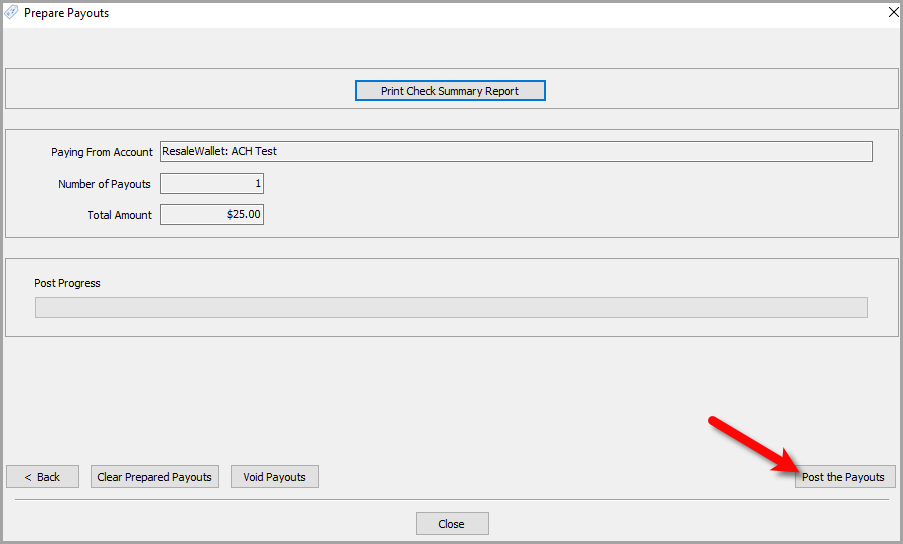
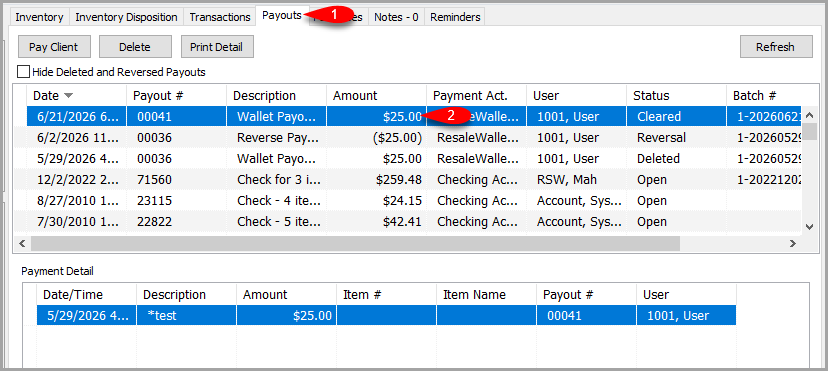
- The payout will now show as cleared in the client's account under the Payouts tab.


Checking The Status of an ACH Payout
After an ACH payout has been completed, you can check the status of the ACH payout.
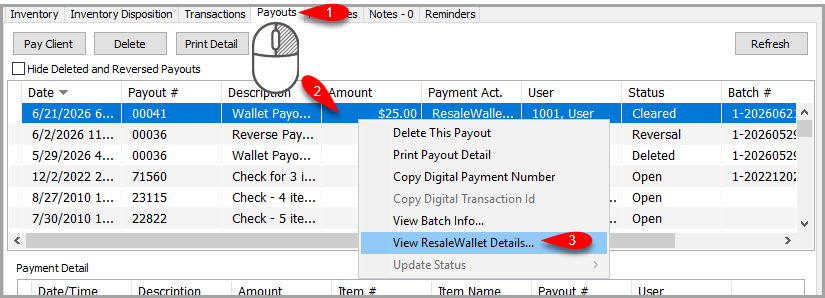
- Go to the account that has an ACH Payout that you wish to look up and go to the Payouts tab. Then right click on the ACH payout and click View ResaleWallet Details…
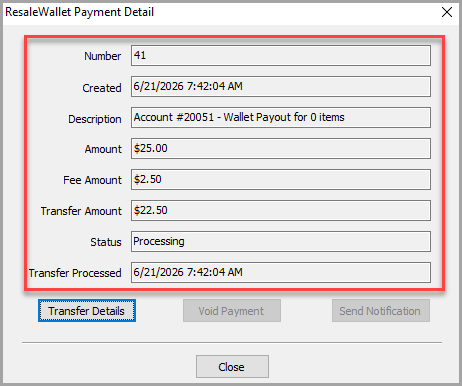
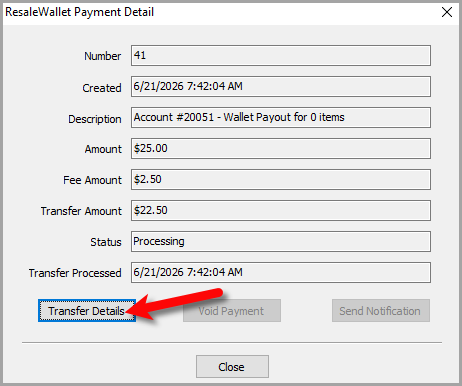
- This Payment Detail window helps you understand the current state before voiding or resending. The Payment Detail screen shows the amount, the $2.50 fee, the transfer amount the consignor receives, and the status.
- A pending payout may allow a notification resend or a void.
- A completed payout may not be removable.
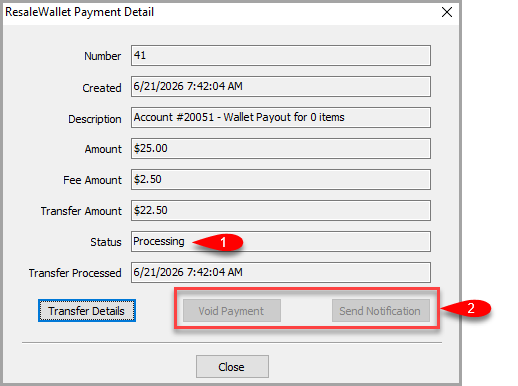
Note: You may Void Payment or Send Notification if the payout status allows it. Do not repeatedly resend or repost a payout without understanding its current transfer state. - If you wish to view the transfer details of an ACH Payout click the Transfer Details button.
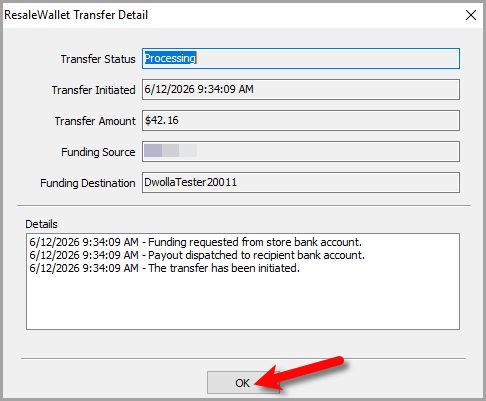
- From here you can view the transfer details of the ACH payout. This can tell you what has already happened with the payout.
Click the OK button when done.
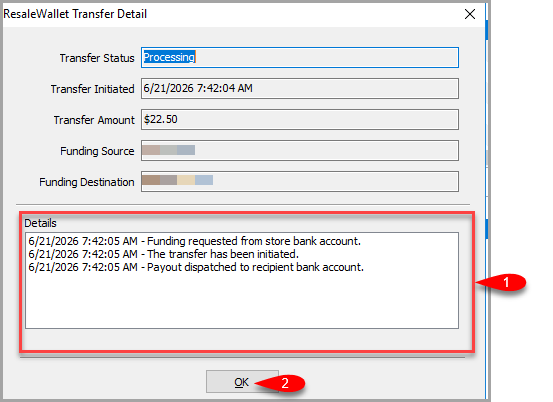 The Transfer Detail screen. The Details panel lists each step of the transfer in order.


Rejected Bank Payments And The Balance Account
If the recipient bank rejects a ResaleWallet payout, ResaleWallet returns the money to the store's Balance account.
 The Balance account appears as an active ResaleWallet bank account with type balance.
The Balance account cannot currently be prefunded, and the store cannot withdraw its funds directly. To reissue the returned money, first correct the intended consignor's bank information. Then create or recreate a Liberty payment account connected to the Balance account and use that payment account to issue the replacement payout to the intended consignor.
Important: Treat the Balance account like a stored funds bucket. Confirm the intended consignor before issuing the replacement payment. Selecting the wrong client could pay the returned money to someone else.
What Consignors Receive
If a consignor does not already have a ResaleWallet account in the Resaleworld environment, they receive an invitation email to set up their account. If they already have one from another store, they may receive only a payout or transfer notification.

ResaleWallet Dashboard
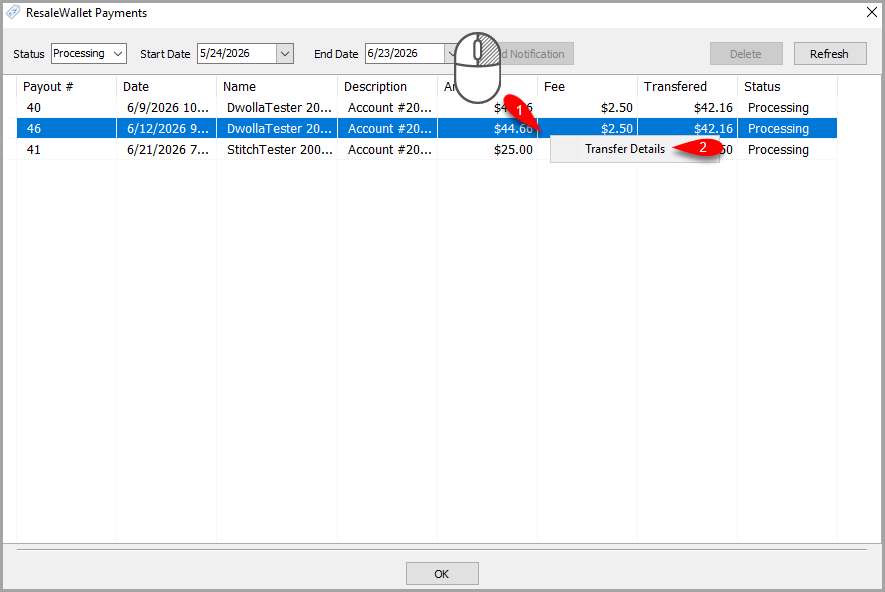
At any time you can see all ResaleWallet payouts that are in any status.
- Click on Activities > Accounting > ResaleWallet Payments
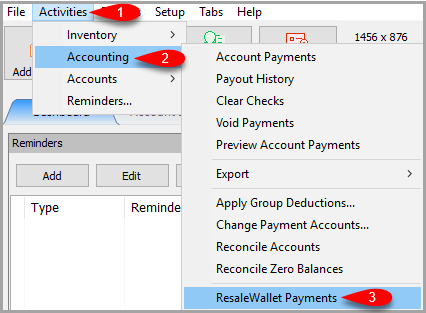
- Here you can filter for all ResaleWallet payouts
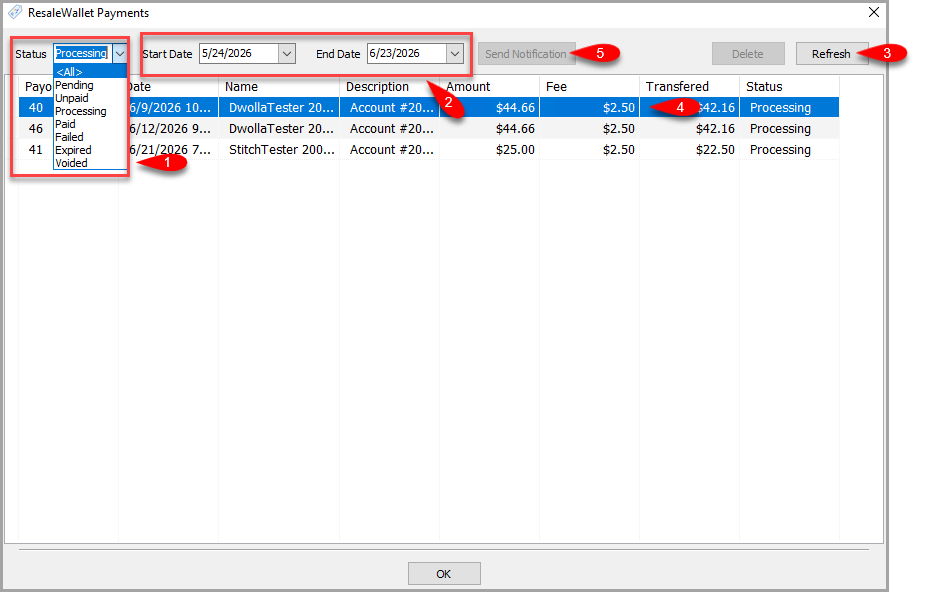 * Set the Status you wish to filter for.
- Set the Start Date and End Date you wish to see the ResaleWallet ACH payouts for.
- You must click the Refresh button after setting your filters
- You can select any payout by clicking on it.
- If the ability to Send Notification is available, you can click this button to resend an email pertaining to the selected payout.


Note: This button will only be active for specific statuses.
- You can right click on any payout in this dashboard and click View Transfer Details to see more information on where the payout is in the ResaleWallet payment process.
- Click the OK button when finished.


Store Troubleshooting
You get a message that states ResaleWallet is not available
Contact Resaleworld so that we can look into this for you.
Store profile will not verify
- Check the business type and the required owner and controller fields.
- Confirm store email verification is complete.
- Check whether you received an email requesting extra documents.
- Contact Resaleworld support.
Bank account is not active
- Confirm the account was added under Bank Accounts.
- Wait for production micro deposits if required.
- Verify the micro deposit values once available.
- Confirm the account status is active before starting payouts.
Payout is missing from bulk payout results
- Confirm the consignor has a Digital Payout ID.
- Confirm the payment account is ResaleWallet ACH.
- Confirm the sold date, process date, and minimum amount filters.
- Confirm the payout has not already been posted or voided.
Recipient bank rejected a payout
When the recipient bank rejects a payout, the money returns to the store's ResaleWallet Balance account. Correct the intended consignor's bank information, create or recreate a Liberty payment account connected to the Balance account, and use that payment account to issue the replacement payout. The store cannot currently prefund the Balance account or withdraw its funds directly.
Confirm the client before sending the replacement payment because the Balance account behaves like a stored funds bucket and can be used to pay a different person by mistake.
Payment Limits
Your default payout limit is 5,000 dollars. If you need a higher limit, it can be raised, contact Resaleworld support.
Next Article In Section
Click the following link to move to the next article in this section:
How To Set Up And Pay Consignors With ResaleWallet
Related Topics
ResaleWallet Store Guide Overview How To Set Up And Pay Consignors With ResaleWallet Set Up Your Business Entity Add a Bank Account Required Consignor Fields Paying Out A Single Client With ResaleWallet Mass Payouts With ResaleWallet Checking The Status of an ACH Payout What Consignors Receive ResaleWallet Dashboard Store Troubleshooting Payment Limits