Adding The Tracking Number to Packages Within The Fulfillment Sub-Tab
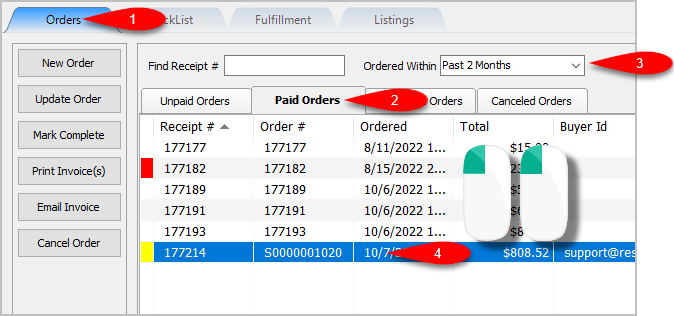
- Open the Listing Manager and navigate to the Orders tab. Most of the orders you will be working with will be under the Paid Orders sub tab but you can access fulfillment from any sub tab. Change the date range under the Ordered Within drop down to select the period of time you wish to work with. Then Double-Click on the order you want to Fulfill.
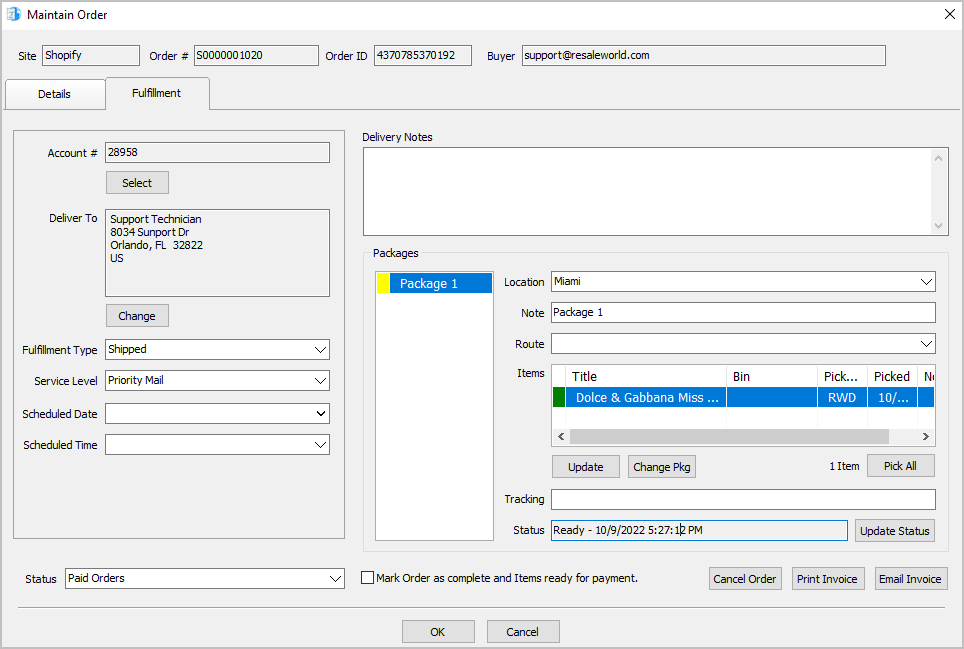
- You will now have access to the Fulfillment sub-tab of an order.
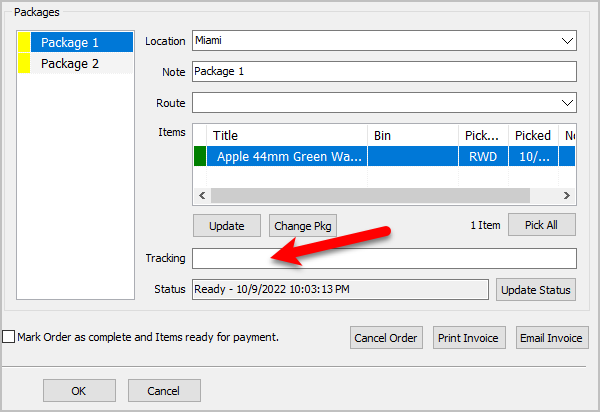
- You can enter the tracking number if you have one in the Tracking field.
The tracking number is saved per package, all you have to do is select the package first and then type in the Tracking number.
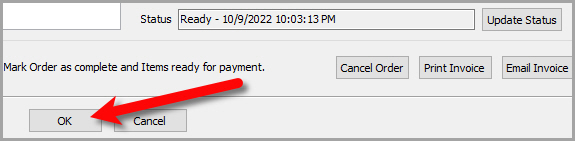
- Click the OK button.
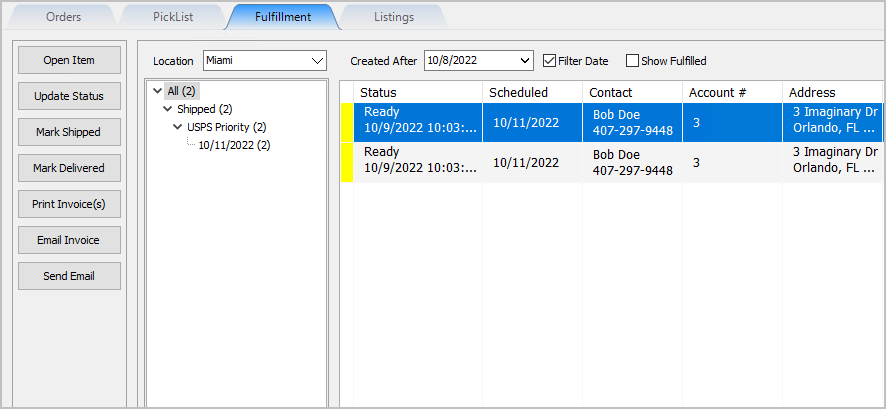
- In this example, the order will show as Shipped for Two Packages in the Fulfillment tab


Next Section Navigation Link
Click the following link to see a list of articles for the next section:
PickList Tab
Related Topics
Adding The Tracking Number to Packages Within The Fulfillment Sub-Tab Fulfillment From The Order Tab Overview Getting To The Fulfillment Sub-Tab From An Order Changing The Account Used For the Fulfillment Of An Item Changing the Shipping Address Of An Order To Be Fulfilled Changing the Fulfillment Type and Schedule Details Of An Order Adding Delivery Notes To An Order Changing The Fulfillment Location Of An Order Dealing With More Than One Package For The Fulfillment Of An Order Changing The Delivery Route Of An Order Changing The Picked Status Of An Item Within Fulfillment Sub-Tab