Check a User’s In-Store Reward Plan Points
Within Inventory Module
- The Account Details screen will display. Select the Purchases Tab.



The Purchases Tab will open. Information about the In Store Rewards Plan is displayed to the right. Here you will be able to see the points associated with the account.

Note: If you need to manually change your customer’s Plan, Membership ID, or add points, just click on Edit and make the necessary changes.
Within The Point Of Sale
- From the Point Of Sale select the Customer button.

- Search for the Account and Double Click on it.
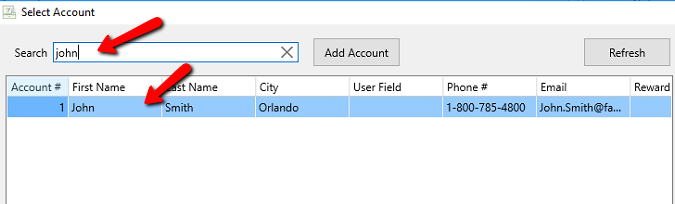


This will add the customer to the Point Of Sale.

From here you will be able to see the points associated with the account.
Next Section Navigation Link
Click the following link to see a list of articles for the next section:
ResaleRewards
Related Topics
Check a User’s In-Store Reward Plan Points Assign an In-Store Reward Plan to an Existing Customer Assign an In-Store Reward plan to a New Customer In-Store Reward Plan Setup Assigning ResaleRewards Points Resale Rewards Summary Setting up ResaleRewards What is ResaleRewards How To Create And Use A Coupon In The POS