Split Tender Sale
Sometimes a customer will want to pay with more than one type of payment.
Example: A customer decides to pay $30.00 in cash and $74.00 with a Credit Card for a sale that totals $104.00. Use this procedure to post a sale with more than one payment method.
How To Post A Sale With Multiple Payment Methods
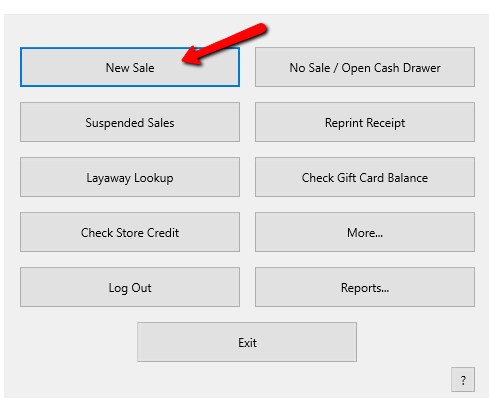
- From the POS Hub select the New Sale button.
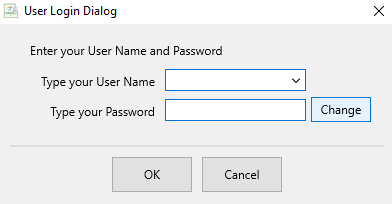
- Login if prompted.
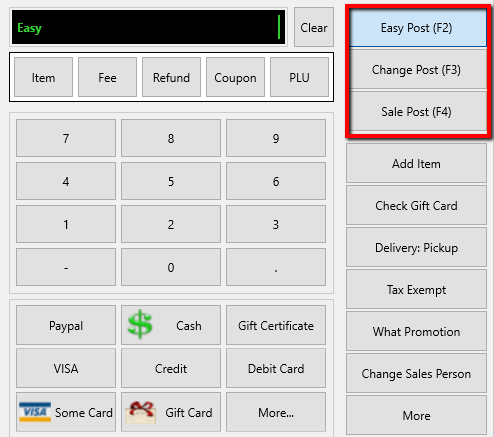
- Select your posting mode. For more information on posting modes, see Sell Items For Regular Price, Sell An Item At A Percentage Discount, and Changing The Selling Price Of An Item.
The posting mode you are in will be displayed in the black entry field.
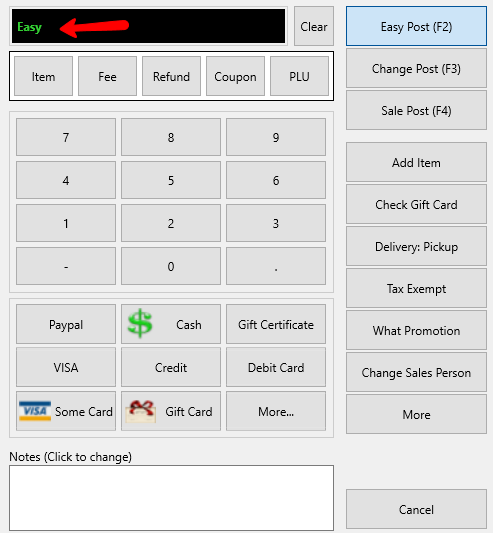
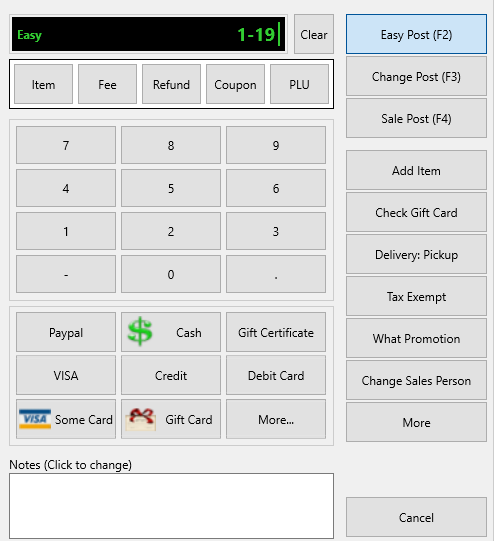
- Scan or type in your items using the Account-Item Number format.
Example: for item 19 on account 1 type in 1-19.
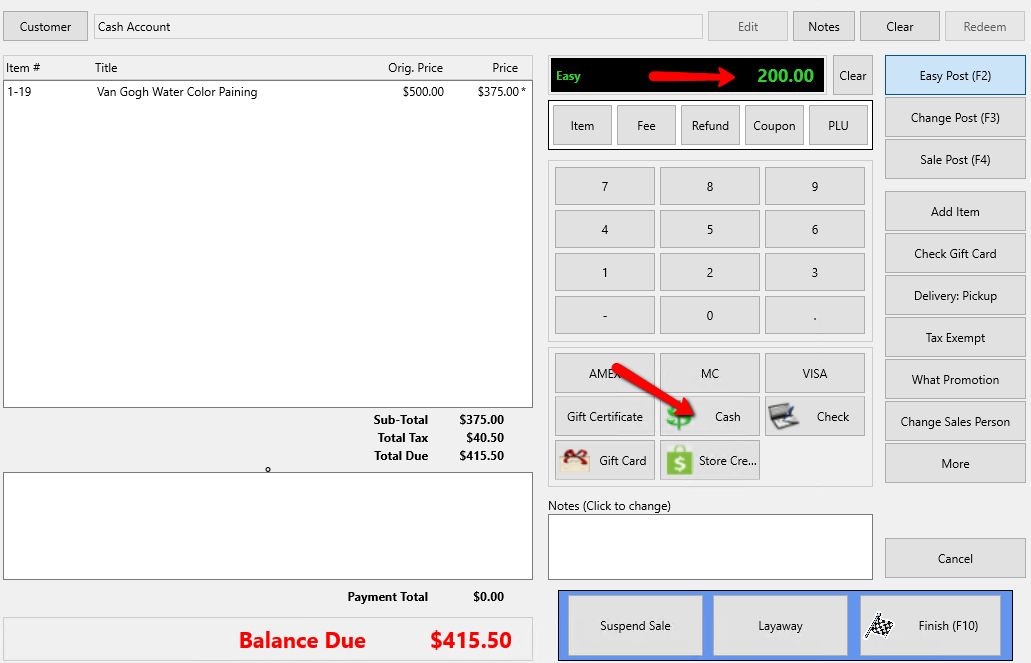
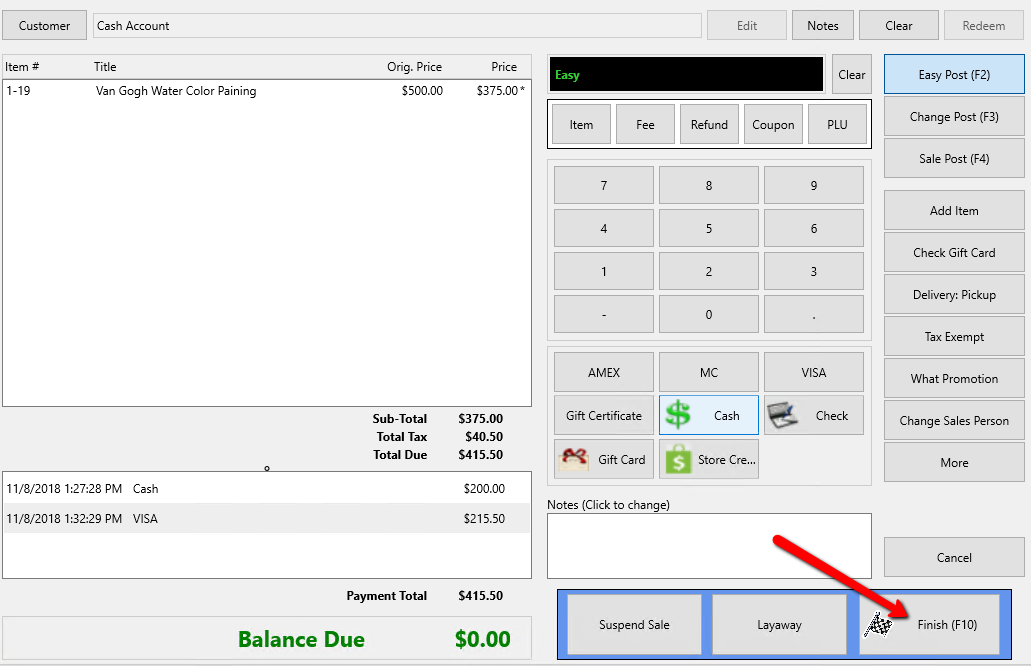
- Enter the amount received from the customer for the first payment type and select the payment method (Cash, Check, Visa, etc.).
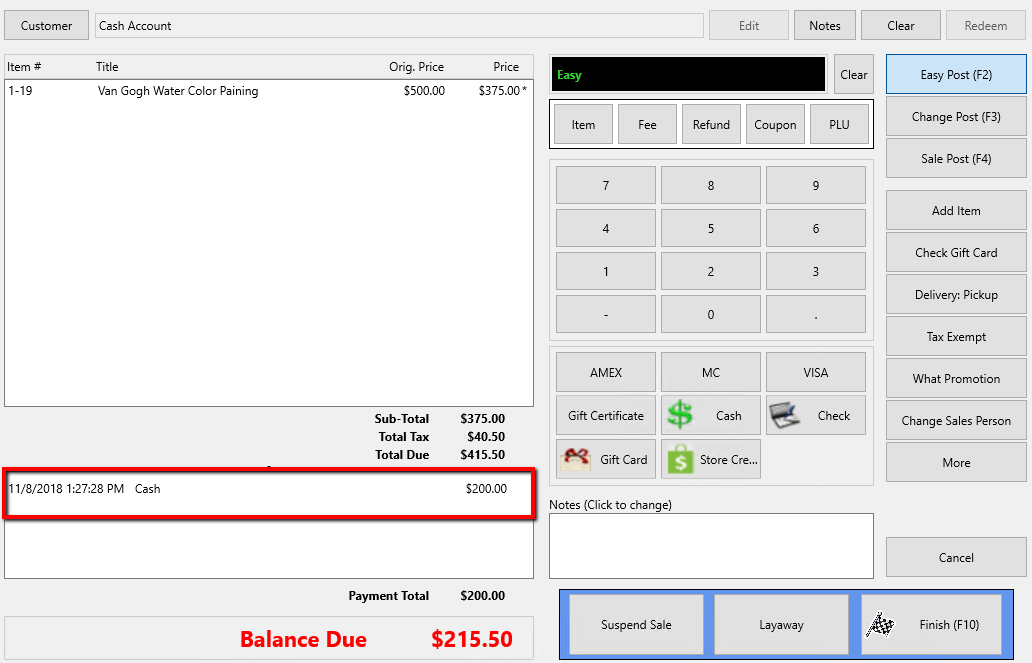
The first payment will be applied to the sale.
- Repeat Step 5 to enter subsequent payment methods.
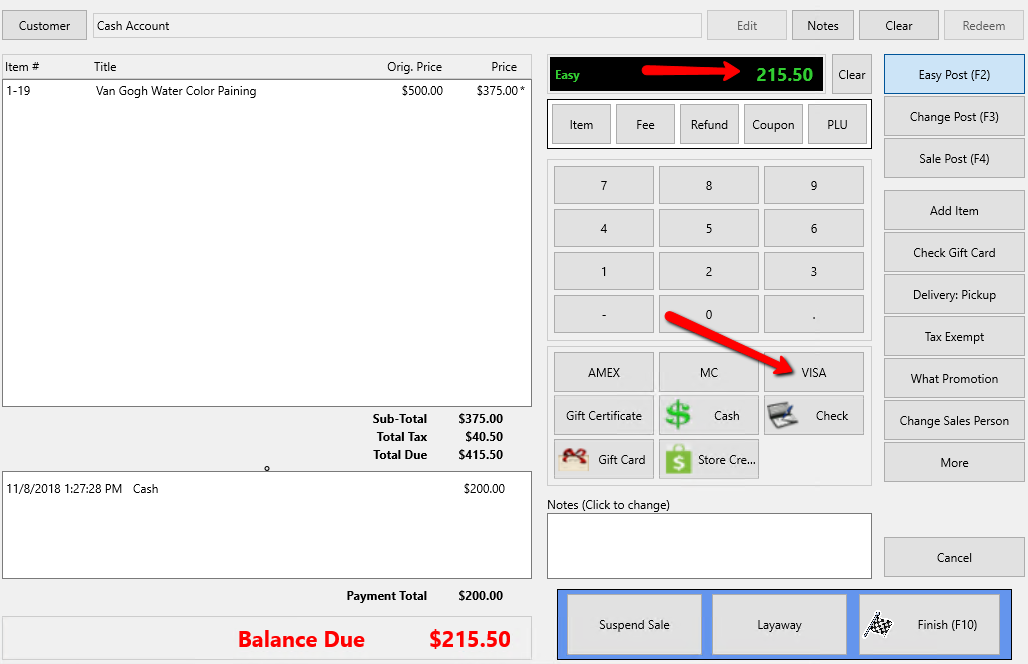
You may use as many payment methods as necessary. - Click on the Finish button to complete the sale.
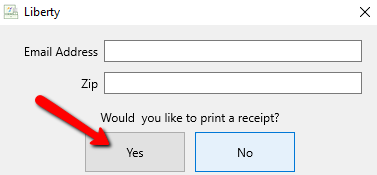
- Press the Print Receipt button to print a receipt.


Next Article In Section
Click the following link to move to the next article in this section:
Layaways