Inventory Drop Offs In The Liberty Kiosk Overview
Inventory Dropoffs allow your clients to easily dropoff inventory at your store easily. They would simply use one of your iPad’s to access their account, specify how many items they want to drop off along with any notes describing the container they used.
They could then print a dropoff receipt and attach it to the item.
This can all be done without needing to interact with an employee. Here is how to set up the iPad Kiosk App To do this.
Setting Up The Liberty Kiosk App For Inventory Dropoffs
This set up assumes you already have the Liberty Kiosk App configured to connect to your Liberty database.
If you have not set this up yet, please see the Liberty Kiosk App Set up documentation.
- Open the Settings app on your iPad.
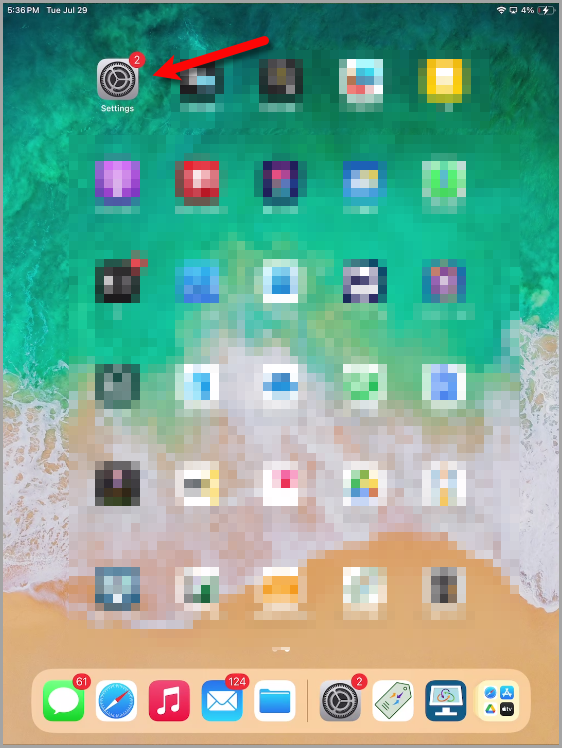
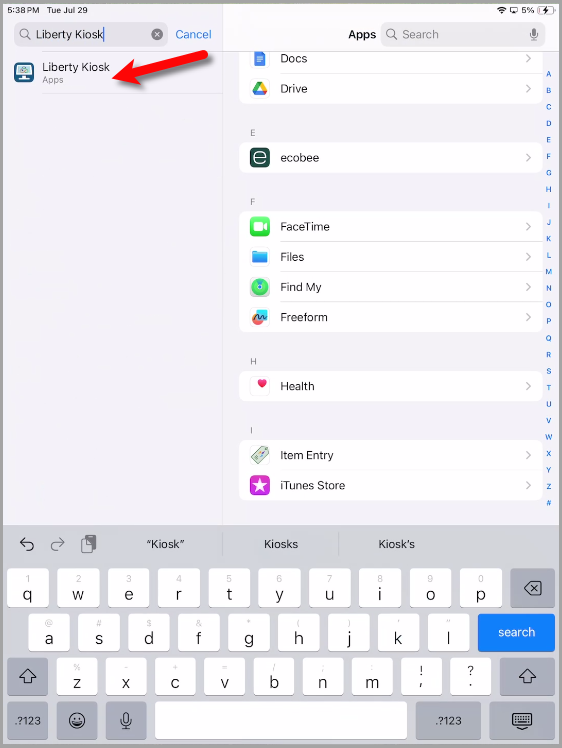
- Type Liberty Kiosk in the search area at the top left of the iPad settings app and then tap Liberty Kiosk.
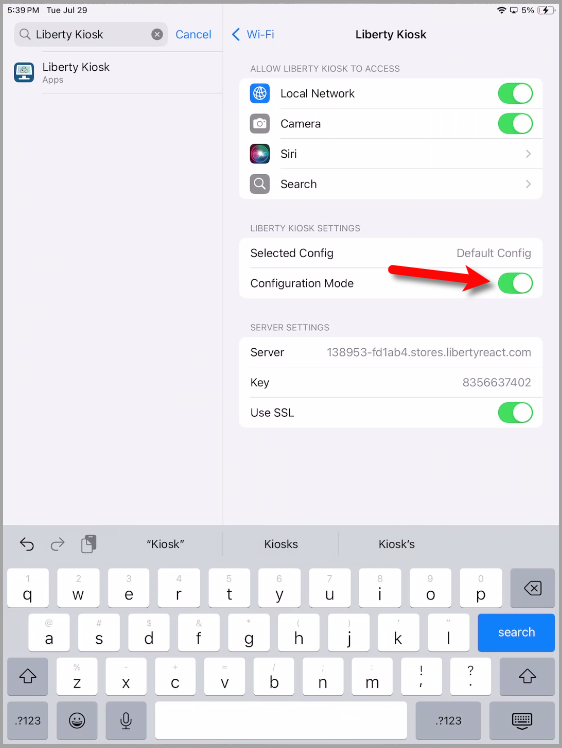
- Flip on the Configuration Mode option.
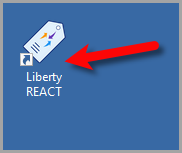
- Move over to your PC and then open the Liberty REACT Inventory Module.
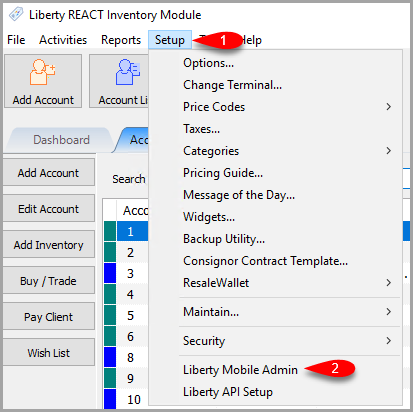
- Click on Setup and then Liberty Mobile Admin
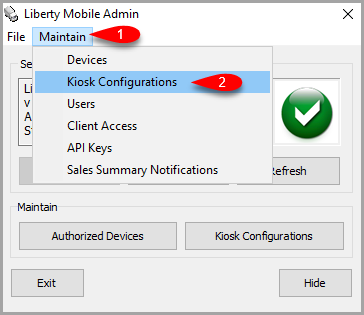
- Once the Liberty Mobile Admin opens up, click on Maintain then Kiosk Configurations
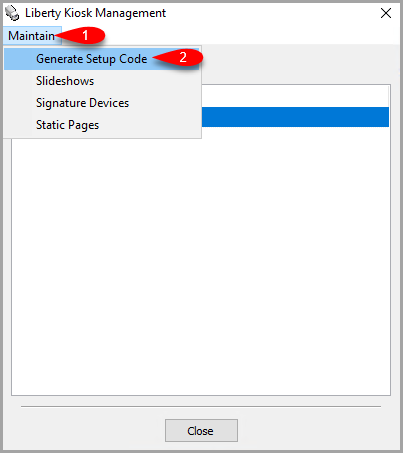
- Click on Maintain and then Generate Setup Code
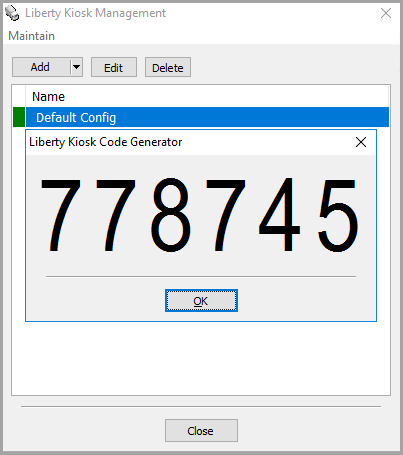
- A Liberty Kiosk 6 digit code will pop up that you will then use to configure the Liberty Kiosk App which is currently in Configuration mode.
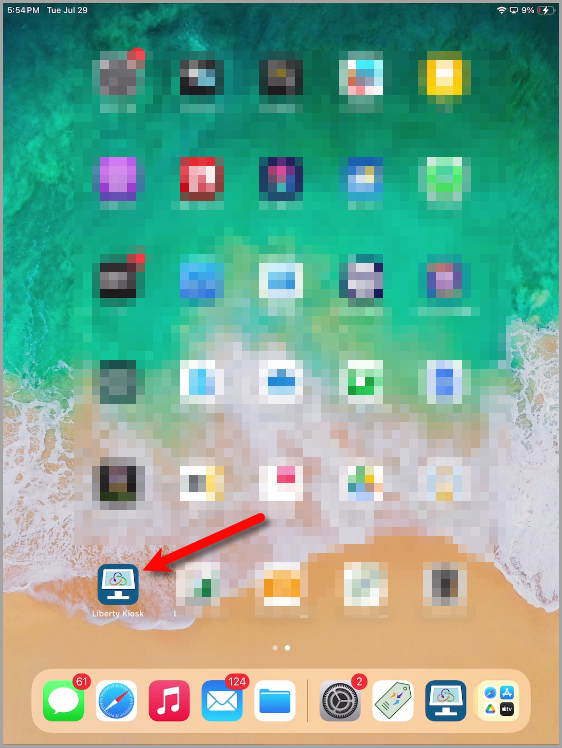
- Open the Liberty Kiosk app
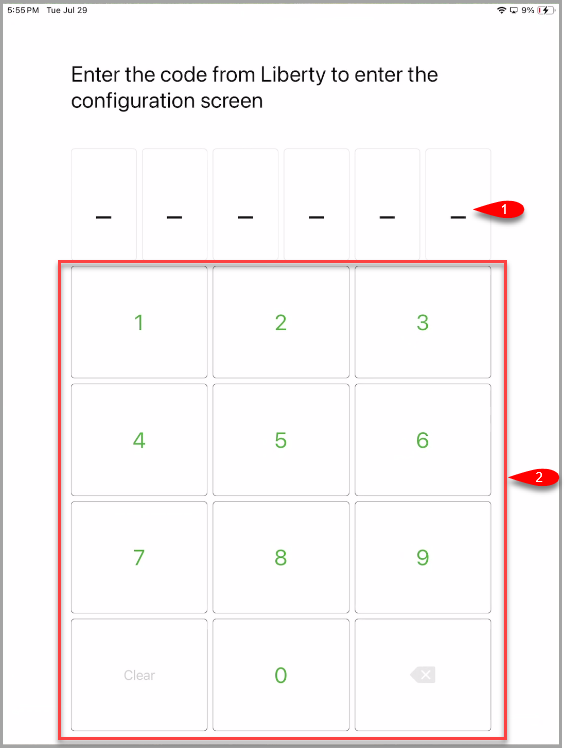
- Type the 6-digit code that appears on your PC
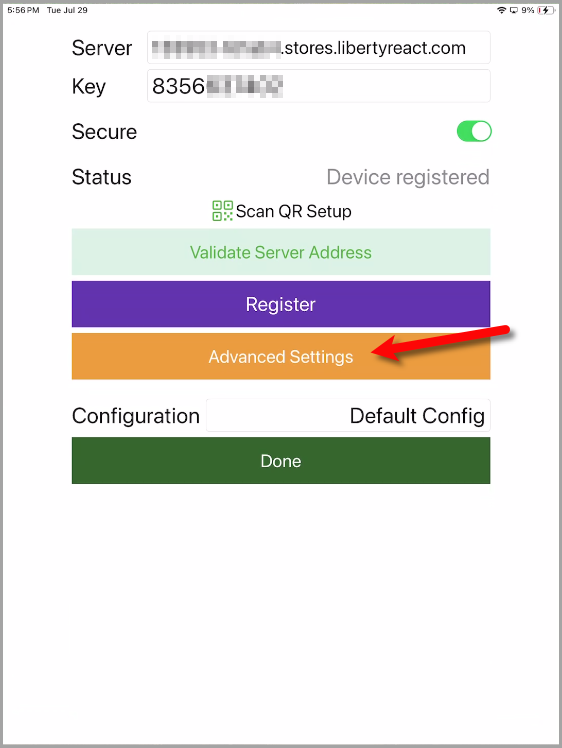
- Tap on the Advanced Settings area.
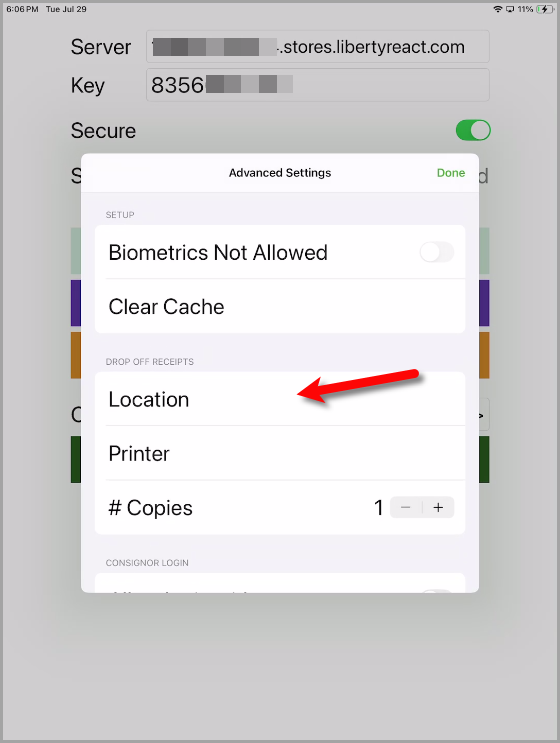
- Tap the Location option.
- Tap the Refresh button.
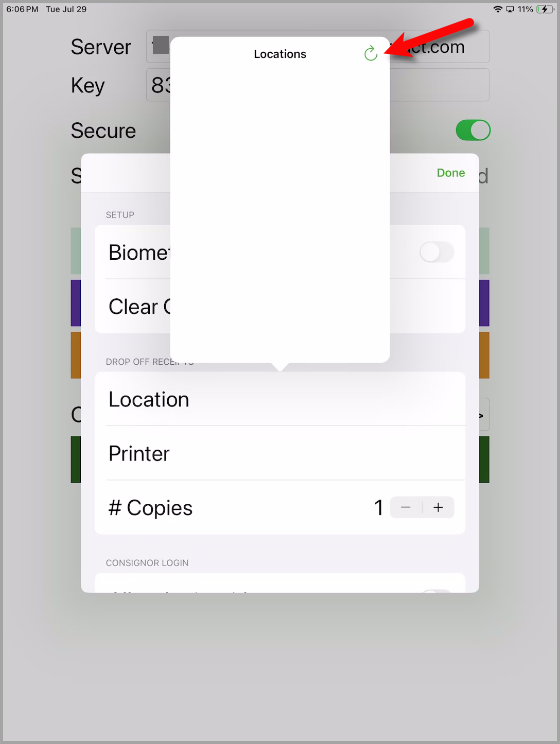
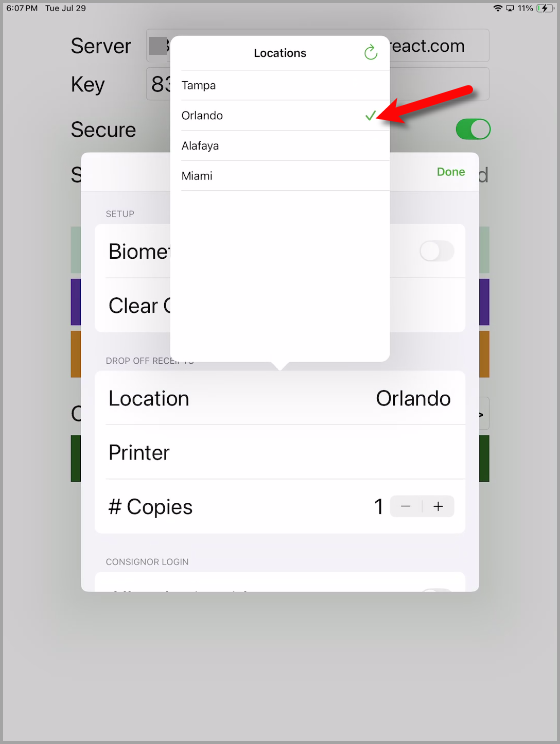
- If you have more than one location, tap which location you wish to link the Liberty Kiosk App too.
Otherwise, select your only location if you are just one location.
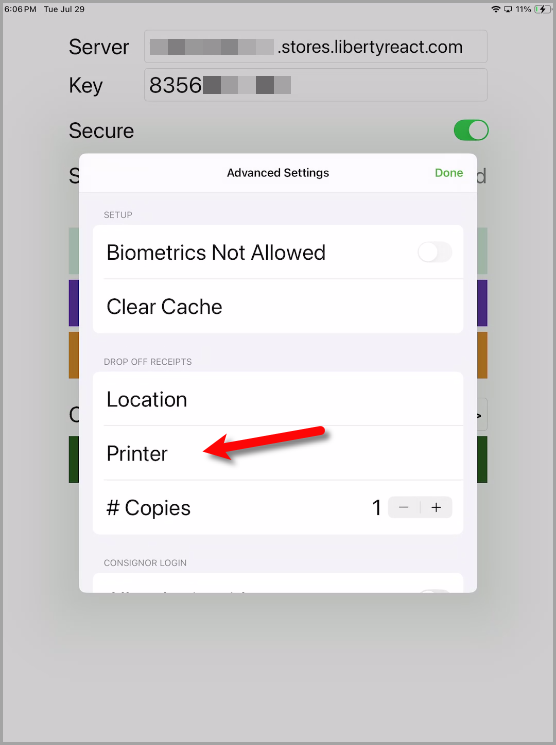
- Tap the Printer button.
- Tap the Refresh button.
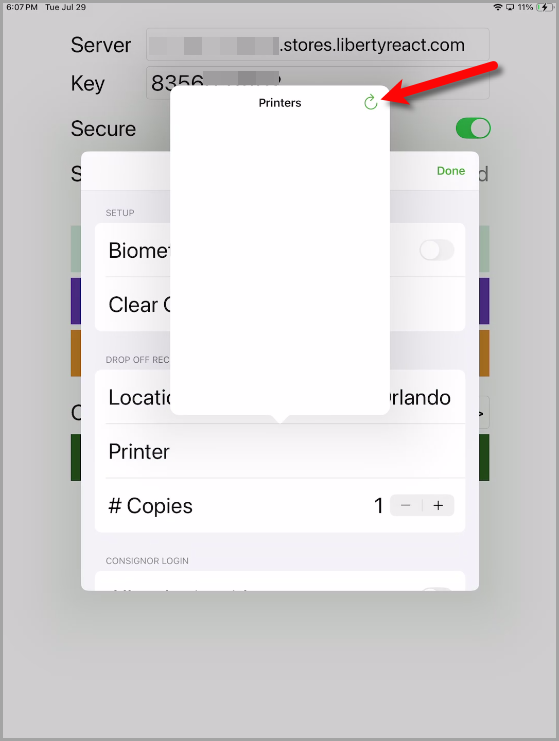
- Select which receipt printer you want Inventory Dropoff Receipts to print out of.
Please note, that you must have an ethernet receipt printer connected directly to your server in order to ensure smooth operation.
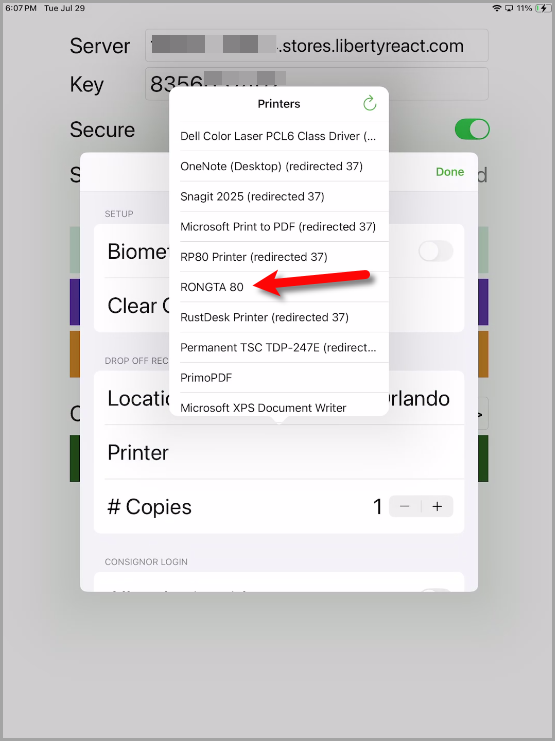
- Select how many copies of the Inventory Dropoff receipt you want to print out.
This is useful if you want your client to receive an Inventory Dropoff receipt in addition to the one that is going to be attached to their inventory container
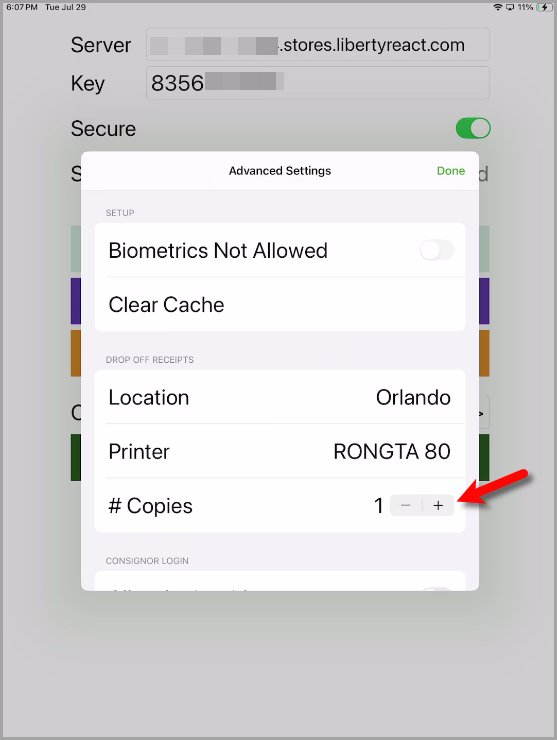
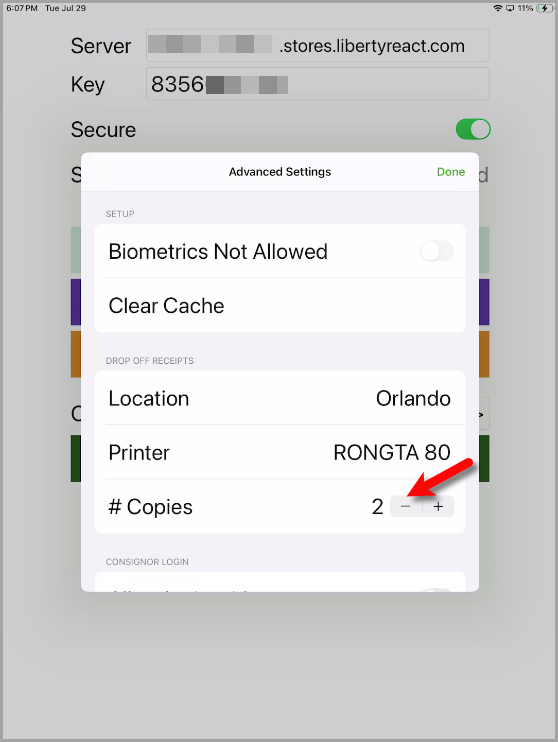
You can use the (-) or minus symbol to decrease the quantity if you need to.
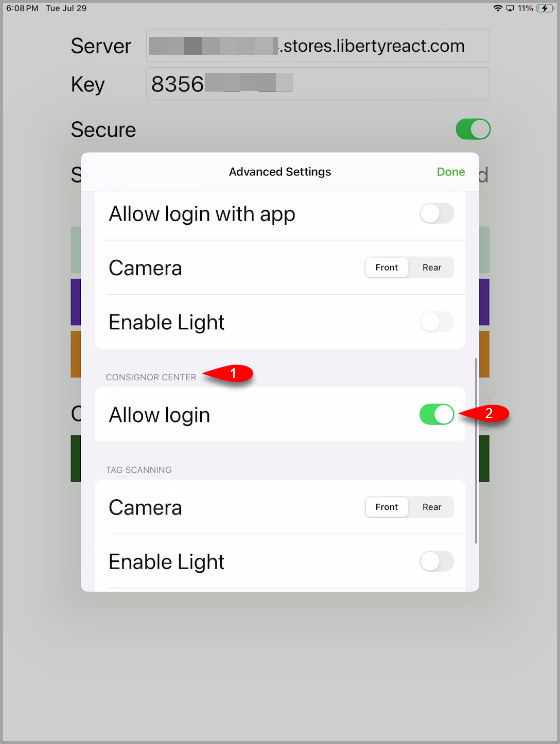
- If you have Consignor Center, these instructions will be specific to your set up.
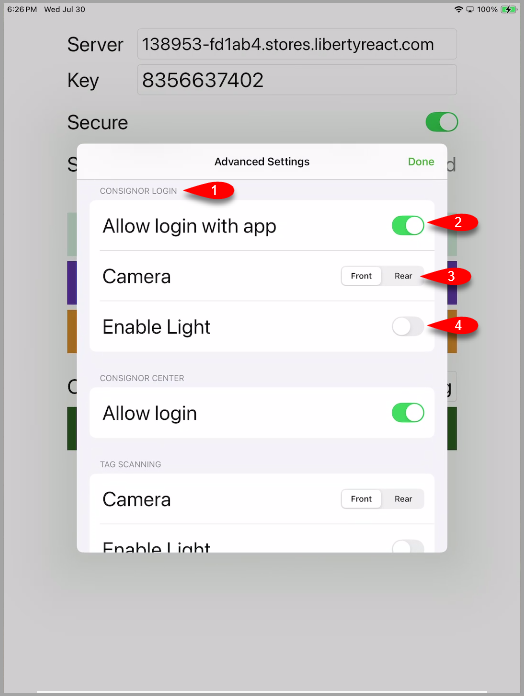
Under the Consignor Center area, enable the option for Allow login.
This will allow your clients to use their phones and a QR Code to verify their account and login to do Inventory Dropoffs.
- If you are on the Consignor Login platform, you instead want to make sure that under the Consignor Login area, you select Allow login with app.
You also want to make sure to select the Rear option for Camera so your client can easily use the rear camera for the login process.
There is also an option to turn on the LED light using the Enable Light option, if needed.
Tap the Done button when finished on the top right.
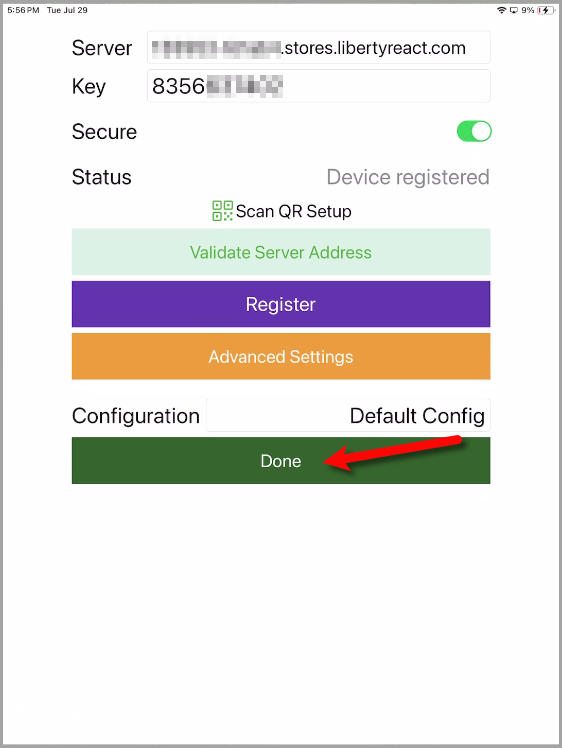
- You can now tap the Done button on the main Configuration screen.
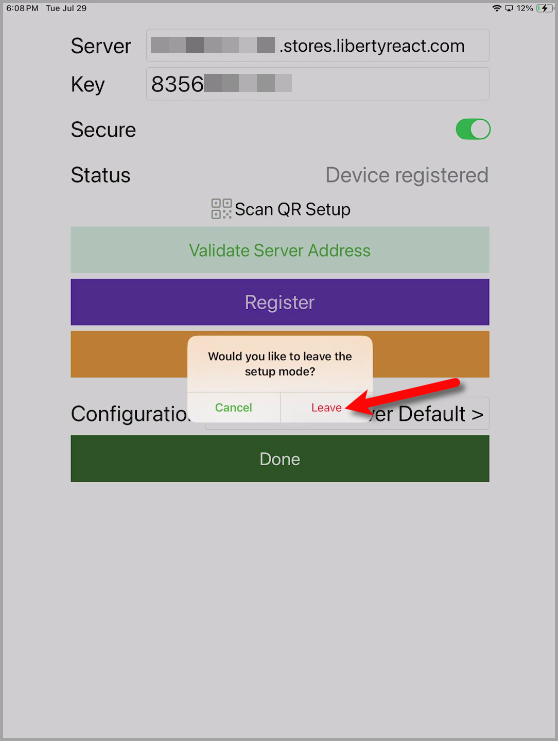
- Finally, tap the Leave option on the Would you like to leave the setup mode dialog box.


Using The Liberty Kiosk App To Do An Inventory Dropoff With Consignor Center
- Open the Liberty Kiosk App
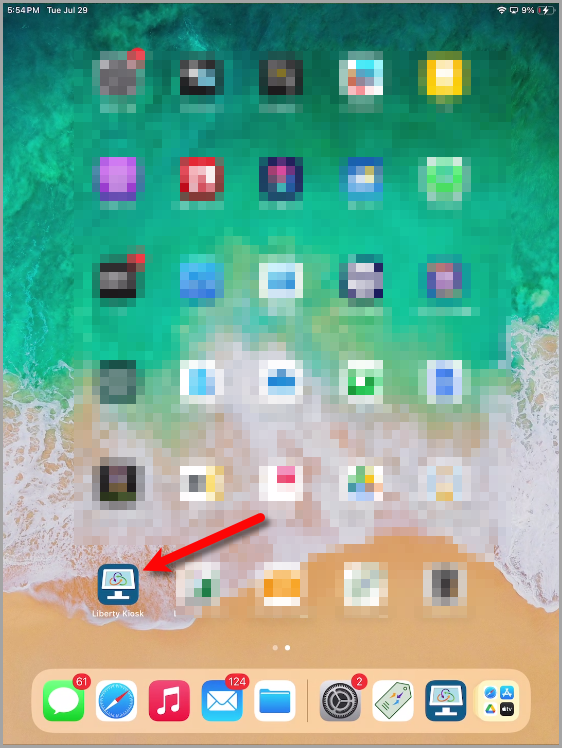
- Tap the Account Management button.
Note: If you do not already have this option enabled on your Liberty Kiosk App, please see the Account Management Liberty Kiosk App feature article to turn this feature on.
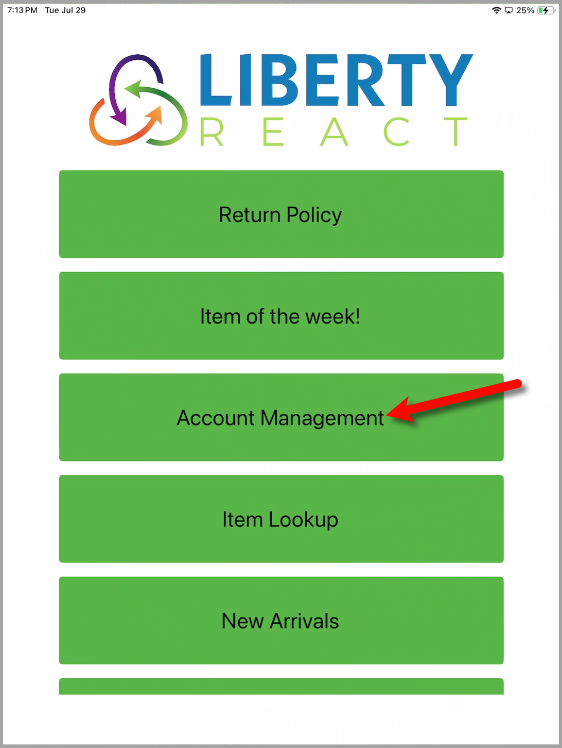
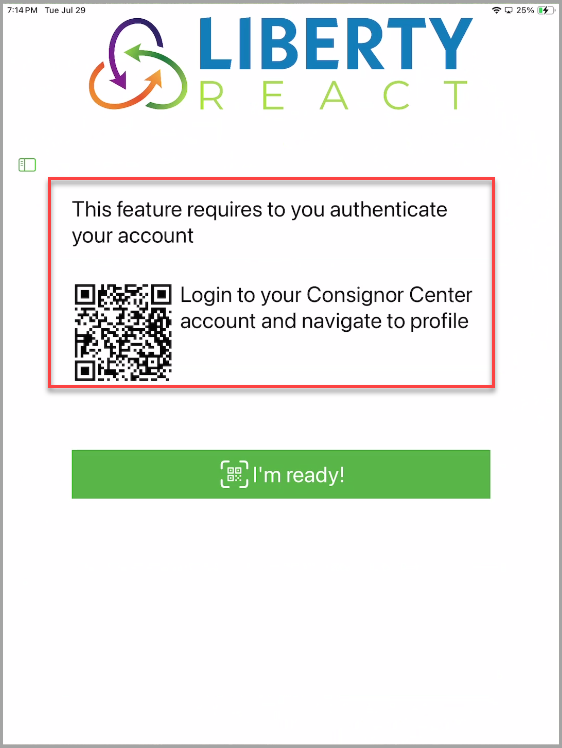
- You should now be on the verification screen.
You can leave this up as we will now use our phone to sign into Consignor Center open your account on the iPad.
- If you are already signed into your Consignor Center account on your phone, you may skip to Step 8
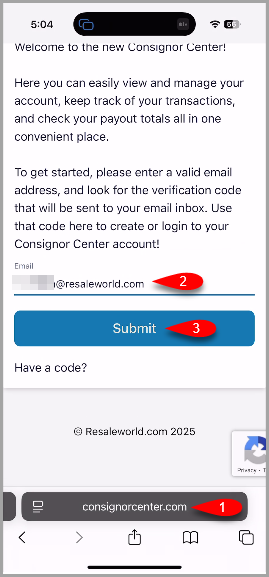
Open your phone’s internet browser.
Go to https://www.consignorcenter.com, type in your email address that you used when your account was created at the store and then tap the Submit button.
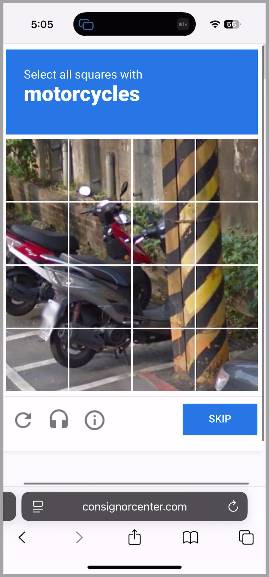
- If you are prompted with a CAPTCHA verification check, please follow the onscreen instructions to verify your identify.
- You will then be emailed a 6-Character code.
You can open your email account from your phone to retrieve this code to log into the Consignor Center on your phone.
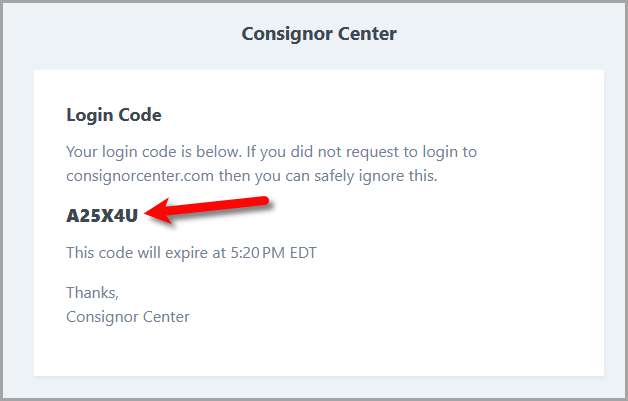
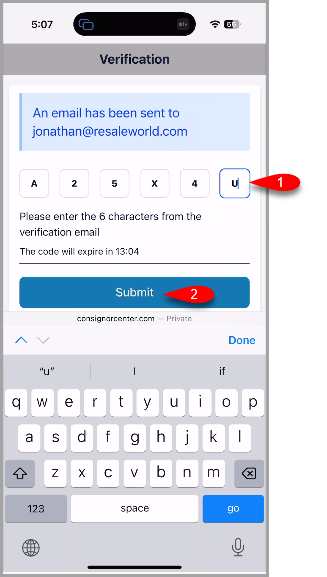
- Type the 6 Character Verification Code into the designated area and then tap the Submit button on your phone.
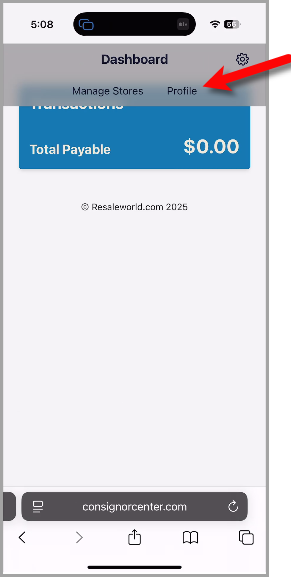
- Tap the Profile menu option at the top of the Consignor Center on your phone.
- Keep the Login to Kiosk QR Code up on your phone so that you can use it to login to the Kiosk app on the iPad.
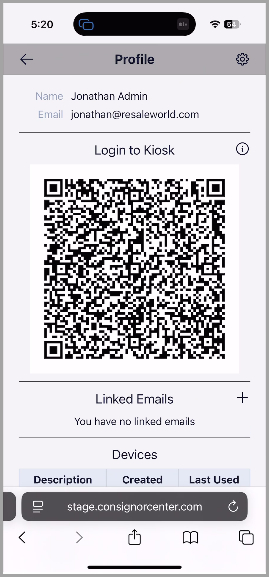
- Point the iPad Liberty Kiosk App’s camera to QR Code located on your phone.
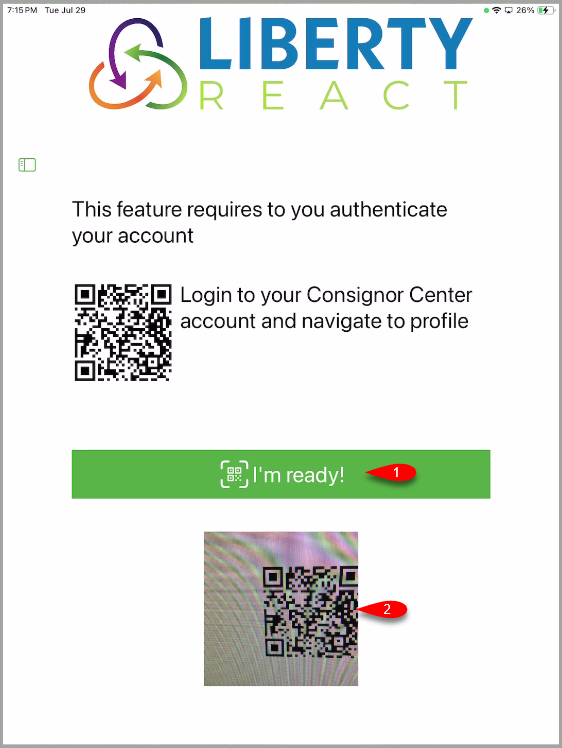
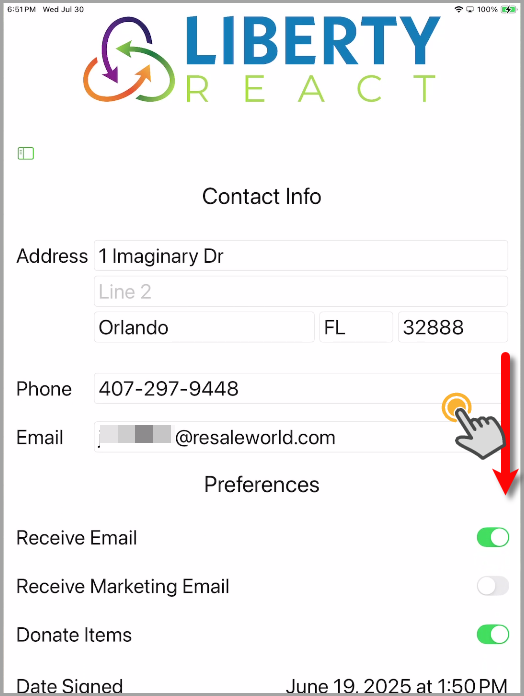
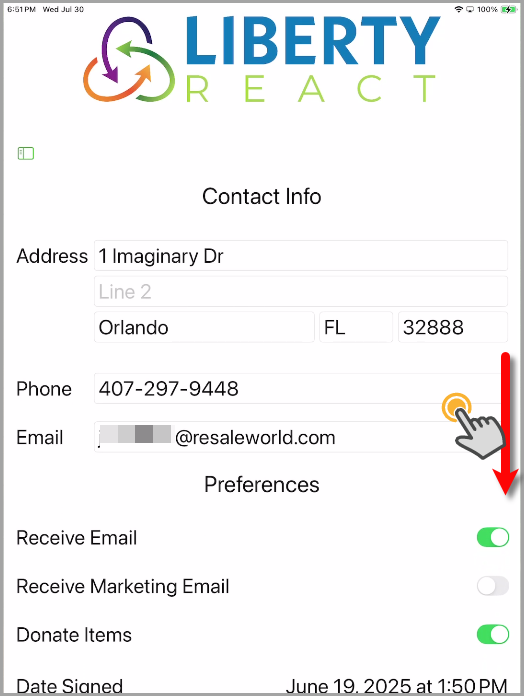
- You are now logged into your account in the Liberty Kiosk App.
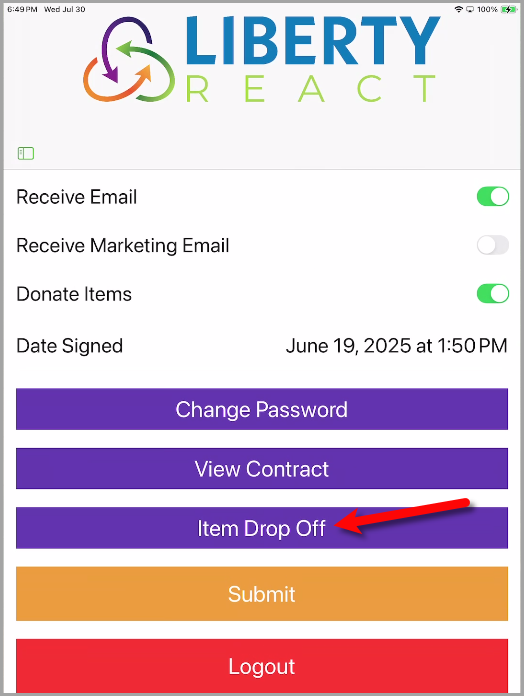
Use your finger to scroll down to the bottom of the page.
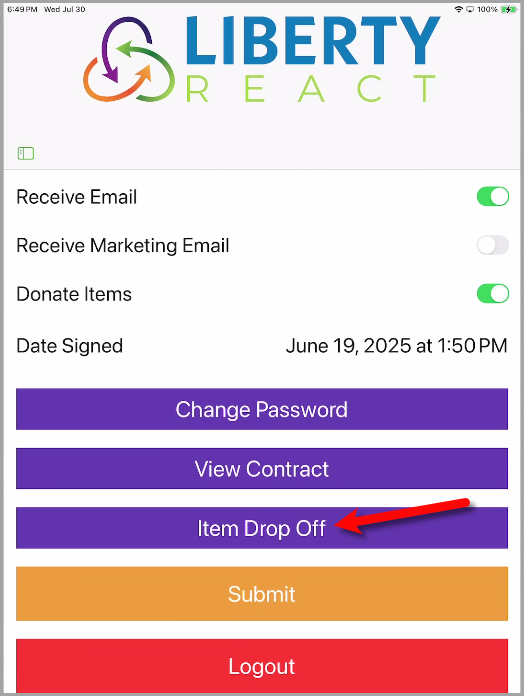
- Tap the Item Drop Off button.
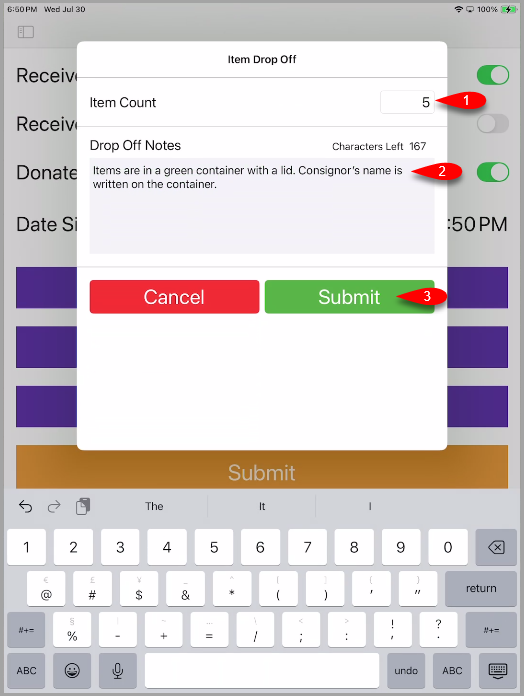
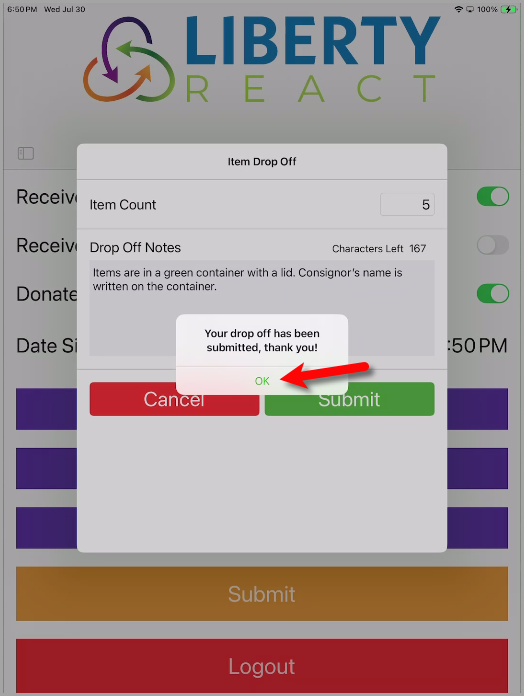
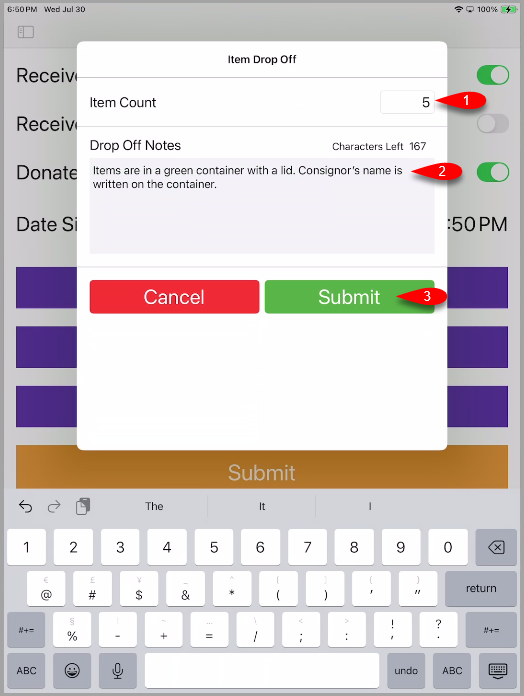
- Fill in the Item Count with how many items you are dropping off.
For the Drop Off Notes, describe the container you dropped the items off in for easy identification along with any other notes you wish to add.
When finished, tap the Submit button.
- You will receive a prompt that says Your Drop off has been submitted, thank you!
The Dropoff receipt(s) should now print out.
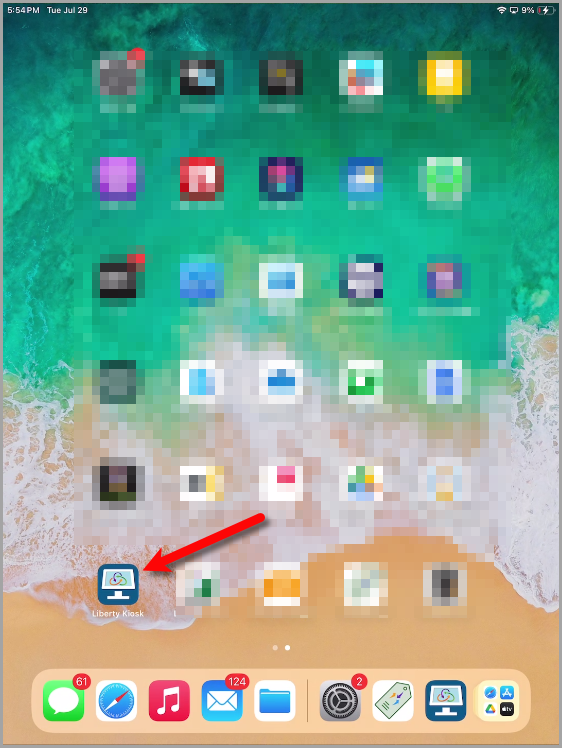
Using The Liberty Kiosk Inventory App To Do An Inventory Dropoff With Consignor Login - Open the Liberty Kiosk App
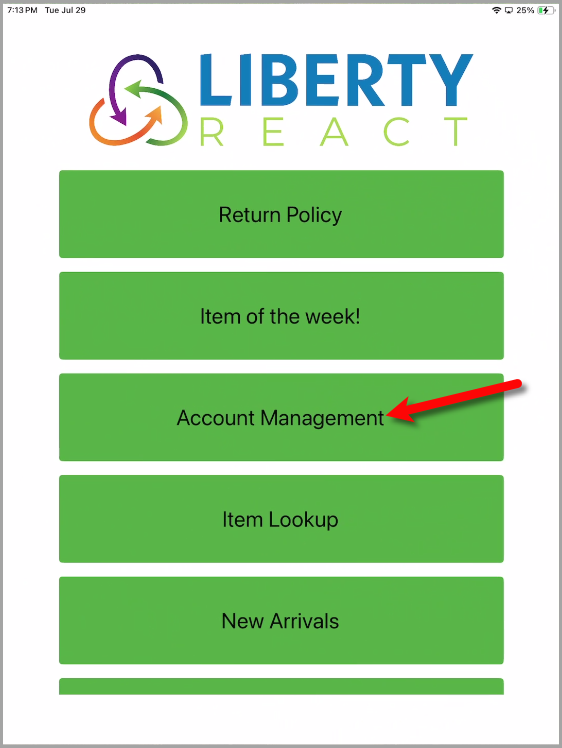
- Tap the Account Management button.
Note: If you do not already have this option enabled on your Liberty Kiosk App, please see the Account Management Liberty Kiosk App feature article to turn this feature on.
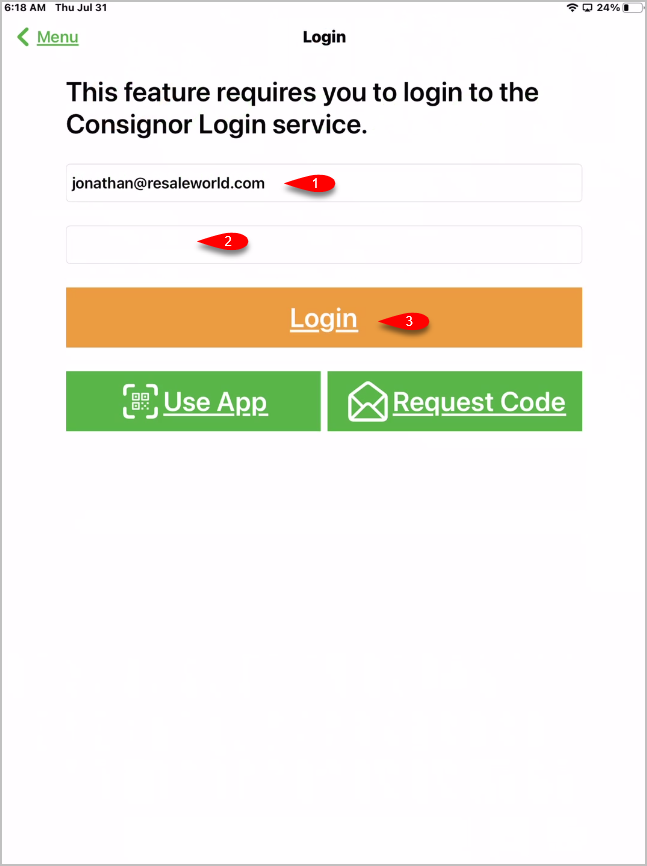
- Type in your User Email and Password into the designated fields. Then tap the Login button.
Note: If you do not know your password or this is the first time you are logging in, you can use the Request Code option to login.
- You are now logged into your account in the Liberty Kiosk App.
Use your finger to scroll down to the bottom of the page.
- Tap the Item Drop Off button.
- Fill in the Item Count with how many items you are dropping off.
For the Drop Off Notes, describe the container you dropped the items off in for easy identification along with any other notes you wish to add.
When finished, tap the Submit button.
- You will receive a prompt that says Your Drop off has been submitted, thank you!


The Dropoff receipt(s) should now print out.

Next Article In Section
Click the following link to move to the next article in this section:
Setting Up The Liberty Kiosk App For Inventory Dropoffs
Related Topics
Inventory Drop Offs In The Liberty Kiosk Overview Setting Up The Liberty Kiosk App For Inventory Dropoffs Inventory Dropoff With Consignor Center And The Liberty Kiosk App Inventory Dropoff With Consignor Login And The Liberty Kiosk App How To Create Dropoffs With The Kiosk App Setting Up The Customer Facing Display Mode Using the Customer Facing Display Account Management Feature Consignor Portal Feature Custom Page / Static Page Feature Item Lookup Feature