How To Create Dropoffs With The Kiosk App
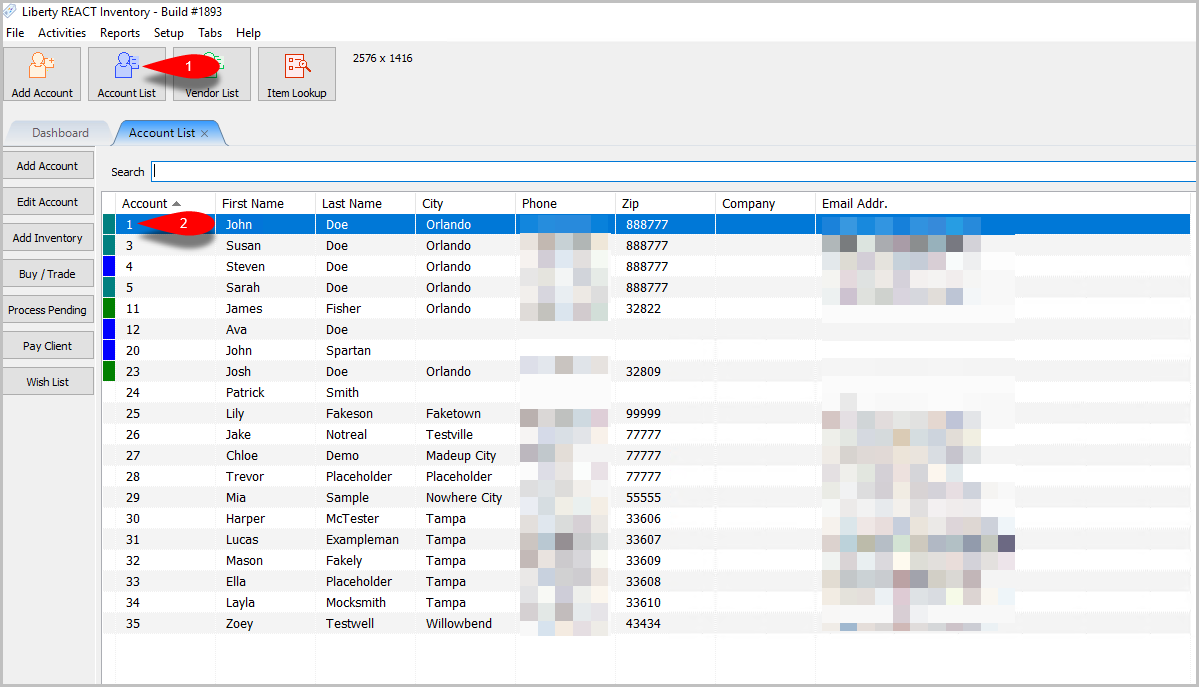
With the Kiosk App a consignor can add a drop off.
Allowing An Account To Add Dropoffs Using The Kiosk
- This is another number list entry in standard text
- This is an extra long list entry in standard text to test mobile responsive options on Liberty 5 Help page.
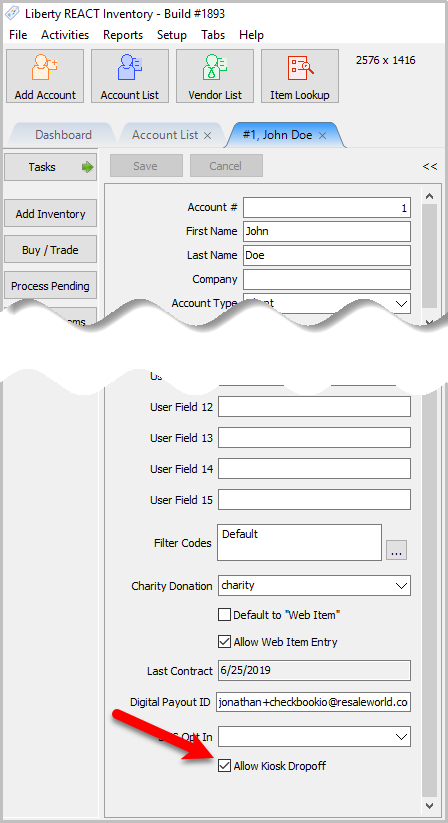


Turning On Drop Offs In The Kiosk App
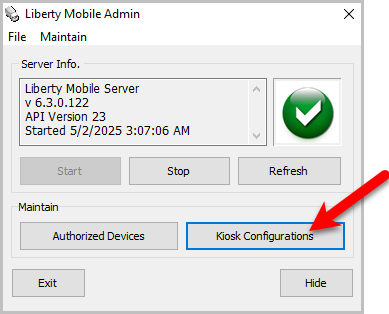
- Go to Setup > Liberty Mobile Admin

- Click the Kiosk Configurations button
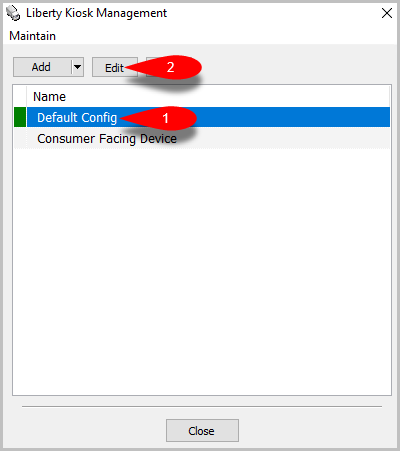
- Select the configuration you are adding kiosk drop off to and press the Edit button
- Click the down arrow next to New Custom Page and add Account Management if it is not already in the list
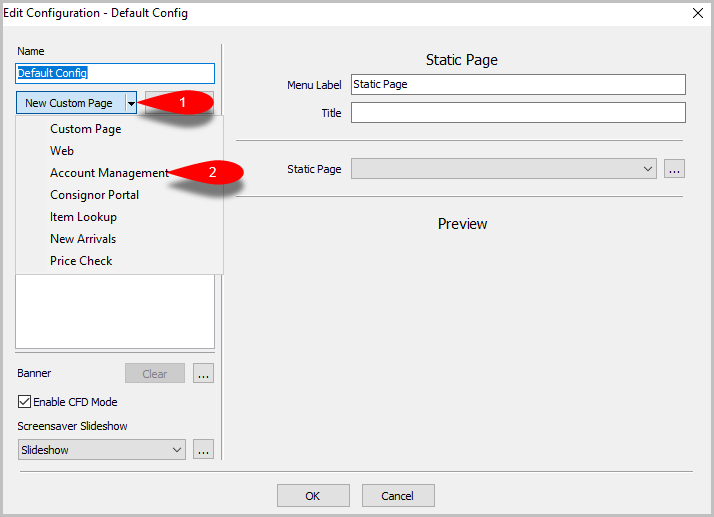
- Select Account Management from the list, scroll down, and check off Allow Item Drop Off then press the OK button


Creating A Dropoff In The Kiosk App
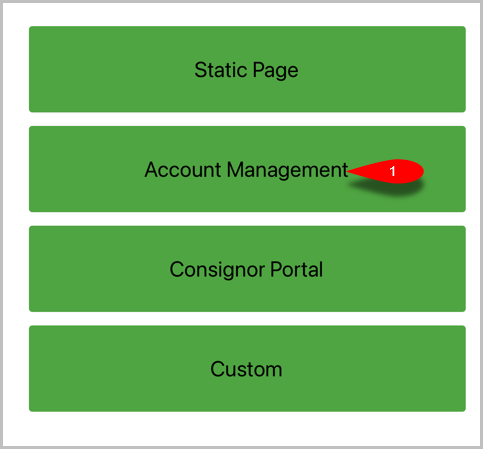
- Open the Kiosk App on an iPad and tap the Account Management button
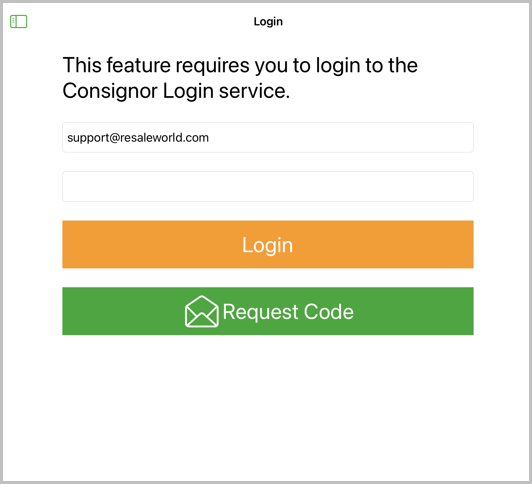
- Have the consignor log in with their Consignor Login credentials
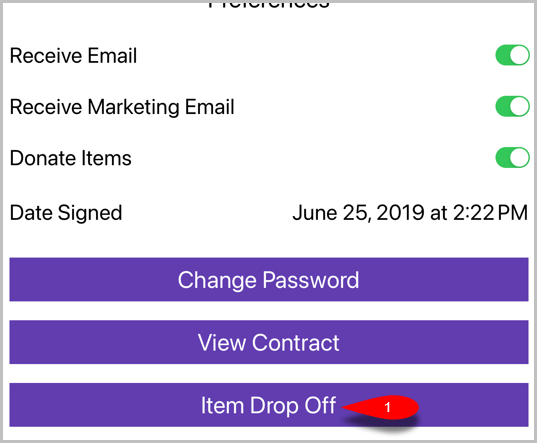
- Scroll down and tab the Item Dropoff button
- Input the Item Count, and fill in any Drop Off Notes then tap the Submit button to create the drop off


Next Article In Section
Click the following link to move to the next article in this section:
Inventory Dropoff With Consignor Center And The Liberty Kiosk App
Related Topics
How To Create Dropoffs With The Kiosk App Inventory Dropoff With Consignor Center And The Liberty Kiosk App Inventory Dropoff With Consignor Login And The Liberty Kiosk App Inventory Drop Offs In The Liberty Kiosk Overview Setting Up The Liberty Kiosk App For Inventory Dropoffs Setting Up The Customer Facing Display Mode Using the Customer Facing Display Account Management Feature Consignor Portal Feature Custom Page / Static Page Feature Item Lookup Feature