Table of Contents
ResaleWallet Dashboard
At any time you can see all ResaleWallet payouts that are in any status.
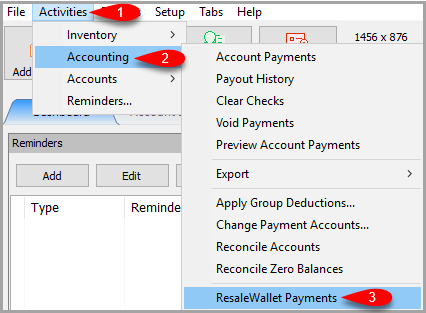
- Click on Activities > Accounting > ResaleWallet Payments
- Here you can filter for all ResaleWallet payouts
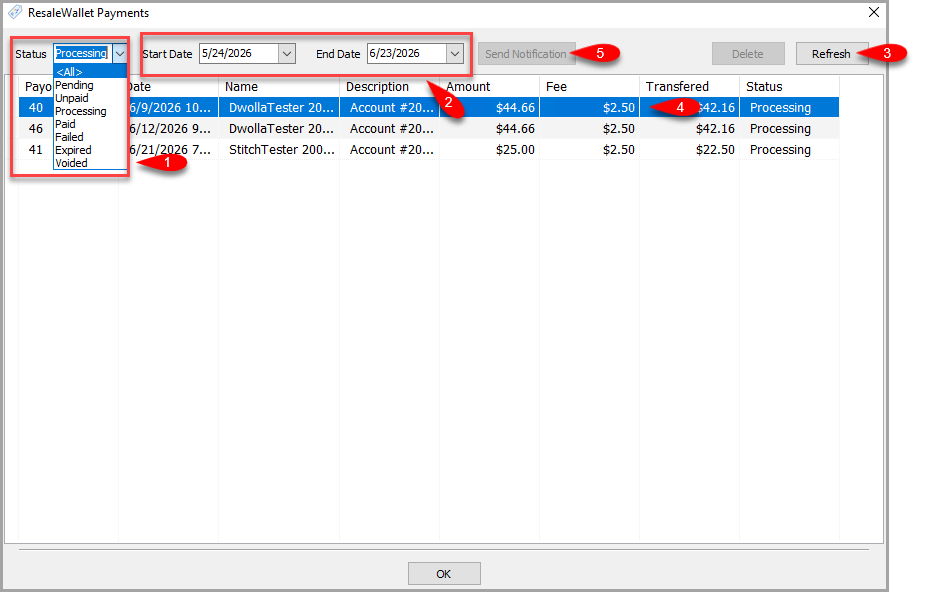 * Set the Status you wish to filter for.
- Set the Start Date and End Date you wish to see the ResaleWallet ACH payouts for.
- You must click the Refresh button after setting your filters
- You can select any payout by clicking on it.
- If the ability to Send Notification is available, you can click this button to resend an email pertaining to the selected payout.


Note: This button will only be active for specific statuses.
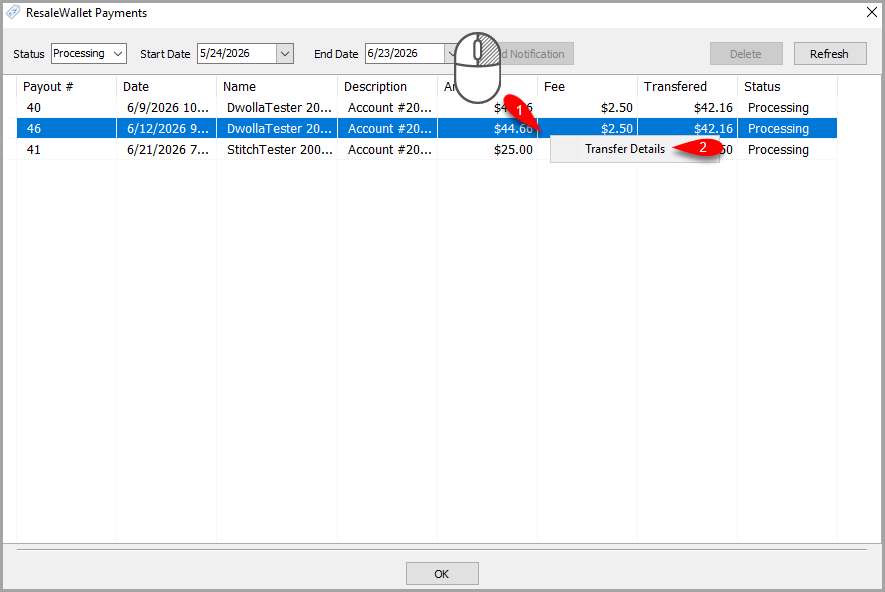
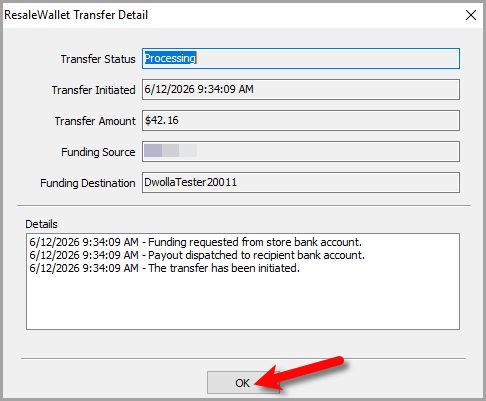
- You can right click on any payout in this dashboard and click View Transfer Details to see more information on where the payout is in the ResaleWallet payment process.
- Click the OK button when finished.


Next Article In Section
Click the following link to move to the next article in this section:
Store Troubleshooting
Related Topics
ResaleWallet Store Guide Overview How To Set Up And Pay Consignors With ResaleWallet Set Up Your Business Entity Add a Bank Account Required Consignor Fields Paying Out A Single Client With ResaleWallet Mass Payouts With ResaleWallet Checking The Status of an ACH Payout What Consignors Receive ResaleWallet Dashboard Store Troubleshooting Payment Limits