Table of Contents
Set Default Credit Card Software
In the Point of Sale Module, you can select a specific software to use for processing credit card charges. To select a specific credit card processor:
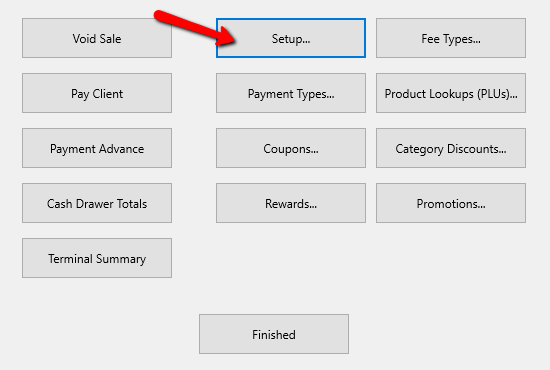
1.From the POS Hub select the More button.

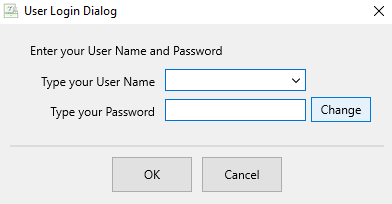
Login if prompted.

- Select the Setup button.
Login if prompted.
The Setup dialog box appears.

- On the left column, select the Credit Card Processor option.
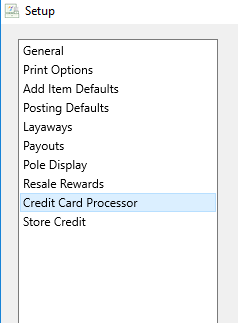
This dialog provides only 3 options: ResalePay, Zift and Payment Logistics.

- Select the Radio button to select the appropriate credit card processor.

- Enter the information provided by you Credit Card processor.


Note: You may need to contact your credit card processor to finalize setting up POS in order to run credit card transactions.
5. Once filled out press the OK button at the bottom.

Next Article In Section
Click the following link to move to the next article in this section:
Accepting Coupons