Table of Contents
Changing Which Server You Want To Connect To iOS
- Open the Liberty Photo App on your iDevice and then Sign In.
If you are not familiar with this procedure please visit the following page:
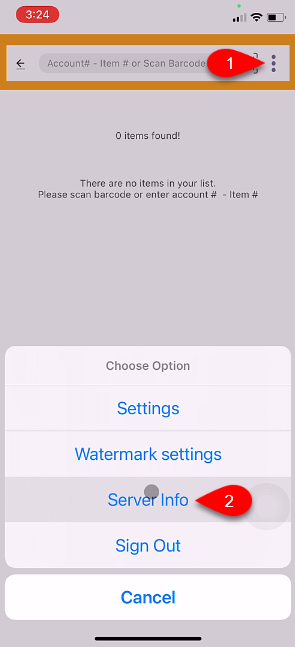
Opening The Liberty Photo App - Tap the Three Dots menu button at the top right of the screen and then tap the Server Info button.
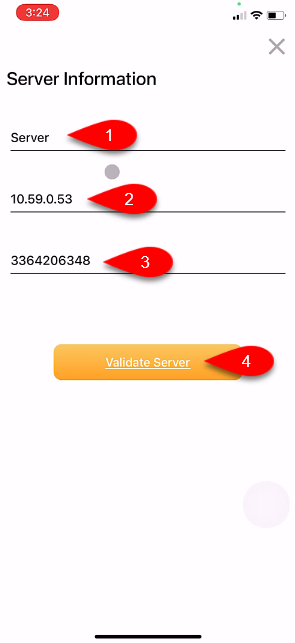
- Fill in the Description, the name Server is usually fine. Then fill in the Server Address and the Device Key from what you recorded from your Server computer. Then, tap the Validate Server button.


Next Article In Section
Click the following link to move to the next article in this section:
Signing Out Of The Liberty Photo App iOS
Related Topics
Changing Which Server You Want To Connect To iOS How To Download and Setup The Liberty Photo App for iOS How To Use The Liberty Photo App for iOS Overview Opening The Liberty Photo App iOS How Use The Camera To Add Images To Items By Using Account - Item Number iOS How To Add Images To An Item Using A Barcode On The Tag iOS How To Add Images Using the Gallery Feature (From Your iDevice’s Library) iOS Using The Import Feature To Import Photos from iCloud, Dropbox or Google Drive iOS How to Edit A Photo That Is Attached To An Item iOS Editing The Settings Within Liberty Photo App iOS Placing a Watermark Image On Your Pictures iOS