Adding A Reminder Widget
- Click on Setup > Widgets.
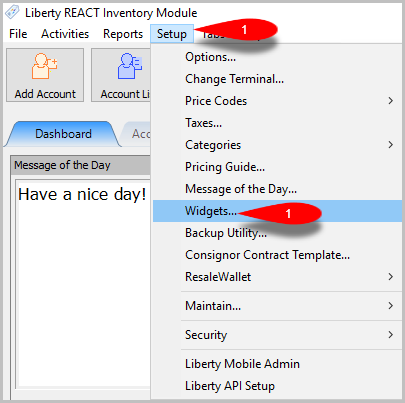
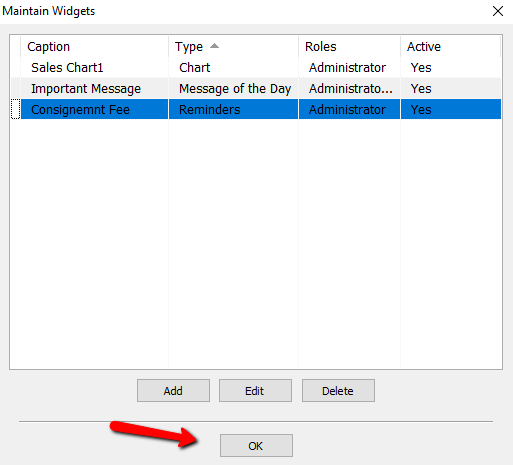
The Maintain Widgets Dialog Box Opens.
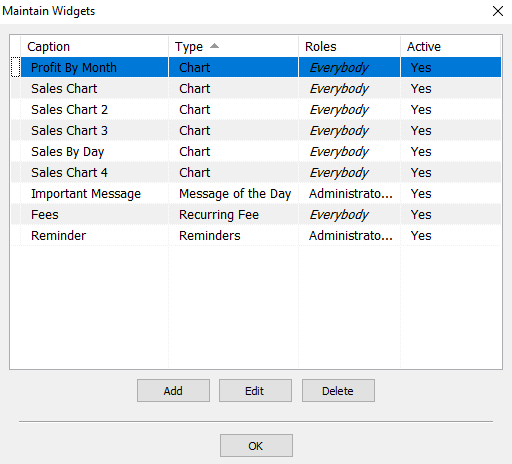
- Click on Add to create a new widget.
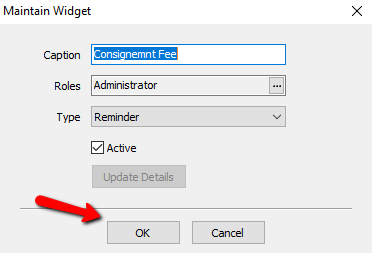
The Maintain Widget Dialog Box Opens.
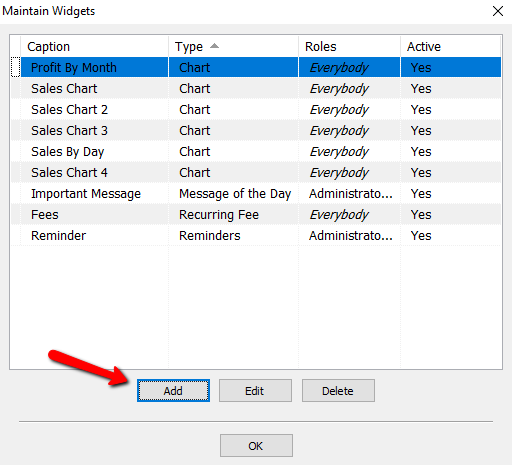
The Maintain Widget Dialog Box Opens.
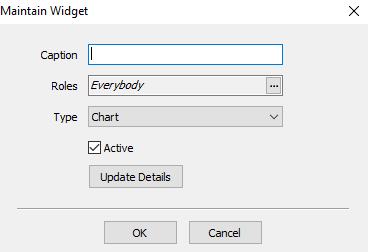
- Enter a Caption for the widget. This description will be shown in the top of the widget once is created.
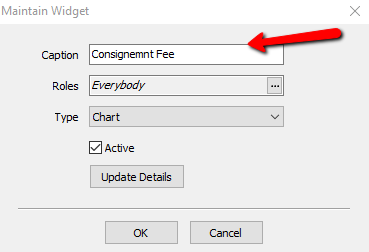
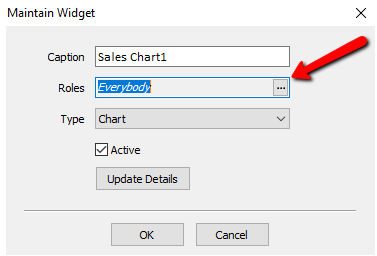
- Roles : Select the rolles to apply to this Widget. For more information on Roles, please seeMaintain Security Roles for more information.
Select the Search Button to access the Roles.
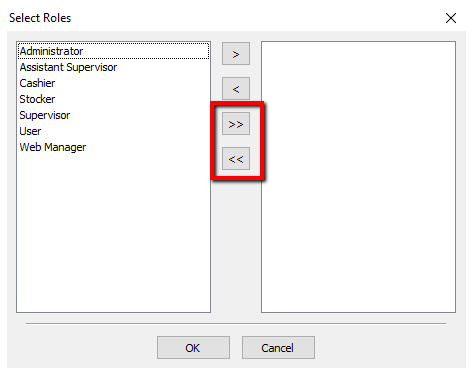
A list of roles will be displayed.
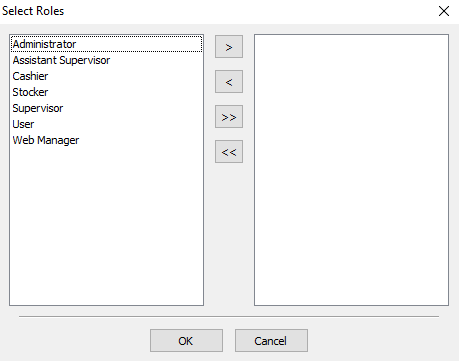
You can move individual Roles to the right or left column by highlighting the role and pressing the single Arrows.
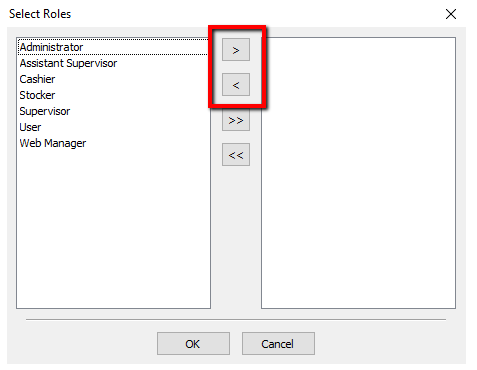
You can move all the roles to the right or left columns by pressing the double arrows.
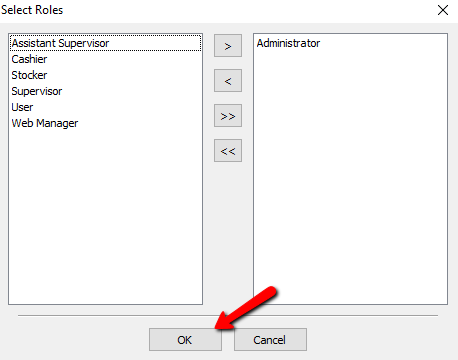
Once you have made your selections, press the OK Button at the bottom.
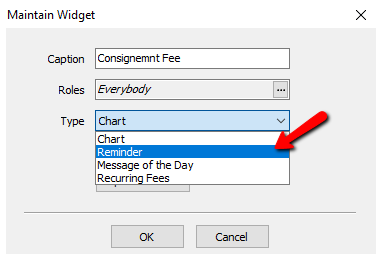
- From the Type drop down, select Reminder.
Make sure the Active box is marked to make widget visible.
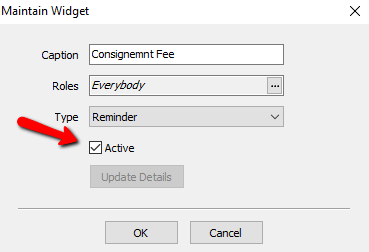
Note: You can only have one Widget of type Reminder. - Select the OK Button to close the details of the Widget.
- Select the OK Button to close the Widgets Screen.
The widget will show on the Welcome Page of Liberty.
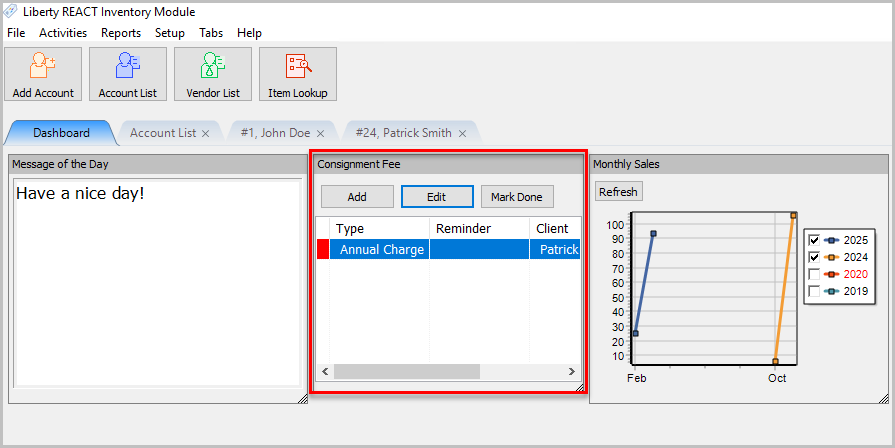
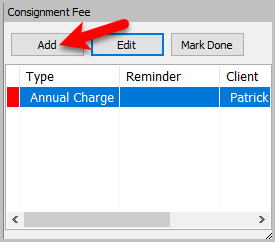
Note: Once you add the widget, the widget won’t display any reminders until you add one. - To add a reminder, click the Add Button in the widget.
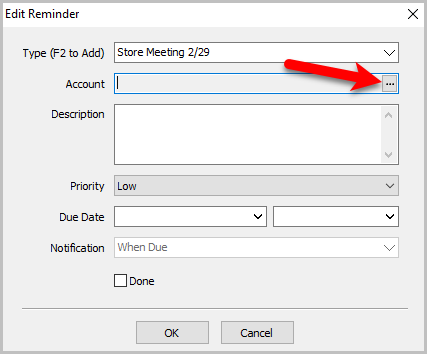
The Edit Reminder dialog box opens.
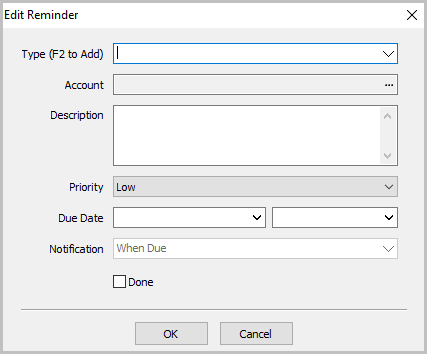
- From the Type drop down, select one of the Reminders you created.
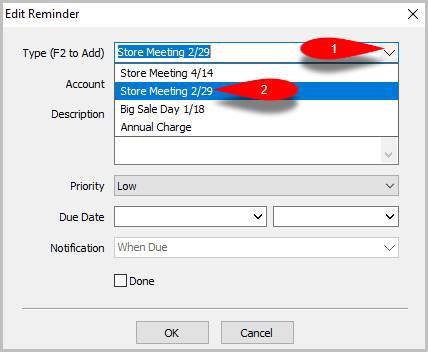
If you don’t see any options, you can press the F2 Button to create a new Reminder Type.- Alternatively, you can create Reminder Types by (you can skip this step if you pressed F2 and created your Reminders):
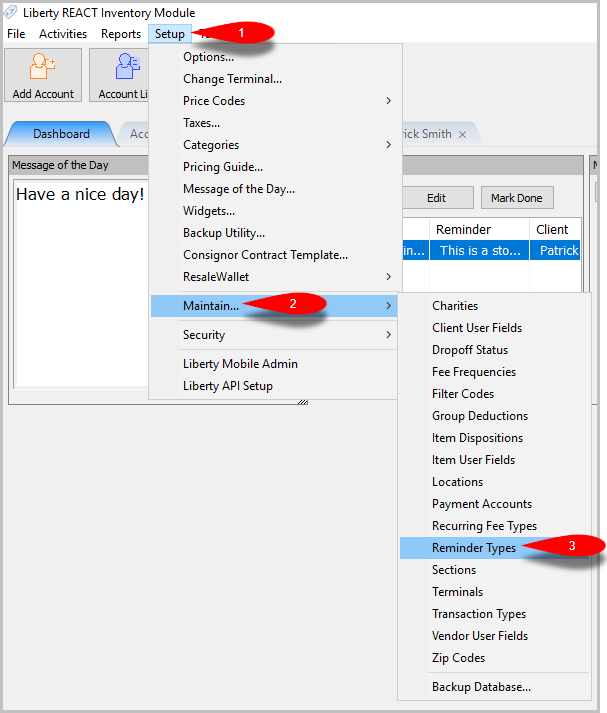
- Go to Setup > Maintain > Reminder Types.
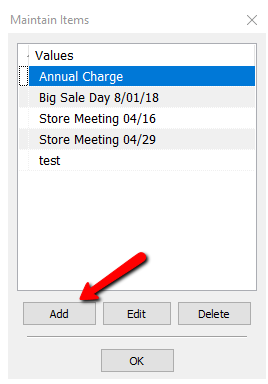
- The Maintain Items dialog box appears.
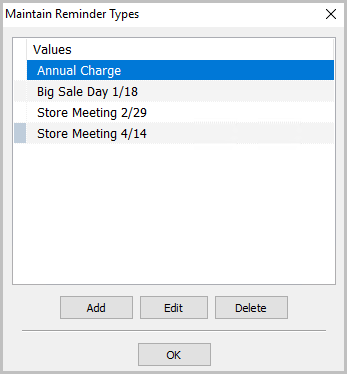
- Click on Add Button.
The Reminder Dialogue box will open.
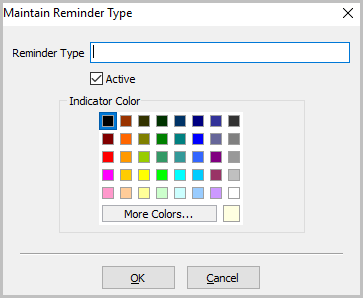
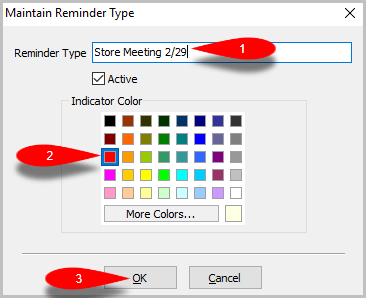
Provide a description for your new reminder, select an Indicator Color, and press the OK Button when done.
- (Optional) On the Account field, select the Search Button.
The Search for Account dialog box appears.
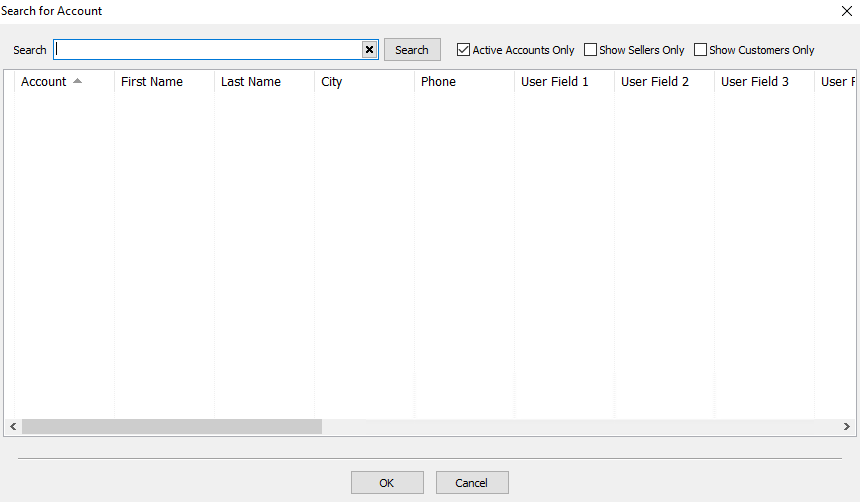
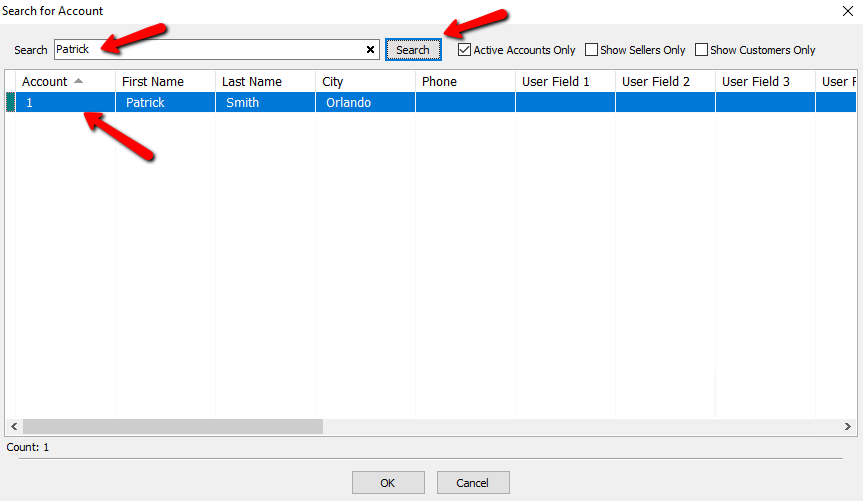
This will allow you to set a reminder for a specific Consignor or Retail account.- You can search for the account by any of the columns shown (i.e Account, First Name, Last Name, City, etc.). Type in the information you want to search for and select the Search Button. A list of accounts will diplay based on the criteria entered in the search field.
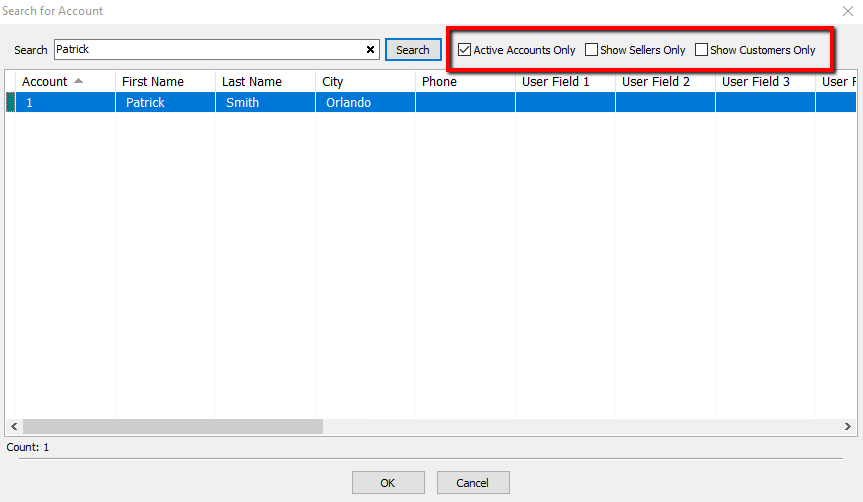
Searches can be filtered by using the following filters. Active Accounts, Hidden Customers, or Customers Only.
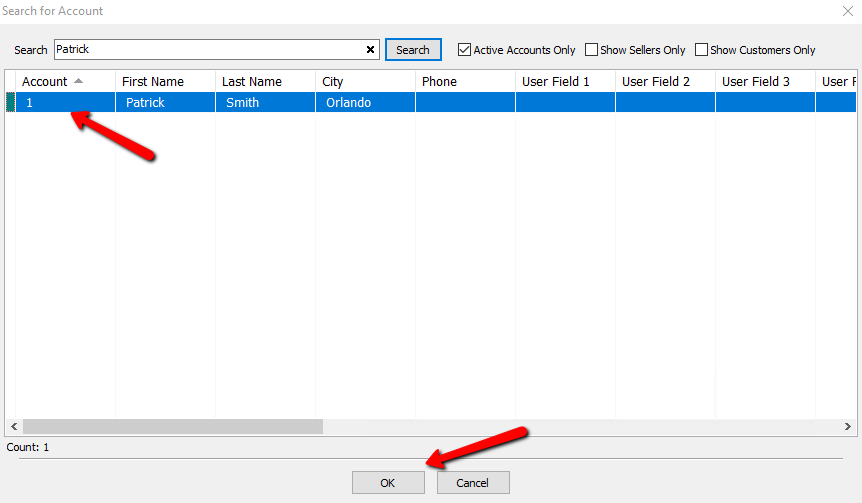
- Select the account you want to use and select the OK Button.
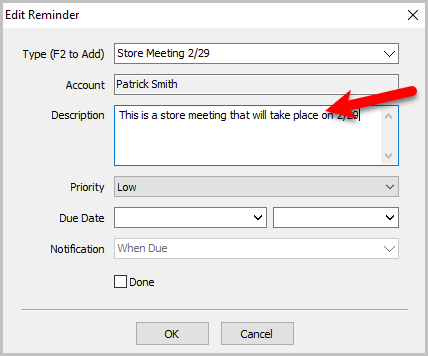
- In the description field, add a description that best explains what this reminder does.
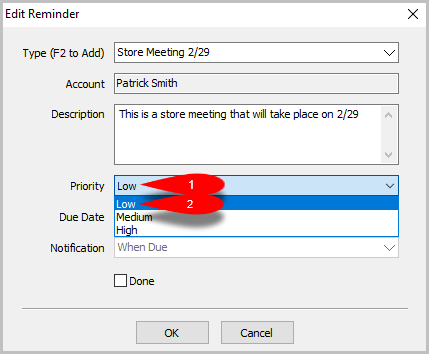
- On the Priority drop down, select Low, Medium, High.
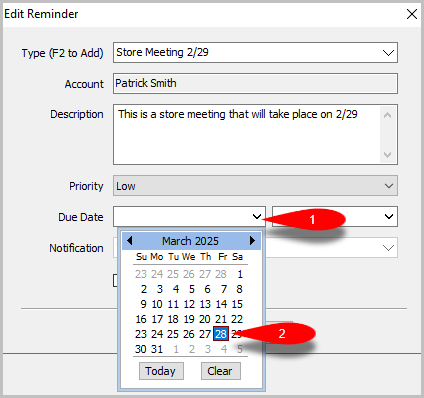
- On the first Due Date drop down, select the desired due date.
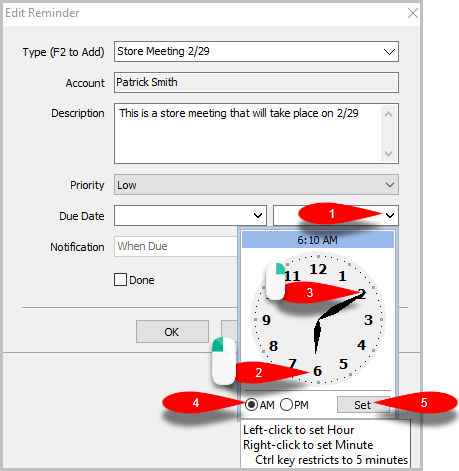
- On the second Due Date drop down, Left Click on the Hour Number you would like, then Right Click on the Minute Number you would like to select, then choose AM or PM, and finally click the Set Button
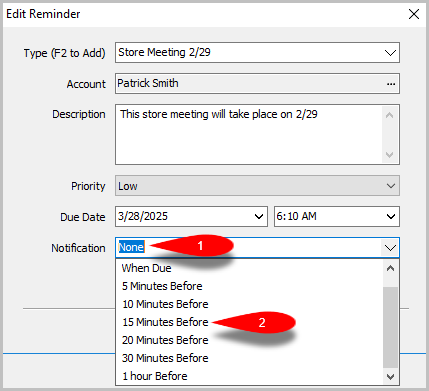
- On the Notification drop down you can select what time a notification will show up for the reminder
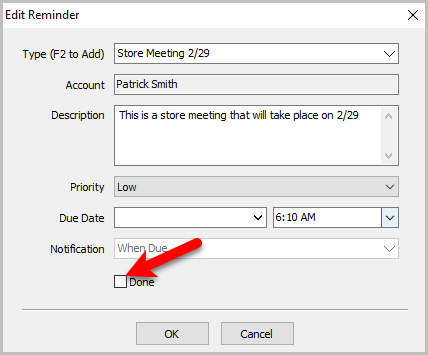
The Done Check Box is there to mark this mark this reminder as done and no longer needed. Leave this unchecked.
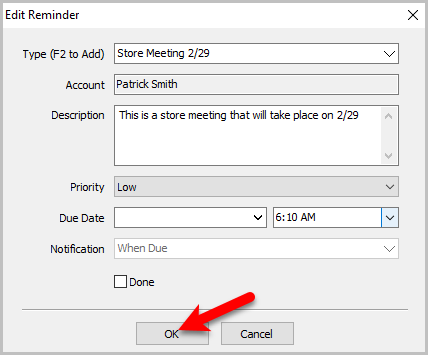
- Click OK Button when done.


You should see your reminder on the Welcome Screen.

If anything other than None is selected under the Notification drop down a bar at the top of the screen will appear after the time selected until the Done checkbox is marked.

Note: Only the oldest reminder with a notification that has not been marked Done will show up. Once marked done the next notification will appear.
Next Article In Section
Click the following link to move to the next article in this section:
How To View A History of Reminders