Remote Support
The following download is a safe and secure remote program that will allow your Resaleworld technician to remotely access your computer in order to better serve you and assist with any supported software and/or hardware issues you may be experiencing.
Resaleworld Support Launcher For PC
When you are on the phone with a support technician, they may prompt you to download this applet.
The technician will provide you with a Pin Code that will then allow them to remote into your PC and assist you:

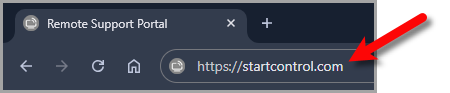
- Click the following link https://startcontrol.com. Confirm the open tab shows the title Remote Support Portal
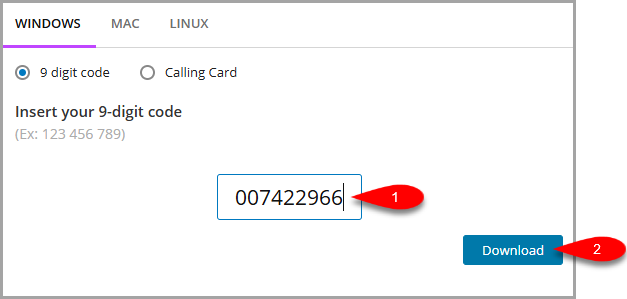
- Click the code input box and type 007422966. Confirm the 9 digit code option is selected, then click the Download button.
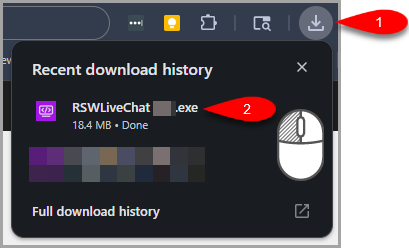
- Click the download icon in the browser toolbar at the top right to open the recent downloads popover. Click the downloaded file named RSWLiveChat…exe in the popover to open and run it.
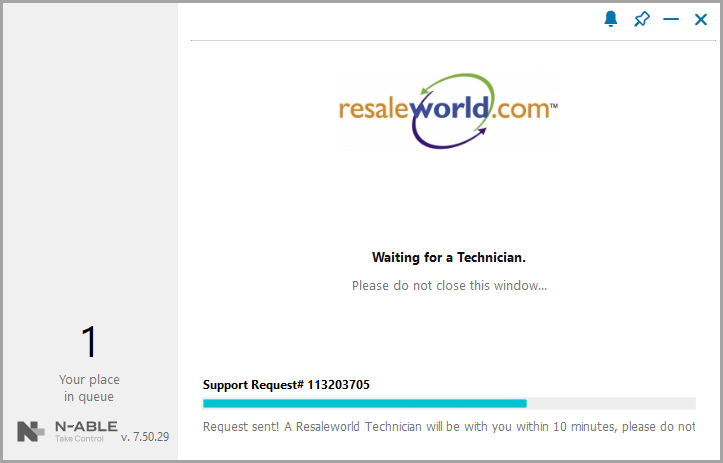
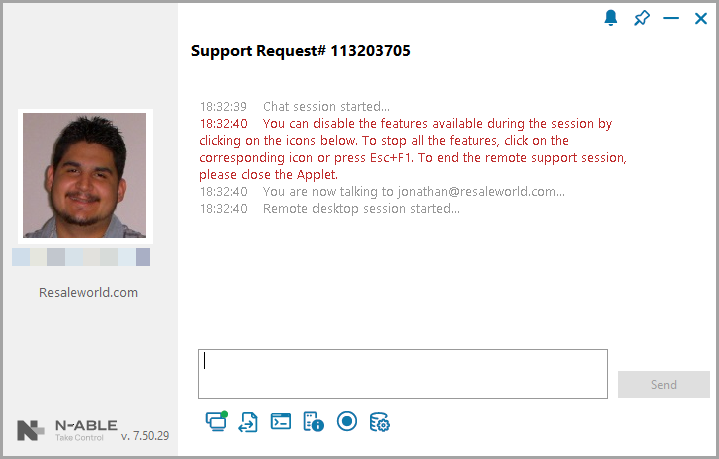
- Confirm the Support Request number 113203705 is displayed and note your place in queue 1. Keep this window open and do not close it while the teal progress bar runs. Wait for the Resaleworld technician to connect, the screen will update when they join.
- Click inside the blank chat box at the bottom and type your message for the technician. Click the Send button to the right of the box to submit the chat. To disable individual session features click the icons along the bottom toolbar, to stop all features press Esc+F1, and to end the remote support session close the Applet window.


Resaleworld Support For Mac
If you are on an Apple Macintosh computer, you will need to visit the Resaleworld Remote Support Website
MAC Remote Support Instructions

Here are the full instructions on getting a Resaleworld Support Technician remoted on to your Mac computer.
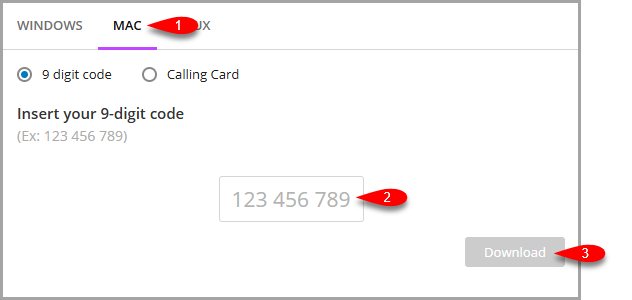
- Click the MAC tab, type your 9-digit code into the input box (placeholder 123 456 789), then click the Download button.
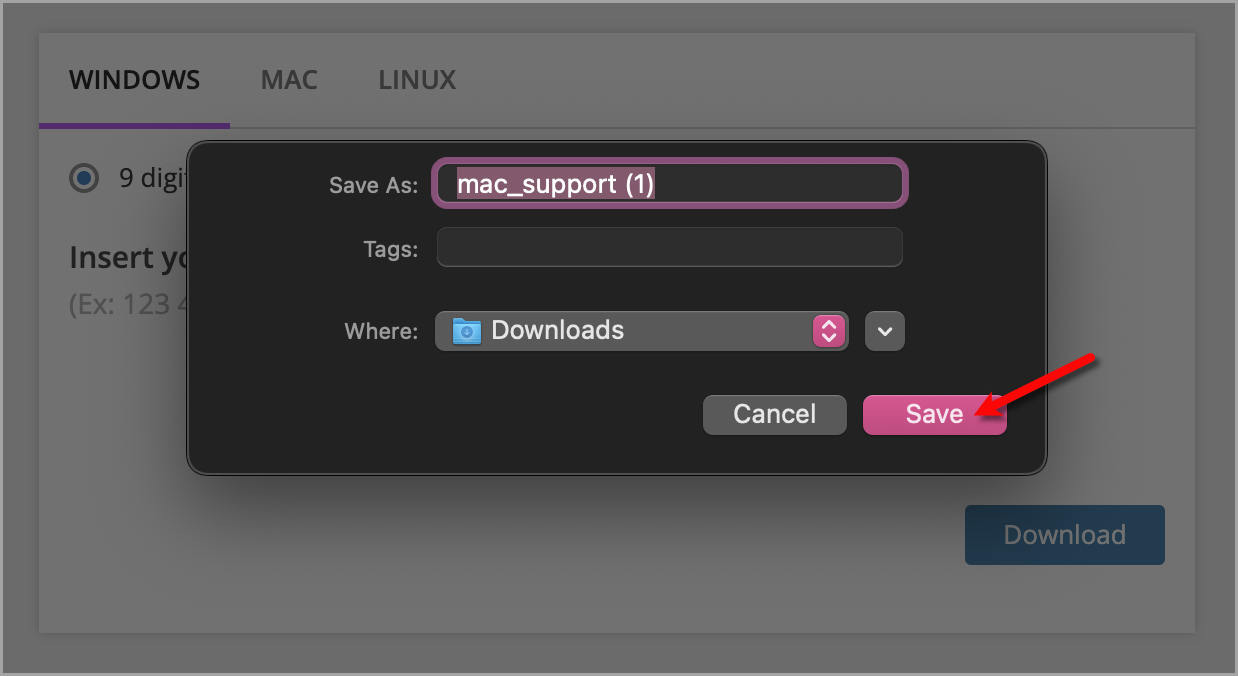
- Click the Save button.
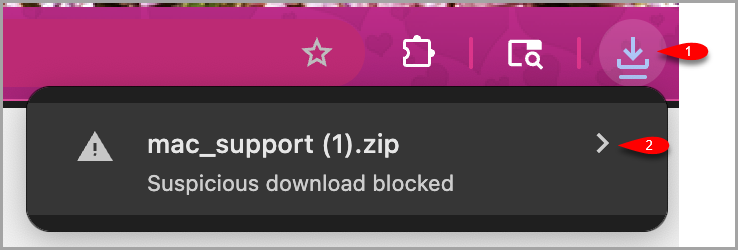
- Click the download icon (down arrow) in the browser toolbar. Click the chevron to the right of mac_support .zip.
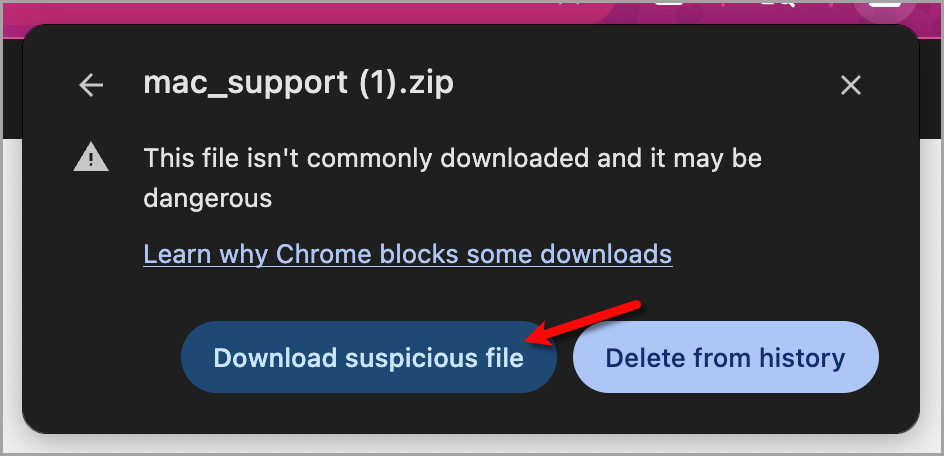
- Click the Download suspicious file button.
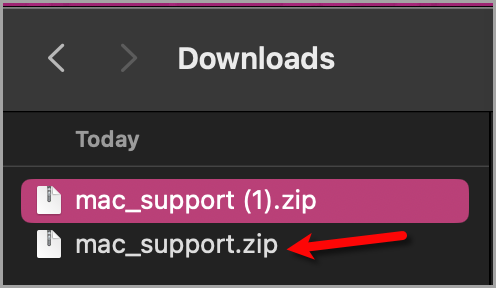
- Click mac_support.zip in the Downloads list.
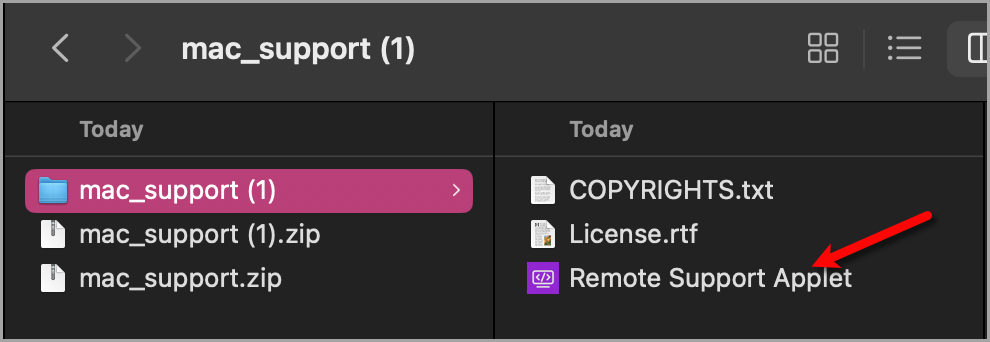
- Double-click Remote Support Applet in the right column.
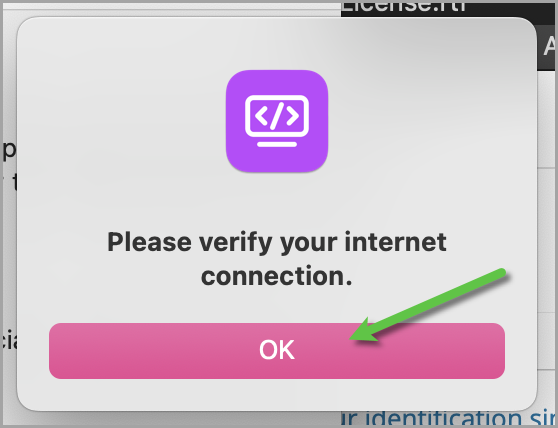
- Click the OK button on the dialog that reads “Please verify your internet connection.”
- For these few steps, you will work through each individually and all have similar instructions:
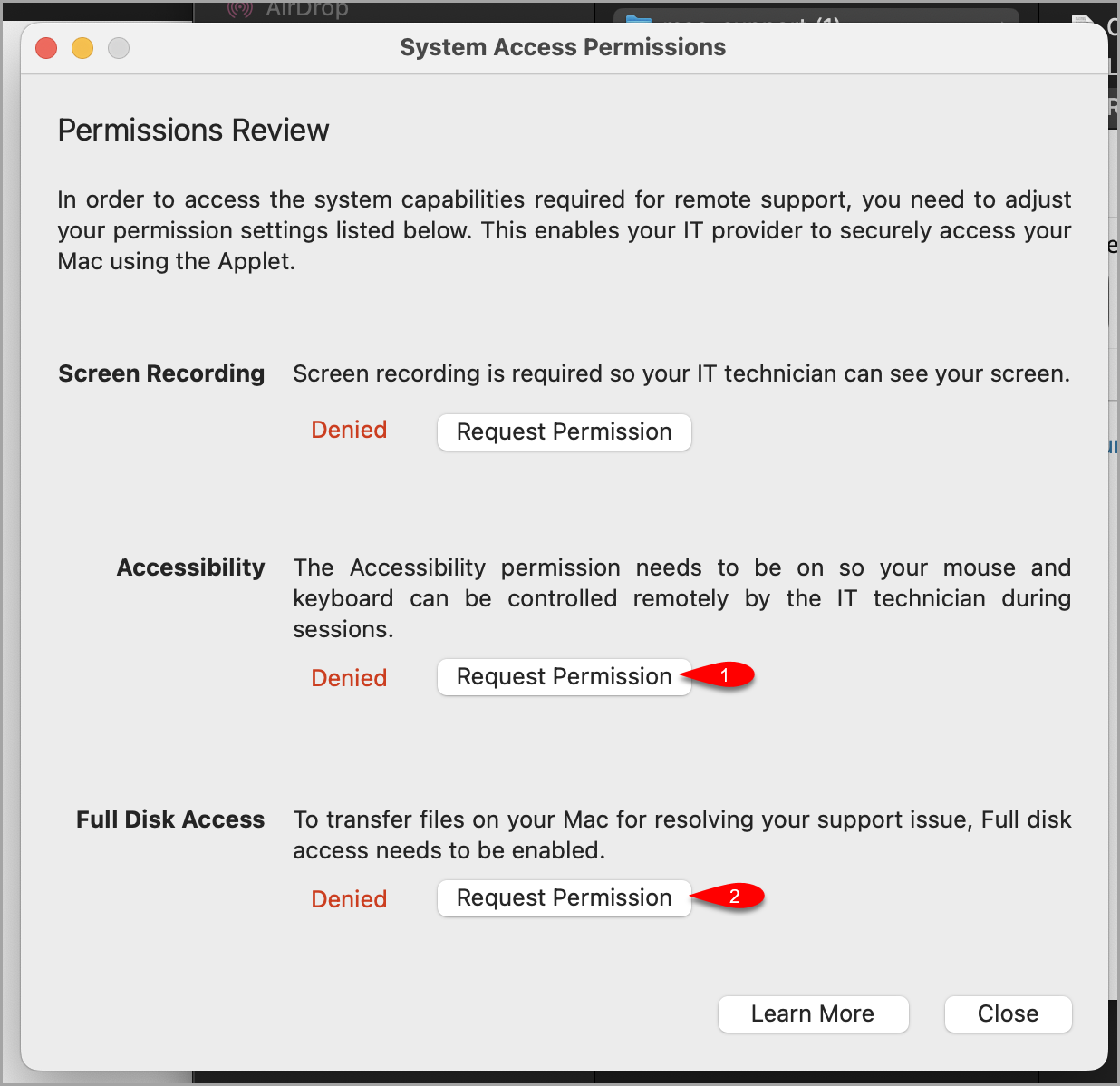
- Click the Request Permission button next to Screen Recording
- Click the Request Permission button next to Accessibility
- Click the Request Permission button next to Full Disk Access
We will start with Screen Recording.
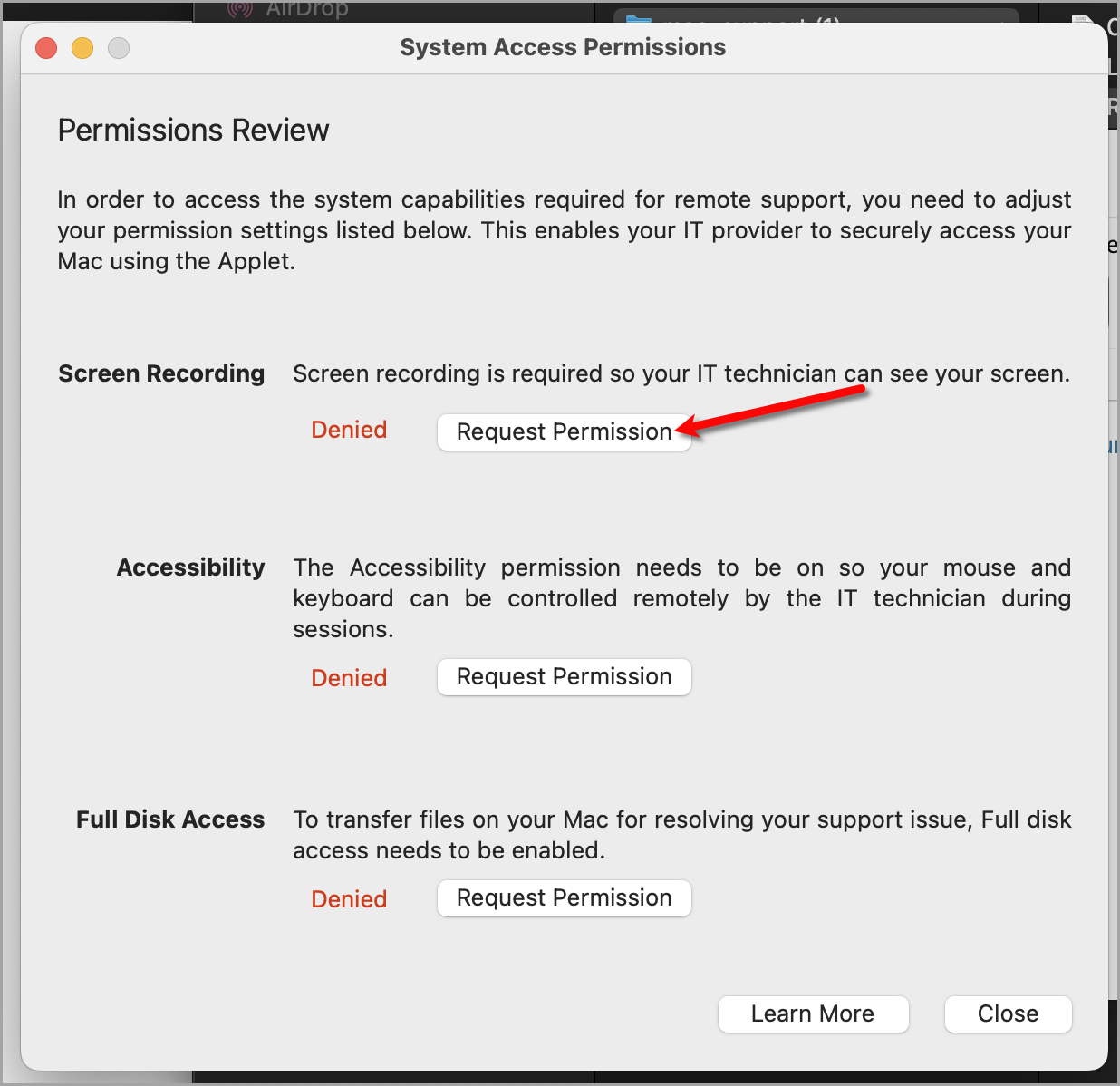
- These steps are all similar for the Permissions Review.
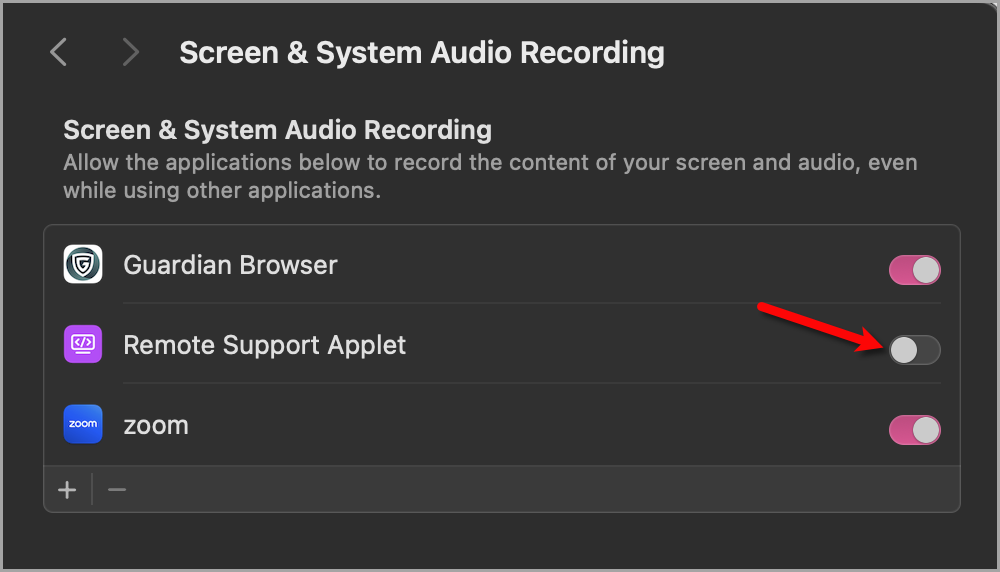
Click the grey toggle to the right of Remote Support Applet to turn it on.
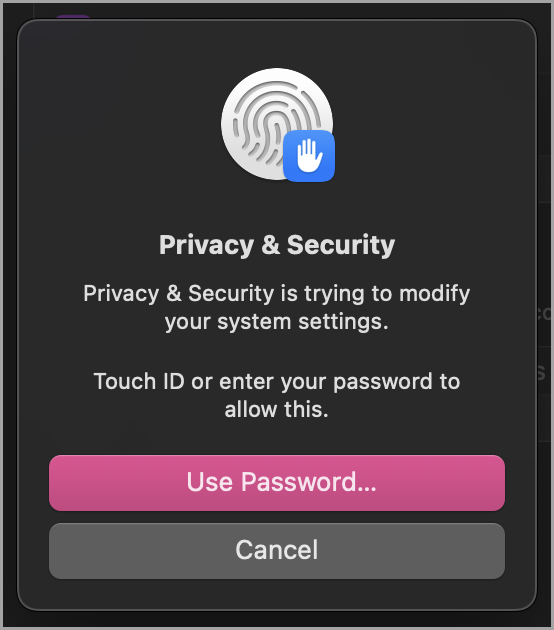
- Click Use Password…
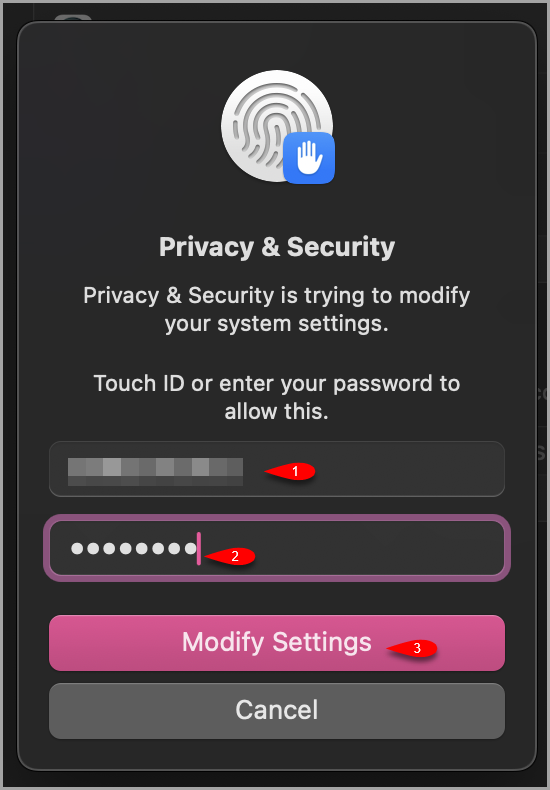
- Click the account name at the top of the dialog, type your administrator password into the password field, then click the pink Modify Settings button.
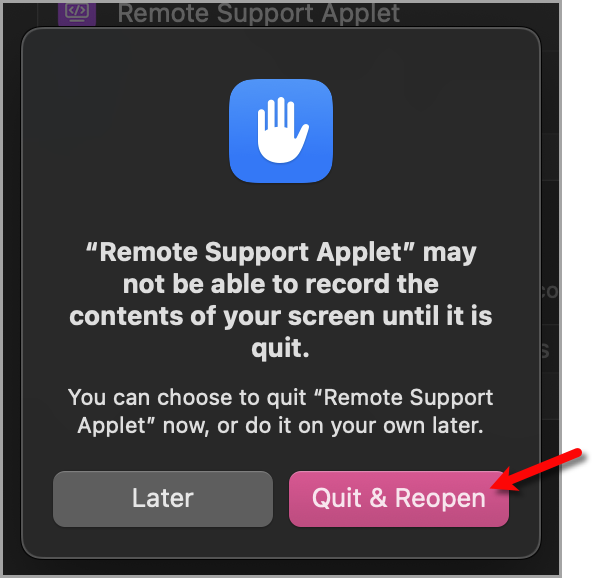
- Click Quit & Reopen to quit and relaunch “Remote Support Applet”.
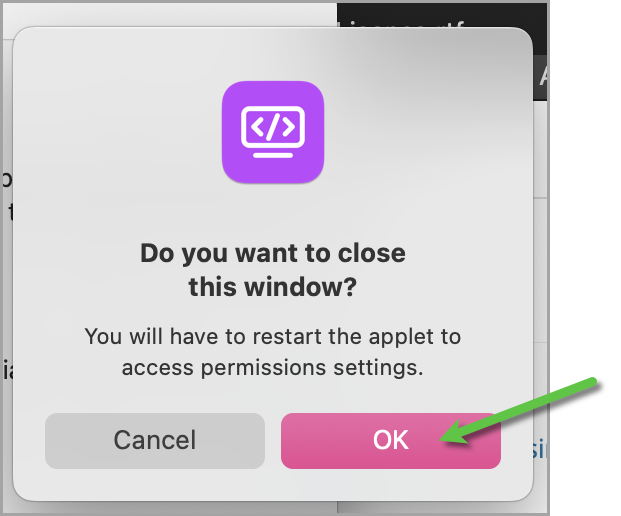
- Click the OK button on the right.
- These steps are all similar for the Permissions Review.
Repeat for Accessibility and Full Disk Access
- Type your PIN into the input field. This is another Pin Code that will be given to you by your support technician over the phone.


Click the Send request button.

Your Support Technician will now be with you momentarily.
Next Article In Section
Click the following link to move to the next article in this section:
Accessing Liberty Help From Anywhere In Liberty