Adding A Grid Widget
The new Grid Widget allows you to track various types of data relating to sales, and will have the ability to track crucial aspects of your store in future versions of Liberty.
Adding the Grid Widget to the Dashboard
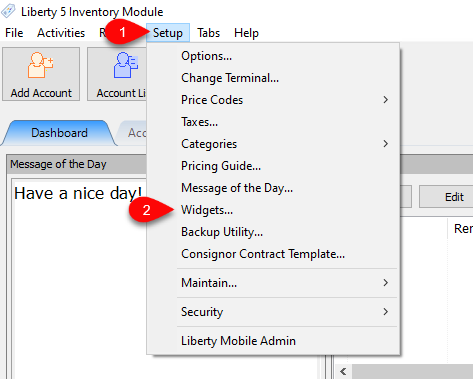
- To add the Grid Widget to you Liberty Dashboard tab, first go to Setup > Widgets….
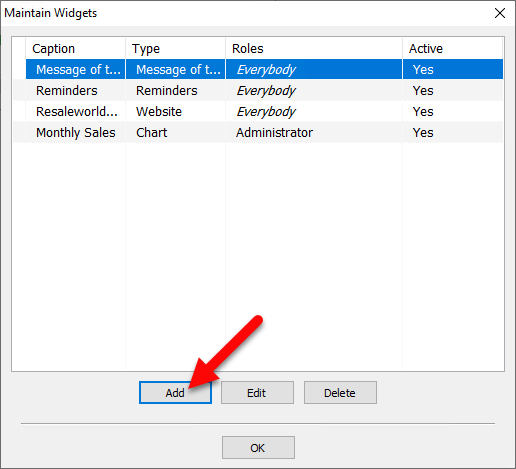
- Then in the Maintain Widgets dialog, click the Add button.
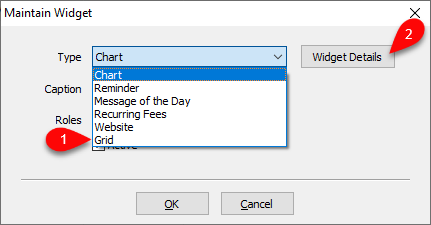
- In the Maintain Widget dialog, use the dropdown to select the Grid Widget, then click Widget Details.
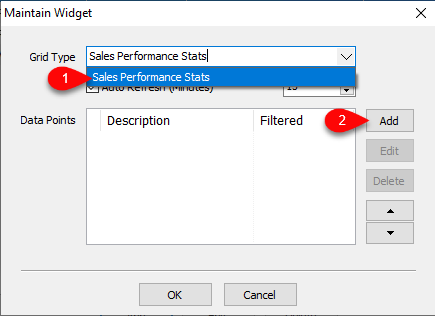
- Then in the Maintain Widget setting dialog, set the Grid Type dropdown to Sales Performance Stats, and leave the remaining setting as is. Then, click the Add button to set up the needed Data Points to track.
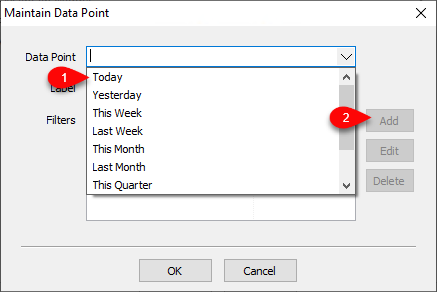
- Once the Maintain Data Point dialog appears, in the Data Point field, set the time-frame of sales you wish to track. Then, we need to set a filter to define the Location of items we wish to track. To do this, click the Add button.
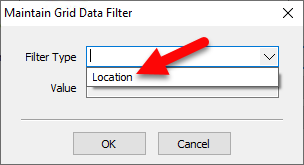
- In the Maintain Grid Data Filter dialog, change the Field Type to Location.
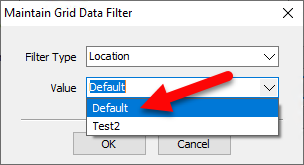
- Then, select the location itself from the Value drop-down, then click OK on each dialog until you return to the Inventory Module.
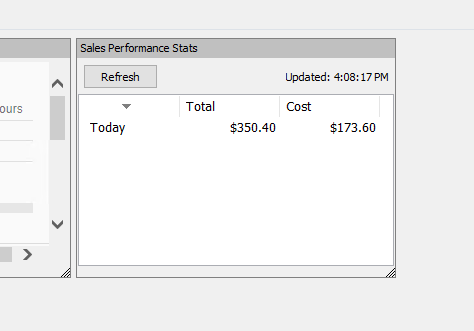
- Then in the Widgets shown on your Liberty Dashboard tab, you will now see the Grid Widget showing the Sales Performance Stats for the selected timeframe and Location.


Next Article In Section
Click the following link to move to the next article in this section:
Adding A Recurring Fees Widget