Fee Amount Kind
Open the POS and then click More then Fee Types and add a Fee Type.
There is a new Fee Amount Kind.
Amount Kind: This specifies the kind of fee you want to use along with the amount you want to charge.

- Variable Amount: When used in the POS, you will be prompted how much you would like to charge the customer.
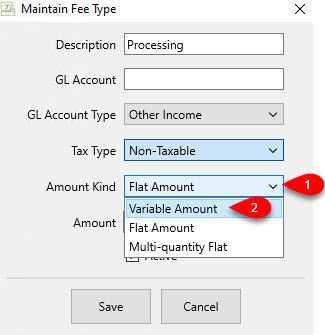
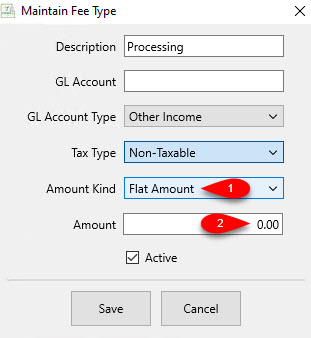
- Flat Rate Amount: When used in the POS, you will not be prompted to type in a fee.
The fee entered in the amount box is what will automatically be charged to the customer.
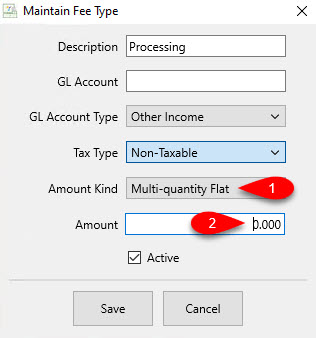
- Multi-Quantity Flat: When used in the POS, you will be prompted for a quantity that will then be multiplied by the currency number typed into the Amount box. This number can be a longer decimal.
This is very useful if you have for example, a roll of fabric and you want to charge based on inches or yards cut from the fabric.
Example: A customer comes up to the register with 2.5 yards of christmas ribbon. You charge $3.00 a yard. When you select this created fee in the POS, you would type 2.5 as your quantity. The customer would then be charged $7.50.
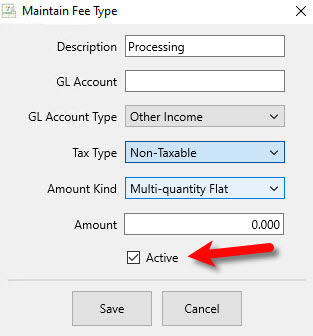
- Active (Check Box) : Use the Active Check Box if you want the fee to be usable in the Point Of Sale.
- Select the Save button when done.
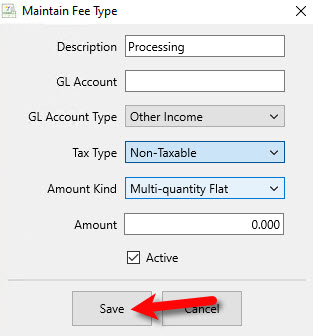


You should see your newly created Fee Type in the Maintain Fees dialog box.

Using Fee Amount Kind In The POS
Note: Adding a fee to a sale is the same as adding a fee by itself to be sold. The steps are the same. The only difference is if an item is currently part of the sale. Adding the fee will have no affect on how the sale is processed.
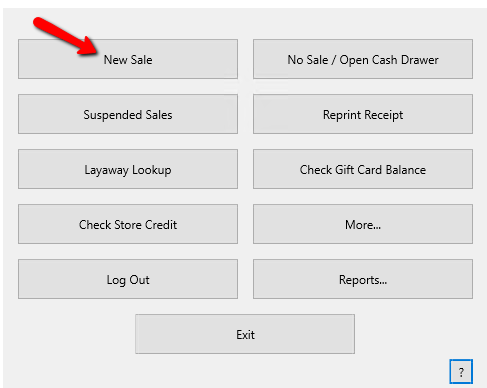
- From the POS Hub select the New Sale button.
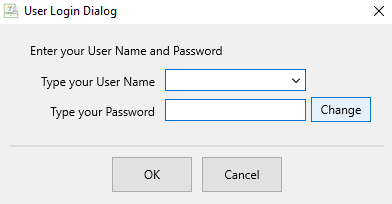
Login if Prompted.
- Within the POS select the Fee button.
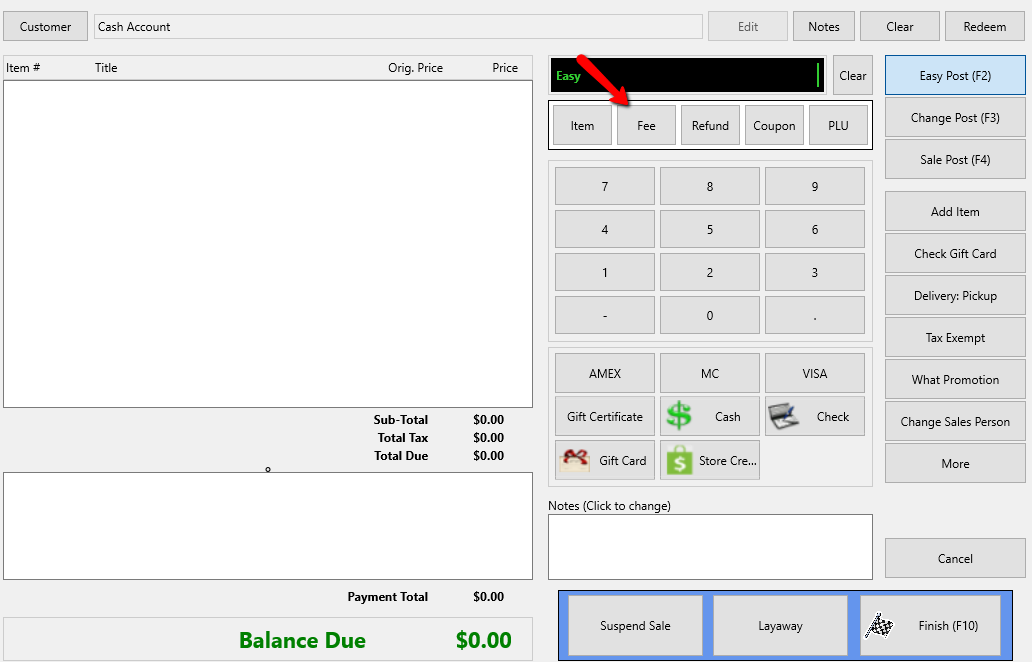
An additional menu will open with all the Fees listed.
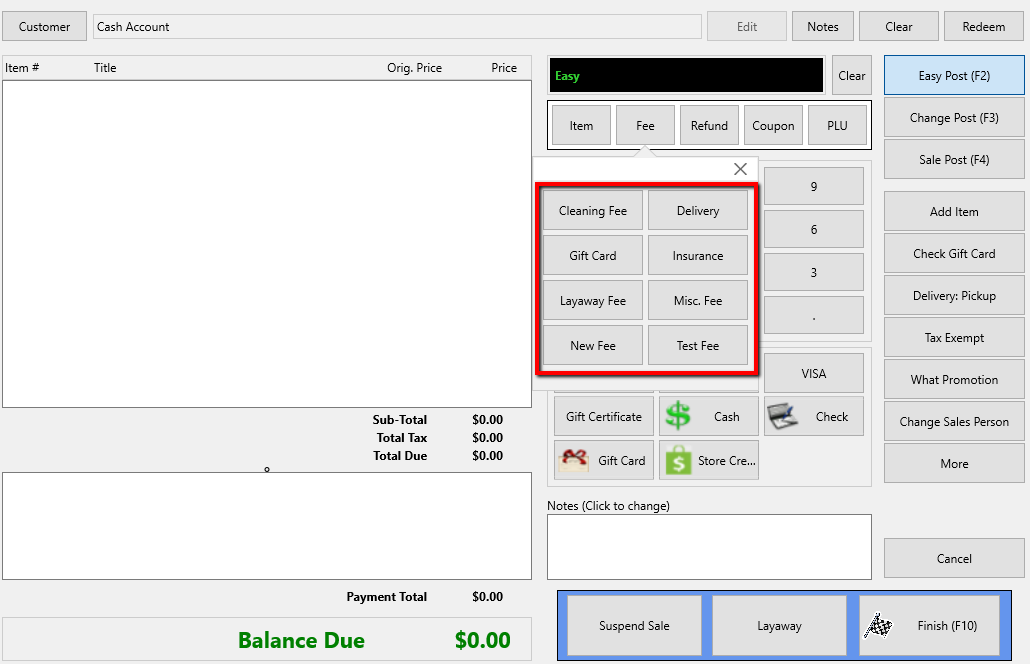
- Select the Fee button you want to use to ring up in the POS.
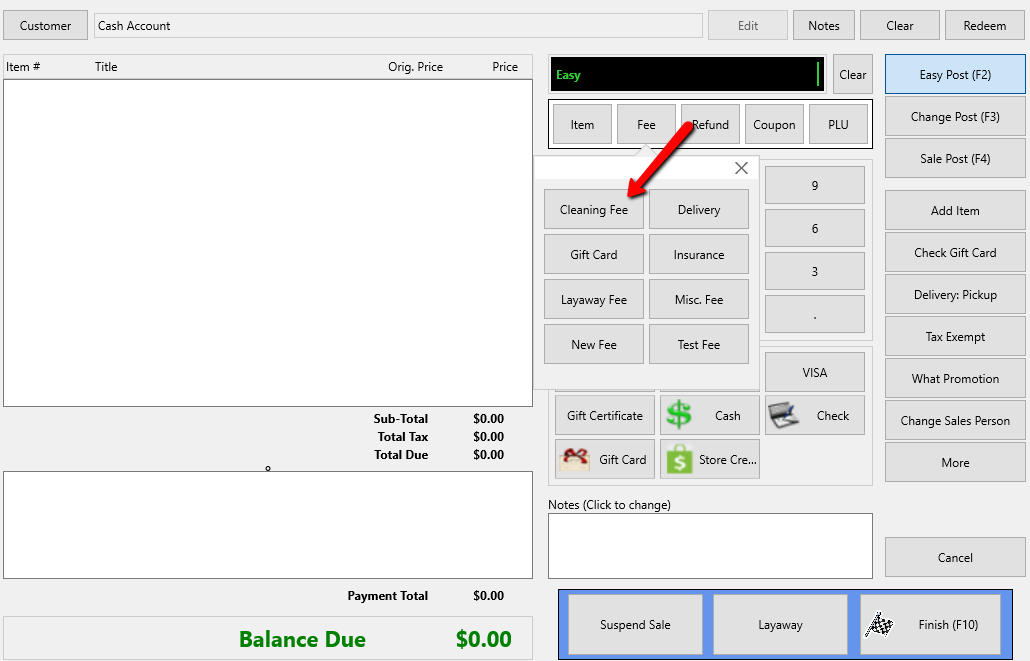
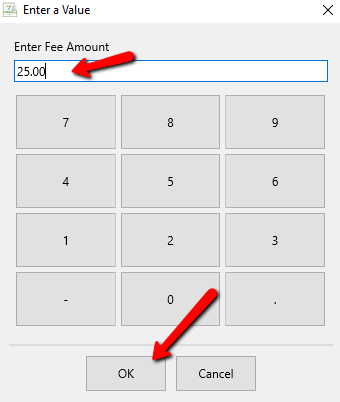
- Depending on the fee Amount Kind you are using, one of several things may happen.
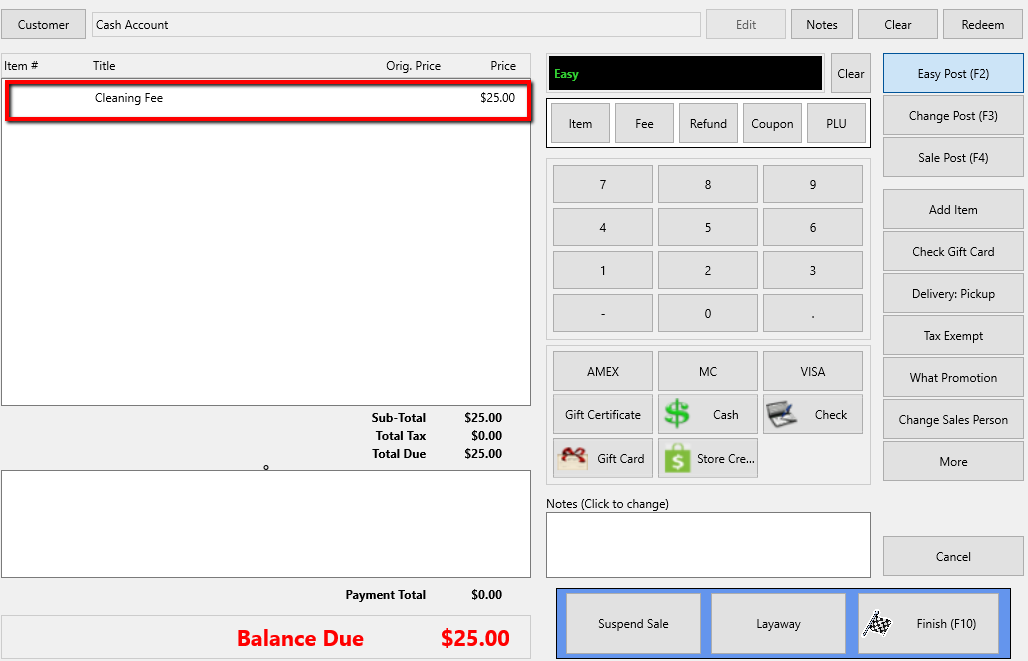
- You are using Variable Amount: Enter the value for the fee and then select the OK button at the bottom.
The fee will be displayed in the POS.
- You are using Flat Amount: You set a static fee so you will not be prompted to input how much you want to charge.
Instead, the pre-set fee will simply be charged.
- You are using Multi-quantity flat Amount: You will be prompted to specify a quantity of which will be multiplied by the pre-set amount you set for this fee type.
Click the OK button after typing in your quantity.
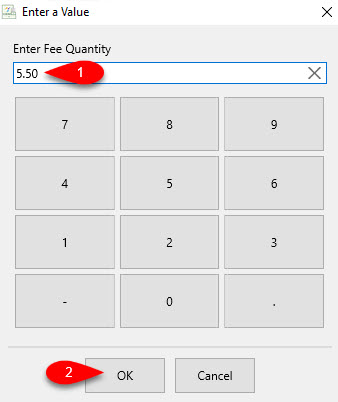
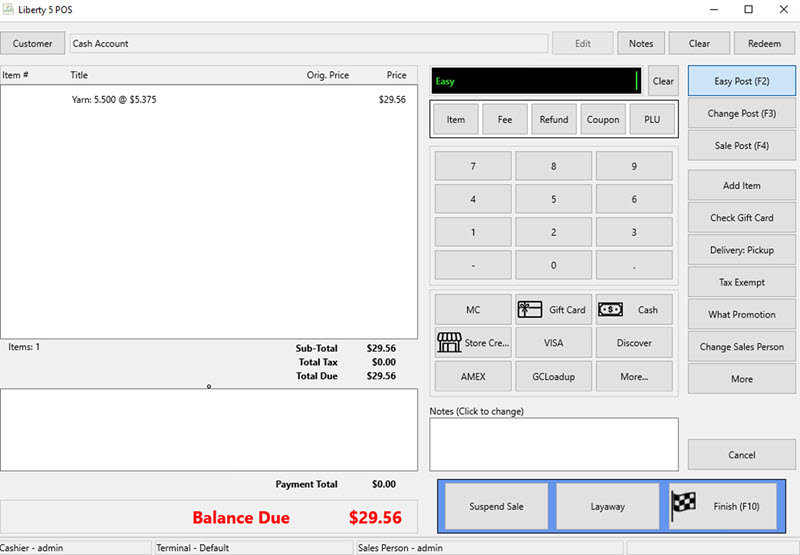
In the following example, we are purchasing 5.5 yards of yarn. Our amount per yard of yarn is $5.375
We ended up charging $29.56 because 5.5 x 5.375 = 29.56 rounded.
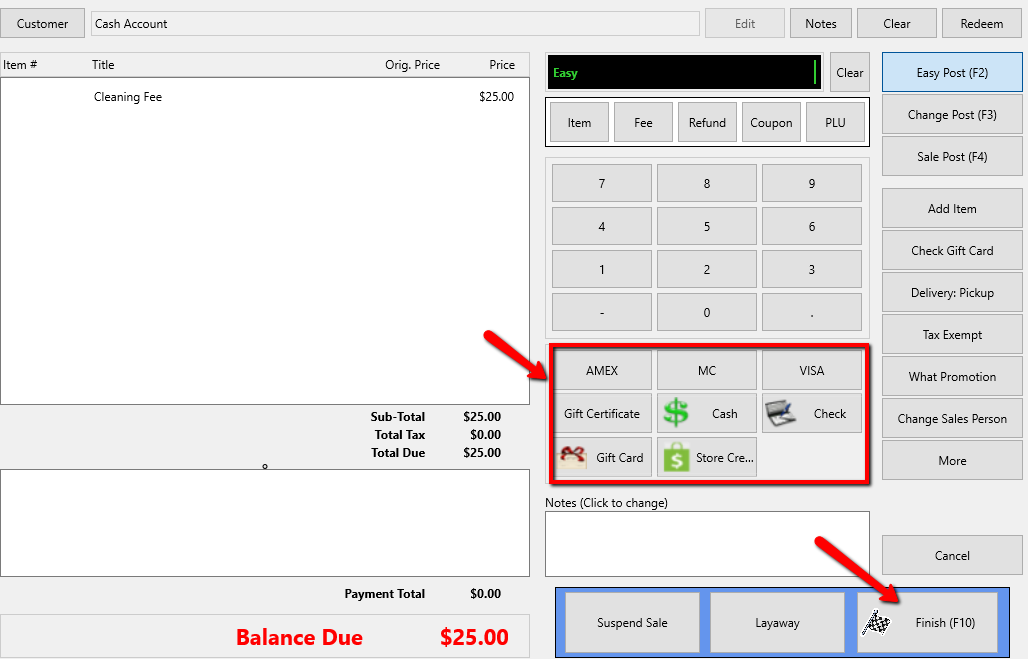
- Select the Payment Type and then the Finish button at the bottom.


Creating Fees For The Point Of Sale Add a Fee to a Sale
Next Article In Section
Click the following link to move to the next article in this section:
Ability To Rearrange The Buttons On The POS Hub
Related Topics
Fee Amount Kind Added Setting For Centering Receipt Footer Ability To Show Expire Items Prompt If Price Sold Is Over Threshold Ability To Default Cash Payouts Done In POS to Post Only Ability To Rearrange The Buttons On The POS Hub Ability To Print Employee Information On The Receipt Ability To Print Price First On Receipt Ability To Show Client Notes when there are Priority Notes Ability To Unpost Items In Bulk Ability To Attach Tag Types To Categories