Setup of a Single Location with a Single Tax Rate on all Items
This guide is a basic setup for a store that will only have one location and one Tax Rate.
Note: This is a guide and not intended to be the way taxes “Have” to be set up.
The following is a basic suggested model and instructions on how to set up.

Note: The names used for the Tax Types, Locations, Tax Groups, and the amounts set in the Tax Rates, are all for demonstration purposes only. Feel free to use whatever names and rates applicable for your location.
Create Tax Groups
- Create two Tax Groups. One for Taxable sales and one for Non-Taxable sales.
Note: Check Out Setting Up Tax Codes, Tax Groups, and Tax Rates and Tax Types and Location/Tax Group Association for details on setting up tax codes. - For the Taxable Group enter in the Tax Rate.
- For the Non-Taxable Group sales enter in a rate of 0%
The setup should look like this:

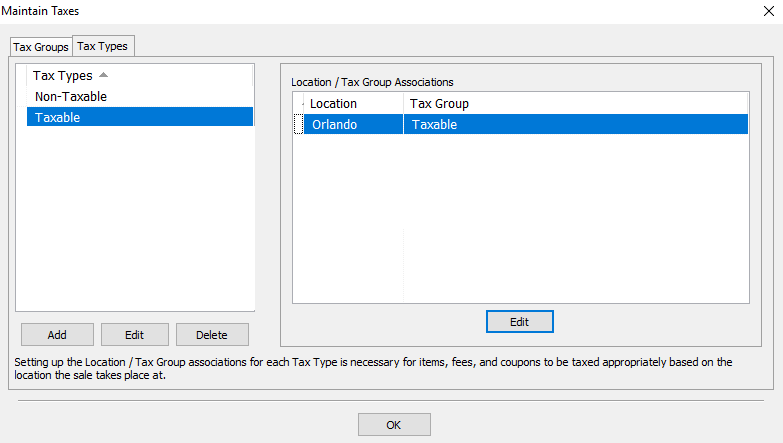
Create Tax Types And Apply The Location/Tax Group Associations
- Click on the Tax Type tab then click Add to add two new tax types. One for Taxable items and one for Non-Taxable items.
- For the Taxable tax type, set the Location for the Tax Group Association of the Taxable Sales group.
- For the Non-Taxable tax type, set the Location for the Tax Group Association of the Non-Taxable group.

Next Article In Section
Click the following link to move to the next article in this section:
Setup of a Single Location with Different Tax Rates
Related Topics
Setup of a Single Location with a Single Tax Rate on all Items Setting Up Tax Codes, Tax Groups, and Tax Rates Setting Up Product Lines Category Editor Tax Codes Overview Tax Types and Location/Tax Group Association Setup of a Single Location with Different Tax Rates Setup Of Multiple Locations And A Single Tax Rate For Each Location Setup Of Multiple Locations and Multiple Tax Rates For Each Location Setup of Multiple Locations and the same set of Multiple Tax Rates for Each Location Add, Change and Delete Categories