Category Options
Category Options allows you to set the category level structure you will be using and the branch to start from if using a one or two level category structure.
Selecting Category Options
- To open the categories Options window go to Setup > Options > Category Options.
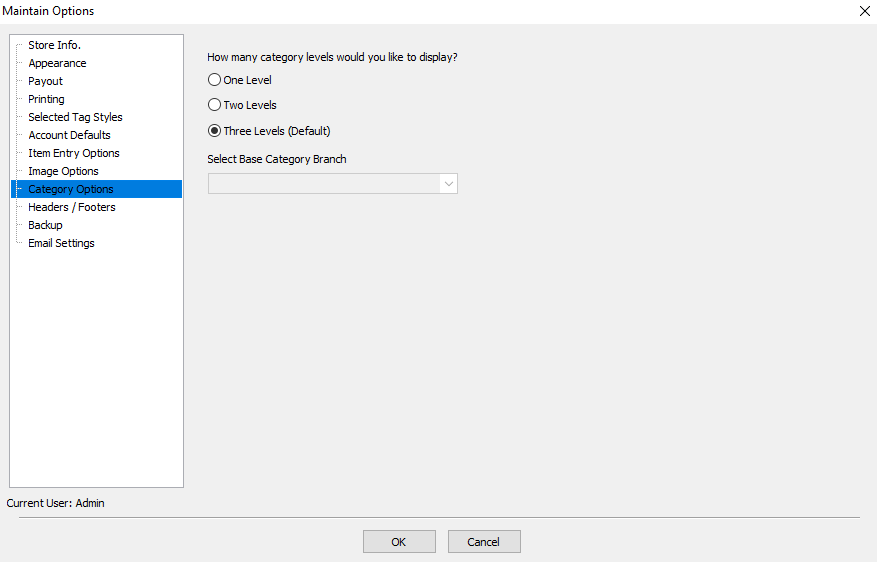
- Select the desired level and branch to work from.
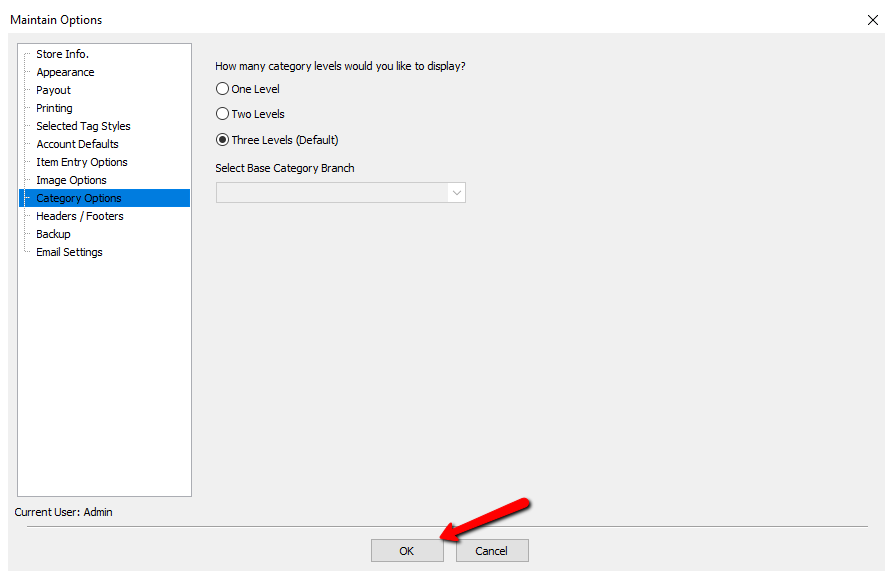
- Select the OK button when done.


Definitions Of Category Levels
- Level : There are 3 Category Levels: 1, 2 and 3. Level 3 Categories are subcategories of Level 2 Categories. Level 2 Categories are subcategories of Level 1 Categories.
- Level 1 Category : The top level Category. Examples of Level 1 Categories are Women's Apparel, Antiques & Collectibles, and Jewelry & Accessories.
- Level 2 Category : The middle level Category. Examples of Level 2 Categories that fit under the Level 1 Category Women's Apparel are Shoes, Dresses/Skirts, and Suits.
- Level 3 Category : The lowest and most specific Category level. Examples of Level 3 Categories that fit under the Level 2 Category Jewelry (which is under the Category 1 of Jewelry/Accessories) are Ring, Earrings, Bracelet, and Necklace.
- Category Structure : Category Structure consists of three levels: Category 1, Category 2, and Category 3. You can see the Category Structure displayed graphically by viewing the Category Editor.
Next Article In Section
Click the following link to move to the next article in this section:
Headers / Footers