Sale Deductions
Working with Sale Deductions
Sale Deductions add or subtract from the amount owed to a consignor. They are applied only if an item sells. Sale Deductions appear in the consignor’s Transaction HIstory.
The amount of the Sale Deduction may be either a positive number or a negative number. When the Sale Deduction is a positive number, the amount of the deduction is subtracted from the consignor’s account, thus reducing the amount the consignor will be paid. When the Sale Deduction is a negative number, the amount of the deduction is added to the consignor’s account, thus increasing the amount the consignor will be paid.
An example of when a positive Sale Deduction is used would be when a store wishes to charge an additional fee when an item sells. If the item does not sell, then the consignor is not charged this fee.
An example of when a negative Sale Deduction is used would be when a store uses the Processing Fee to charge a mandatory minimum listing fee, and the store wishes to rebate the fee whenever items sell. In other words, if the item does not sell, no Sale Deduction is applied and the consignor pays the Processing Fee.
On the other hand if the item does sell, then the Processing Fee is canceled out by the Sale Deduction Fee. (In this case the term Sale Deduction is actually a inaccurate terminology, since it is actually a credit.)
Note: Each Price Code has its own Sale Deduction Fee (different Sale Deductions can be charged with different Price Codes).
Creating A Sale Deduction
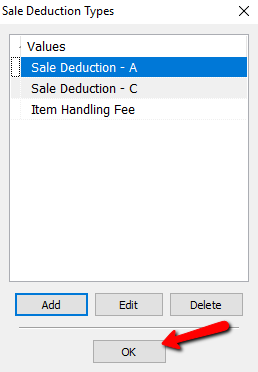
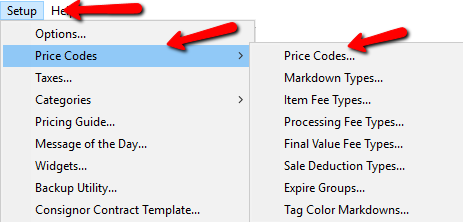
- Within Liberty go to Setup > Price Codes > Sale Deduction Types.
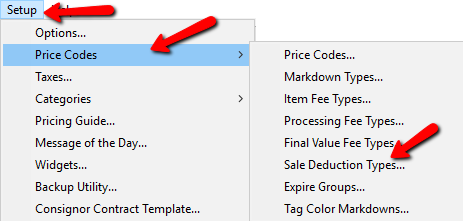
The Sale Deduction Types dialog box will open.
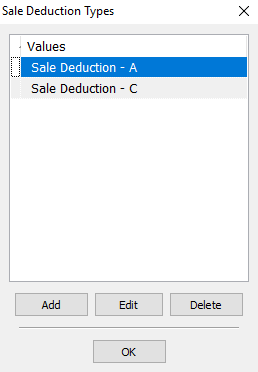
- Selecting the Add button or the Edit button to open the details of a Sale Deduction. Select the Delete button to delete the Sale Deduction from the list.
The Maintain Sale Deduction Type box will open.
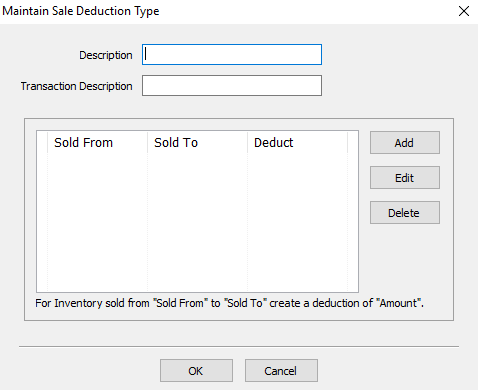
- Description : Enter a description to easily identify the Sale Deduction.
- Transaction Description : Enter in a Transaction Description. This will appear on the Transaction Tab of the Consignor’s Account.
- Add button : Select the Add button to add new details to a Sale Deduction
- Edit button : Highlight and select The Edit button to modify details of a Sale Deduction.
- Delete button : Highlight and select the Delete button to delete details of a Sale Deduction.
- Select the OK button when done entering the information.
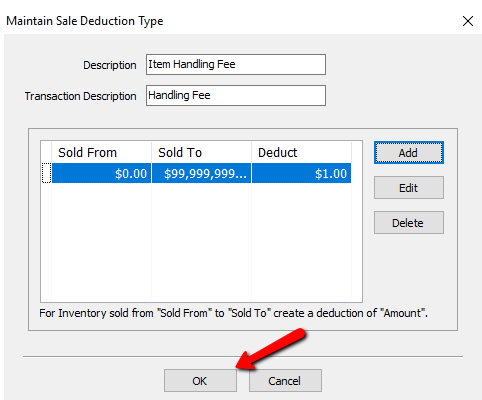
- From the Sale Deduction Types dialog box select the OK button.


How To Implement A Sale Deduction
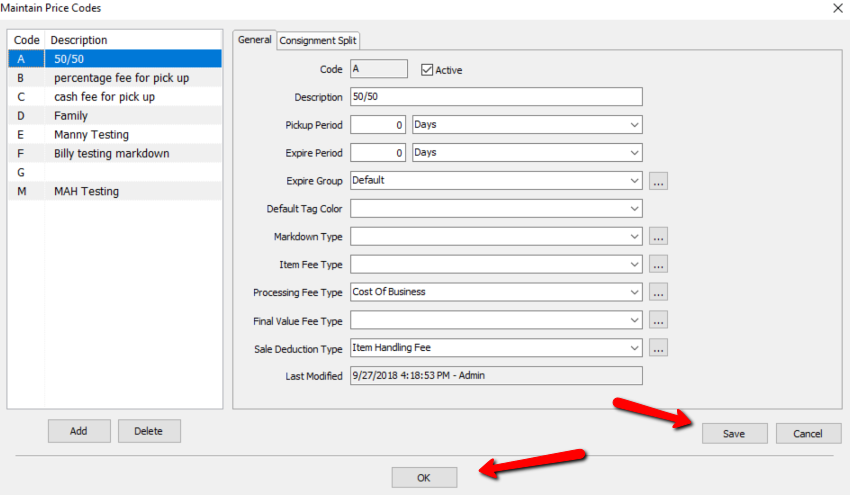
- From Inventory Module, select Setup > Price Codes > Price Codes.
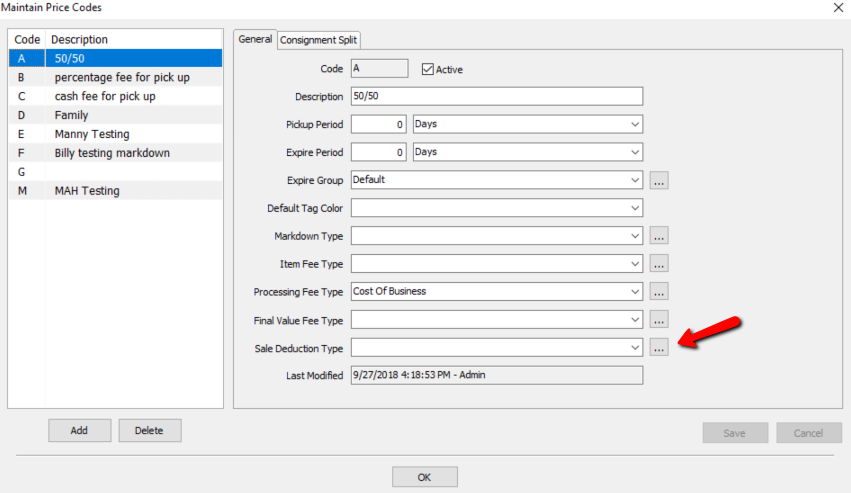
- Select the Price Code from the left side to implement a Sale Deduction. After the Price Code has been selected, click on the
 button to the right of Sale Deduction Type. This allows you to create or edit Sale Deductions.
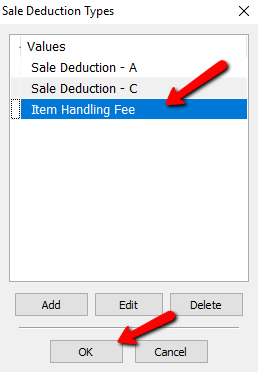
- The Sale Deduction Types dialog appears.
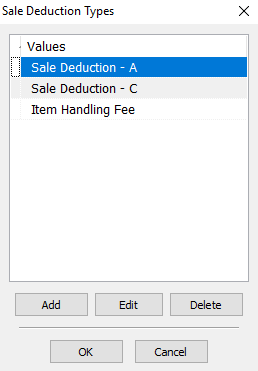
- Select the Sale Deduction you want to apply to the price code then select the OK button at the bottom.
- When finished, click on the Save button on the bottom right corner of the Maintain Price Codes menu.


Note: To change the name Sale Deduction to something else in the Transaction History, change the contents of the Transaction Description field in the Sale Deduction panel.
Next Article In Section
Click the following link to move to the next article in this section:
Final Value Fees