Setting Up Locations
Some businesses have multiple locations and require the ability to track items by their location. These locations may be separate retail storefronts and/or warehouse sites. In order to make use of the Location field when maintaining inventory it is necessary to enter the Locations into Liberty. This is accomplished using the Maintain Locations routine.
To Rename the Default Location:
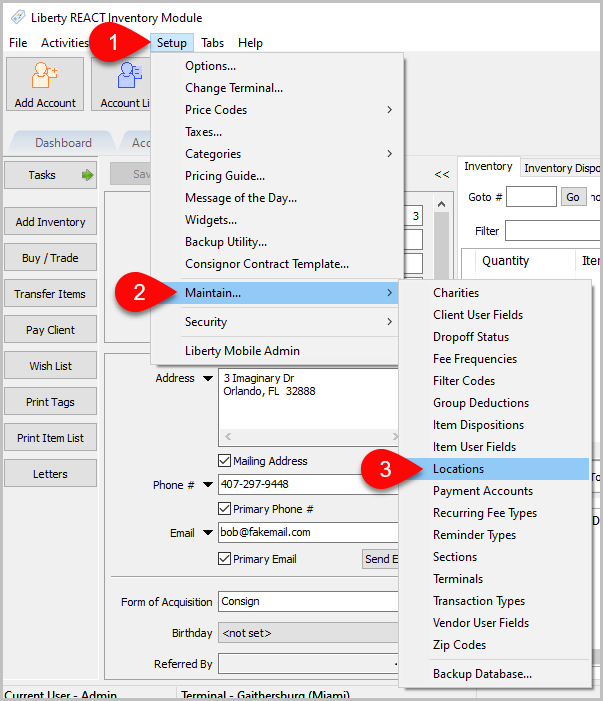
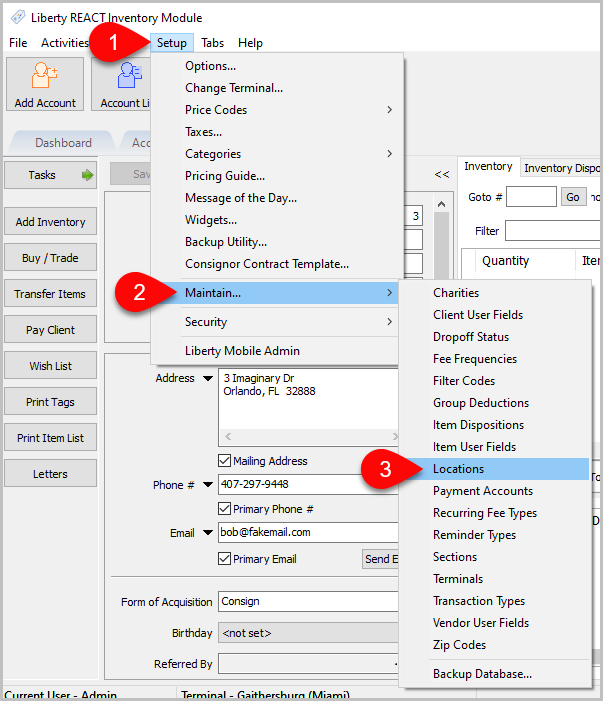
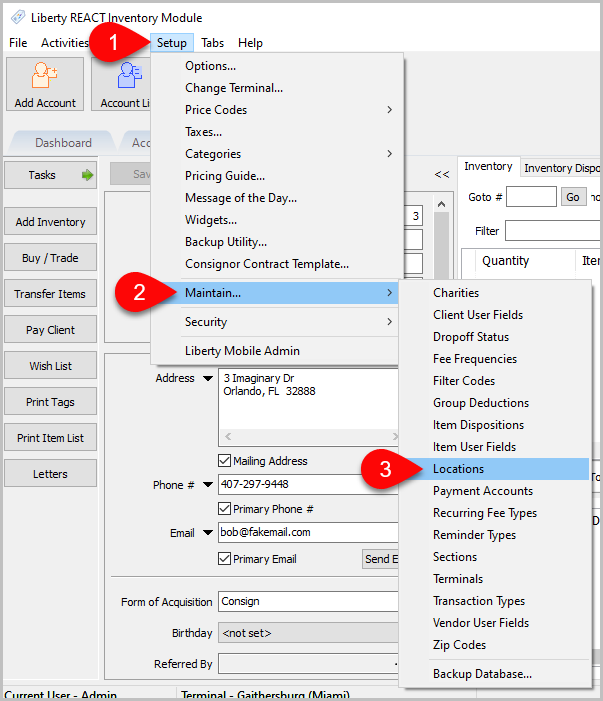
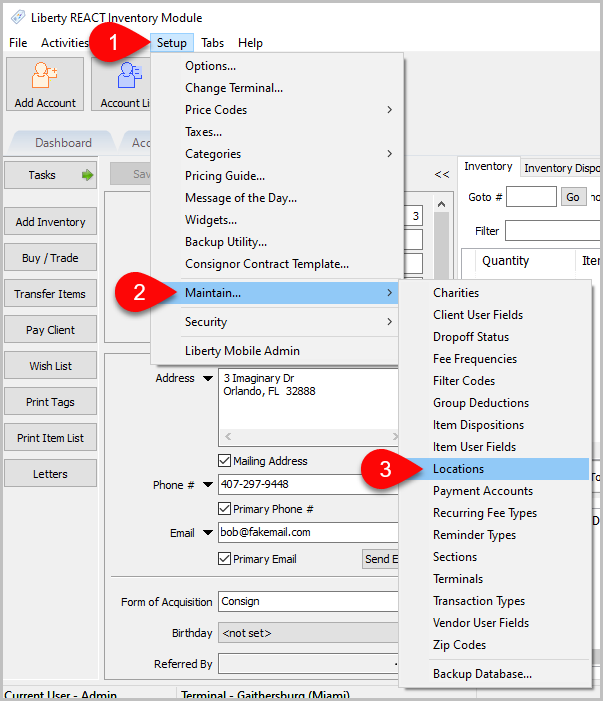
- In the Liberty Inventory Module click the Setup menu.
- Click on Maintain.
- Click Locations.
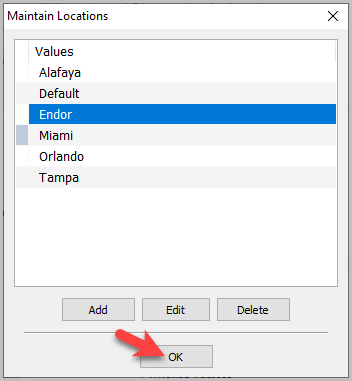
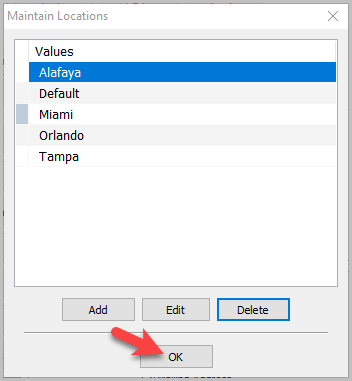
- The Maintain Locations window will popup.
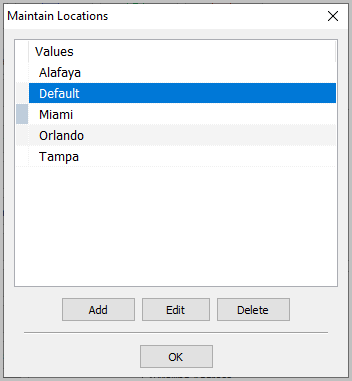
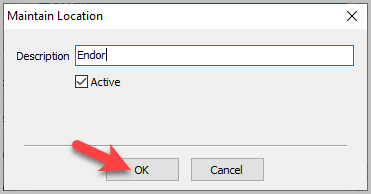
- Note that one location is already entered with the name Default. Highlight the word Default and click the Edit button. The Edit Location dialog will display:
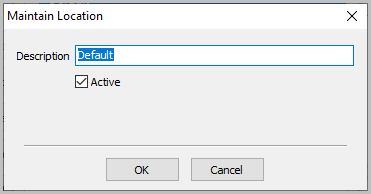
- Enter the name of the Location that will most frequently be entered in place of the word Default. For instance, if there are two locations, one in New York and one in Los Angeles, and New York is where the majority of items will be, then enter New York in place of Default.
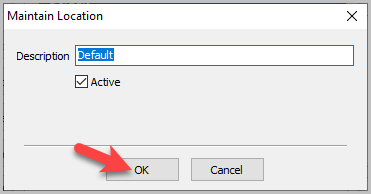
Note: The Default location can only be renamed, not changed. In this example New York is the default location and you cannot change the default to Los Angeles. A workaround would be to flip the names; rename the default location New York to Los Angeles and Los Angeles to New York. - Click the OK button when done.


To Add a Location:
- In the Liberty Inventory Module click the Setup menu.
- Click on Maintain.
- Click Locations.
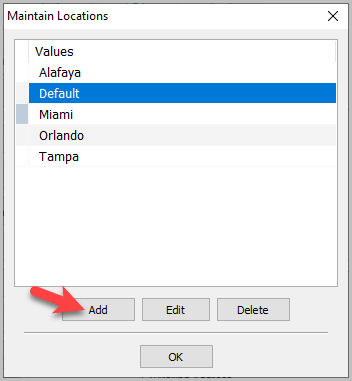
- Click the Add button
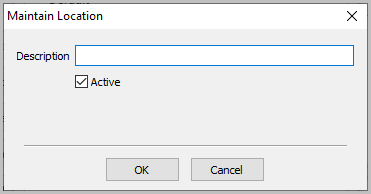
- Enter the Location.
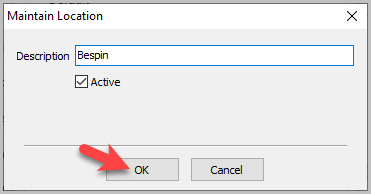
- Click the OK button on the Maintain Location window.
- Click the OK button on the Maintain Locations window.
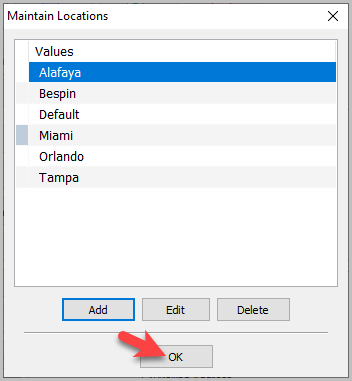


To Edit a Location
Note: Changing the location name will change the name on all reports. Old location will be replaced with new location
- In the Liberty Inventory Module click the Setup menu.
- Click on Maintain.
- Click Locations.
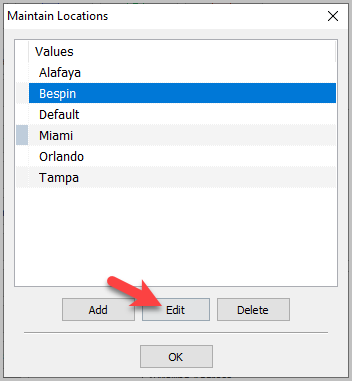
- Select the Location you want to edit, then click the Edit button.
- Enter the name of the Location.
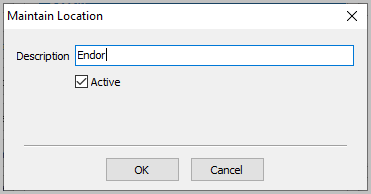
- Click the OK button on the Maintain Location window.
- Click the OK button on the Maintain Locations window.


To Delete a Location
Note: A Location may be deleted only if it has NOT been used.
- In the Liberty Inventory Module click the Setup menu.
- Click on Maintain.
- Click Locations.
- Select the Location you want to delete, then click the Delete button.
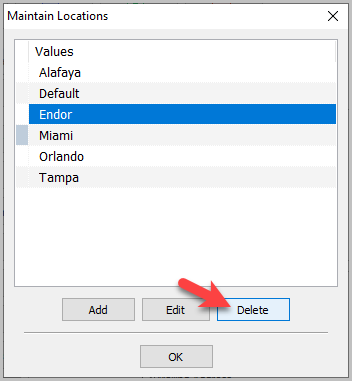
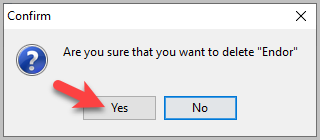
- Make sure you want to delete the location, then click Yes.
- Click the OK button on the Maintain Locations window.


Next Article In Section
Click the following link to move to the next article in this section:
Setting Up Expire Groups
Related Topics
Setting Up Locations Terminals Setting up Terminal IDs (Networks Only) Assign Terminal IDs (Networks Only) Setting Up A Default Weight For New Items Within A Category Define Custom Field Names Define Filter Codes Setup Fee Frequencies Setting Up Account Field Layout Setting Up Expire Groups Setting Up Group Deductions