Payout Preferences
The term Payment Defaults refers to consignor payouts.
To Set Payment Defaults
- From the Main Menu, select Setup > Options > Payout.
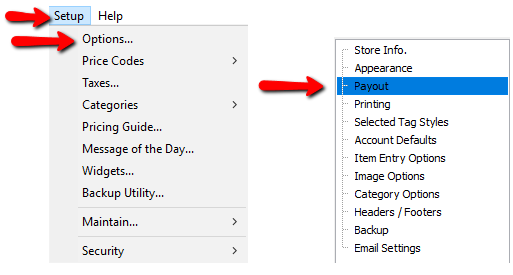
- The Maintain Options dialog box will appear.
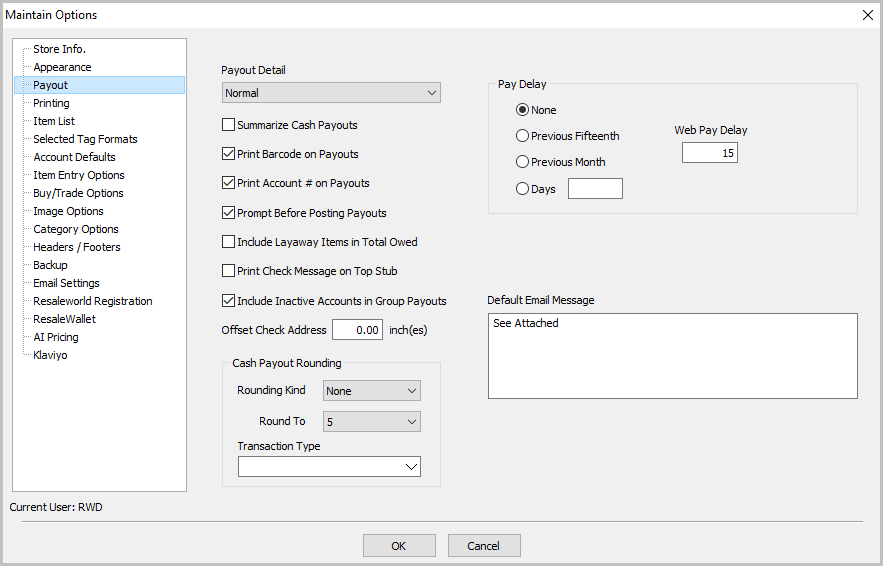


Payout Preferences Fields
- Payout Detail : Has three options. Each option determines the type of detail to print on the check stub for the items sold.
- Long Description : Prints the Item Number, the Amount Sold for, and the Net (amount the consignor is being paid).
- Normal : Prints the Item Number, and the Amount Paid to the consignor.
- Summarized : Tells you How Many Items were sold through which channels and the Total from those channels.
Example: Sold Online (22) $1,488.10 means 22 items were sold Online for a total amount of $1,488.10. - Summarize Cash Payouts : When doing a cash payout this option when active will print summarized infortion rather than detailed information.
- Print Barcode On Payouts : Prints the check number in the form of a barcode for clearing checks out of Liberty.
- Print Account # on Payouts : Prints the Account Number on the check.
- Prompt Before Posting Payouts : Check to be Prompted Before posting checks as paid. It is recommended that this option be left turned on.
- Include Layaway items In Total Owed : Checking this option will cause credit from items on layaway to be available for use for store credit purchase. This will also cause these pending transactions to be uploaded to the optional Consignor Login service.
- Print Check Message On Top Stub : Check this option if the check message should be printed on the Top stub of the check rather than the bottom stub.
- Include Inactive Accounts In Group Payouts : When checked this will include any accounts that have been inactivated in the Group Payout Process.
- Offset Check Address : This is to adjust the vertical offset of a check. The max is 0.25 and the minimum is -0.25.
- Cash Payout Rounding : You can now round up or down cash payouts, click on this link to learn more about penny rounding: Penny Rounding
- Payout Fee Amount : Enter how much (if any) you will charge a client for issuing a payout.
- Minimum Check To Print : Enter the smallest amount for which the system process payouts.
- Pay Delay : Use a pay delay for holding the payout for a set amount of time from the time the item is sold, to a designated time for the delay.
- None : By default Liberty is set to None. This means as soon as an item is sold in store, the consignor can be paid for it.
- Previous Fifteenth : Select to issue payments for in-store sales made up through the 15th day of the previous month.
- Previous Month : Select to issue payment for in-store sales made up to the last day of the previous month.
- Days : Select and enter the number of days before a client can be paid after and in-store sale is made.
- Web Pay Delay : Enter the number of days before a client can be paid after an item sells online.
Note: The amount entered for Web Pay Delay is added to the regular pay delay. Example: Regular pay delay is set to 10 days. Web Pay Delay is set to 5 days. Account holders will not be paid for items that sell online for 10+5=15 days.
Next Article In Section
Click the following link to move to the next article in this section:
Consignor Contract Creation