Setup
- Connect the power cable to the charging cradle.
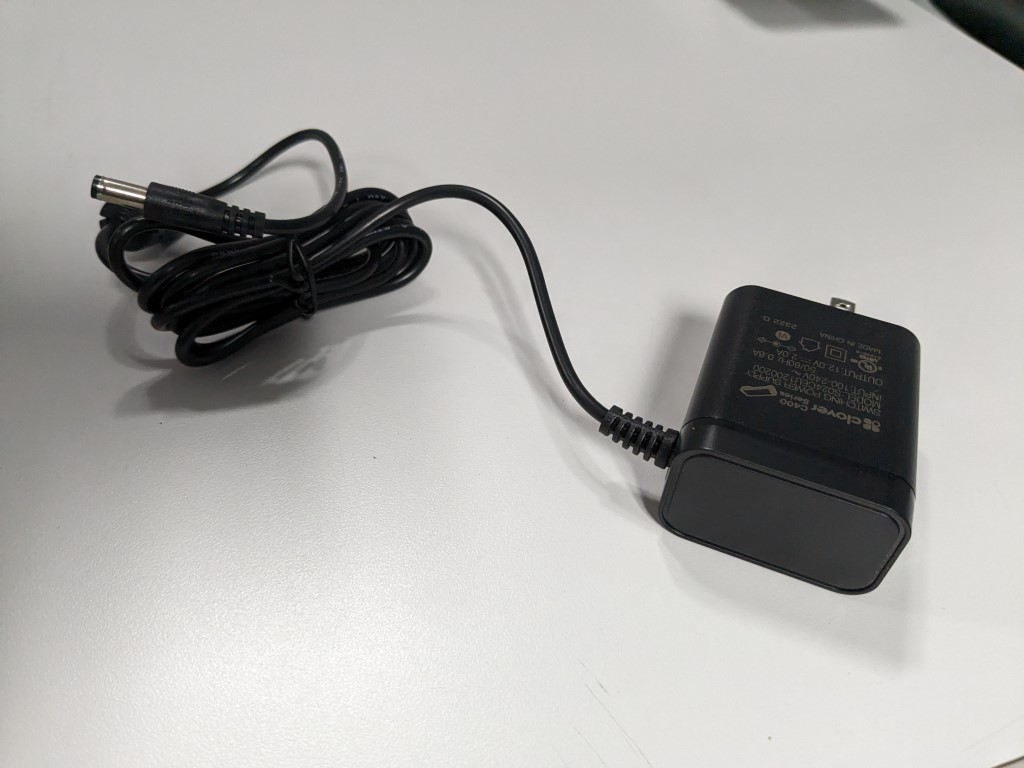
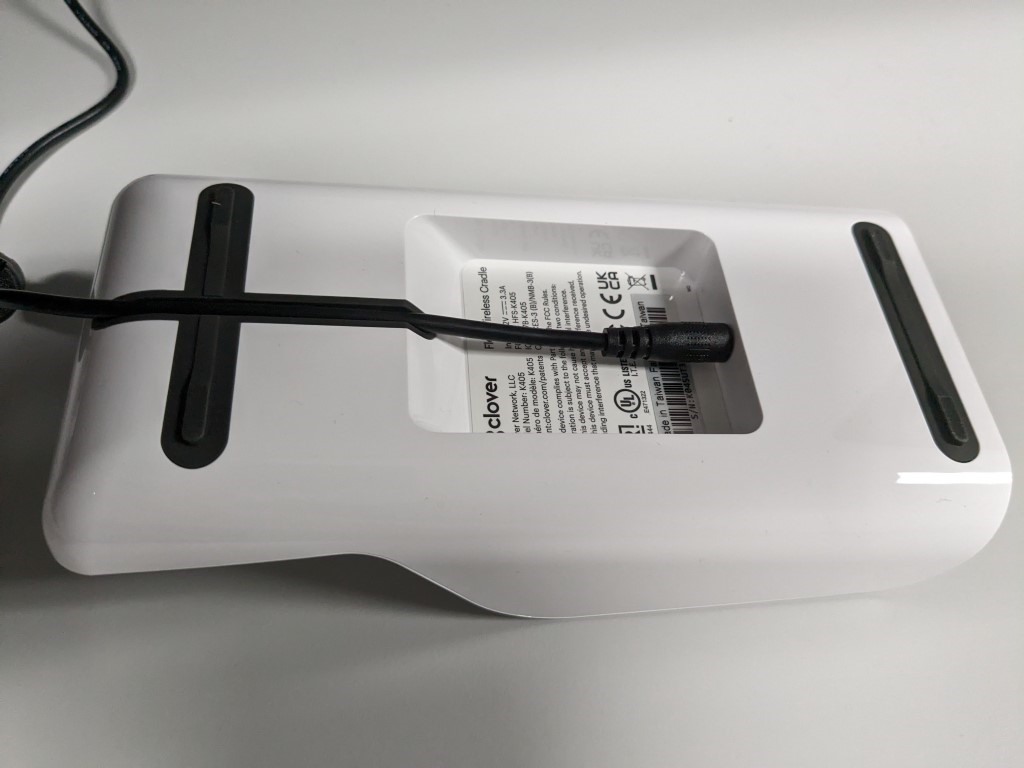
- Place the Clover Flex on the charging cradle.
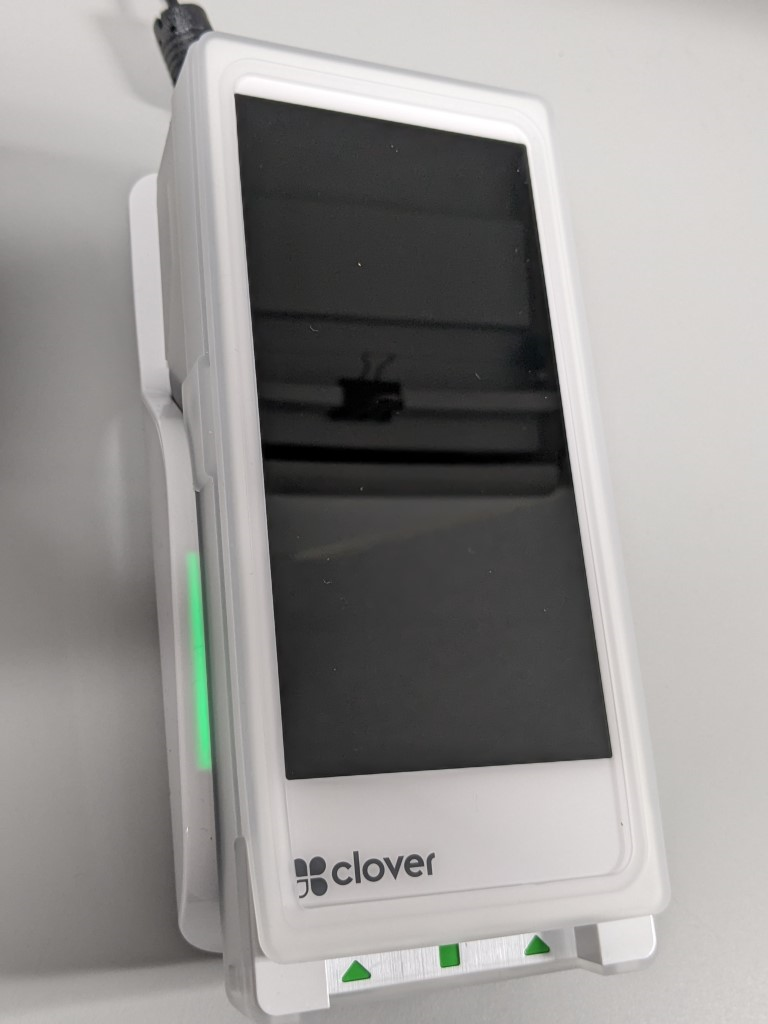


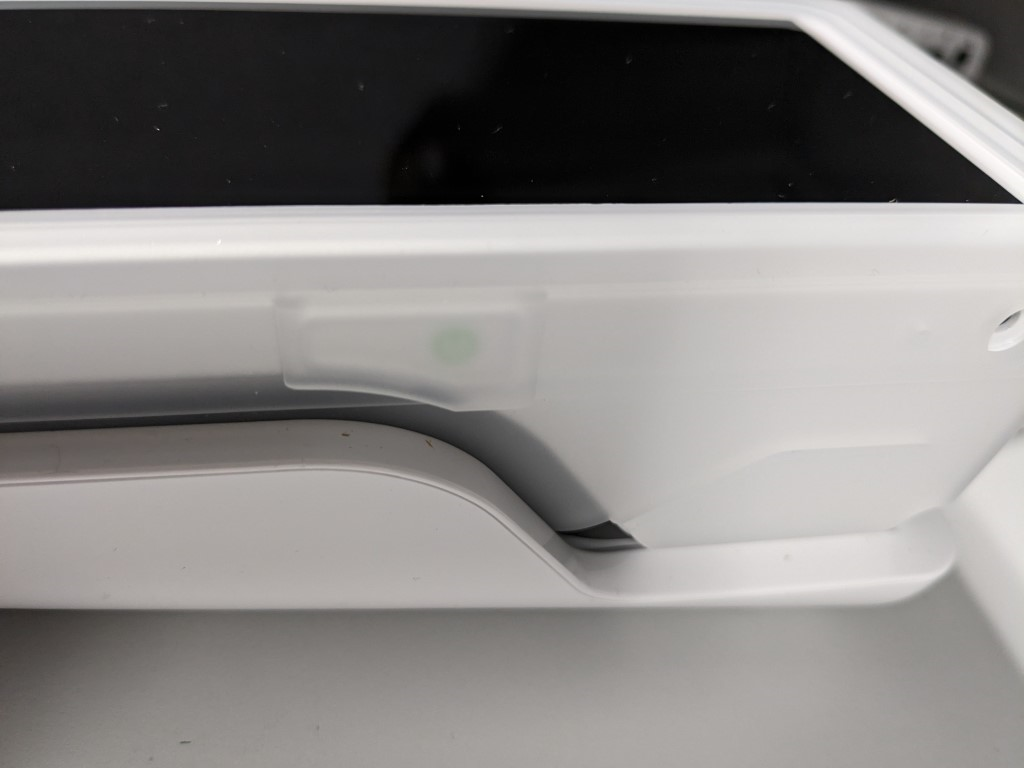
A green light will flash on both sides of the terminal when it is successfully docked and charging.
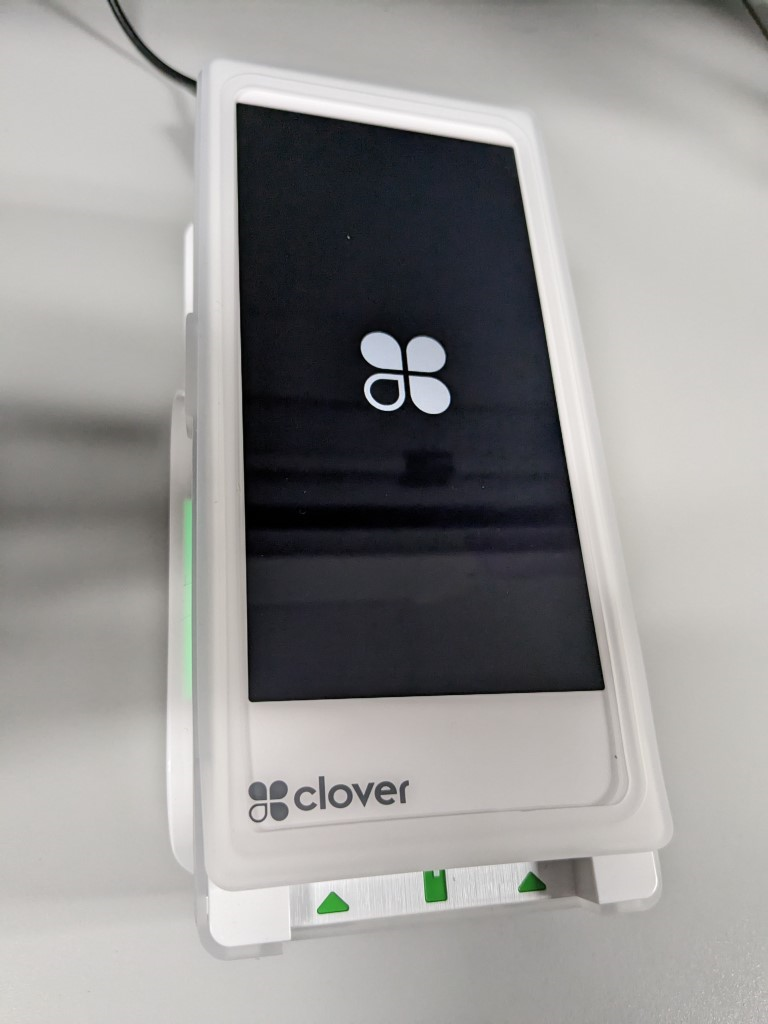
- Press and hold the power button until the Clover logo displays on the screen.
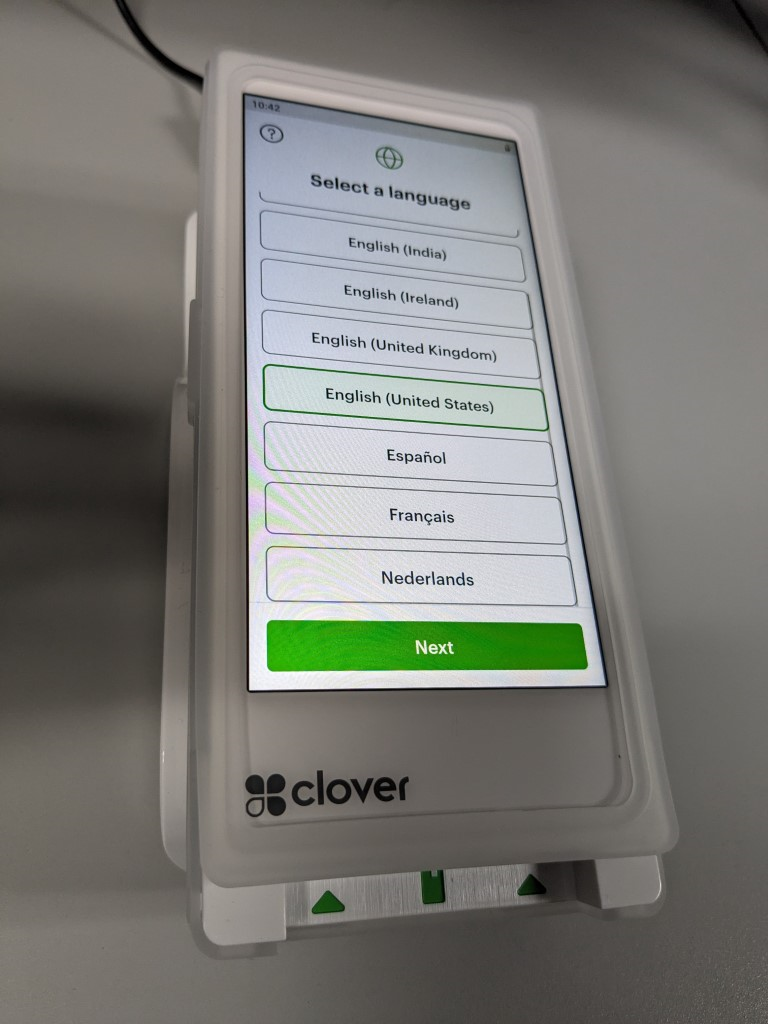
- On the Welcome screen, select a language and press Next.
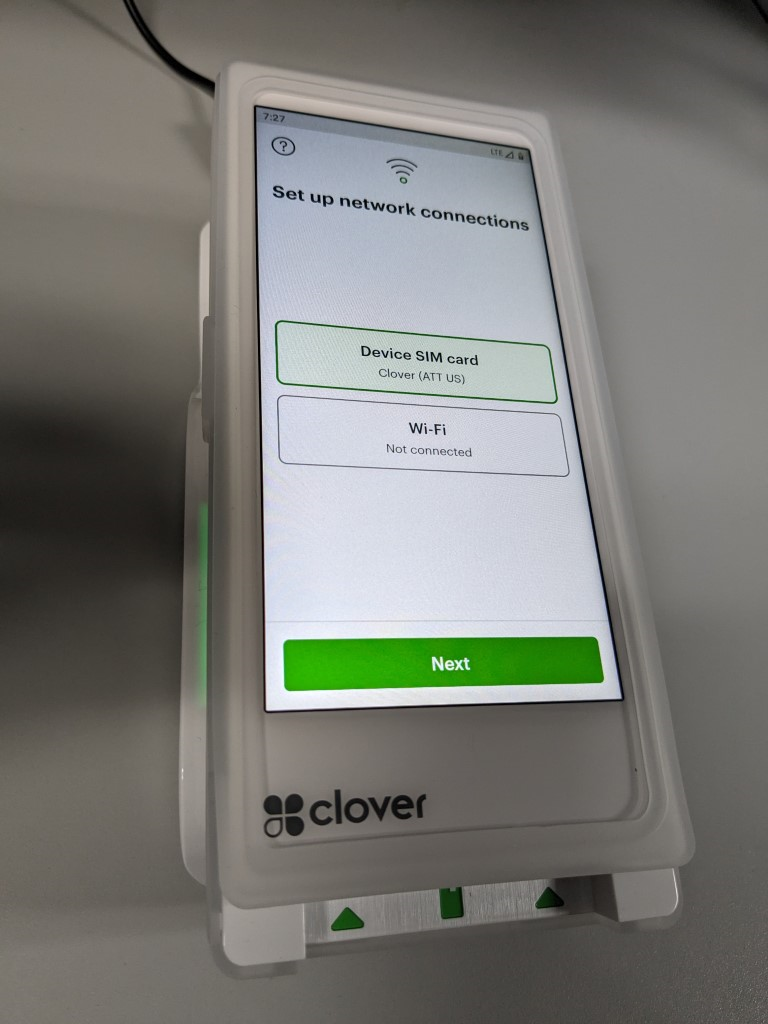
- On the Network screen, do the following to configure the device’s network connection:
- To connect to a Wi-Fi network, tap Wi-Fi, then tap your network and enter your password.
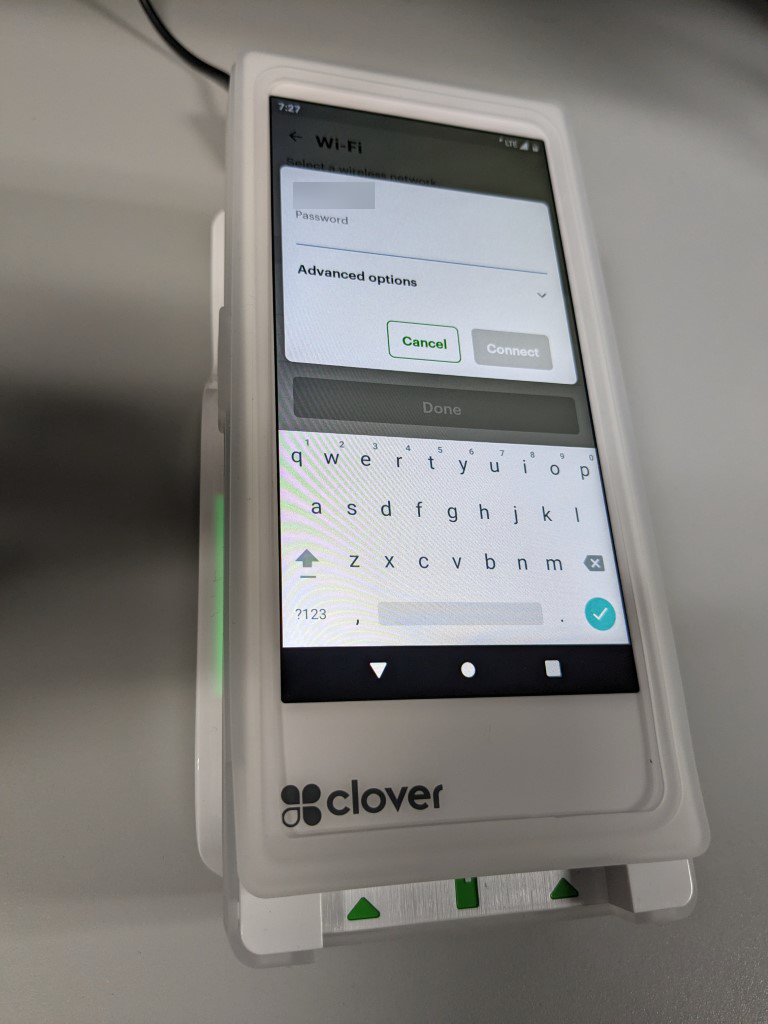


PCI compliance standards require the device to connect to a secure, password protected network.
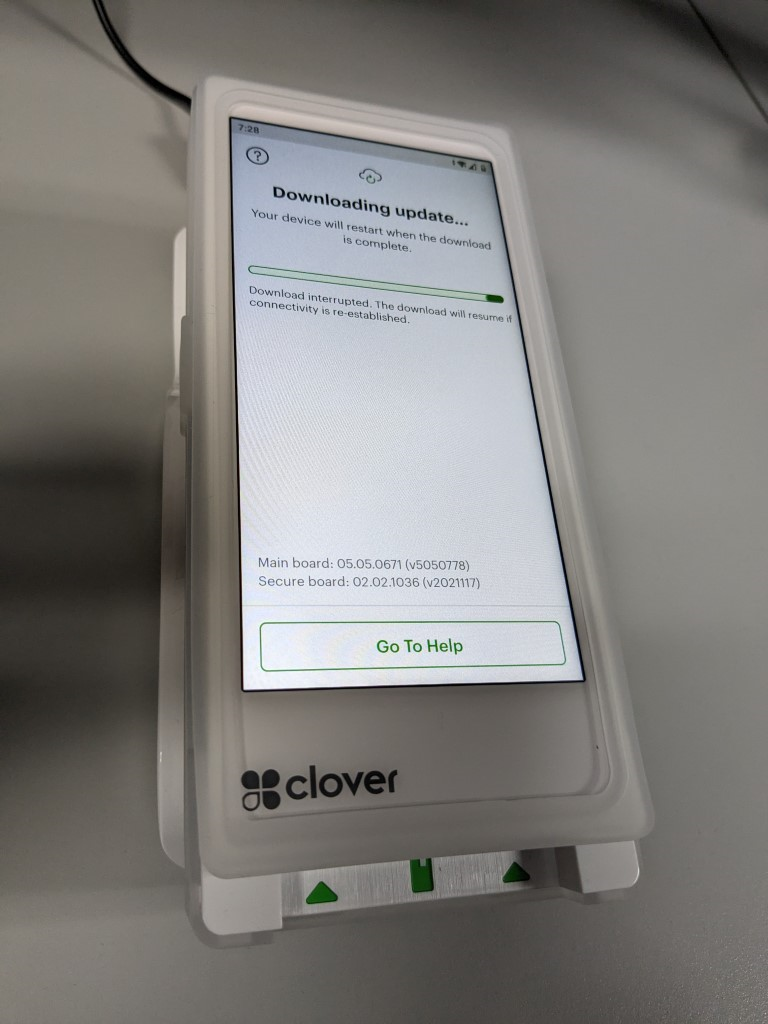
- The device briefly displays “Successfully Connected to Server” once the network configuration is complete. It then begins to download the CardPointe App and other required components.
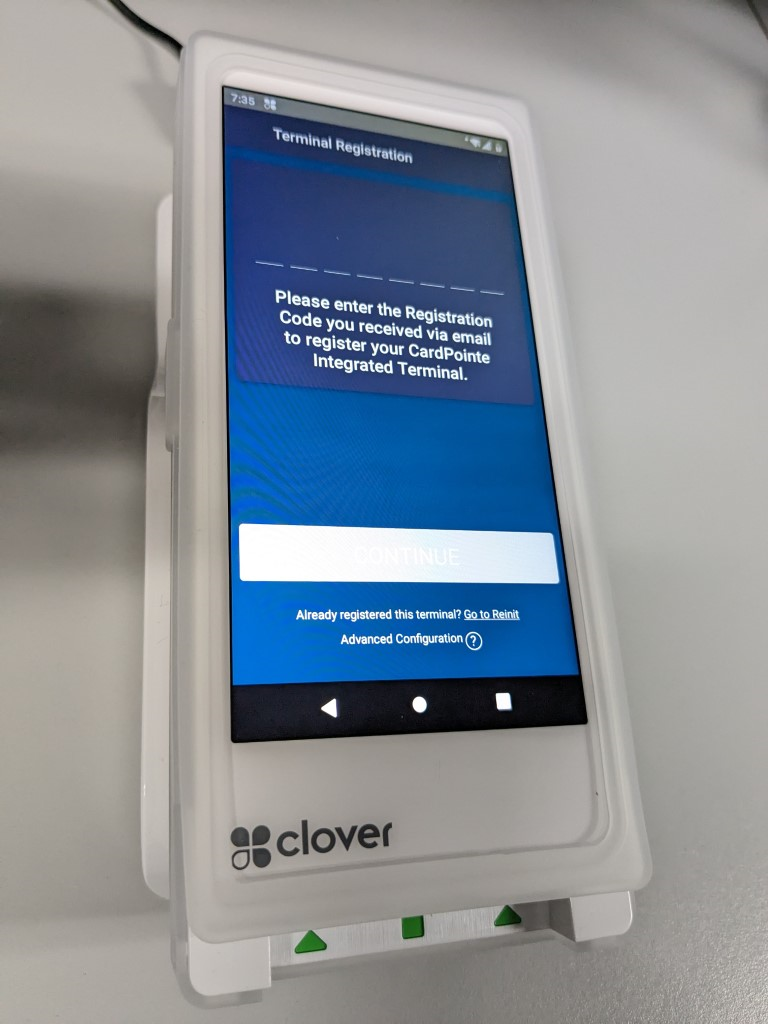
- Once complete, the CardPointe App launches and displays the Terminal Registration screen.


Next Article In Section
Click the following link to move to the next article in this section:
Registration