POS Fingertip Reports
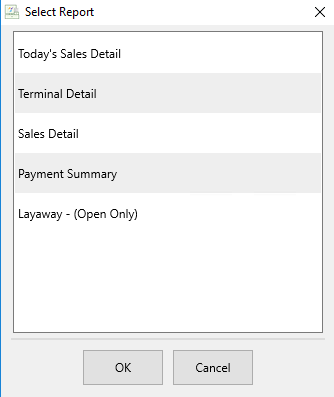
Point of Sale provides instant fingertip access to five of the most frequently used PoS related reports. They include:
To Access Reports From the Point Of Sale
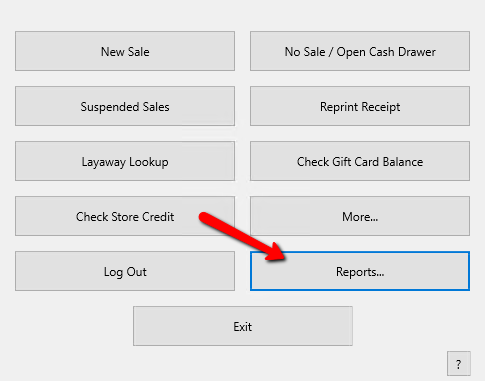
- From the POS Hub select the Reports button.
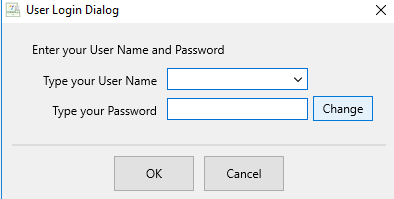
Login if required.
The Select Report dialog box opens.
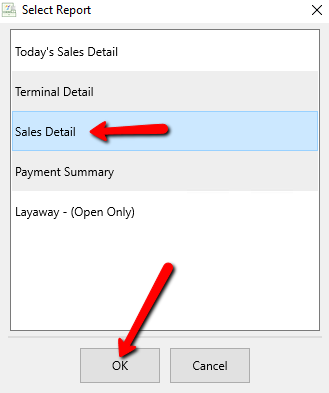
- Select the report you want to run then select the OK button.
The Report Details dialog box will open.
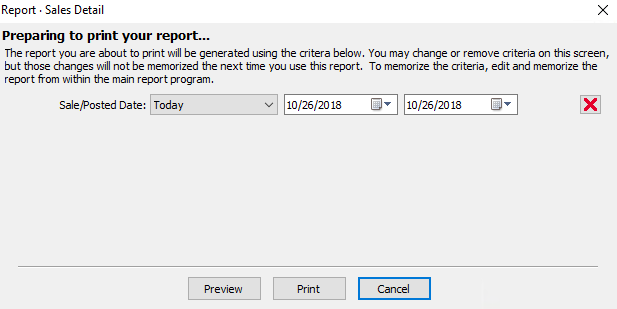
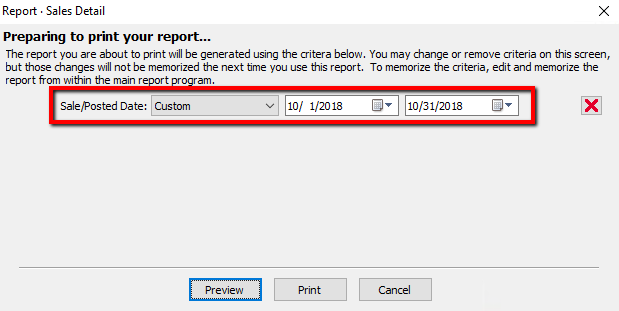
Note: Each report will have different criteria available to use. To add more criteria, go to the Full Reports module and set the criteria you want to run there. See Set Criteria, Report Options, & Colors for more details. - Enter in the desired criteria.
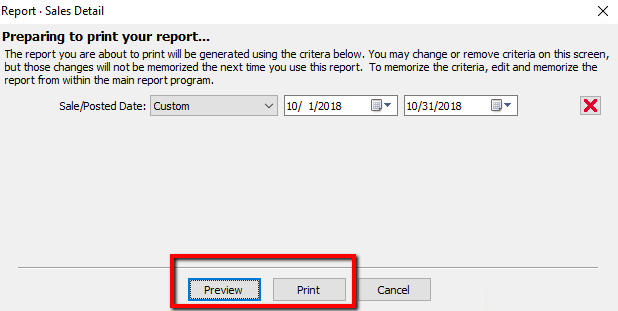
- Select the Preview button to view the report before printing, or select the Print button to printed directly to the default printer connected to the computer.


Next Article In Section
Click the following link to move to the next article in this section:
Set Criteria, Report Options, & Colors