How to Print Reports
Follow these instructions for printing reports. There are two ways to print reports.
Printing Reports From The Preview Screen
- Once you have entered the criteria for the desired information, click the Preview button at the top of the reports module.

The report will open.
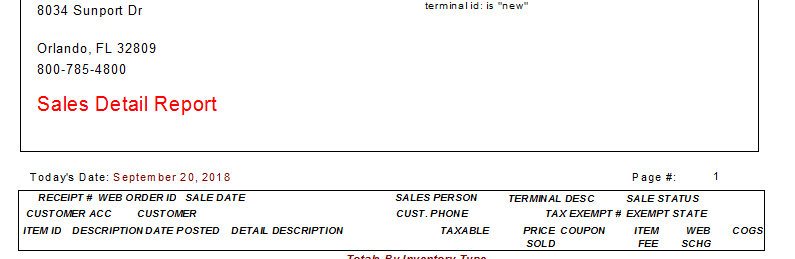
- There are two options here to print:
- Directly to the printer. Select the first Printer Icon from left to right.

This will initiate the print job and print directly to the designated default printer through Windows with minimal options. Those options will be Print Rage, Number of Copies, and Collation (order) Of Copies.
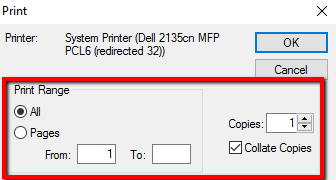
Make any necessary changes and then press the OK button.
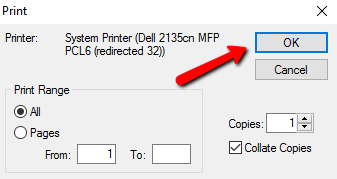
This will print the report at the printer. - To print and change printer options, select the second printer icon from the left.



This will initiate the Printer Setup dialog box.

From this menu you can click the dropdown to change the local printer you wish to print to.

Change the paper size or the source for the paper.

Change the Orientation the reports will print.

If there is a documents printer on the network, select the Network button and navigate to the printer on the network.

Select the Properties button and change how the report will print.

Note: This image is for reference only. Different Printers will have different Properties dialog boxes. For more information on the Properties of your printer, please refer the the manual that came with your printer.

When done making your selections, select the **OK** button at the bottom to start the printing at the printer.

Printing Reports Directly From Reports Module
- Once you have entered the criteria for the desired information, click the Print button at the top of the reports module.


This will send the report directly to the printer without any selection of options.
Next Article In Section
Click the following link to move to the next article in this section:
How To Preview Reports