Cancel Check Printing
To Cancel Check Printing In Windows 10 Method 1
- Click the Start button. (By default located in the lower left corner)

- Click on the Settings Icon.

The Windows Settings screen will open.
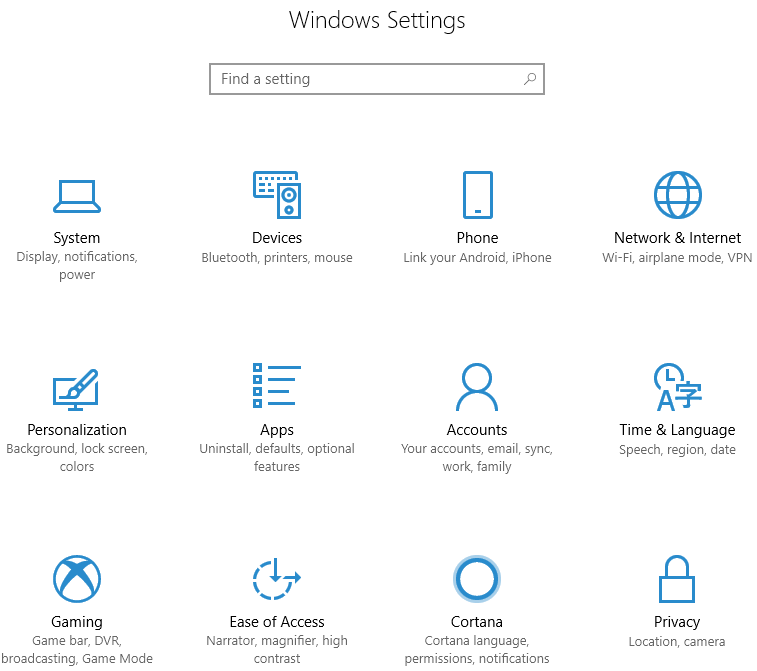
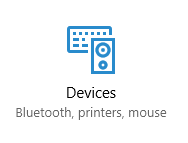
- Select Devices.
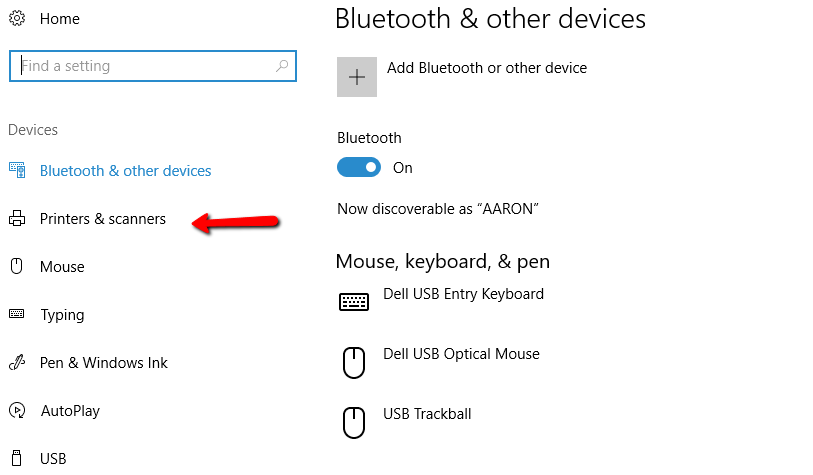
- Select Printers & Scanners
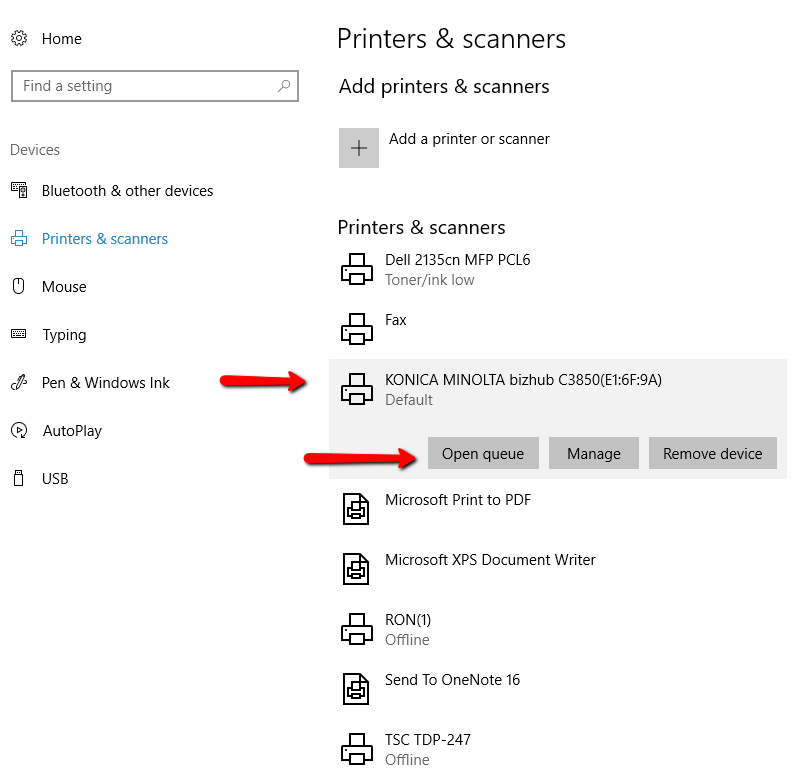
- Find the printer that needs to be stopped, and press the Open Queue button.
- When the queue opens, there are 2 ways to cancel the print jobs.
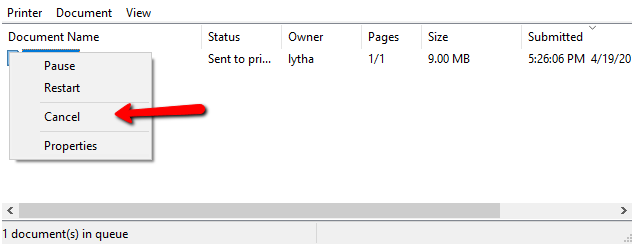
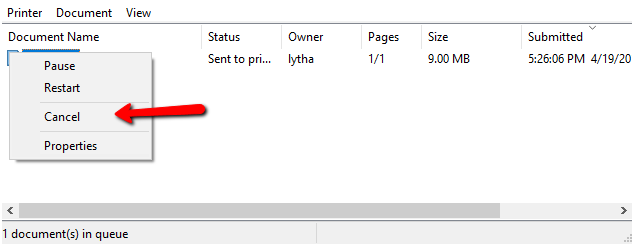
- Right click the print job you need to stop and select Cancel.
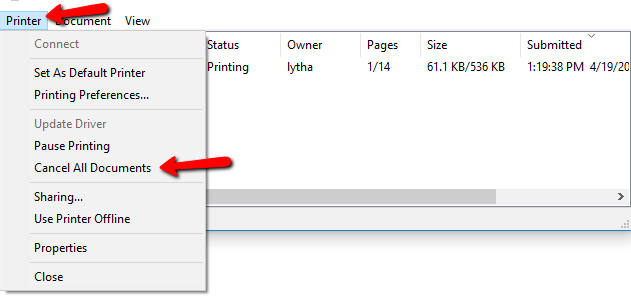
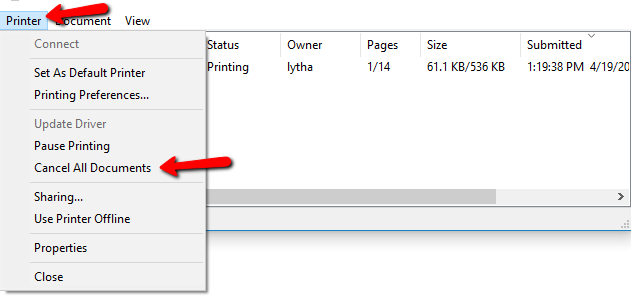
- Click Printer, then Cancel all documents.
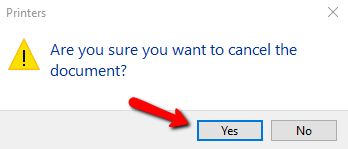
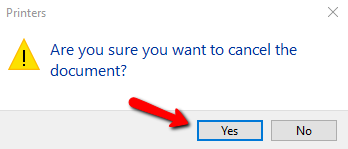
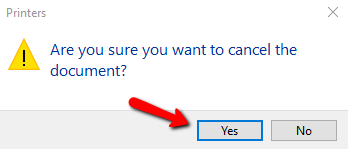
- You will get a confirmation asking if cancel the documents. Click Yes.


To Cancel Tag Printing In Windows 10 Method 2 (Also works with Windows 8)
- Click the Start button. (By default located in the lower left corner)

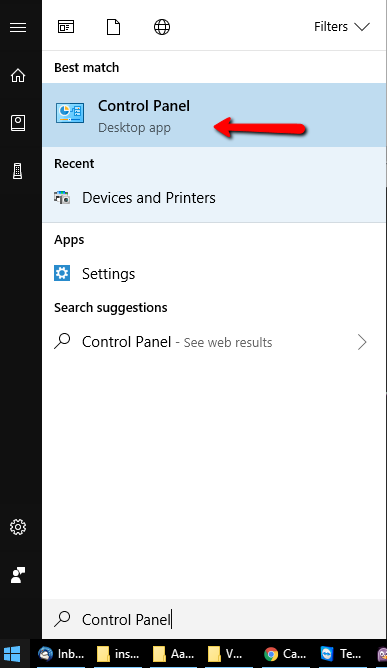
- When the menu screen opens, just type Control Panel.
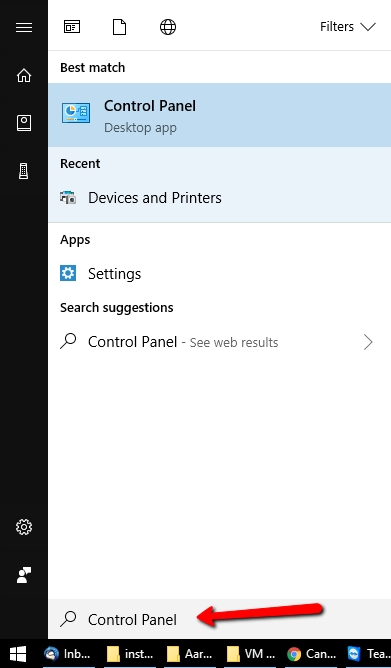
- Control Panel will display on Best Match.. Click on Control Panel.
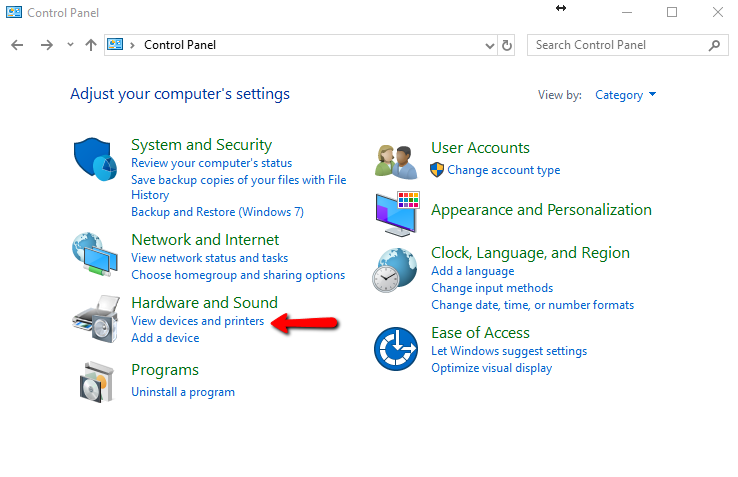
- When the Control Panel opens, click on View Devices and Printers underneath Hardware and Sound.
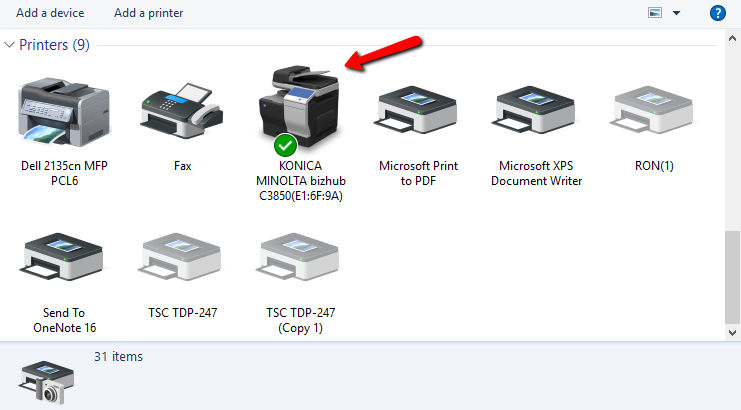
- Navigate to the printer you need to stop the print job on.
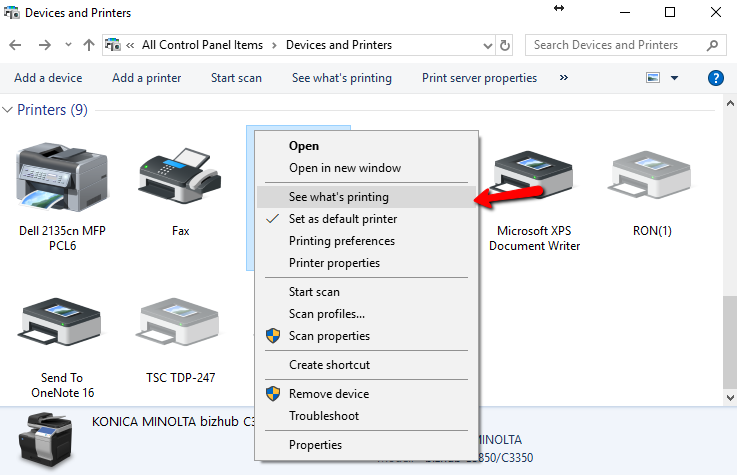
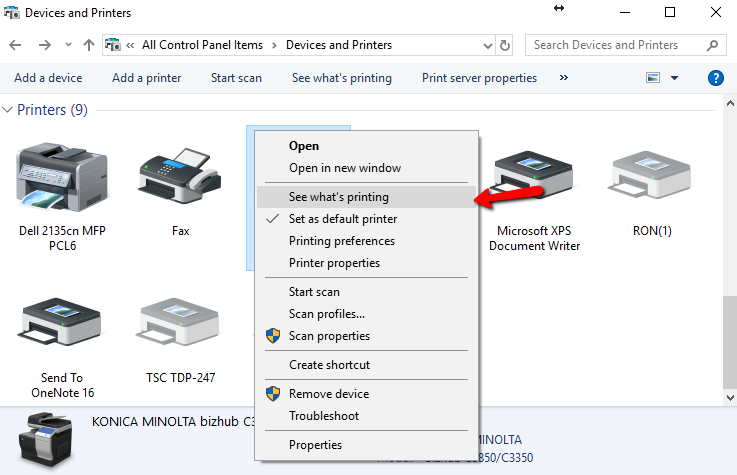
- Right click the printer and choose See What’s Printing.
- When the queue opens, there are 2 ways to cancel the print jobs.
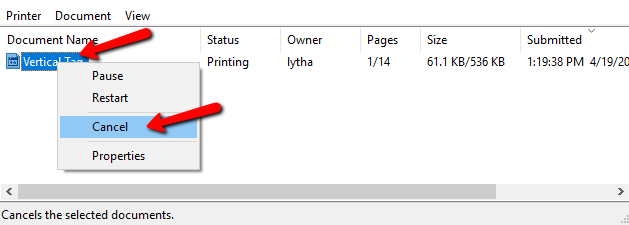
- Right click the print job you need to stop and select Cancel.
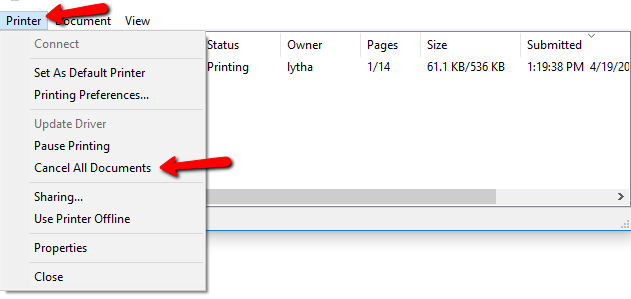
- Click Printer, then Cancel all documents.
- You will get a confirmation asking if cancel the documents. Click Yes.


To Cancel Tag Printing In Windows 7
- Click the Start button. (By default located in the lower left corner)

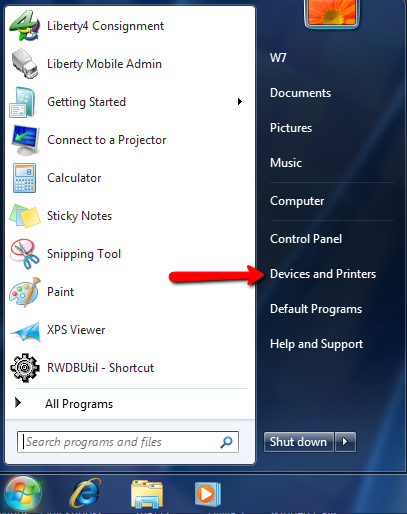
- Click on Devices and Printers.
- Navigate to the printer you need to cancel the print job on.
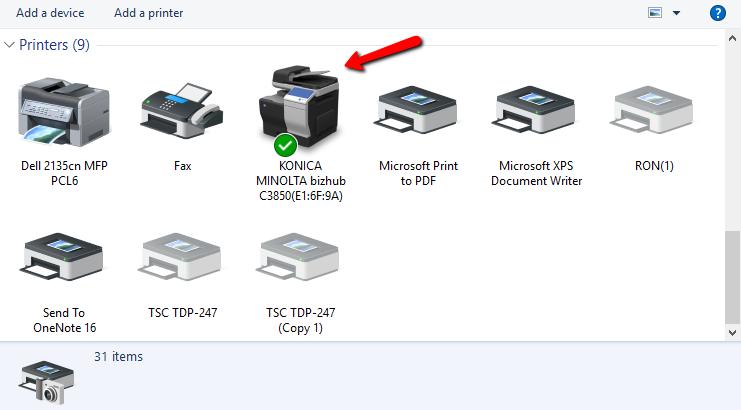
- Right click the printer and choose See What’s Printing.
- When the queue opens, there are 2 ways to cancel the print jobs.
- Right click the print job you need to stop and select Cancel.
- Click Printer, then Cancel all documents.
- You will get a confirmation asking if cancel the documents. Click Yes.


Next Section Navigation Link
Click the following link to see a list of articles for the next section:
Printing Specific Reports and Item Lists