Zebra LP2824 Tag Printer
–
- When installing the Printer Driver Utility, the correct drivers are placed in your RWD folder. We must now run this driver installer.
Click on the File Explorer icon located on your Taskbar.

- Open your C:\ drive by double-clicking on it.
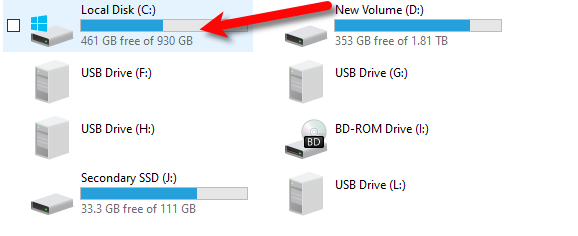
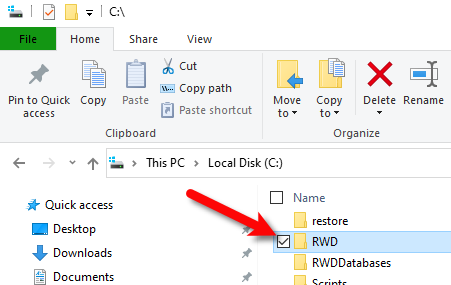
- Open the RWD folder
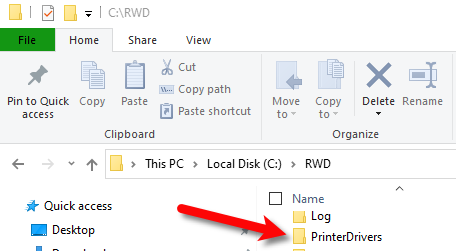
- Open the PrinterDrivers folder
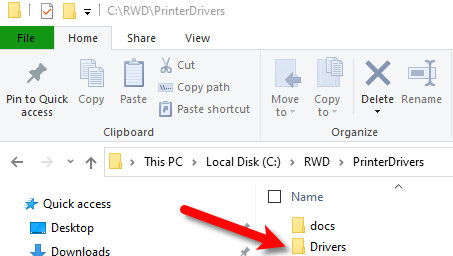
- Open the Drivers Folder
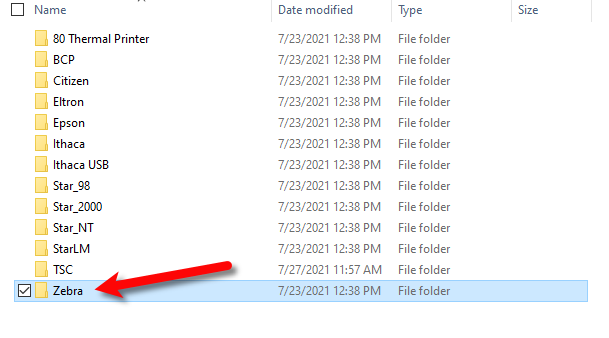
- Open the Zebra folder
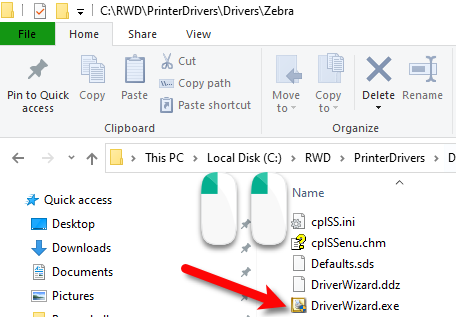
- Open the DriverWizard.exe by double-clicking on the program.
Alternatively, you can download and run the driver installer using the following link:
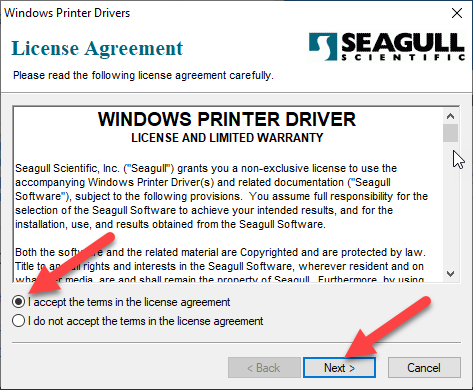
http://downloads.seagullscientific.com/drivers/archive/7.4/7.4.3/Zebra_7.4.3.exe - Select I accept the terms in the license agreement and then click Next.
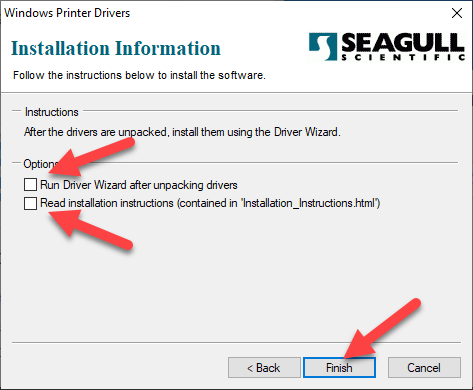
- Uncheck both Run Driver wizard after unpacking drivers and Read installation instructions (contained in 'installation_instructions.html) then click the Finish button.
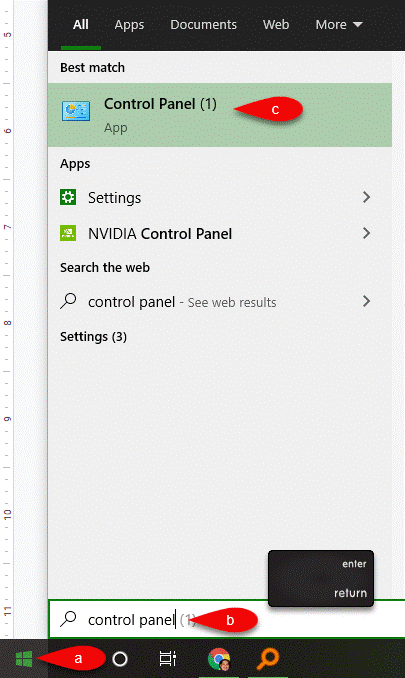
- Click the Start menu and then start typing Control panel, press the Enter key on your keyboard
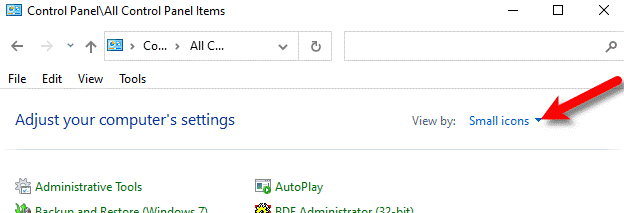
- Click on View by: and select Small Icons.
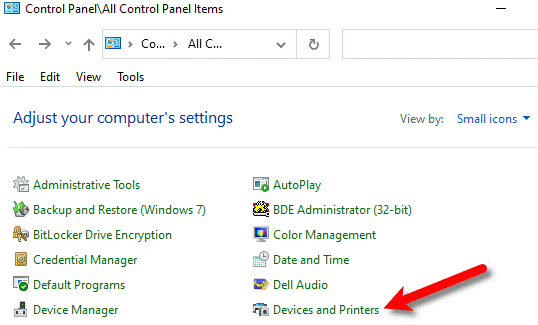
- Click on Devices and Printers.
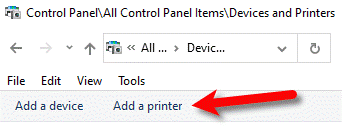
- Next, click on Add a printer.
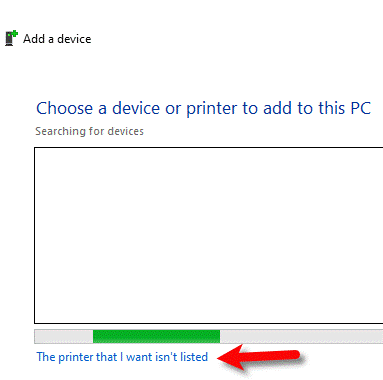
- Click on the The printer that i want isn't listed link at the bottom.
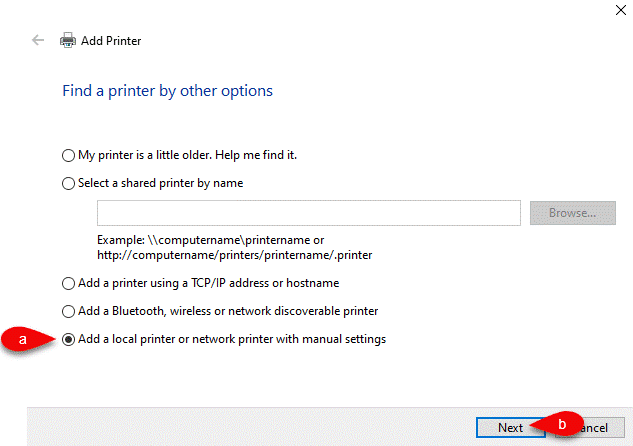
- Select the Add a local printer or network printer with manual settings radio option and then click the Next button.
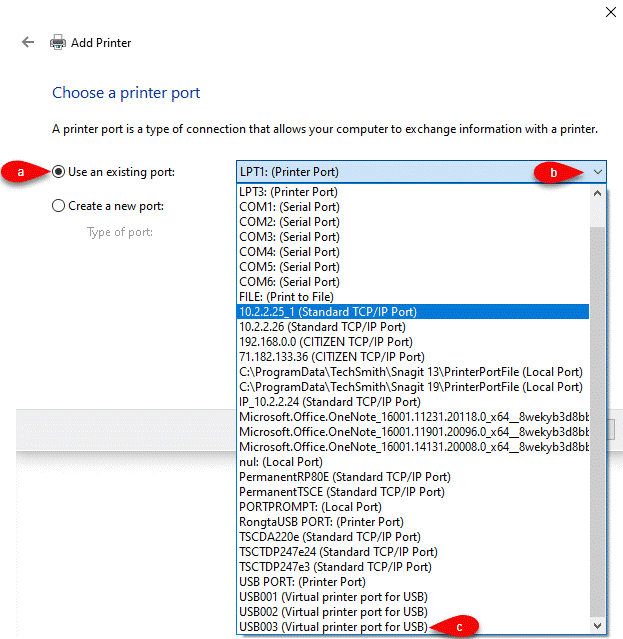
- Select Use an existing port, then drop down the port menu and select the vUSB port that is associated with the printer. Usually it is the latest numbered port if you just plugged the printer in before any other printer.
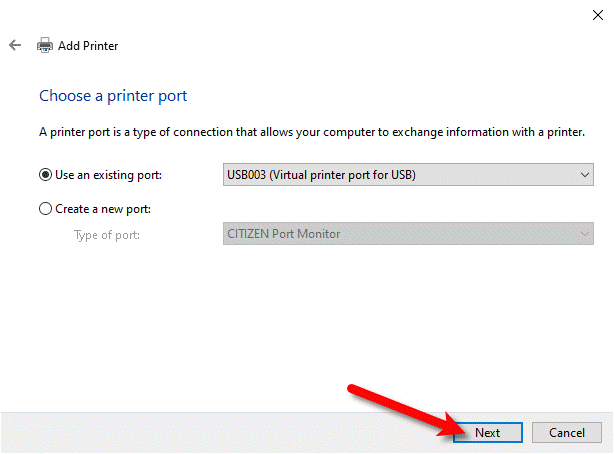
- Click the Next button
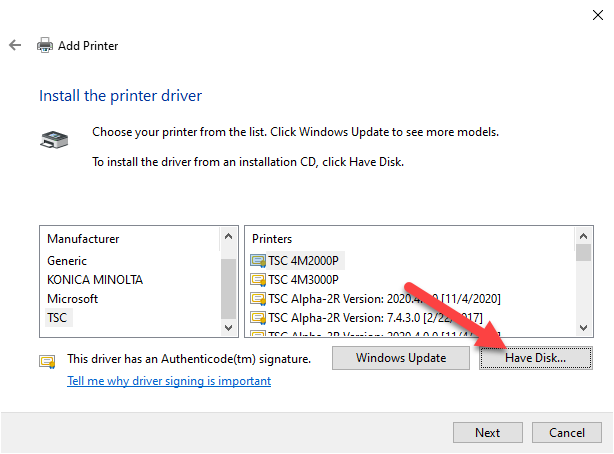
- Click the Have Disk button.
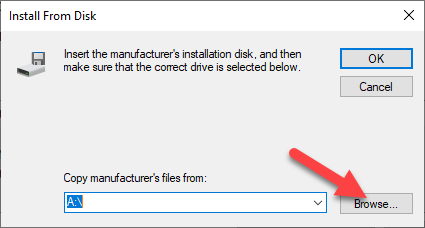
- Click the Browse button.
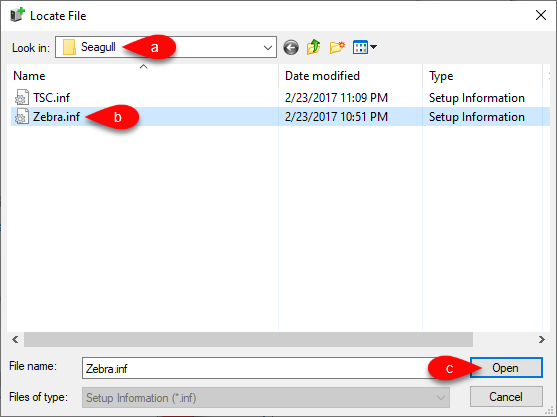
- Navigate to the c:\Seagull directory and then click and select the Zebra.inf file. After that, click Okay.
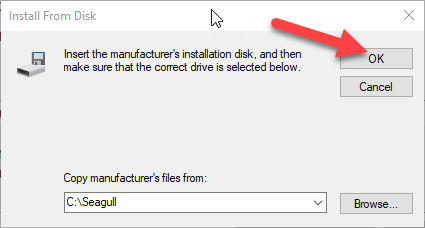
- Click the OK button.
- Select the appropriate Zebra LP2844 model in the list. Then, click the Next button.
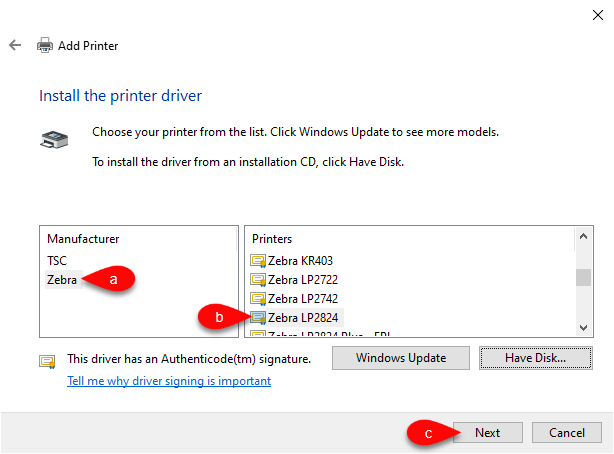
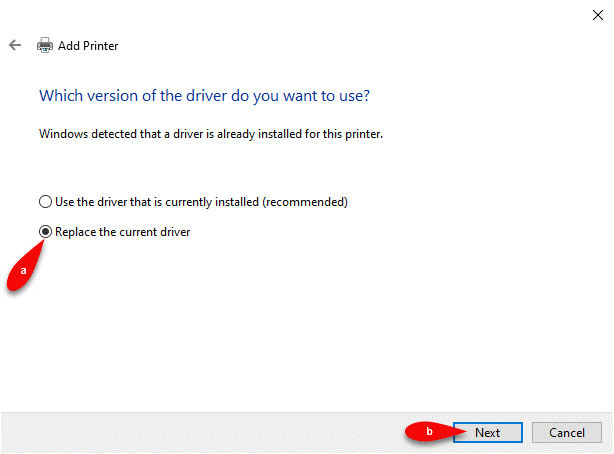
- If prompted, select Replace the current driver and then click the Next button. Otherwise skip this step as it is not applicable.
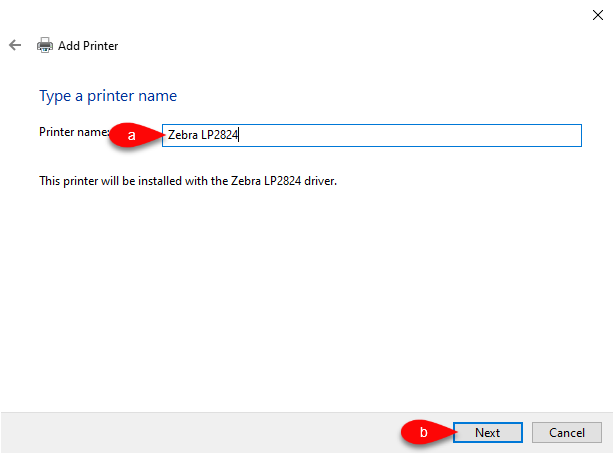
- Type the printer name you wish to use and then click the Next button.
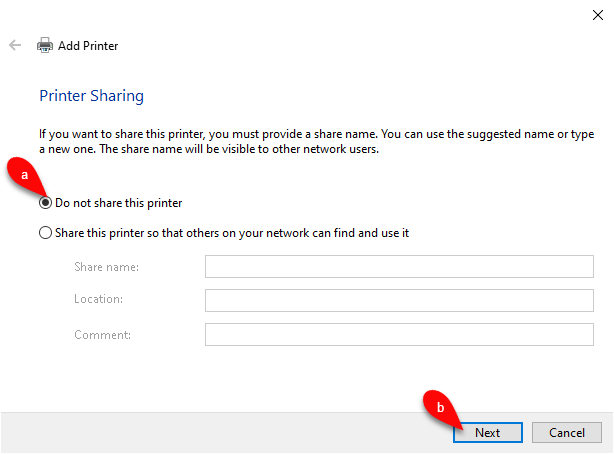
- Select whether or not you wish to share the printer, by default we will select Do not share this printer and then click the Next button.
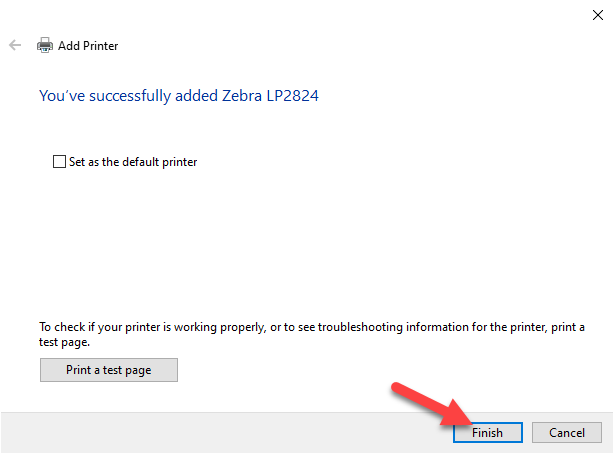
- Under no circumstances should you set the tag printer as the default printer, make sure that Set as the default printer is unchecked. You can print a test page from here to do a test or wait till later if you wish. Click the Finish button.
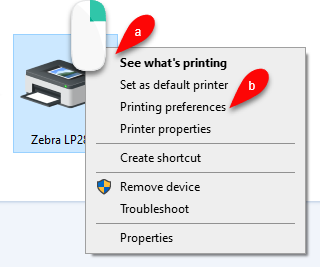
- Right click on the Zebra LP2844 printer within Devices and Printers, then select printing preferences. If you have more than one printer on that port like with the irremovable zdesigner driver, select the appropriate printer instance.
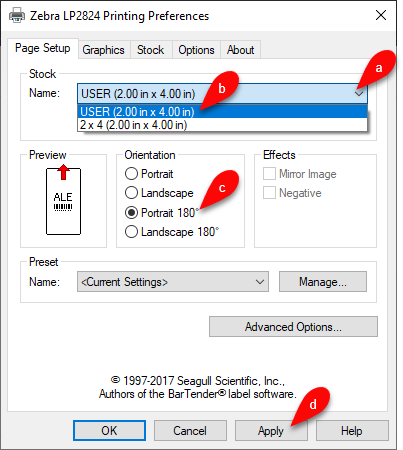
- Click on the Page Setup tab. Select User (2.00 in x 4.00) and then make sure that Portrait 180 under Orientation is selected.
The tag formats have been updated so you no longer need to go to advanced options and set horizontal offset to -.06 and vertical offset set to -.03. I am including them in here for legacy purposes in the event that you have an applicable version of Liberty. Click the Apply button.
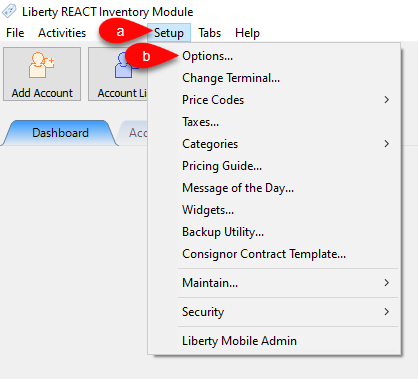
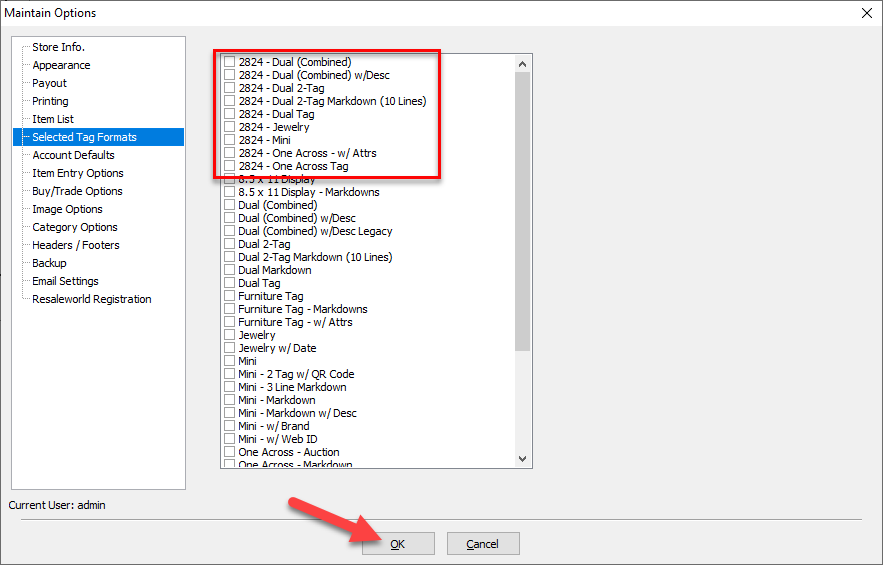
- Open the Liberty 5 Inventory Module and go to Setup > Options.
- Click on the Selected Tag Styles menu option.
Select the appropriate tag styles for your printers. The 2824 tag styles are only associated with the Zebra LP2824.
Click the OK button when finished.
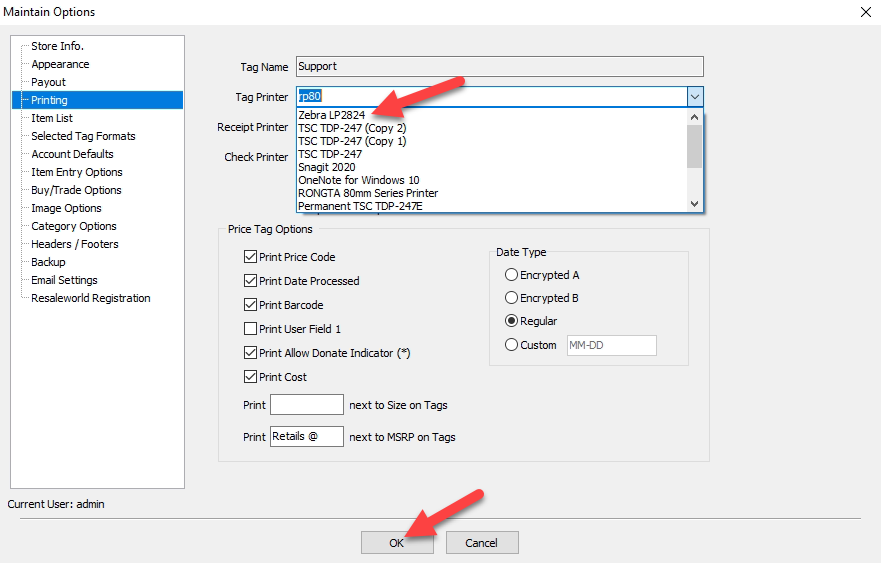
- Drop down the tag printer menu and select the appropriate tag printer you just installed. Click OK.
- You must now print a tag to confirm everything is working properly.


If the print does not appear correctly, you will need to adjust the offsets under Printing preferences > Advanced options of the printer driver in Control Panel.

Next Article In Section
Click the following link to move to the next article in this section:
How to Recalibrate a Zebra Tag Printer
Related Topics
Zebra LP2824 Tag Printer How to Recalibrate a Zebra Tag Printer Zebra LP2844 Tag Printer Citizen CT-S310ii Receipt Printer RP80 Receipt Printer How To Recalibrate a TSC Tag Printer Troubleshooting the TSC TDP-247/TDP-245 Plus Tag Printer Troubleshooting the DA210/DA220 Tag Printer TSC DA210 USB Tag Printer TSC DA220 Ethernet Tag Printer TSC TDP-247 USB Tag Printer