TSC DA210 USB Tag Printer
–
- Download and run the installer using the following link:
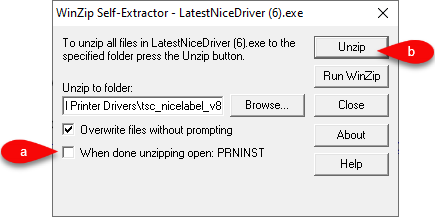
https://support-resaleworld-com.s3.amazonaws.com/Fixes/Hardware/DriverLatestNiceDriver/LatestNiceDriver.exe - Once you run the installer, make sure the When done unzipping open: PRNINST box is unchecked then click the Unzip button.
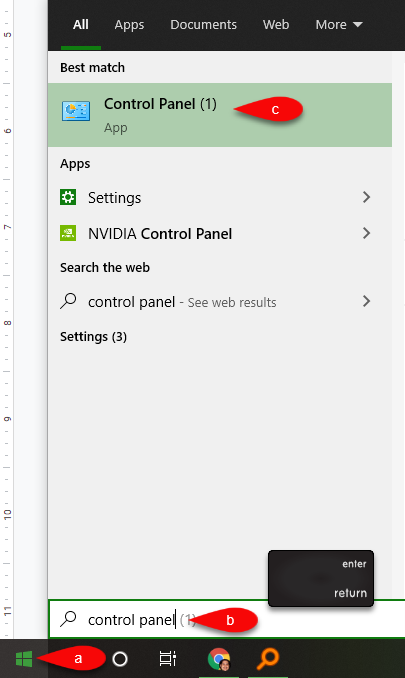
- Click the Start menu and then start typing Devices and printer, press the Enter key on your keyboard
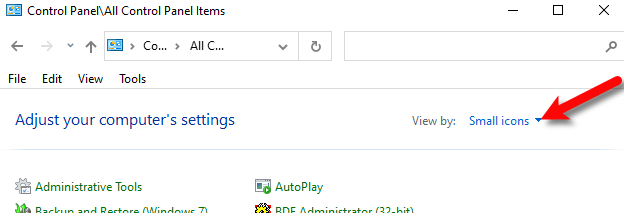
- Click on View by: and select Small Icons.
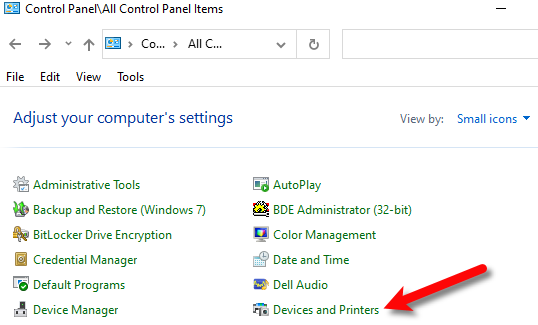
- Click on Devices and Printers.
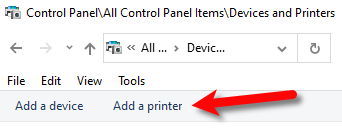
- Next, click on Add a printer.
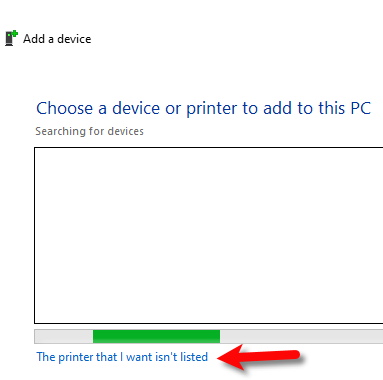
- Click on The printer that I want isn’t listed.
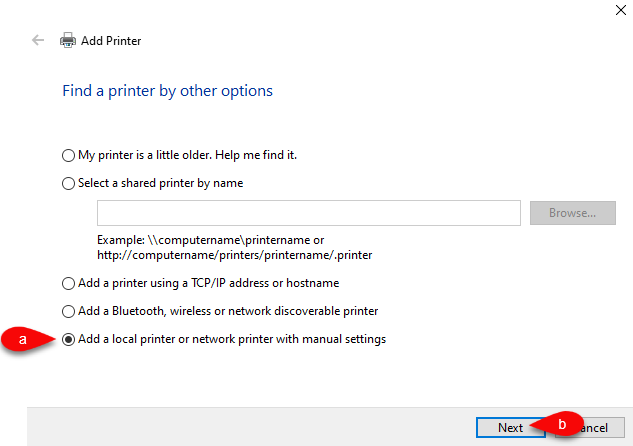
- Select the Add a local printer or network printer with manual settings option, then click Next.
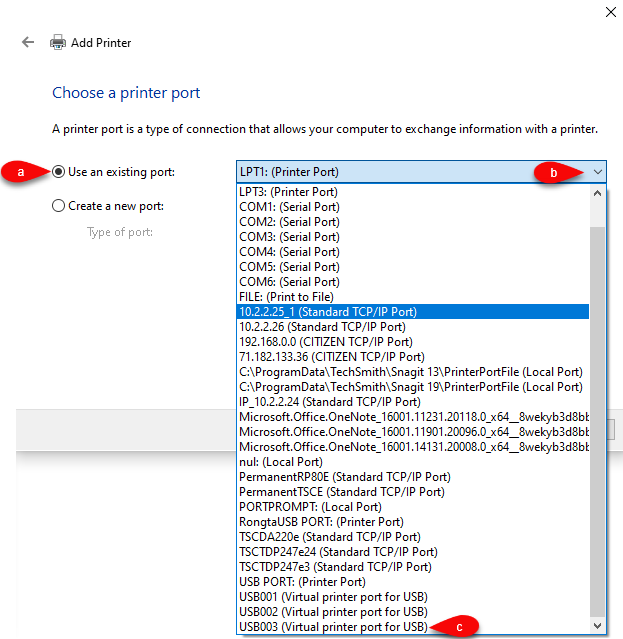
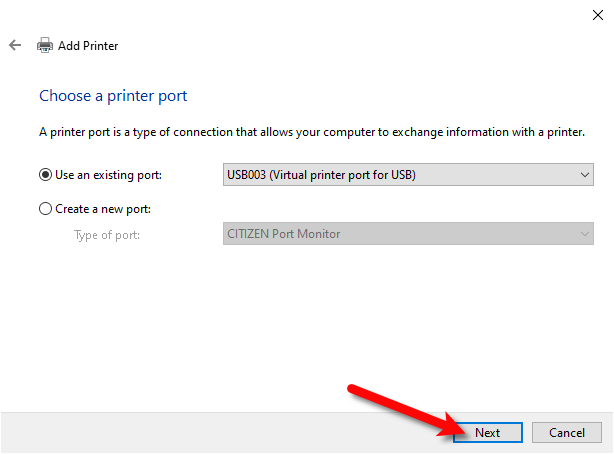
- Click the radio button for Use an existing port, then click the drop down next to it, scroll down and select the latest Virtual printer port for USB in the list.
- Click the Next button.
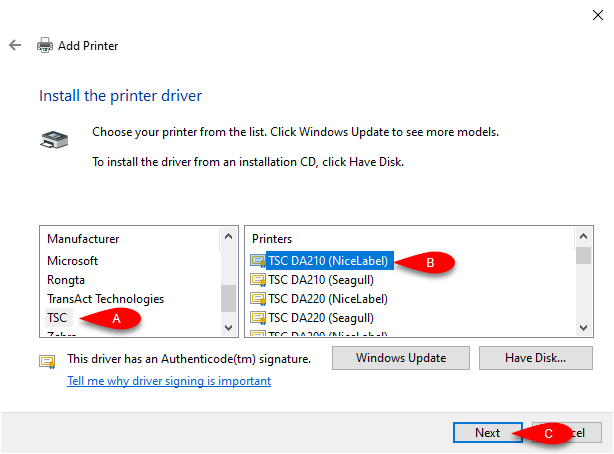
- Under Manufacturer, select TSC then under Printers select the TSC DA210.
If you have more than one TSC DA210, make sure you select the one that says (NiceLabel).
Then click the Next button.
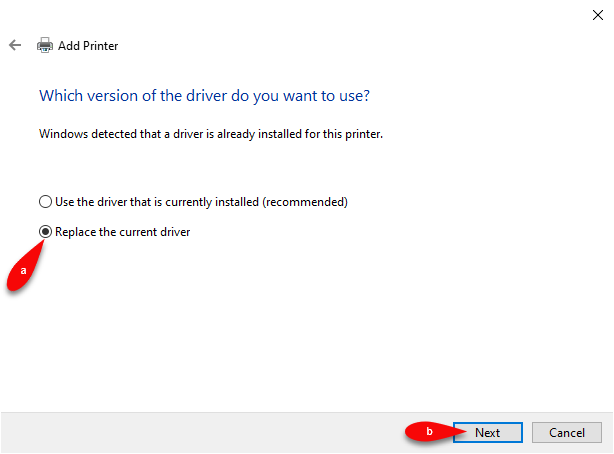
- If the Which version of the driver do you want to use dialog comes up, select Replace the current driver then click the Next button.
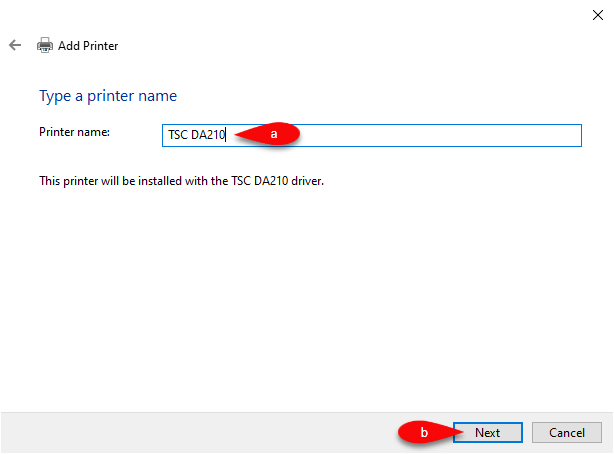
- If this is the only TSC DA210 printer you are installing, you can leave the printer name as is. If you are installing more than one tag printer, we would recommend that you name them with an incremental number at the end.
Example: TSC DA210 #1 and TSC DA210 #2
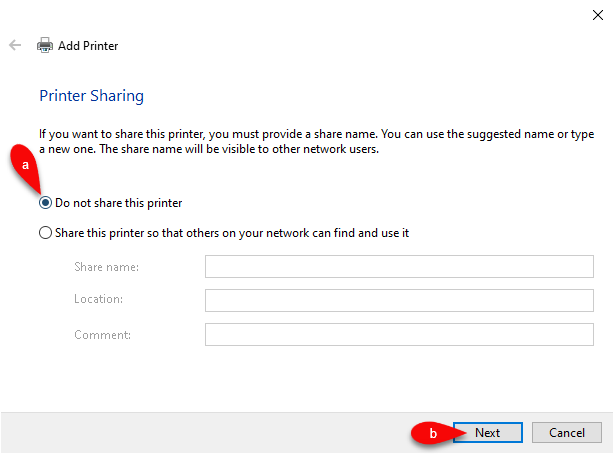
- Click the Do not share this printer radio button and then click the Next button.
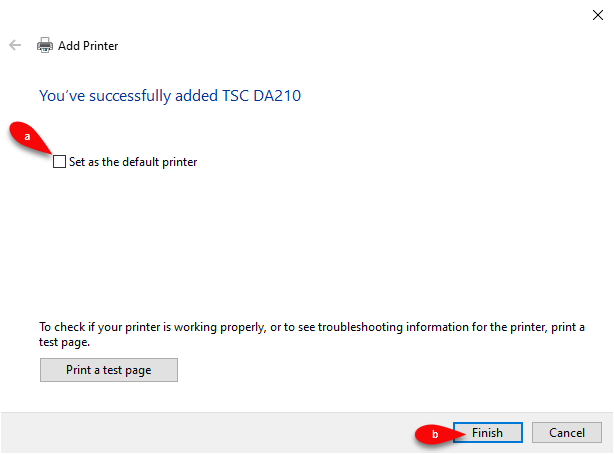
- Make sure that Set as the default printer is not checked and then click the Finish button.
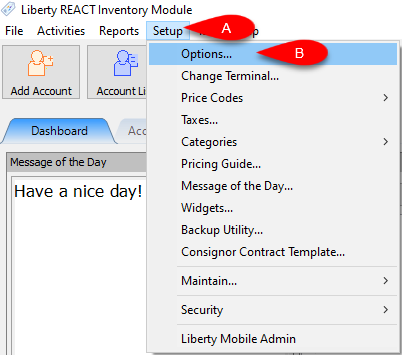
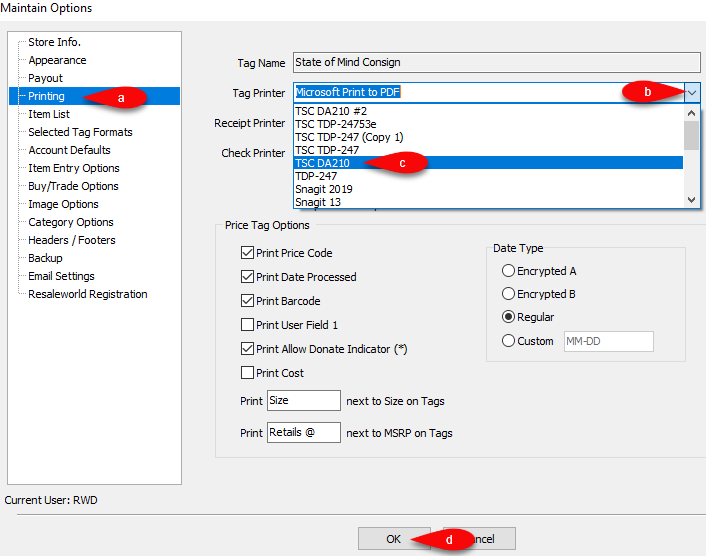
- Open the Liberty Inventory Module, then click Setup, then Options
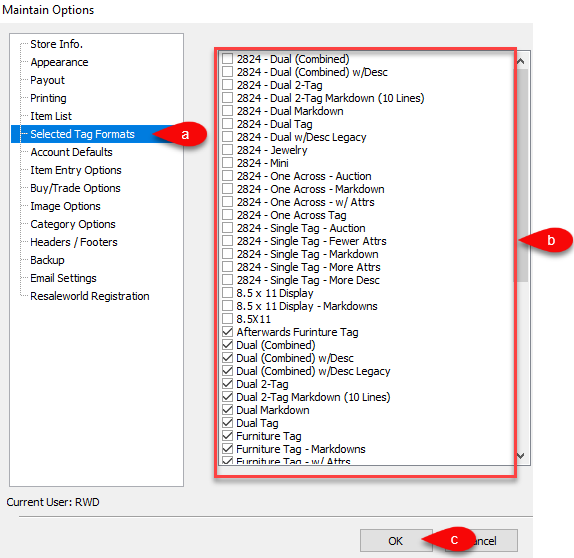
- Click on the Selected Tag Styles menu option.
Select the appropriate tag styles for your tag printer, depending on the type of tags you have purchased.
Click the OK button when finished.
- Drop down the tag printer menu and select the appropriate tag printer you just installed. Click on Apply and then OK.


Next Article In Section
Click the following link to move to the next article in this section:
TSC DA220 Ethernet Tag Printer
Related Topics
TSC DA210 USB Tag Printer Troubleshooting the DA210/DA220 Tag Printer How To Recalibrate a TSC Tag Printer Troubleshooting the TSC TDP-247/TDP-245 Plus Tag Printer TSC DA220 Ethernet Tag Printer TSC TDP-247 USB Tag Printer Citizen CT-S310ii Receipt Printer RP80 Receipt Printer How to Recalibrate a Zebra Tag Printer Zebra LP2824 Tag Printer Zebra LP2844 Tag Printer