Troubleshooting the DA210/DA220 Tag Printer
If your tags are printing in between two tags, please click on the following link to skip to the appropriate section that addresses this issue: How Your Tag Printer Driver Settings Should Look
Most printing issues encountered with the TSC DA210/DA220 tag printer can be resolved by doing the following:
- Turn the printer off.
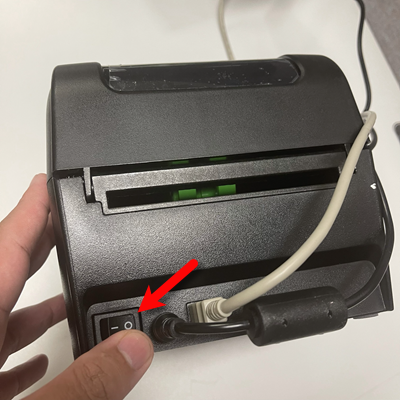
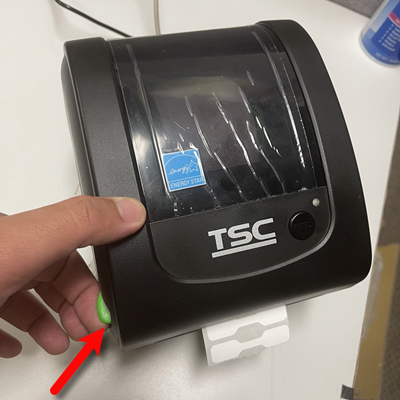
- Open the tag printer lid by pulling up on the green tabs on the left and right of the printer.
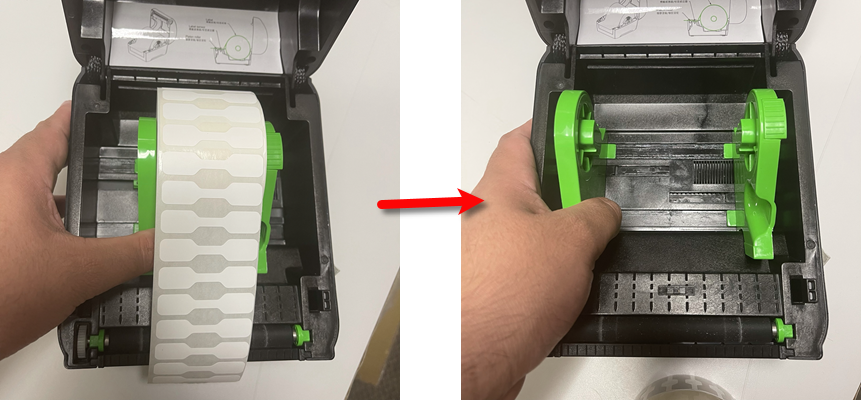
- Remove the tag roll completely from the printer.
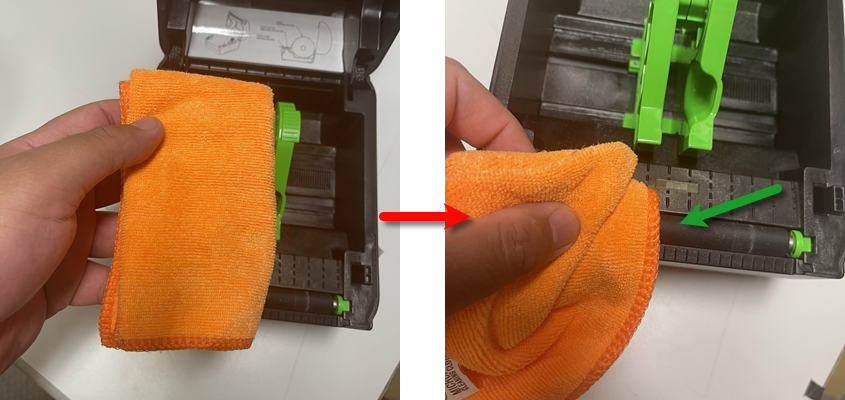
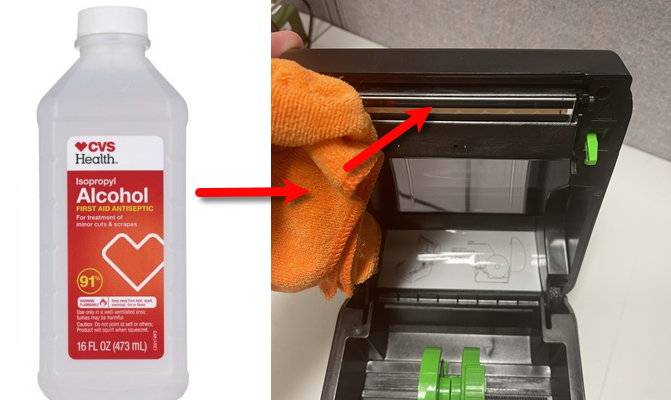
- Take a Microfiber Rag with some Water and clean off the Black Rubber Roller.
- Using a clean and dry Microfiber Rag and 91% to 99% Isopropyl Alcohol, clean the DA210’s Thermal Head.
Do not pour or spray alcohol directly on to any of the printer parts, only pour or spray on the microfiber rag.
Note: The higher the percentage of alcohol, the better it will be for cleaning your printer head. Do not use 70% alcohol as the additives could damage your tag printer’s thermal head over time.
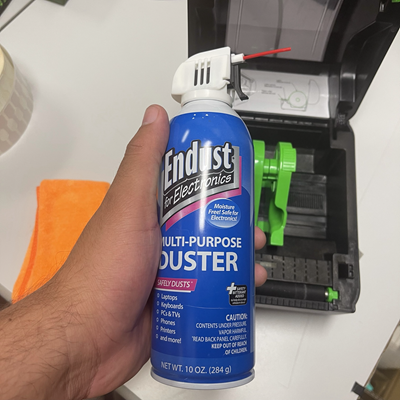
- Get a can of Compressed Air.
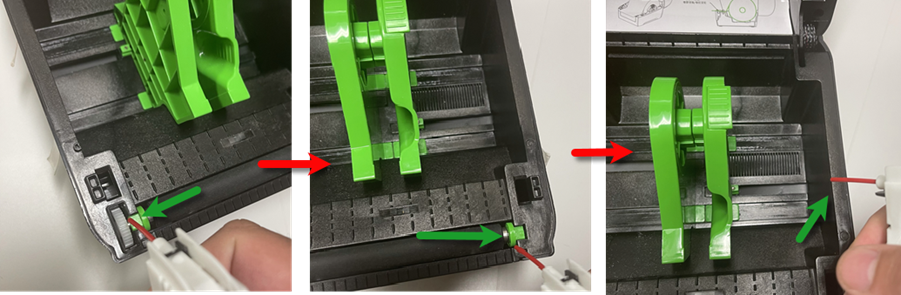
- Point the red straw and blow out the plastic gear on the left, the green connector point for the black roller and then finally the inside of the roll holder housing.
- Place the roll of tags back into the tag printer, making sure that they are as centered as possible.
Squeeze the roll holder together to make sure the tags are tightly held.
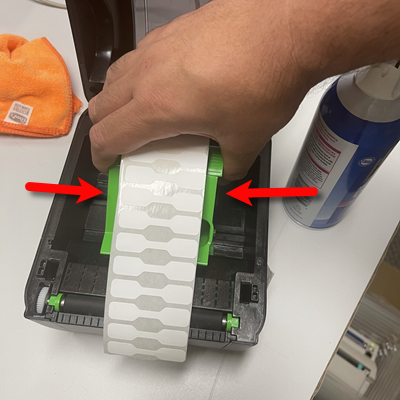
- Make sure that at least half a tag is sticking out of the printer.
In the case of jewelry tags, make sure that at least one whole tag is sticking outside of the printer.
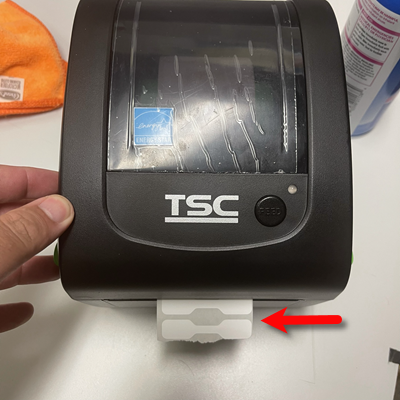
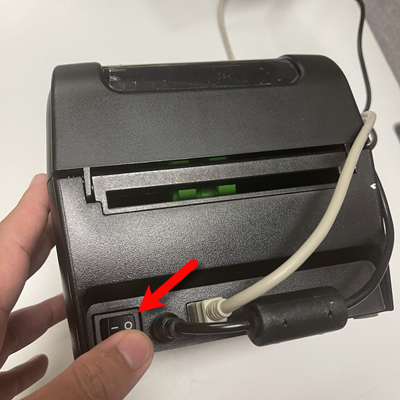
- Turn the printer on. The printer will now automatically Calibrate your tags and read the proper gap size and height.
Note: Do not roll the tags back up into the printer. This procedure is required in order for the tag printer to align your tags. Rolling up the tags will break this alignment. If for any reason you ever need to roll the tags up, make sure that you hit the feed button twice, if you do not turn the printer off.
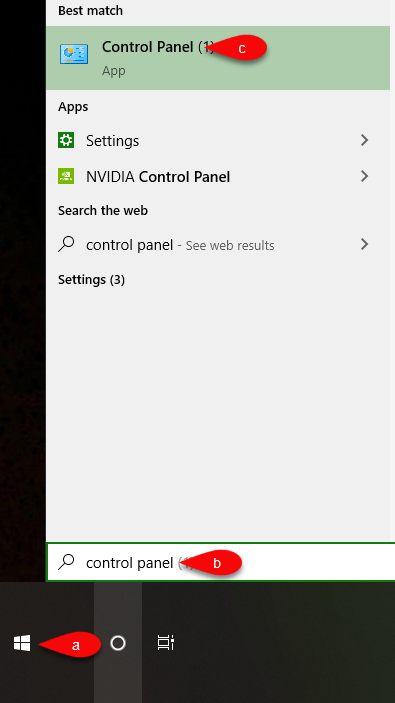
How your Tag Printer driver settings should look - Click your Start Menu and then type Control Panel. Click on the applet when you see it or press your Enter key.
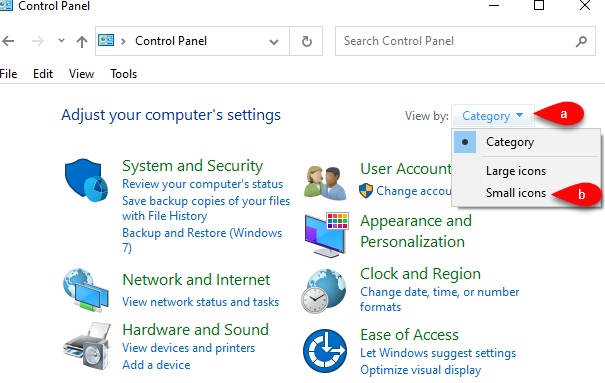
- If your Category view looks like this, click the View By dropdown and select Small Icons.
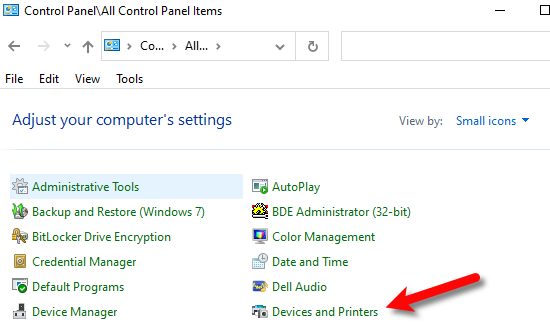
- Click on the Devices and Printers applet.
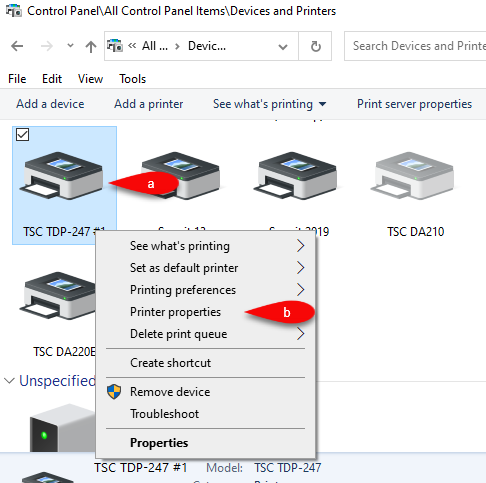
- Right-Click on your tag printer driver instance and then click Printer Properties.
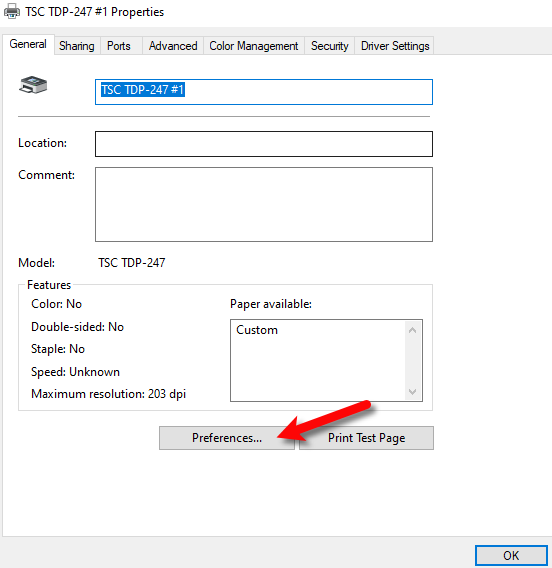
- Click the Preferences… button.
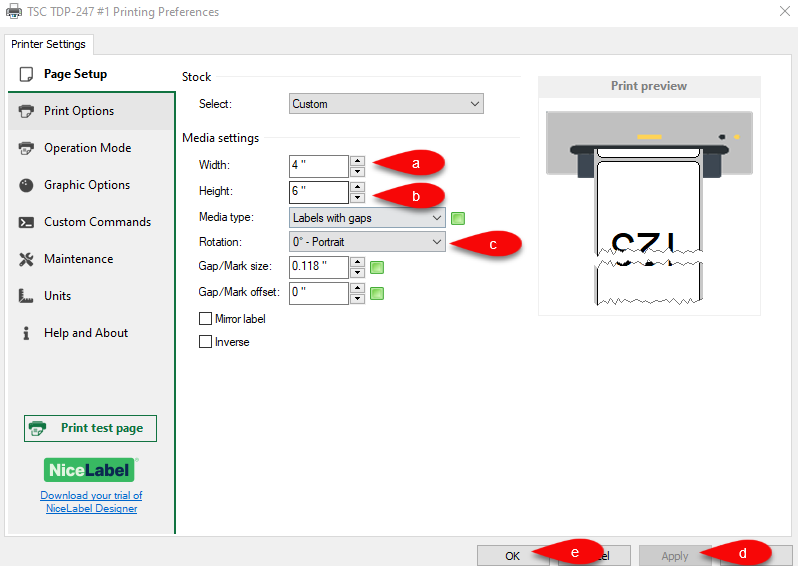
- The following settings are for the recommended NiceLabel driver.
Make sure that Width reads 4 and Height reads 6, then make sure the rotation is set to Portrait.
Click the Apply button, then OK.
- The following settings are for the Seagull driver, which is not the recommended driver for TSC printers but will still work.


Make sure that you are on the Page Setup tab, for Stock name, this should be set to 4 x 6.
For the Orientation, this needs to be set to Portrait 180.
Click the Apply and then the OK button when finished.

You should now be ready to print your tags.
Next Article In Section
Click the following link to move to the next article in this section:
Troubleshooting the TSC TDP-247/TDP-245 Plus Tag Printer
Related Topics
Troubleshooting the DA210/DA220 Tag Printer TSC DA210 USB Tag Printer How To Recalibrate a TSC Tag Printer Troubleshooting the TSC TDP-247/TDP-245 Plus Tag Printer TSC DA220 Ethernet Tag Printer TSC TDP-247 USB Tag Printer Citizen CT-S310ii Receipt Printer RP80 Receipt Printer How to Recalibrate a Zebra Tag Printer Zebra LP2824 Tag Printer Zebra LP2844 Tag Printer