Installing The Printer Driver Utility
When you purchase a Resaleworld Printer, you will receive a Printer Driver Utility disk from which you can install the required software. Simply pop the CD into your drive and run the installer directly off of the disk.
This is our help.resaleworld.com iteration of the instructions provided by the utility, in the event you do not have a CD-ROM or DVD-ROM drive. You will need to have the Printer Driver Utility installed in order to access the Drivers required by this documentation for printer installation.
If your computer does not come equipped with a CD/DVD ROM drive, you must first download the Printer Driver Utility from your https://my.resaleworld.com account.
- Click the following link to go to https://my.resaleworld.com
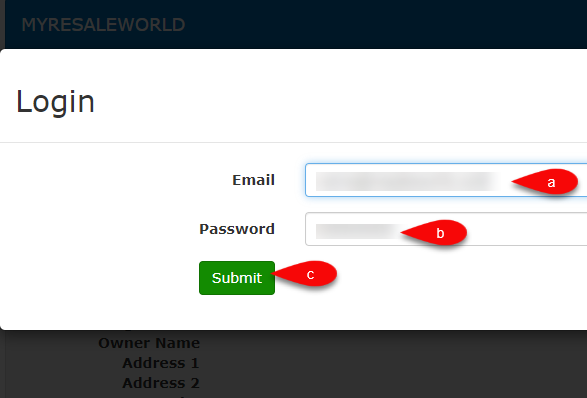
- Type in your registered Email and Password and then click the Submit button.
Note: If you do not know your credentials for my.resaleworld.com, call into Resaleworld at 1-800-785-4800 and let us know you need assistance with this process.
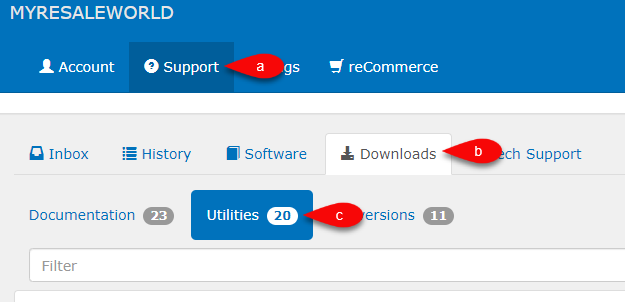
- Click on the Support tab, then click on Downloads and finally Utilities.
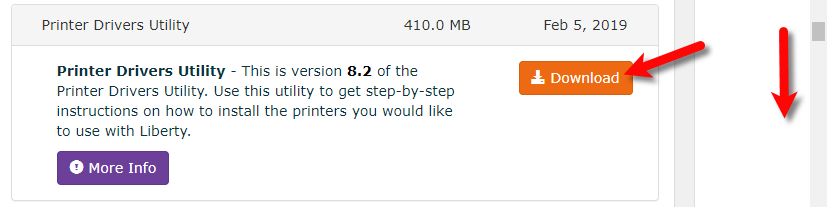
- Scroll down until you see Printer Drivers Utility then click the Download button.
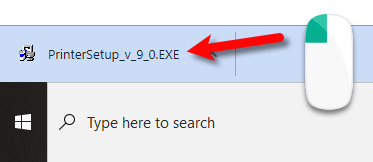
- If you are using Chrome, the download will appear at the bottom of your Chrome browser. Click on it when it is finished.
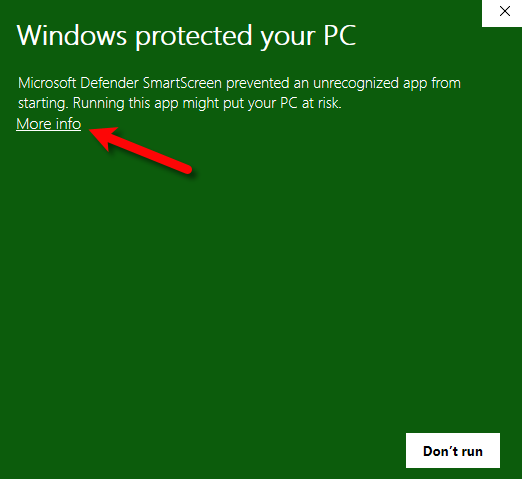
- Click the More info hyperlink.
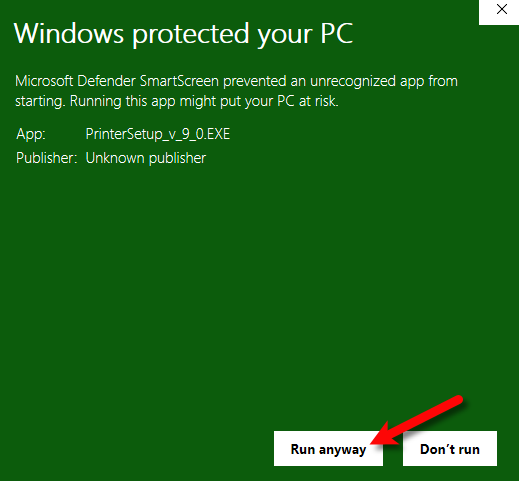
- Then click the Run anyway button.
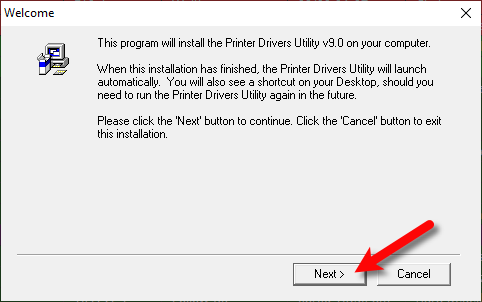
- Click the Next button.
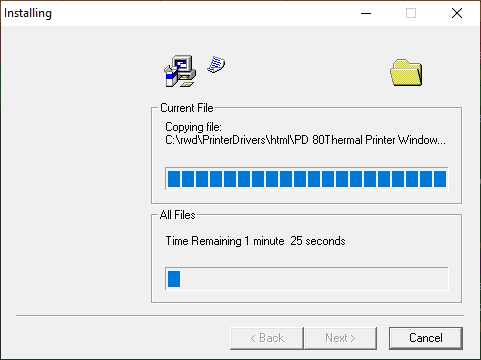
- The Printer Driver Utility will now install on to your computer.
- Click the Finish > button when it is done.
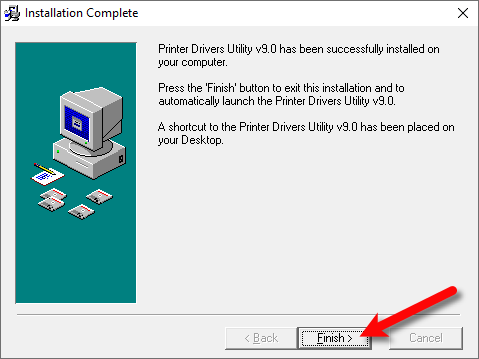
- The Printer Driver Utility program will appear automatically but you can also get to it from your desktop with the Yellow Hard Hat icon. .
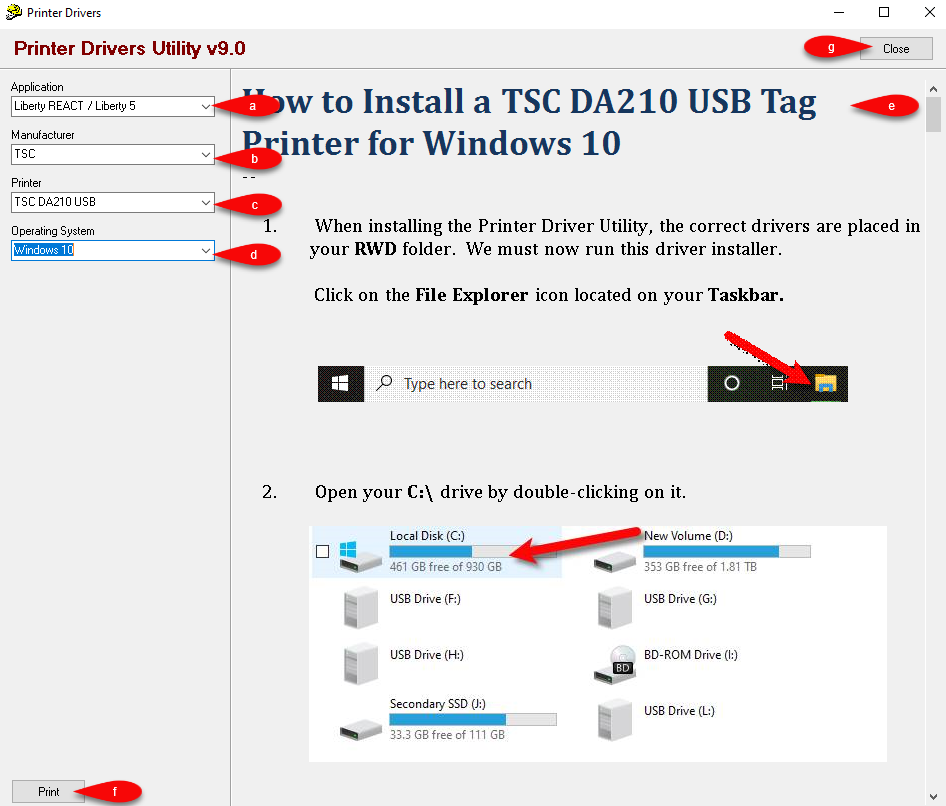
- Select the Application you are currently using.
- Select the Manufacturer of the printer.
- Select the Printer model.
- Select the Operating System.
- The Document Pane will now show you the requested documentation.
- You can Print the documentation to your printer.
- Click Close when you are finished installing your Printer.


Next Article In Section
Click the following link to move to the next article in this section:
Third Party Printer Support
Related Topics
Installing The Printer Driver Utility TSC DA210 USB Tag Printer TSC DA220 Ethernet Tag Printer TSC TDP-247 USB Tag Printer Troubleshooting the DA210/DA220 Tag Printer Troubleshooting the TSC TDP-247/TDP-245 Plus Tag Printer How To Recalibrate a TSC Tag Printer Zebra LP2844 Tag Printer Zebra LP2824 Tag Printer How to Recalibrate a Zebra Tag Printer RP80 Receipt Printer