Payout History Dashboard
Allows for management of in-progress payouts as well as overviewing completed payouts.
Note: This feature can only be accessed by an Administrator Account.

How To Access
Activities > Account > Payout History

Color Coding Meaning

Prepared - Payout still in progress. Payout can be resumed.

Posted - Finished Payout.

Aborted - Payout did not finish.
Note: You can also hover over the color and it will tell you what it means.
Show Payouts
- Left Click the payout you want to preview, then select Show Payouts.
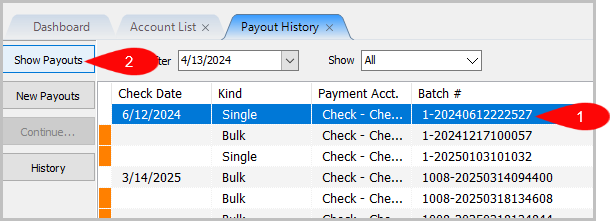
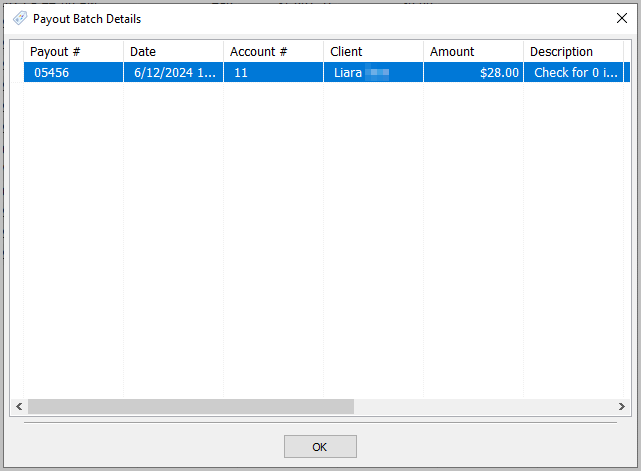
Note: You can also double click the selected payout to access Show Payouts. - For Kind: Single payouts it will look similar to the picture below.
- For Kind: Bulk payouts it will look similar to the example below.
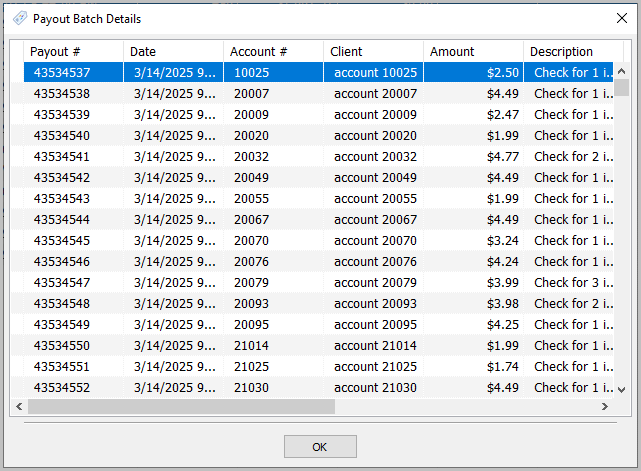


Note: If you scroll to the right, you can see more information on Single and Bulk Payouts
New Payouts
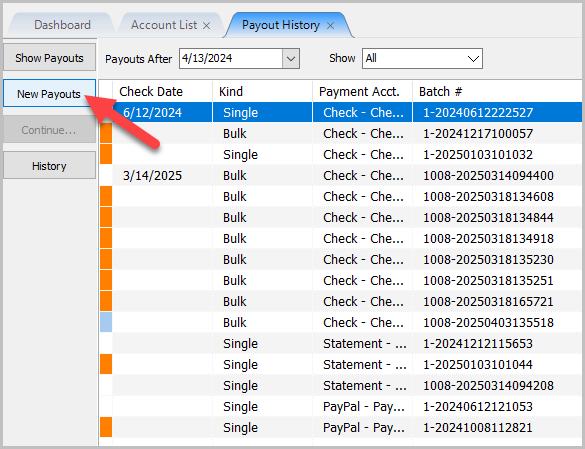
- You can also start a new payout by clicking on New Payouts from this tab.

Continue a Payout
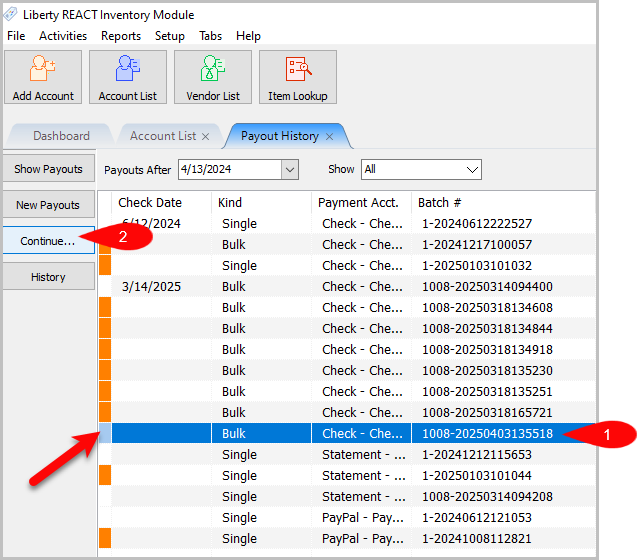
- If you see the light pastel blue color next to a payout, that means it can be
continued. Left click on it to select the Prepared Payout and notice the
Continue… button no longer greyed out.

Payout History
- To open up History, left click the payout and then click History.
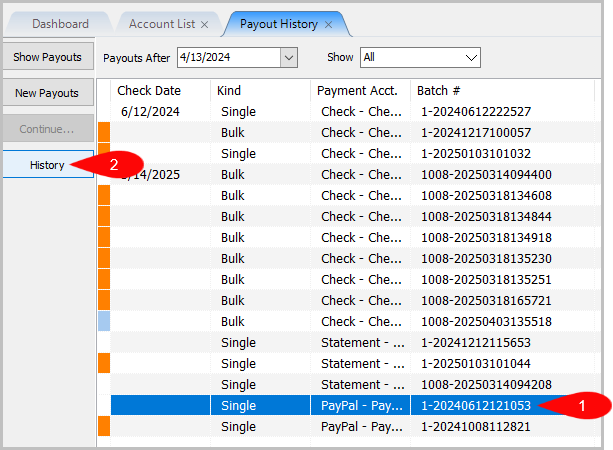
- In Prepared, it shows all criteria information used or unused for the payout.


Note: Put in a ticket if you need help understanding how to read the Prepared Payout History.
Next Article In Section
Click the following link to move to the next article in this section:
Reconcile Zero Account Balances
Related Topics
Payout History Dashboard Determine Amount Payable to an Account Holder Assessing Fees to Accounts and Items Change Payment Account for Multiple Accounts How to setup check fees How To Set A Check Address Offset Clear Checks Combine/Reconcile open Transactions Credit/Debit a Client Account How to Expire a Posted Payment