Payment Advance
Liberty allows you to enter a payment advance if you want to provide a consignor with a portion of what they are owed, even if they are not yet owed a payment. For example, a payment advance could be entered for a consignor who needs cash before they are due a payment. So if a consignor is owed money at the end of the month but needs funds before then, you would be able to give them an advance.
- There are two ways to Access the Payment Advance wizard. Through Inventory Module, and through the Point Of Sale.
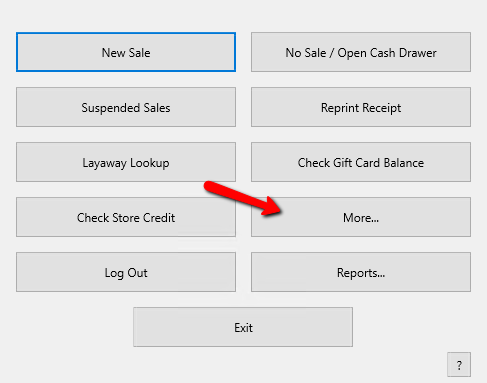
- From the POS Hub Select the More button.
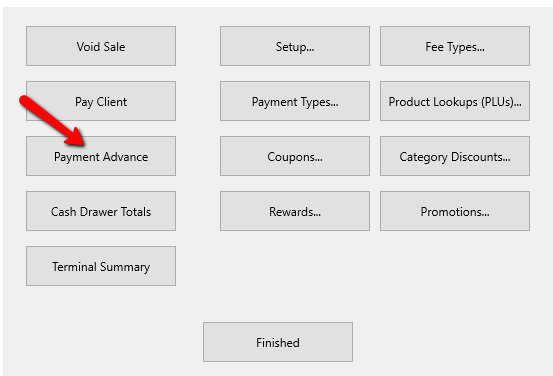
Select the Payment Advance button.
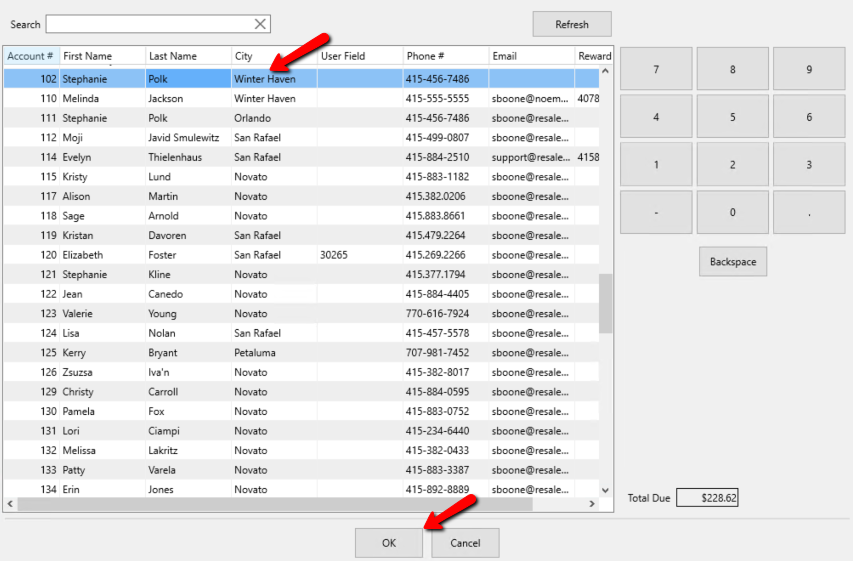
The Select Account dialog box will open. Choose your account and select the OK button at the bottom.
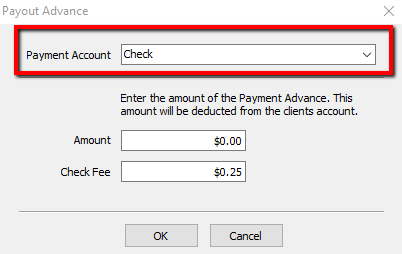
The Payment Advanced dialog box will open.
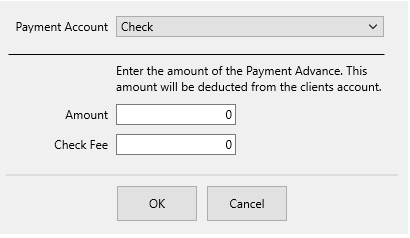
- Use the Payment Account drop-down to select the account from which you withdrawing funds.
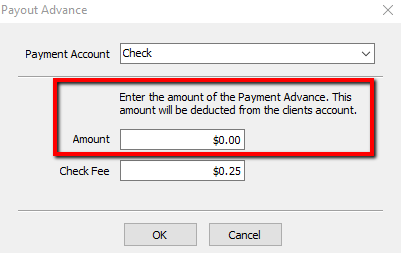
- Enter the Amount of the advance.
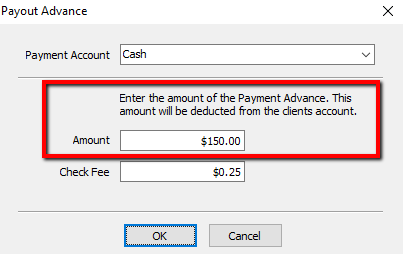
- Enter in a Check Fee if you wish to charge for one.
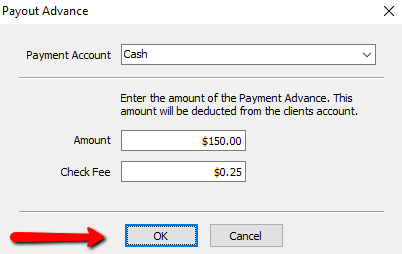
- Press the OK button to continue.


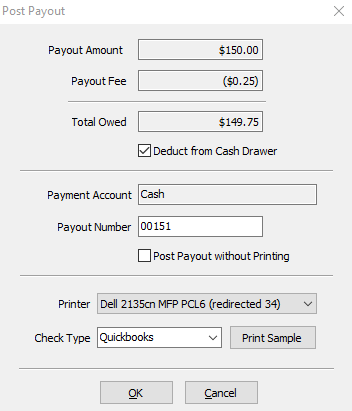
Post Payments Dialog Fields
- Payment Amount : Amount to be paid out before fees.
- Payout Fee : The Amount deducted from the payout.
- Total owed : The Amount paid out after fees.
- Deduct From Cash Drawer Check Box : If making a cash payment, this field can be checked off to take the money from the cash drawer.
Note: The Deduct From Cash Drawer Check Box will not be accessible if you are doing a check payout. This feature is for Cash Payouts only. - Payment Account : This is a confirmation of the payment account selected to process the payout.
- Payout Numbers : Number of the payout to either be printed on the check, or assigned to a cash payout. If printing checks, verify the number matches the check you are about to print on. You may need to manually change this number.
- Post Payout Without Printing Check Box : Select this box when checks are to be posted but not printed. An example of when this would be used is when payouts are handwritten.
- Printer : By default this should be the printer you have preconfigured for printing checks. You can change this printer by clicking the drop down menu and selecting the printer you wish to use.
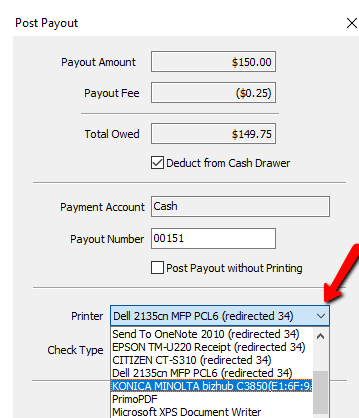
- Check Type : If paying by check, select the type of check.
- Quickbooks : Quickbooks checks have a check at the top of an 8½ x 11 page, and two stubs below.
- Laser/Inkjet : laser/Inkjet checks have a check in the middle of an 8½ x 11 page, with a stub above and a stub below.
Note: Contact Resaleworld to order checks for use with Liberty. Checks ordered from Resaleworld are guaranteed to work with Liberty. Checks ordered from other sources may not work. See Ordering Computer Checks from Resaleworld for more information. - Print Sample Button : Select this to print a sample check. This is useful to make sure checks are lined up and the printer is working properly. (No inventory information will be printed on this sample check).

- Press the OK button to finish the payment, or Cancel button to stop and start over.
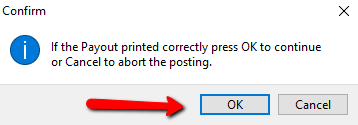
- You will get a confirmation box making sure the print out printed correctly. Press the OK button if it did, press Cancel if you need to redo it.


If you make a mistake, follow the instructions provided in the section entitled Reverse a Posted Payment.
Next Article In Section
Click the following link to move to the next article in this section:
Pay One Account at a Time
Related Topics
Payment Advance Payouts Overview Assessing Fees to Accounts and Items Change Payment Account for Multiple Accounts Reverse a Posted Payment Determine Amount Payable to an Account Holder How to setup check fees How To Set A Check Address Offset Clear Checks Combine/Reconcile open Transactions Credit/Debit a Client Account