Assessing Fees to Accounts and Items
Accounts may be assessed a fee for various reasons. Sometimes the fees are one-time charges, other times they are charged on a regular basis.
Examples of one time fees include:
- Consignment Fee (a fee charged each time a consignment is brought in).
- Seller’s Fee (a fee charged each time a batch of items is brought in by a client for the store to purchase outright).
- Pickup and Delivery Fee (Delivery Fees may also be charged in Point of Sale by using the F7 key. Use the routine described below to deduct the fee from an account: use the F7 key in POS to charge the fee as part of a transaction.)
Examples of recurring fees include: - Annual Consignment Fee.
- Monthly Rental Fee.
- Fees may be assessed to a single account at a time. Fees may also be assessed simultaneously to a group of accounts.
To Assess A Fee Or A Credit To An Item
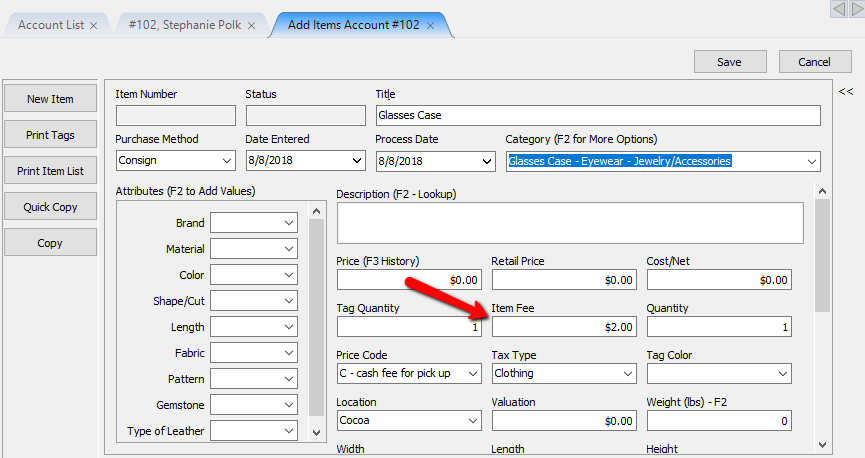
- When entering and item, you have the option to add Item Fee. This option can be used when there a specific fee for just this item.
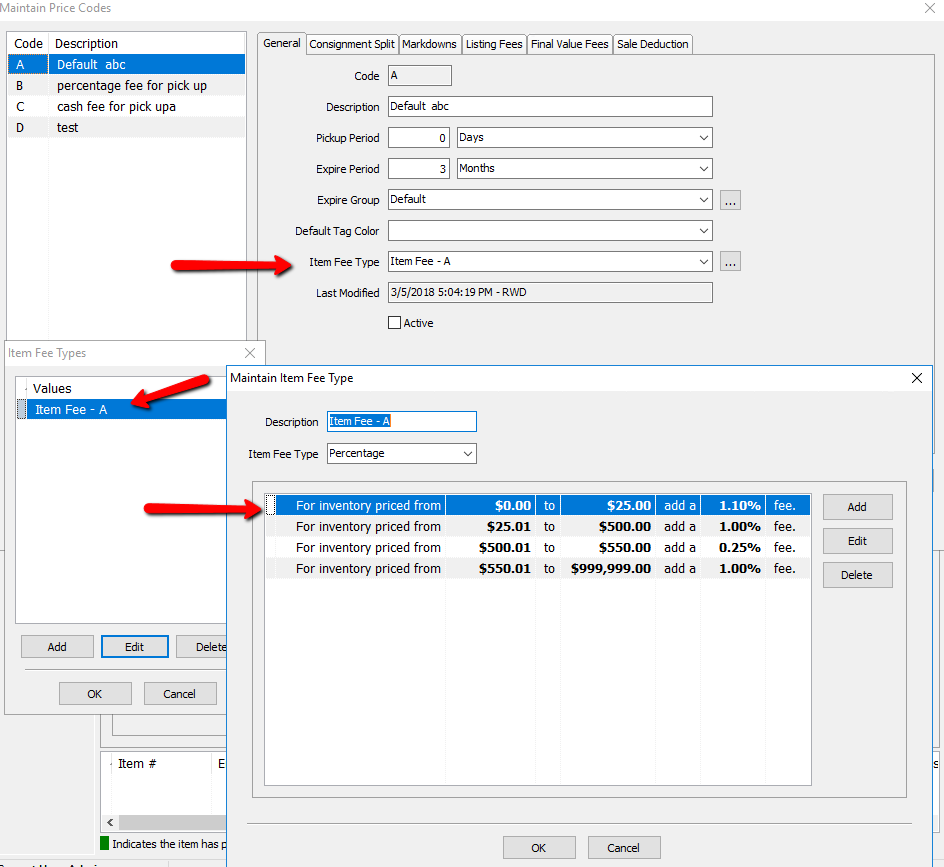
- Using price codes, you can create a fee that will affect every item when using that price code.
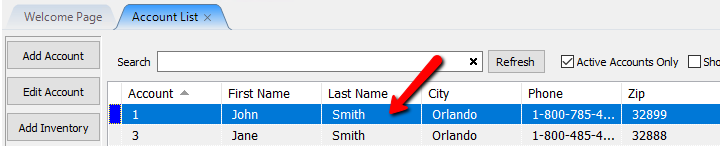
To Assess A One-Time To A Single Account - Lookup the Account.
- Select tab 3. Transactions.
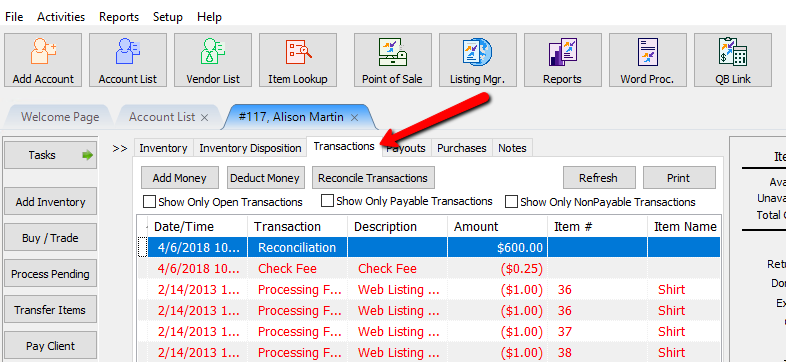
- Select the Deduct Money button. The Add Transaction dialog will display.
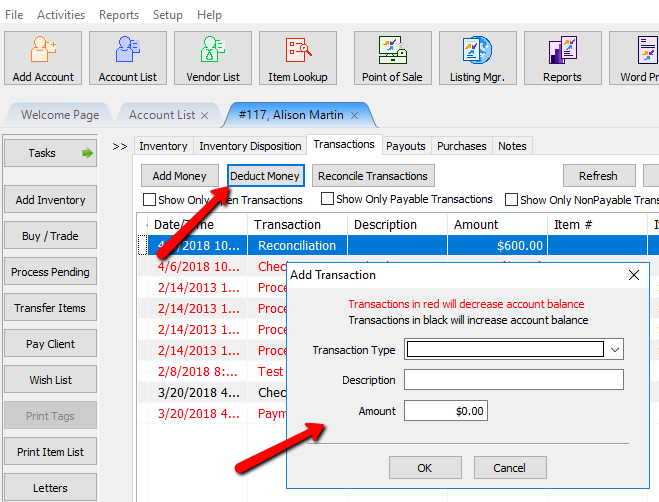
- Select a transaction type from the Transaction Type drop-down list that will deduct money from the account.
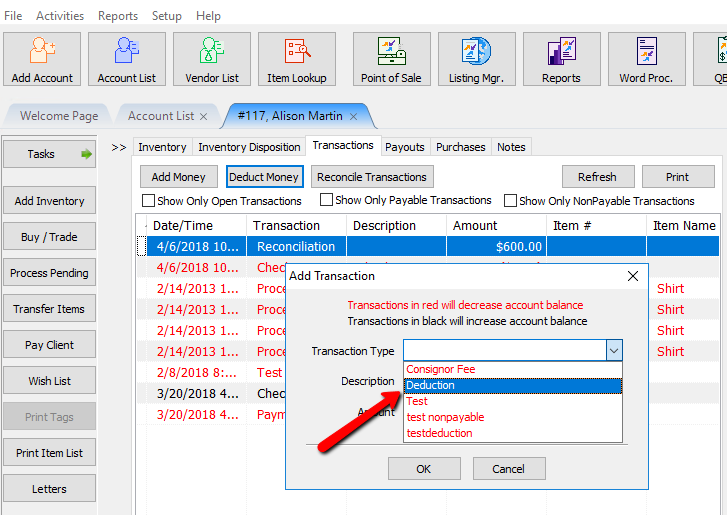
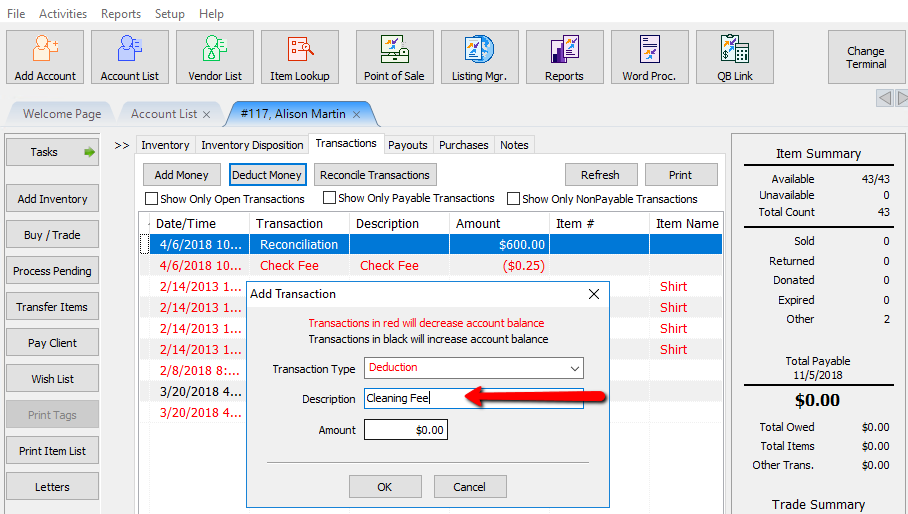
Note:To add Transaction Types, go to Tools > Maintain > Transaction Definitions. See the section entitled Set Up Transaction Types for more information. - Enter a description for the Fee in the Description field.
- Enter the amount in the Amount field then press OK.
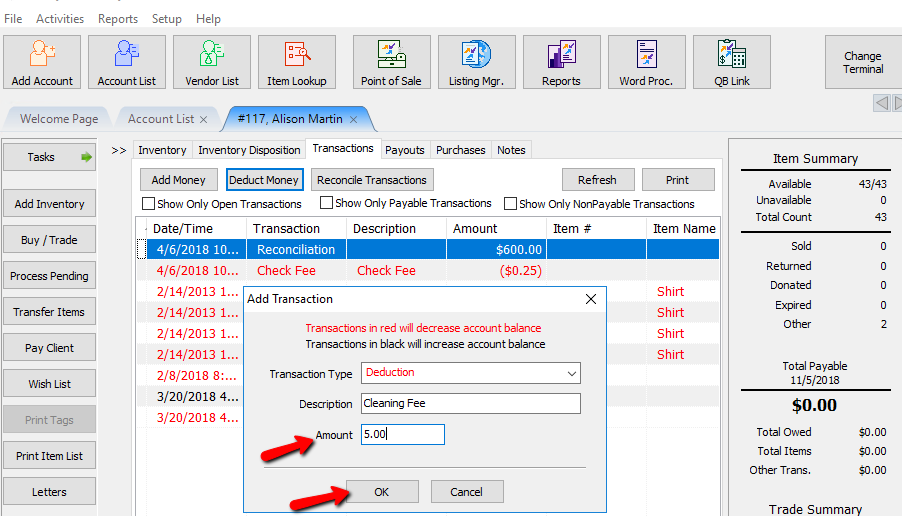


The fee will appear in the Transaction screen, and be deducted from the next payout made to that account.

Note: To credit an account (add money), follow the same procedure as shown above, except select a Transaction Type that is a Credit instead of a Deduction.
Reversing A Fee In An Account
Like payouts, fees cannot be deleted. To remove a fee from an account, enter a Reverse Entry by either adding a Transaction that is a Credit, or by adding a Transaction that is a Deduction.
- Lookup the account.
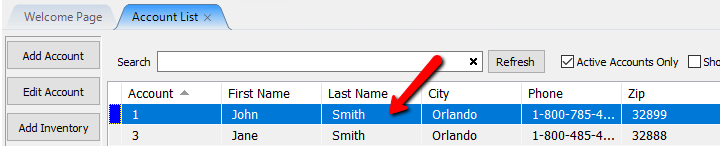
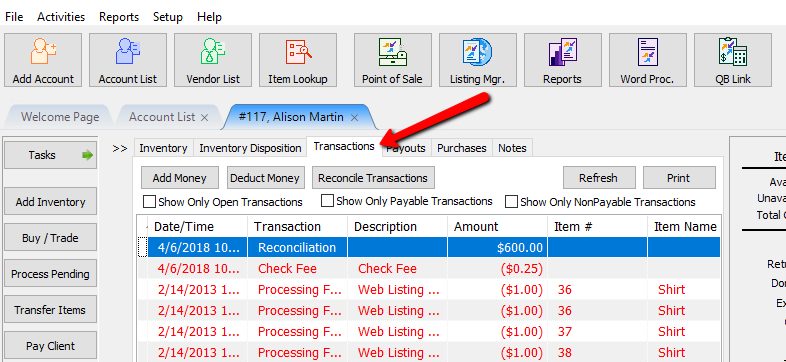
- Select tab 3. Transactions.
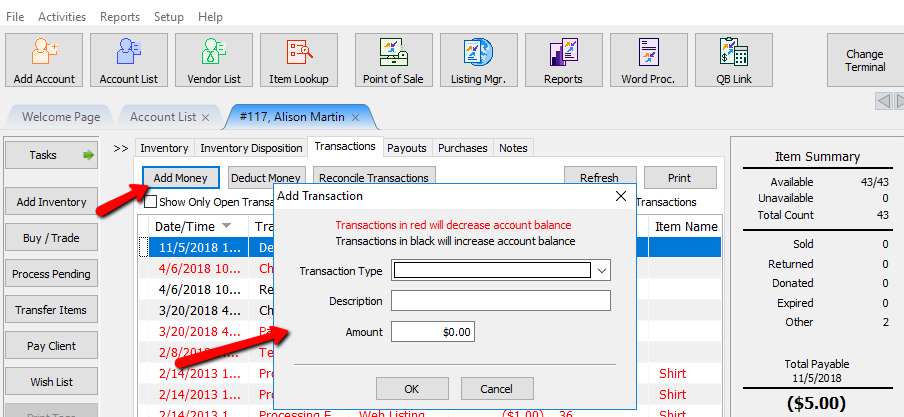
- Select the Add Money button. The Add Transaction dialog will appear.
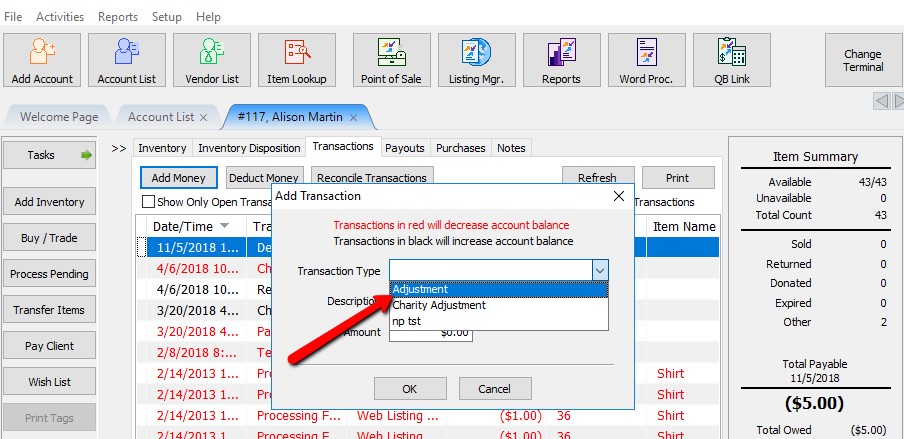
- Select the same Transaction Type..
- Enter a description for the Fee in the Description field. Be sure to say that it is Reversing another fee in the account.
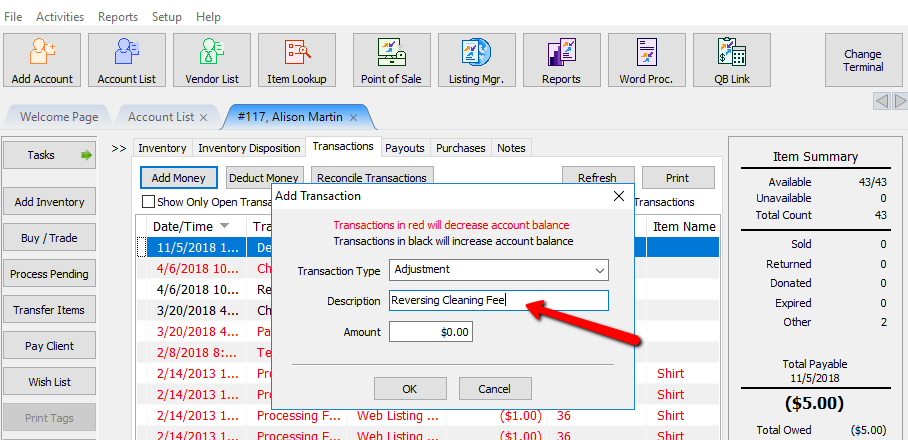
- Enter the amount for the fee to be reversed. Red is a negative fee and black is a positive fee. Make sure the fee you are using is black. The Press the OK button.
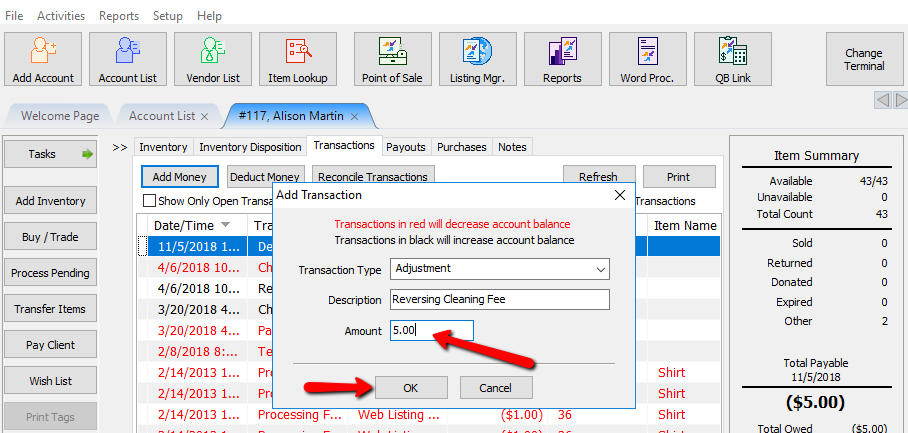


This is what the reversed fee will look like.

Assess A Fee To Multiple Accounts
To run this routine you must first understand Fee Frequencies. Please see the section entitled Set Up Fee Frequencies for more information.
Warning! Perform a backup: if a mistake is made, it will be easier to restore from backup then to reverse the many incorrect fees.
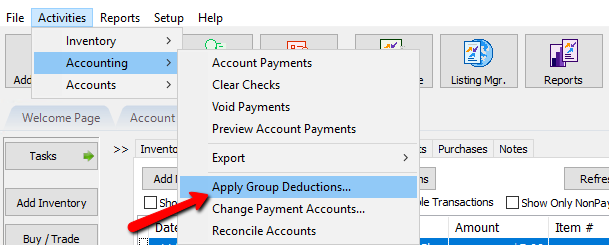
- From the Main menu of Liberty Inventory, select Activities > Accounting > Apply Group Deductions.
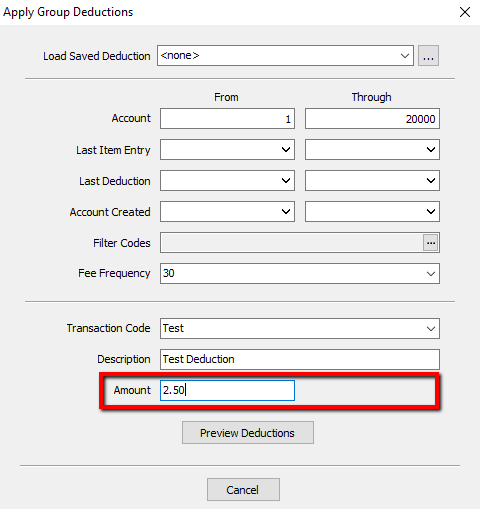
You can either enter the parameters here or load a previously configured deduction. - Enter the range of accounts to assess a fee in the Account filter's From and Through fields.
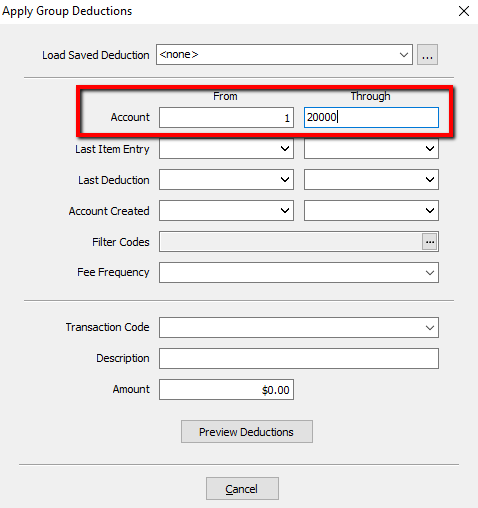
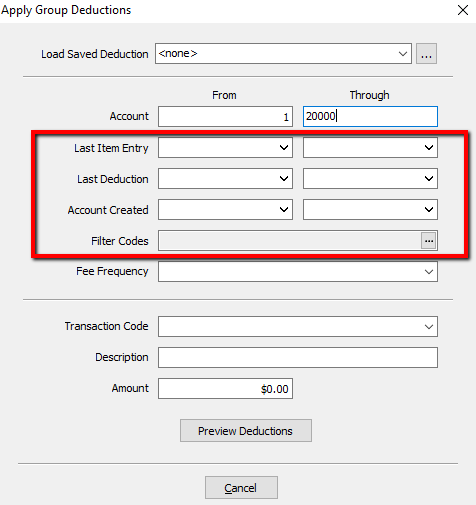
- Optional: Enter parameters in the Last Item Entry, Last Deduction, Account Create and/or Filter Code fields.
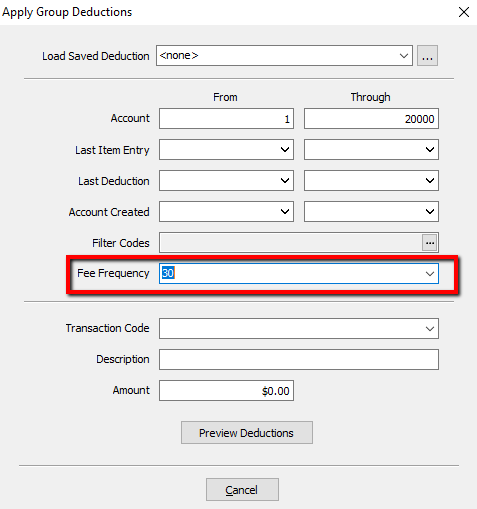
- Optional but recommended: Choose a Fee Frequency from the Fee Frequency drop-down list.
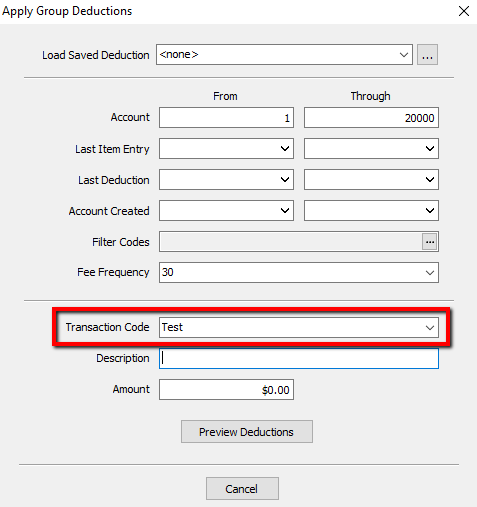
- Choose a Transaction Code from the Transaction Code drop-down list.
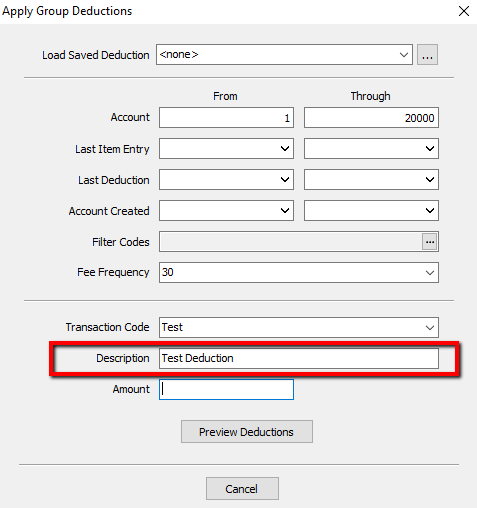
- Enter a description for the fee in the Description field. This description will appear in the Description field in the Transaction History.
- Enter the amount of the Fee in the Amount field.
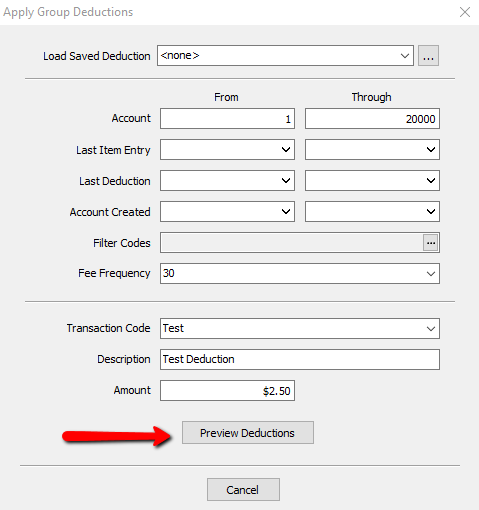
- Select the Preview Deductions button.
- On the next screen you can press the Print button to the list. Press the Back button if you feel you need to start over, or press the Process button to finalize the group deduction.
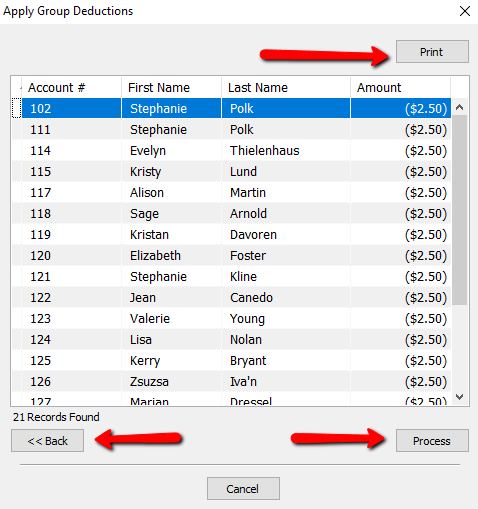


Fees will appear in each accounts’ Transaction History.
How To Preconfigure Group Deduction Parameters
- From the Apply Group Deductions screen, click on the search box.
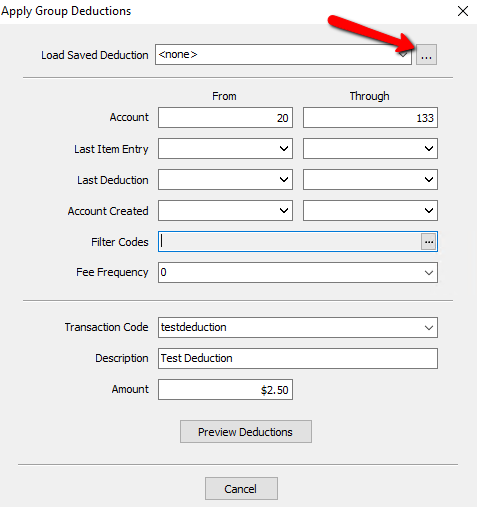
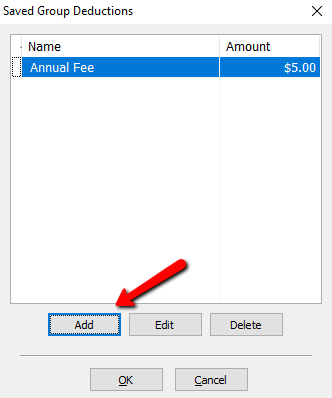
Note: You can also get the Saved Group Deduction screen from within the Inventory Module. Click on Setup > Maintain > Group Deductions. - From this screen we can Add, Edit, or Delete a saved group deduction. Press the Add button.
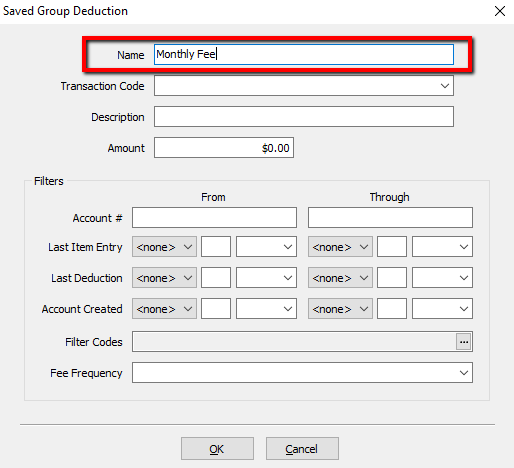
- Enter a Name for the Group Deduction.
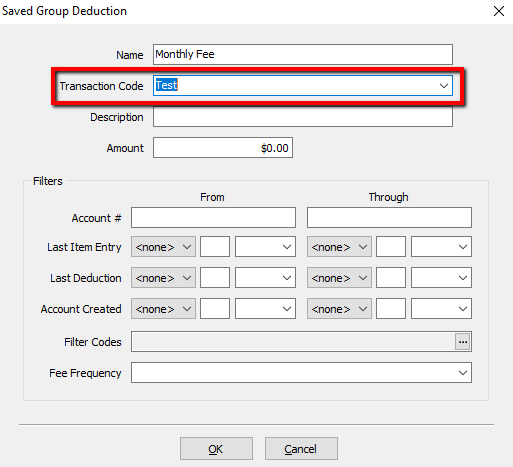
- Select a Transaction Code.
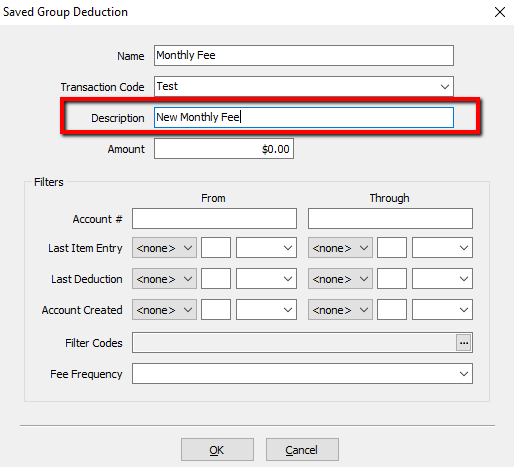
- Create a Description for the fee.
- Type in the Amount.
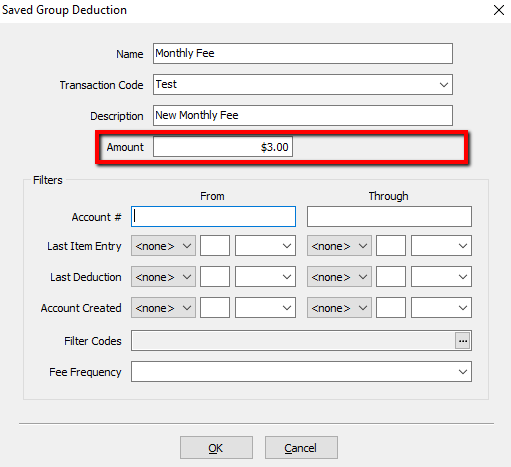
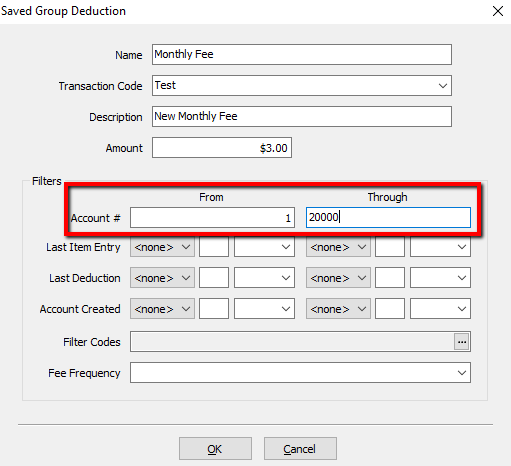
- Enter in the Accounts to be affected.
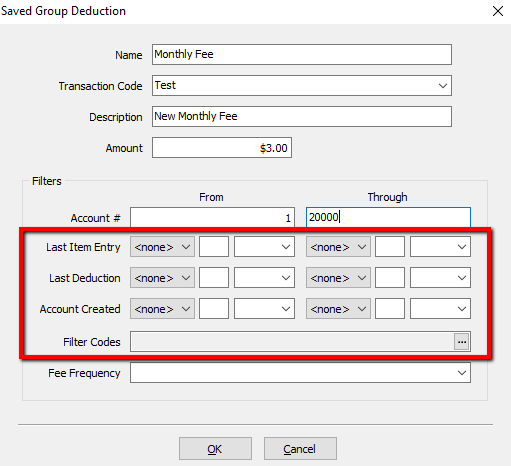
- Last Item Entry, Last Deduction, Account Created, and Filter Codes are all optional.
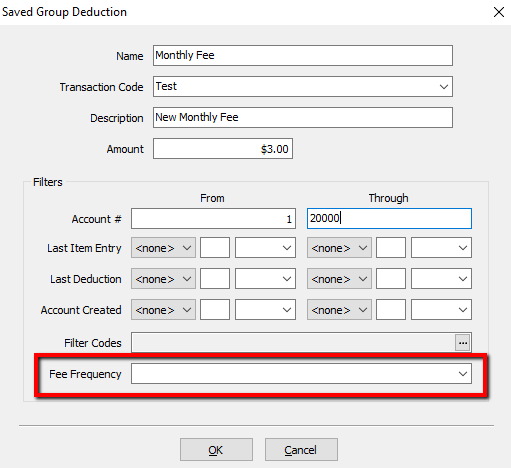
- Fee Frequency is optional but suggested.
- Press the OK button when done.
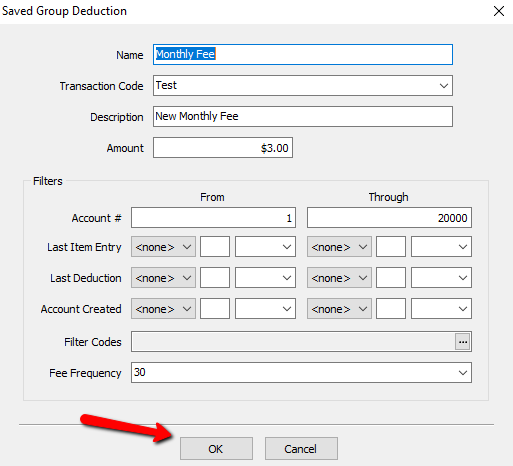
- Press the OK button again to close out the Saved Group Deductions menu.
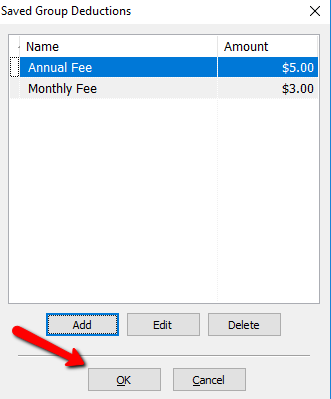


Your saved Group Deduction can now be loaded from the Apply Group Deductions menu by clicking the dropdown, and selecting group deduction.

Step-by-Step Example Showing How To Start Assessing An Annual Fee
Situation: A store wishes to start charging a $5.00 annual consignment fee, starting January 1st based on when the account was created. On a monthly basis, the customer wishes to add the annual fee to the accounts. To accomplish this perform the following steps.|
- Create a Transaction Code entitled Annual Consignment Fee. Set up the Transaction Code as a Negative so that the amount is deducted from accounts. See the section entitled Set Up Transaction Types for more information on Transaction Codes.
- Create a Fee Frequency for each month of the year. See the section entitled Set Up Fee Frequencies for more information on Fee Frequencies.
- Run an Account List report for all accounts created during the month of January the previous year. Go to each of those accounts and add the Fee Frequency of January to each of those accounts in the fee frequency field.. Repeat this process for each month.
- For new accounts, and accounts that are older, add the Fee Frequency to each client’s account in the Fee Frequency field when they bring in consignment items. Note the month those accounts were created, and add that Fee Frequency.
- Create your group deduction using the following parameters.
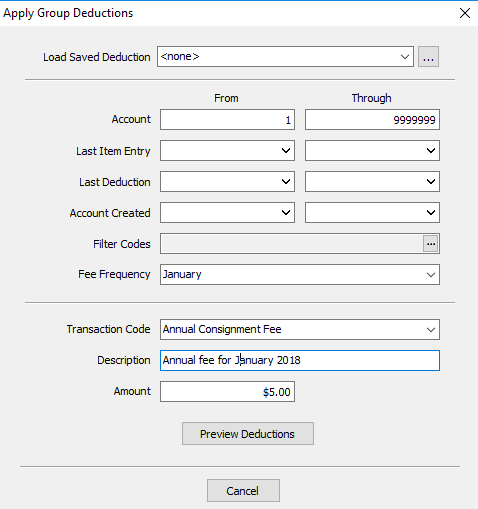
Note: Since you will be doing this annually, you can create this as a saved deduction to just run once a year. - Once you have entered your parameters, preview the deduction, and press the Process button on the next screen.
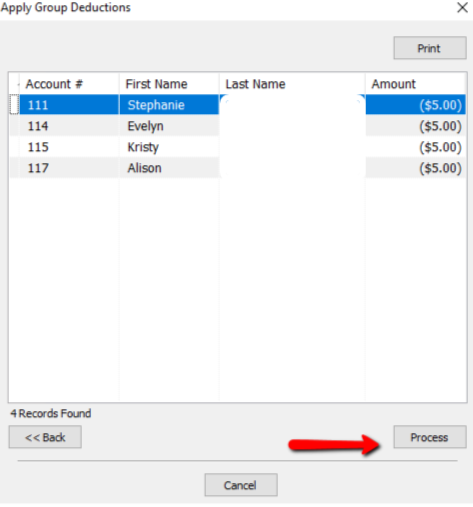
- Repeat this process every month, for that month.


Note: Using a fee frequency is not the only way to determine how to add your annual fee. You can run your fees based on any of the parameters in the Apply Group deductions window. Additional options include Account Number, Last Item Entry, Last deduction, Account Created, and Filter Codes. You can even use multiples for a more definitive search.
Next Article In Section
Click the following link to move to the next article in this section:
Clear Checks
Related Topics
Assessing Fees to Accounts and Items View Transaction History Determine Amount Payable to an Account Holder Change Payment Account for Multiple Accounts How to setup check fees How To Set A Check Address Offset Clear Checks Combine/Reconcile open Transactions Credit/Debit a Client Account How to Expire a Posted Payment