Updating Unsellable Items On An Order
This allows you to replace an item that was sold on Shopify with another item located within your inventory. This is very important if you happen to pull down an order that contains unsellable items either because they are out of stock or were created directly on Shopify instead of Liberty.
- Open the Listing Manager and click on the Orders tab.
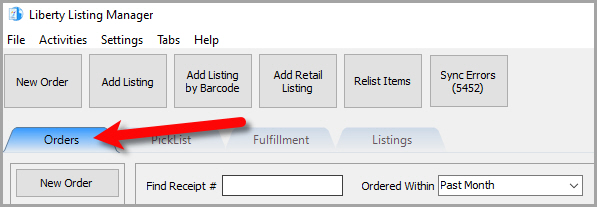
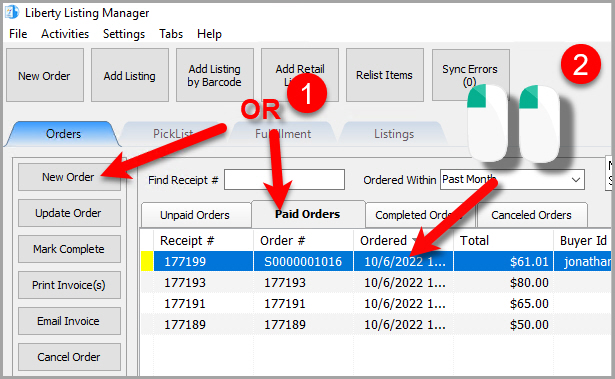
- Add a new order or edit an existing order by double clicking on one from the Orders tab to see the Maintain Order screen for an order.
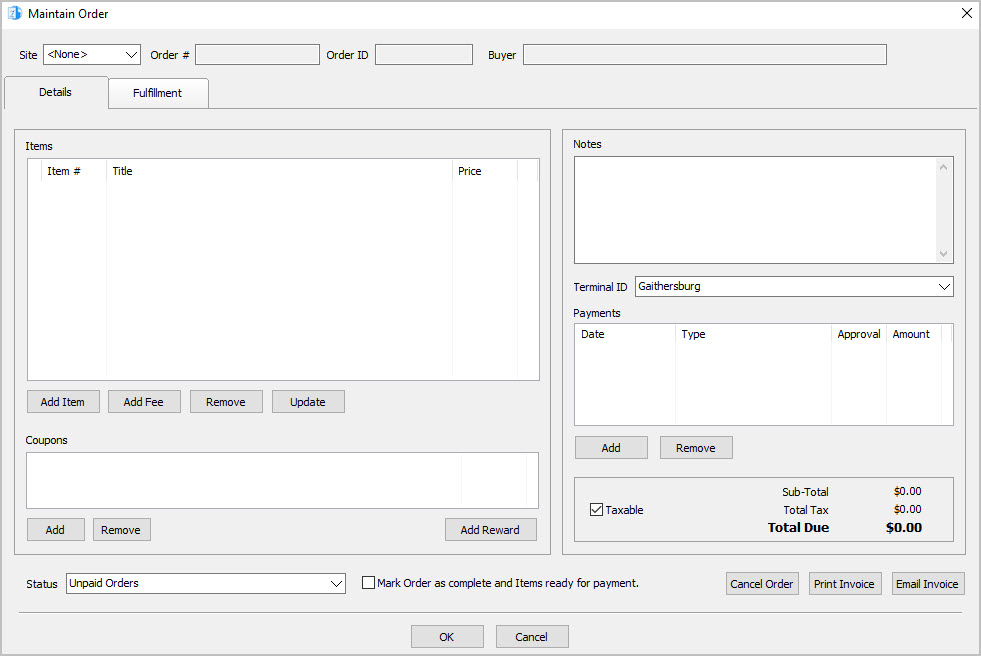
- The Maintain Order screen will appear.
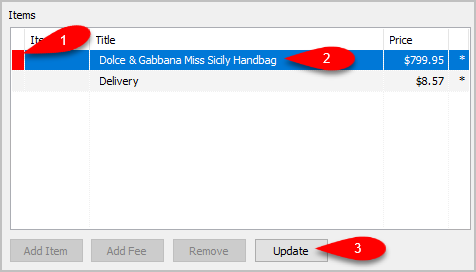
- Items that have a Red indicator are unsellable items and are the only items in an order that can be Updated.
Click on an item that has a Red indicator and then click the Update button.
- You may choose to replace the Unsellable item with a Fee or you can click the Browse … button to select another item to replace it. In this example we are going to select the Browse button.
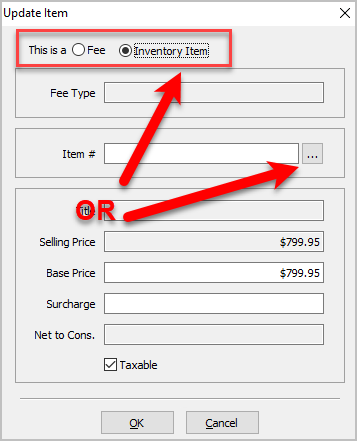
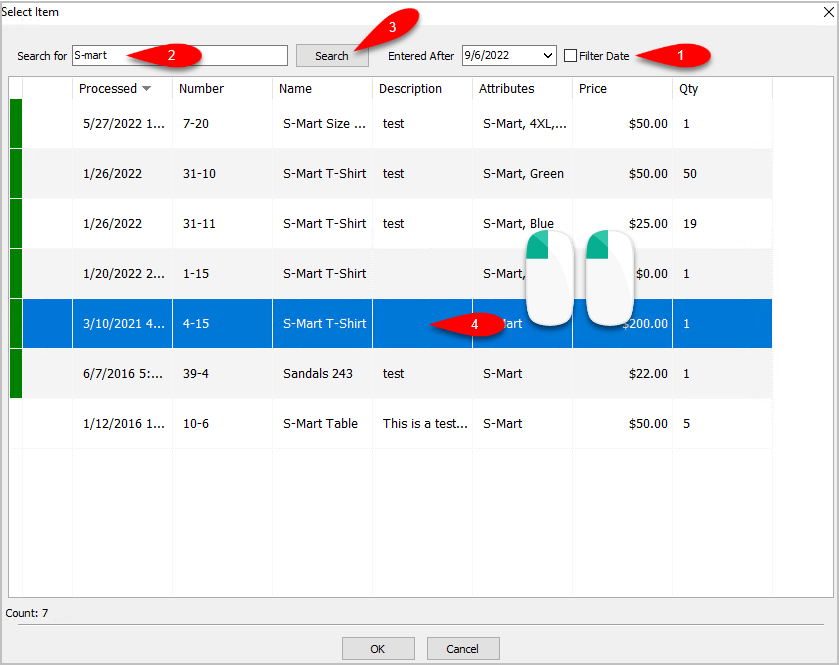
- You can then set a Filter Date period if you need to. In the Quick Search field, type in what you are looking for, you can use things like Title, Description, and the account-item number. Click the Search button and then double-click on the Item to select it.
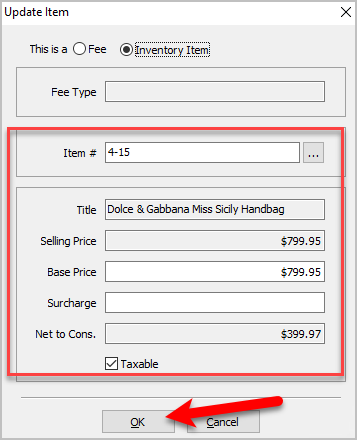
- Confirm that the details are correct and then click the OK button.
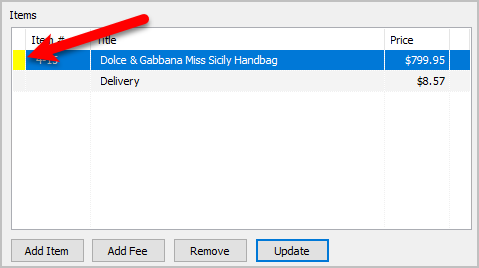
- The indicator for the item will no longer be Red. It will instead show a Yellow indicator to show that the item has not been picked yet for fulfillment.


Next Article In Section
Click the following link to move to the next article in this section:
Adding A Coupon To An Order
Related Topics
Updating Unsellable Items On An Order Maintaining An Order Overview Changing The Marketplace/Site Of A Manual Order View Pending Orders Adding An Item To An Order Adding A Fee To An Order Removing An Item Or Fee From An Order Adding A Coupon To An Order Removing A Coupon From An Order Adding A Payment To An Order