Marking An Order As Complete To make Items Ready For Payment
The following article details the process of marking a web order as complete in Liberty 5.
It is important to mark web orders as complete in order to properly track your consignor obligations.
- Open the Listing Manager.

- Click on the Orders tab.
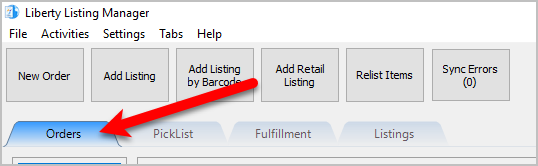
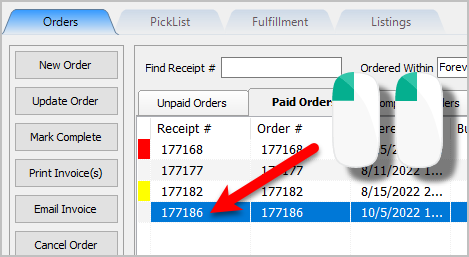
- Right-click the Paid Order you wish to mark as complete and click Mark Order as Complete.
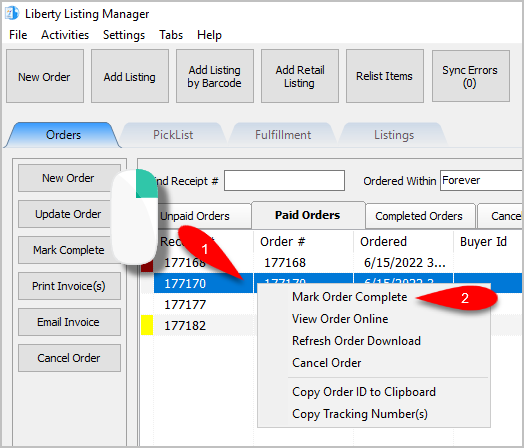
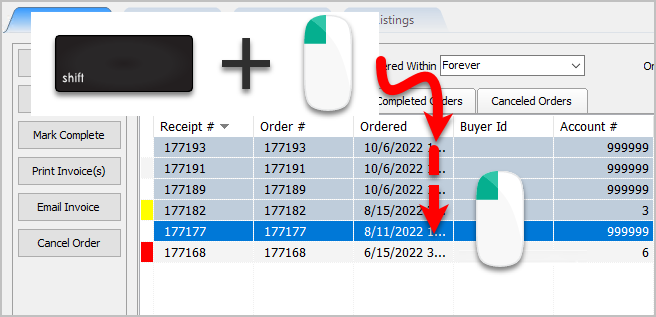
Note: The order you are trying to complete may be in one of the other tabs. Typically, stores will wait until the customer has the item before marking the order as complete, but this is at the store’s discretion. - You can also mark multiple orders as completed. Click the first order and
then Shift + Left Click the rest of the orders you want to complete. Then
click on ‘Mark Complete’.
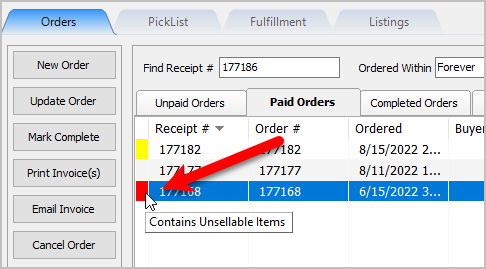
- It is important to note that orders with a red indication on the left contain unsellable items. These are orders that came down from Shopify whose items cannot be fulfilled either because they are out of stock or the item was created directly on Shopify and not through Liberty. You cannot complete and order while it is in this state and must edit the order and either remove, fix or replace the unsellable item.
- Alternatively, you can open the order and mark the order as complete:
- Double left-click on the order.
- Fill in the required information, then click the Mark Order as complete and Items ready for payment checkbox.
Click the OK button when finished.

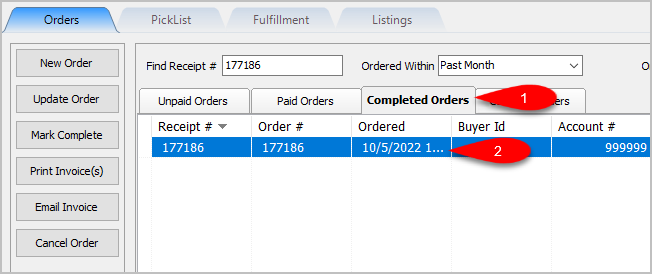
- The order we marked as completed can now be viewed in the Completed Orders tab.
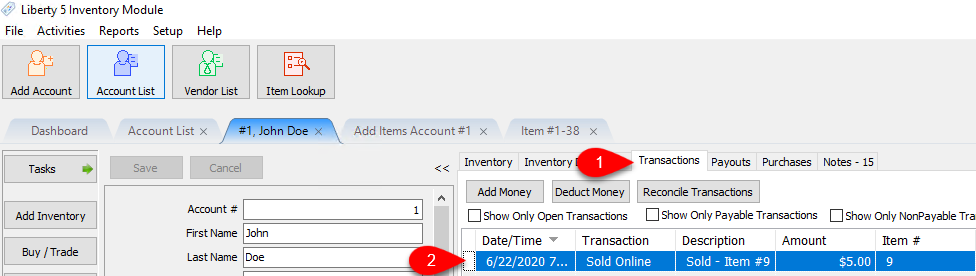
- To view the payable amount to the consignor for the order, go to the Inventory Module. Open the Account associated with the order, and click on the Transactions tab.
If the page was already open, click on the Refresh button.
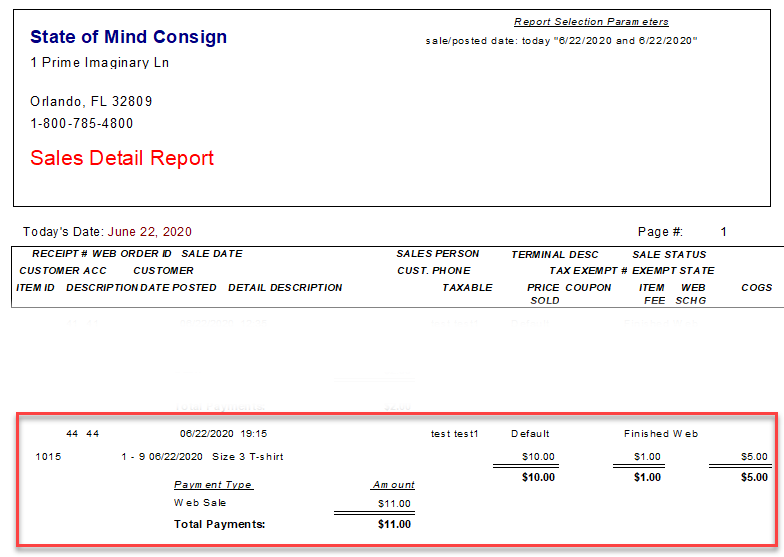
- Sales reports also include this order. Payments made on an order are tracked the day that the order takes place on your Recommerce platform. The consignment split is not made payable to the consignor until the order is marked as complete.


Next Article In Section
Click the following link to move to the next article in this section:
Changing The Terminal ID Of An Order
Related Topics
Marking An Order As Complete To make Items Ready For Payment View Pending Orders Maintaining An Order Overview Adding An Item To An Order Adding A Fee To An Order Removing An Item Or Fee From An Order Adding A Coupon To An Order Removing A Coupon From An Order Adding A Payment To An Order Removing A Payment From An Order