Change Order Status
This feature allows for orders to be changed to a custom status via scanning in the invoice barcoded order number or by hand-typing the order number (also known as Web Order ID).
You must have a custom order status set before using this feature. You can find out how to use it by following this article:
How To Use Change Order Status
You will go to:
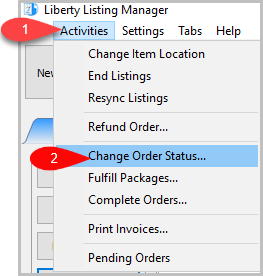
- Activities > Change Order Status…
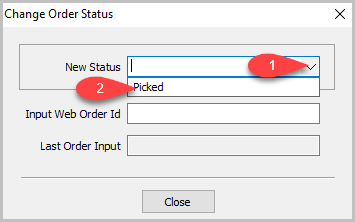
- Click the dropdown next to New Status and select the status you want the orders to change over to.
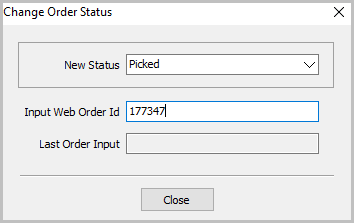
- Type in the Web Order ID and press Enter or Scan in the Barcode on the invoice
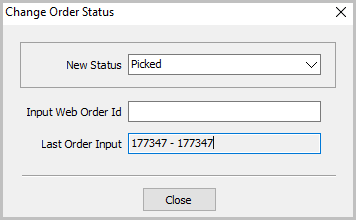
- You will see Last Order Input populate with the Web Order ID:


Where To Find Web Order ID
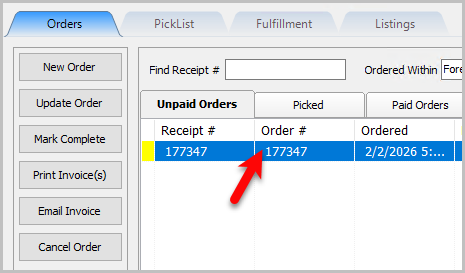
- In Listing Manager under the Orders tab you can find the Web Order ID under the column “Order #”
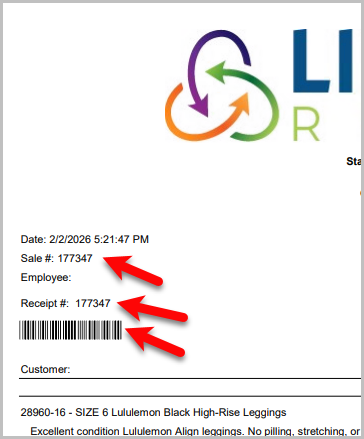
- On the Invoice it will be accessed through scanning the barcode or using the Sale # or Receipt #.


Next Article In Section
Click the following link to move to the next article in this section:
Adding An Item To An Order
Related Topics
Change Order Status Maintain Order Status List Overview Adding An Item To An Order Adding A Coupon To An Order Adding A Fee To An Order Adding A Note To An Order Adding A Payment To An Order Emailing An Invoice To A Customer Maintaining An Order Overview Marking An Order As Complete To make Items Ready For Payment Changing The Marketplace/Site Of A Manual Order