Adding A Payment To An Order
You can add a single payment or a combination of payments indicating how the customer paid for the order.
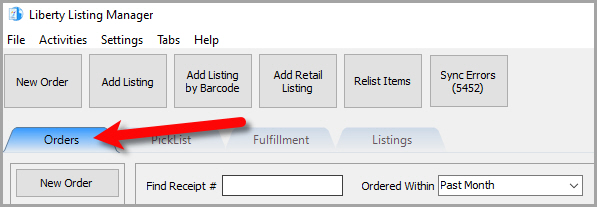
- Open the Listing Manager and click on the Orders tab.
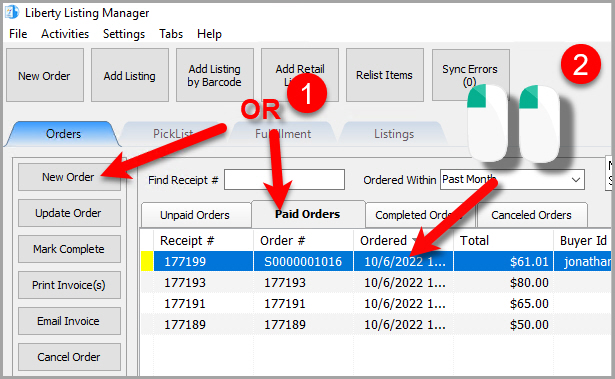
- Add a new order or edit an existing order by double clicking on one from the Orders tab to see the Maintain Order screen for an order.
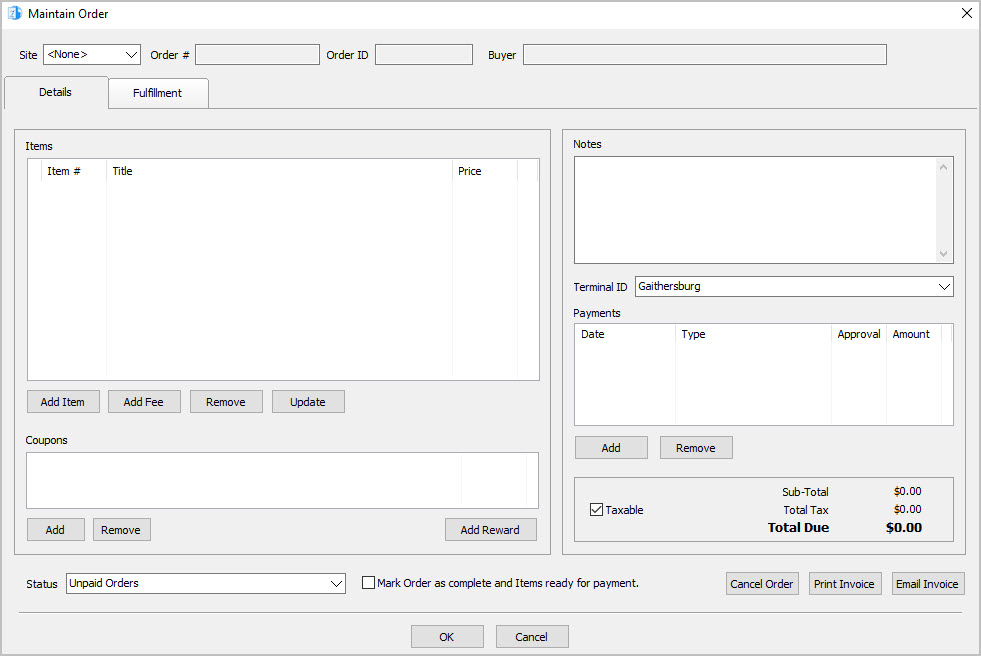
- The Maintain Order screen will appear.
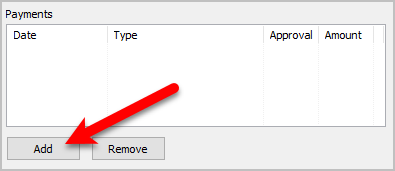
- Click the Add button.
- The Add Payment dialog box will appear.
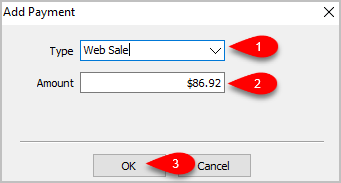
- Dropdown the Type menu and select your first payment type you wish to add to the sale.
- Type in the amount that you want to reflect as paid to the order.
- Click the OK button.


Note: You can add as many payments as necessary to reflect how the order was actually paid for.
Next Article In Section
Click the following link to move to the next article in this section:
Removing A Payment From An Order
Related Topics
Adding A Payment To An Order Maintaining An Order Overview Changing The Marketplace/Site Of A Manual Order View Pending Orders Adding An Item To An Order Adding A Fee To An Order Removing An Item Or Fee From An Order Updating Unsellable Items On An Order Adding A Coupon To An Order Removing A Coupon From An Order