Adding An Item To An Order
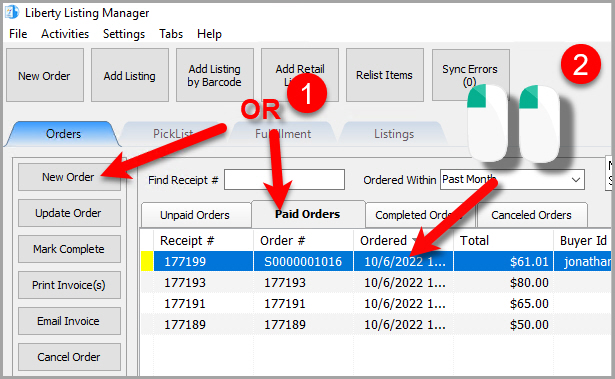
Add a new order or edit an existing order by double clicking on one from the Orders tab to see the Maintain Order screen for an order.
- Open the Listing Manager and click on the Orders tab.
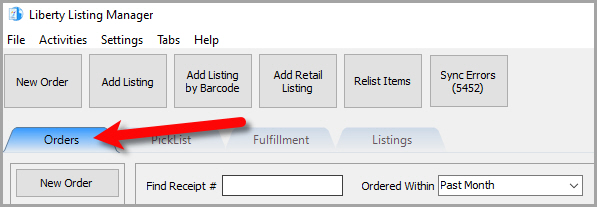
- Add a new order or edit an existing order by double clicking on one from the Orders tab to see the Maintain Order screen for an order.
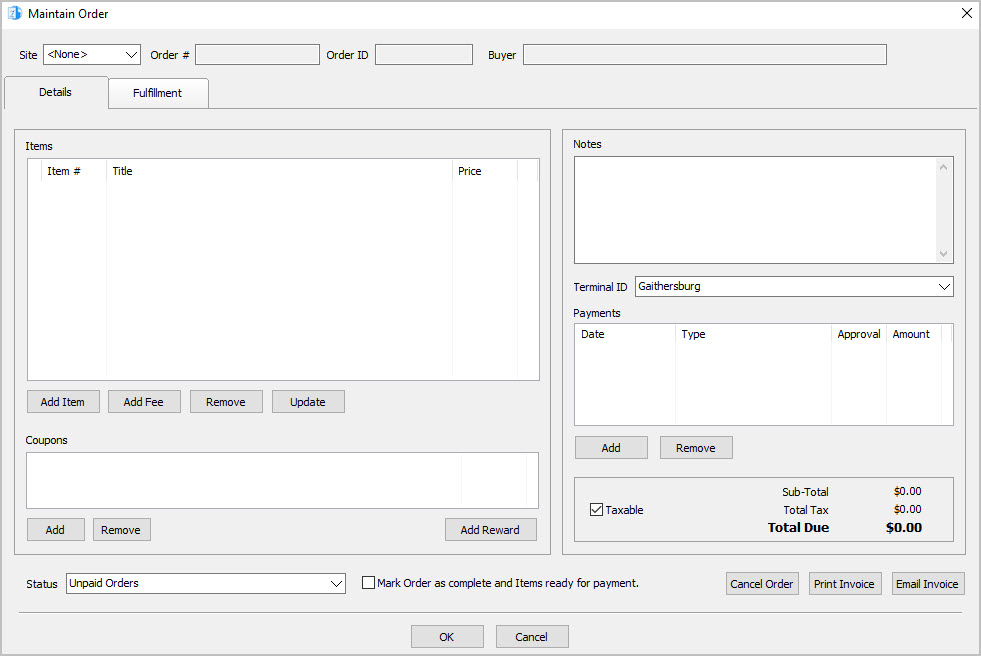
- The Maintain Order screen will appear.
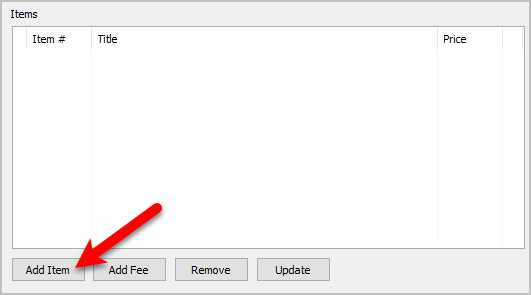
- Click the Add Item button.
- The Add Item dialog box will open.
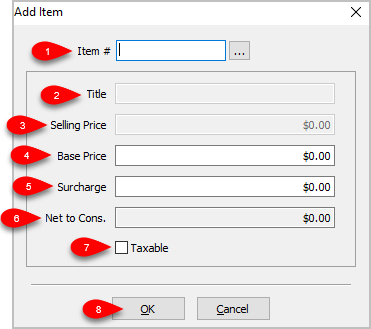
- Item #: Input the account - item number of the item and press the Enter key or click the
 button to search for the item.
 - Title: This is the title of the item you selected.
- Selling Price: This is the Base Price plus the Surcharge.
- Base Price: This is the price that is entered into the Price field during the item’s item entry process.
- Surcharge: A charge that the consumer / customer pays when purchasing the item. This functions the same way that an Item Fee does in that it is profit for the store. It does not get included in the consignor split.
Note: Adding a Surcharge is a good way to pay for the overhead of marketing and maintaining your web presence. - Net to Cons.: This is the amount that the consignor is getting when the order is completed.
- Taxable: Is this web item a Taxable item.
- Press the OK button when finished.


Next Article In Section
Click the following link to move to the next article in this section:
Adding A Fee To An Order
Related Topics
Adding An Item To An Order Maintaining An Order Overview Changing The Marketplace/Site Of A Manual Order View Pending Orders Adding A Fee To An Order Removing An Item Or Fee From An Order Updating Unsellable Items On An Order Adding A Coupon To An Order Removing A Coupon From An Order Adding A Payment To An Order