Resync Listings
This allows you to resync changes to multiple items on any marketplace you choose.
If you make changes to a category or markdown that a listing is currently attached to, you will need to perform this action in order to sync these changes to the marketplace.
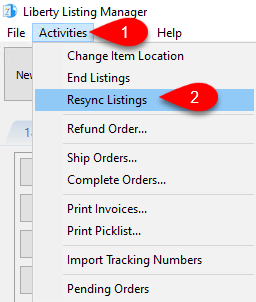
- Click Activities, then click Resync Listings.
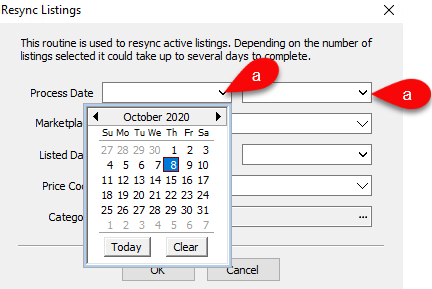
- Process Date: Select the From and Through processing date fields based on when your inventory was entered in.
Note: You must have the process date fields populated or else you cannot resync listings.
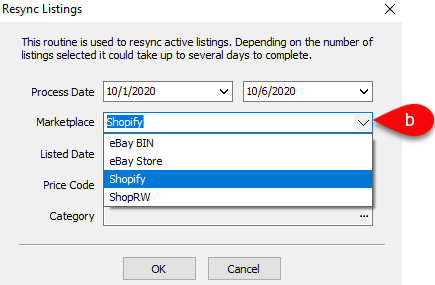
- Marketplace: Select the Marketplace that you want the applicable listings to be resynced to.
Note: This field is required in order to resync listings.
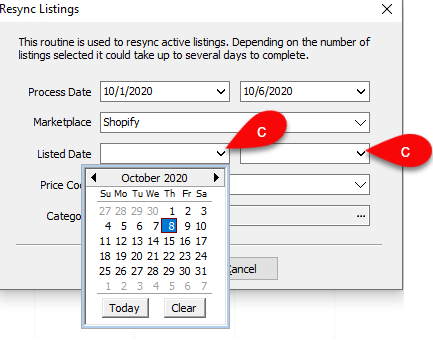
- Listed Date: Select the From and Through listing dates of listings you want to affect. This field is not currently required.
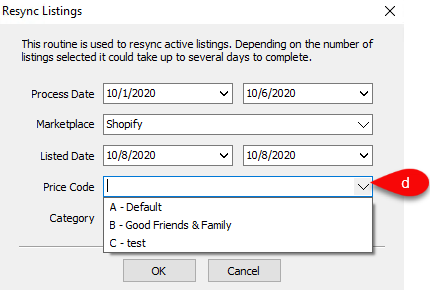
- Price Code: If you made a change to markdown dates in a price code or item fees etc, you can select the price code associated with the affected listings. This field is not required.
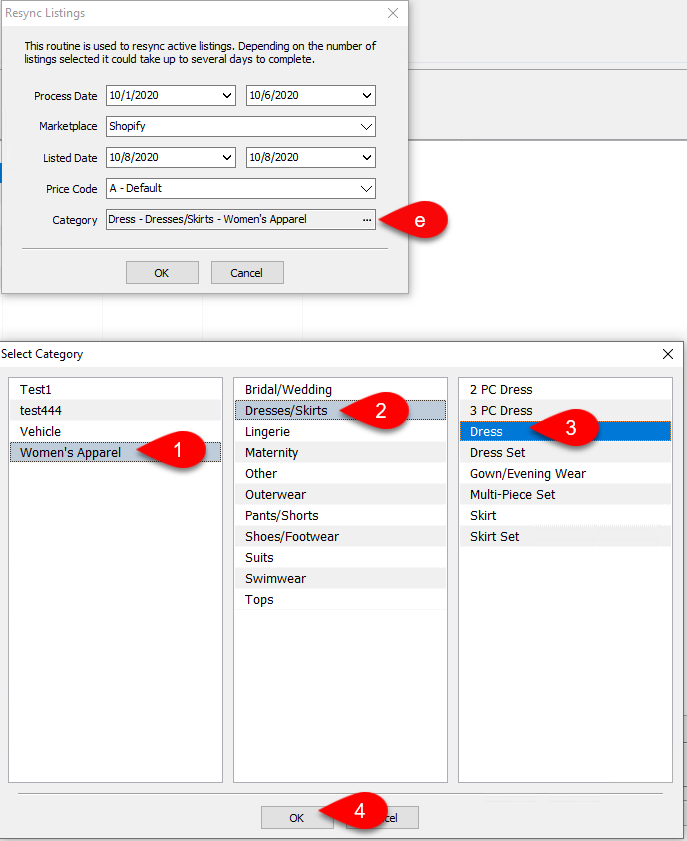
- Category: You can select just the category you were working on to resync just the listings under that category.
Click the … button and then select the category of listings you want to resync. This field is not required.
- Click the OK button.
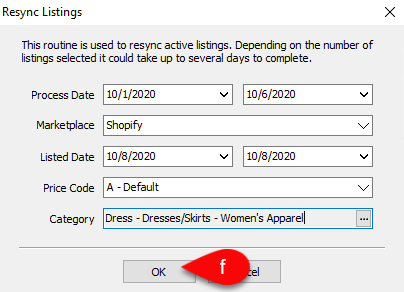


Based on what you have selected, your listings will be resynced. If you do not have any applicable listings, you will get a pop stating that there are no listings available matching your criteria.

Next Section Navigation Link
Click the following link to see a list of articles for the next section:
ShopRW / Shopify Listings