Changing Fulfillment Status Detail From The Fulfillment Tab
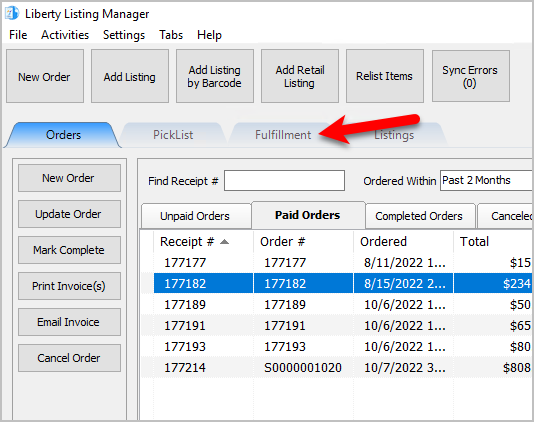
- Open the Liberty REACT Listing Manager and click on the Fulfillment tab.
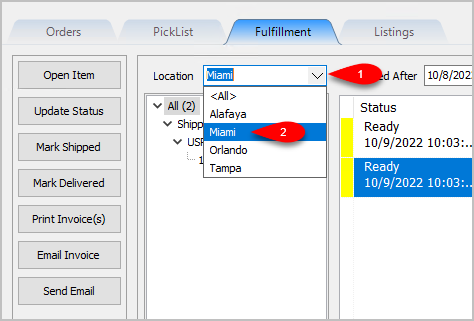
- Click on the Location drop-down to select which location you would like to work with.
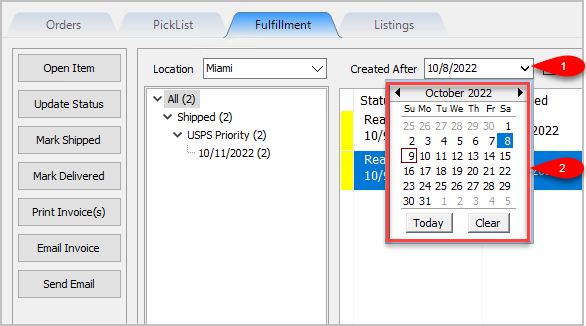
Note: It is not recommended that you select the <All> option if you have multiple store locations. - Click on the Filter Date checkbox if you want to see orders within a specific time period. For the Created After date drop-down, select the after date you would like to view items entered for
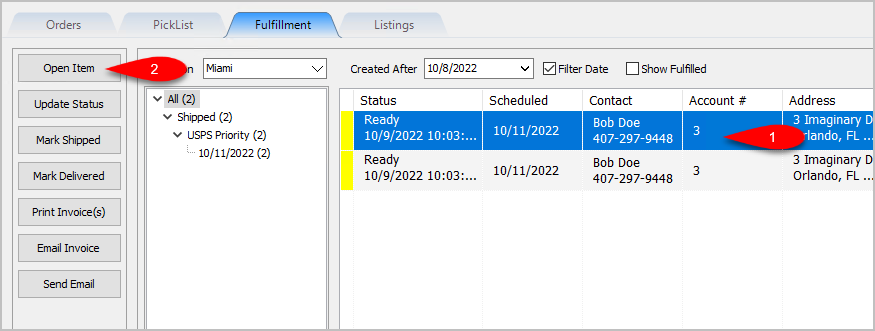
- Either Double-Click on an Item or Left-Click an Item and click the Open Item button.
- You will be taken directly to the Fulfillment sub-tab for the Order/Item.
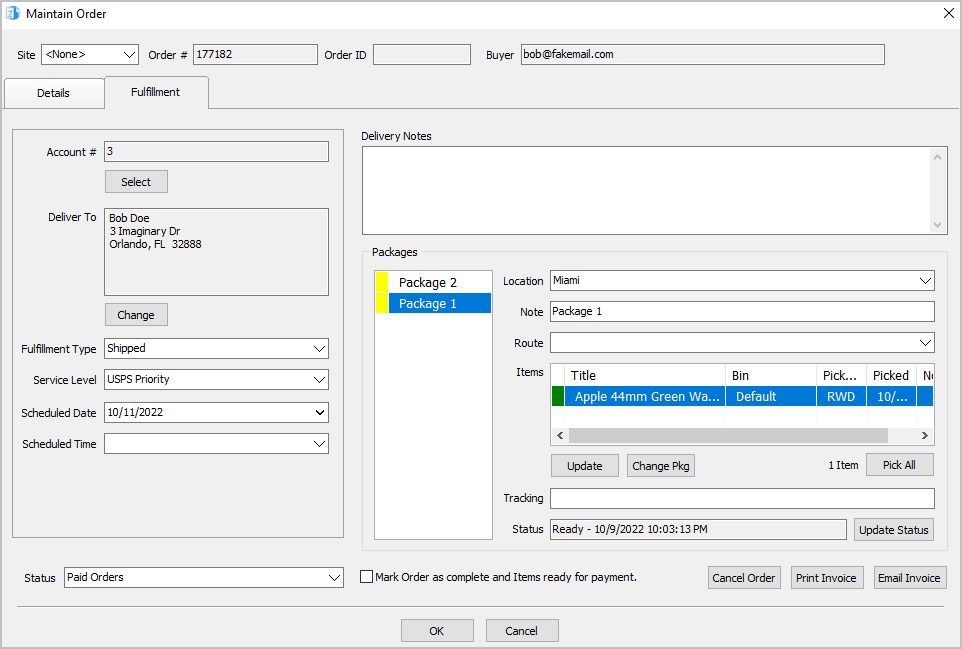
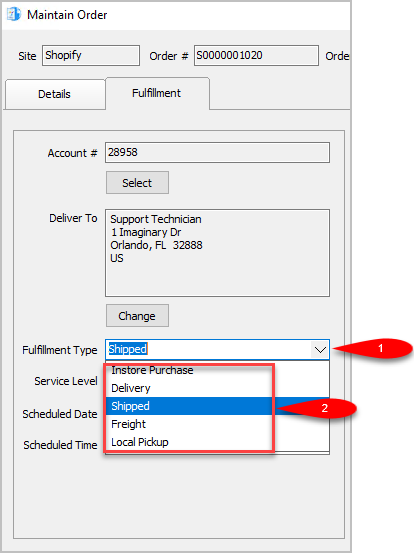
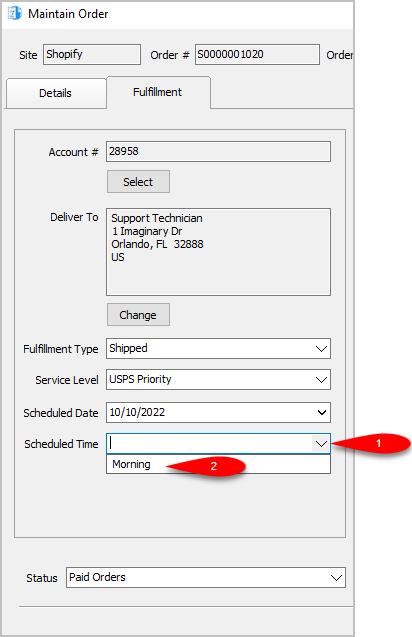
- Set the Fulfillment Type to the status that matches how the item is going to be Fulfilled. For this example, we will select Shipped.
Note: You can use the types that are already built into Liberty Listing Manager or you can make your own by going to Settings > Maintain Fulfillment Status List.
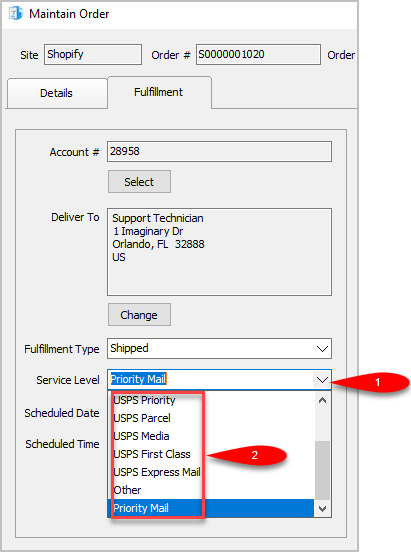
- We can now change the Service Level as to what shipping service will be used for the order. The service level is not available if the Fulfillment Type is set to anything other than Shipped.
For this example, since we are setting the status to shipped we will select USPS Priority
Note: You can add your own Service Levels by going to Settings > Maintain Shipping Services
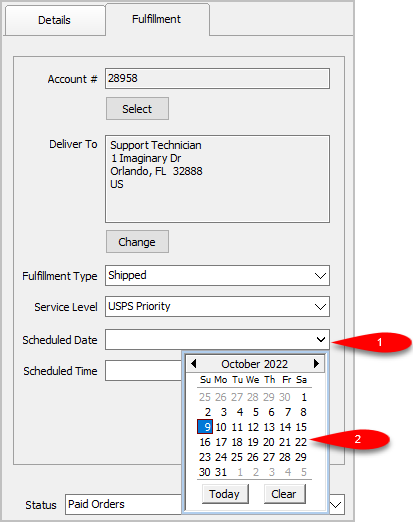
- Scheduled Date can be used to set the date something will be Delivered, Purchased In Store or Shipped.
Simply click the drop-down and select the date.
- You can set the Scheduled Time. This drop-down will be empty until you create some entries by going to Settings > Maintain Delivery Times.
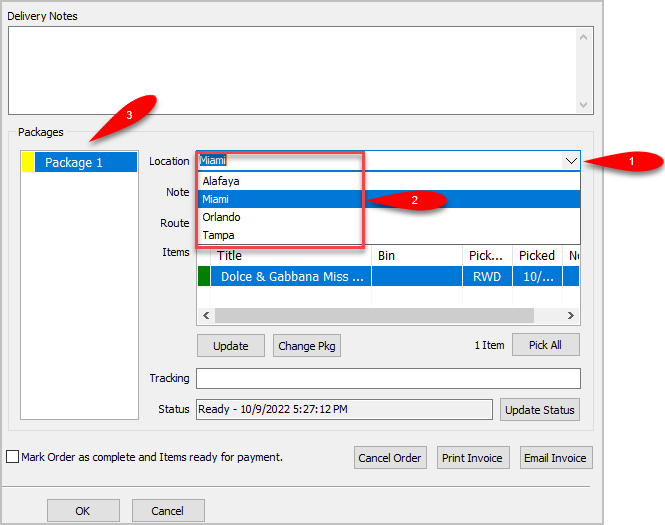
- For the Delivery Notes, you can type any information you think would be relevant to the Delivery of the order.

- You can change the Location of where the order is shipping from.
If you have multiple store locations, the system will automatically split the items into appropriate separate Packages based on where the items are located.
- You can add another package if you have multiple items that need to ship with separate packages by clicking the Change Pkg button after clicking on an item you want in a separate package.
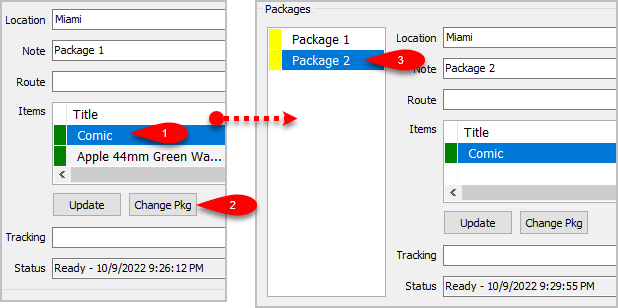
- You can change which package an item is associated with by clicking the item first and then clicking the Change Pkg button again.
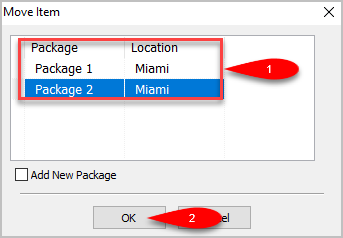
This time you will get to a separate dialog screen.
Here you can select which Package you want the item to ship with or Add a New Package if there is more than one item shipping in more than 2 packages.
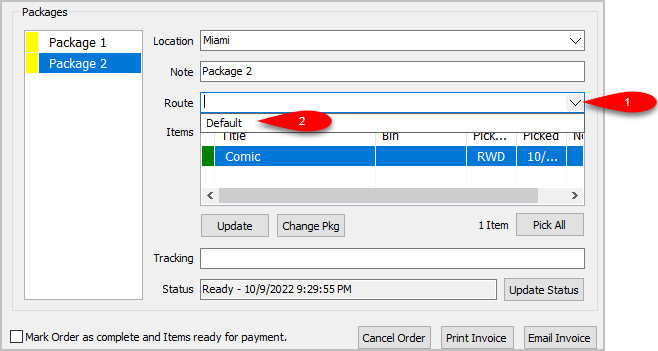
- You can change the Delivery Route by dropping down the Route field.
This field may be empty and you will need to add Routes by going to Settings > Maintain Delivery Routes
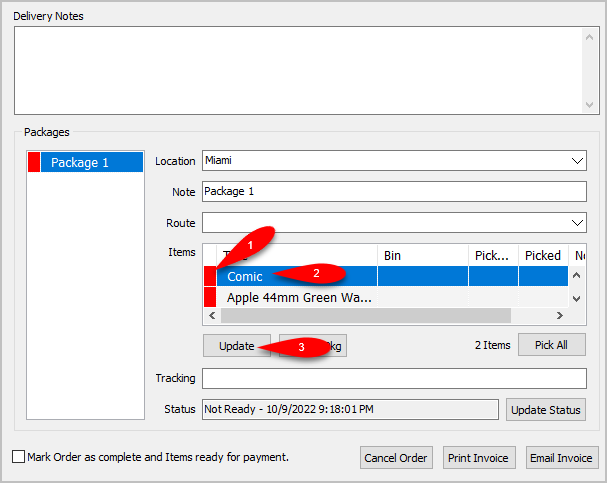
- If the items have not been picked yet (indicated by a Red box), you can Update the item by first selecting the item you want to pick in this list and then clicking the Update button.
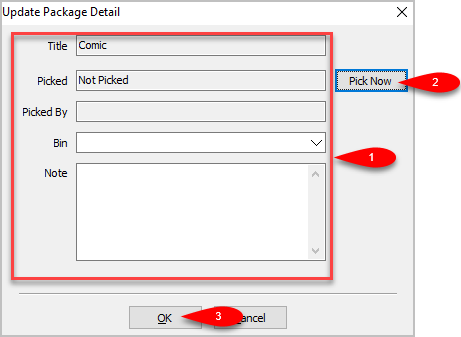
- You will see an Update Package Detail box. You can update which Bin you want the item assigned to, as well as add a Note to the item before clicking the Pick Now button. Then click the OK button.
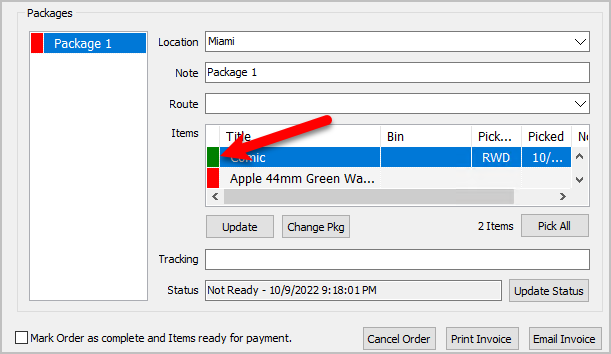
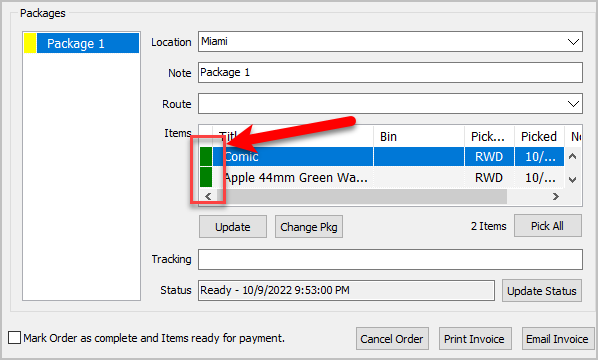
- The single item will have a Green indicator to show that it has been successfully Picked.
- Alternatively, if there is more than one item that has not been Picked, you can click the Pick All button if you have found and sorted all the items that were part of the Web Order.
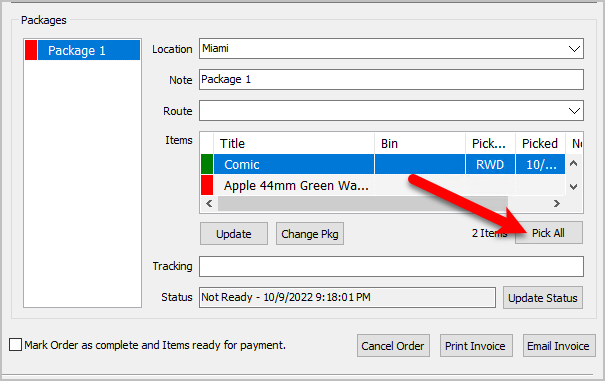
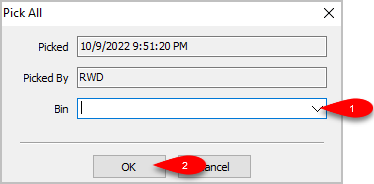
- You will see a Pick All dialog box come up. You can select which Bin you want to sort the Picked items to and then click the OK button.
- All items that originally had a Red indicator and were Not Picked, will now have a Green indicator and will show as Picked.
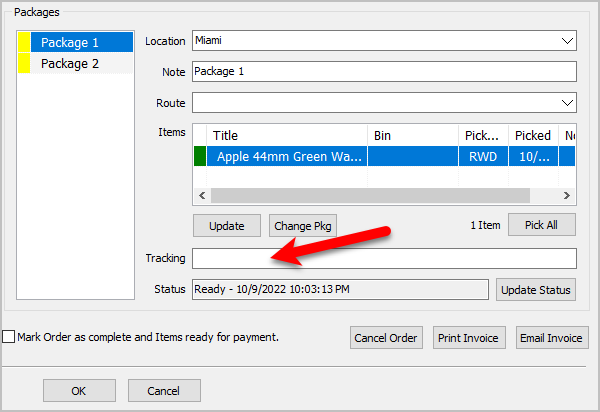
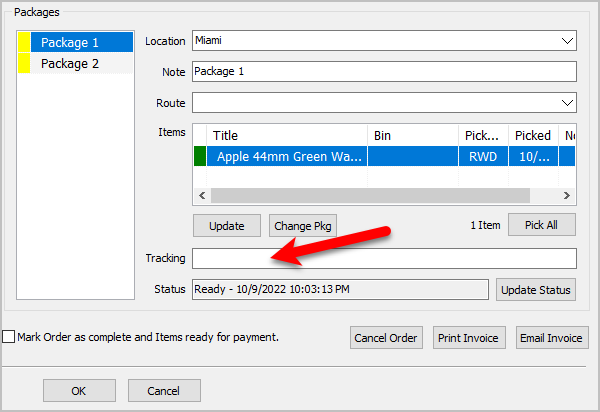
- You can enter the tracking number if you have one in the Tracking field.
The tracking number is saved per package, all you have to do is select the package first and then type in the Tracking number.
- Finally, click the OK button.
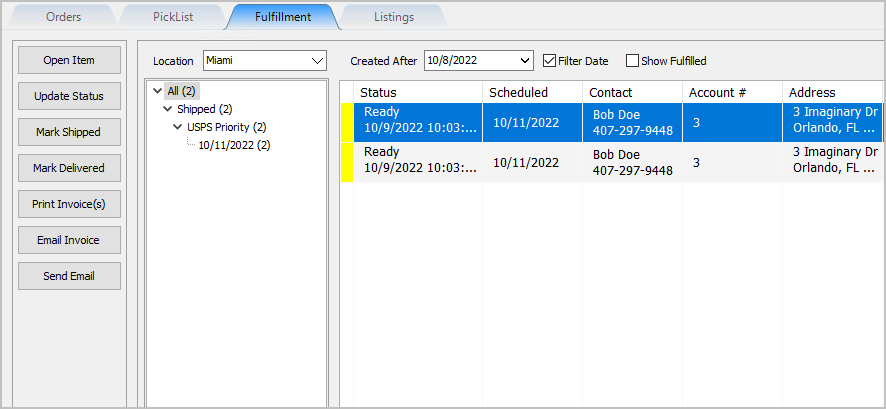
- In this example, the order will show as Shipped for Two Packages in the Fulfillment tab


Next Article In Section
Click the following link to move to the next article in this section:
Quickly Mark A Ready To Ship Order As Shipped From The Fulfillment Tab
Related Topics
Changing Fulfillment Status Detail From The Fulfillment Tab Fulfillment Tab Overview Getting to the Fulfillment Tab and Controls Quickly Mark A Ready To Ship Order As Shipped From The Fulfillment Tab Quickly Mark A Ready To Deliver Order as Delivered From The Fulfillment Tab Printing An Invoice From The Fulfillment Tab To Be Included In A Package Emailing An Invoice From The Fulfillment Tab Sending A Custom Email To The Customer That Placed An Order Adding An eBay Description Adding Images To An eBay Listing Definitions of Ebay Description Processor Buttons